Step by Step WordPress Performance Checklist for Bloggers
Your practical speed optimization roadmap for everyday blogging

WordPress performance decides whether your blog feels fast and professional or slow and frustrating. When pages lag, readers bounce, ad revenue drops, and search rankings slide. The good news is that you can fix most speed problems with a clear, repeatable checklist instead of random one-off tweaks.
This guide walks you through a practical, step by step WordPress performance checklist tailored for bloggers. You will measure your current speed, apply high impact optimizations in a logical order, and finish with a light maintenance routine you can repeat every month.
Quick WordPress Performance Checklist
If you only have a short block of time, start with this quick checklist. It focuses on the biggest wins for a typical content-focused blog.
- Run a speed test and record mobile and desktop scores.
- Confirm you use reliable, modern WordPress hosting.
- Update WordPress core, themes, and plugins.
- Enable a caching plugin and basic page caching.
- Compress and resize large images used in posts.
- Audit plugins and remove anything unused or heavy.
- Clean the database of spam, trash, and old revisions.
- Enable a CDN if you serve a global audience.
- Reduce third party scripts, fonts, and tracking pixels.
- Schedule a simple monthly speed maintenance session.
This sequence gives you a fast overview of where your blog stands and which areas need deeper work.
How Fast Should a Blog Load?
For most blogs, loading in under three seconds on mobile is a realistic goal. Faster is always better, especially for long articles and image-heavy posts. When pages load quickly, visitors scroll more, read more, and are more willing to join your mailing list or share your content.
How Do You Use This Checklist?
First, run through the quick checklist once to catch obvious issues. Next, move section by section in the rest of this guide and add details to each step. Finally, save your notes and repeat a short version of the checklist every month so performance does not slowly degrade over time.
Measure Speed and Set Targets
You cannot improve what you do not measure. Before you change anything, capture a clean baseline for your homepage and one or two popular posts.
Run a Baseline Speed Test
- Open a performance tool such as Google PageSpeed Insights and enter your blog URL.
- Test both the homepage and a long article with several images.
- Note the load time, performance score, and Core Web Vitals like LCP and CLS.
- Repeat the tests once or twice to smooth out one-off spikes.
- Save screenshots or export reports so you can compare after each round of optimizations.
These baseline results give you a clear “before” picture and keep you from guessing whether changes actually help.
Set Practical WordPress Performance Targets
For most bloggers, a good starting target is under three seconds load time for key posts and Core Web Vitals in the “Good” range. Google’s documentation explains the recommended thresholds for Largest Contentful Paint, Interaction to Next Paint, and Cumulative Layout Shift so you know what “good enough” means in practice.
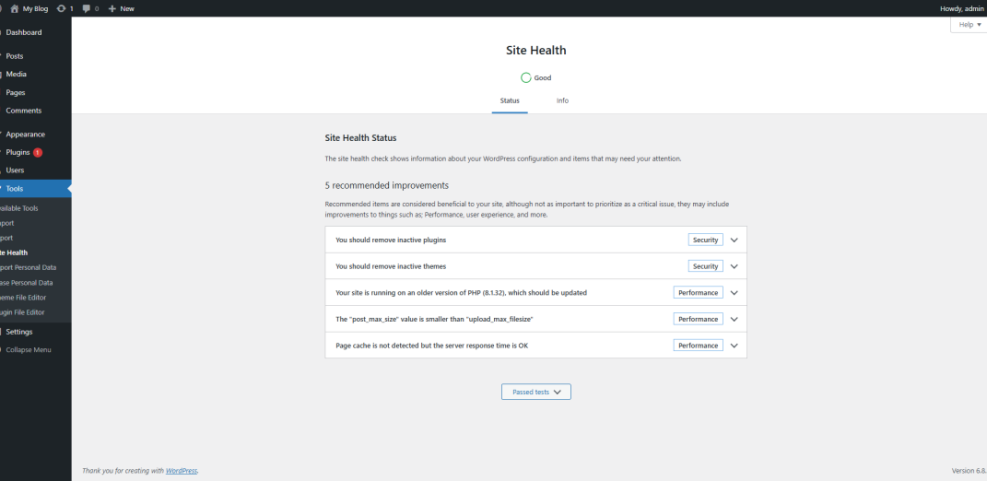
Navigate to Tools » Site Health and open the Performance tab.
Optimize Hosting and PHP Settings
Your host and server configuration form the foundation of performance. If the server is slow or outdated, every other optimization will feel like a bandage.
Choose a Fast Hosting Plan
Look for hosting that offers solid state drives, recent PHP versions, and clear resource limits. Many entry level shared plans throttle CPU and memory when traffic spikes, which makes blog posts feel sluggish at the worst possible moment. When your audience grows, a managed WordPress plan often delivers better speed and support.
The table below highlights how common hosting options differ for a typical content blog.
| Hosting Type | Main Benefits for Bloggers | Performance Risk |
|---|---|---|
| Budget Shared | Very low cost, easy setup | Slow under spikes, noisy neighbors |
| Quality Shared | Better hardware, basic caching | Still limited resources at busy times |
| Managed WordPress | Tuned stack, built-in caching and security | Higher monthly price |
| VPS or Cloud | Dedicated resources, full control | Requires more technical management |
Use this comparison as a quick sense check when your existing host feels slow or unstable.
[h3]Keep PHP and Server Stack Updated[/h3]Keep PHP and Server Stack Updated
Always run a supported PHP version and ask your host to upgrade if needed. Newer PHP versions often execute WordPress code faster with no theme changes. In addition, confirm that server level caching and HTTP compression are enabled, especially if you rarely log in to the hosting control panel and have never checked.
Control Themes Plugins and Bloat
Themes and plugins add features, but they can also add heavy scripts, fonts, and database calls. A simple blog usually needs fewer add-ons than you think.
Which Plugins Slow WordPress Down?
Plugins that run on every page load, such as page builders, social share bars, or complex sliders, tend to have the largest impact. Start by deactivating anything you no longer use, then watch how speed scores and perceived load time change. If you find a heavy plugin, look for a leaner alternative or move that feature off your main pages.
- List all active plugins and mark which ones directly support your current content strategy.
- Deactivate one nonessential plugin at a time and retest a key post.
- Keep notes on which changes improve your speed metrics.
- Delete plugins you no longer need rather than leaving them inactive forever.
This simple audit helps you keep only the plugins that justify their performance cost.
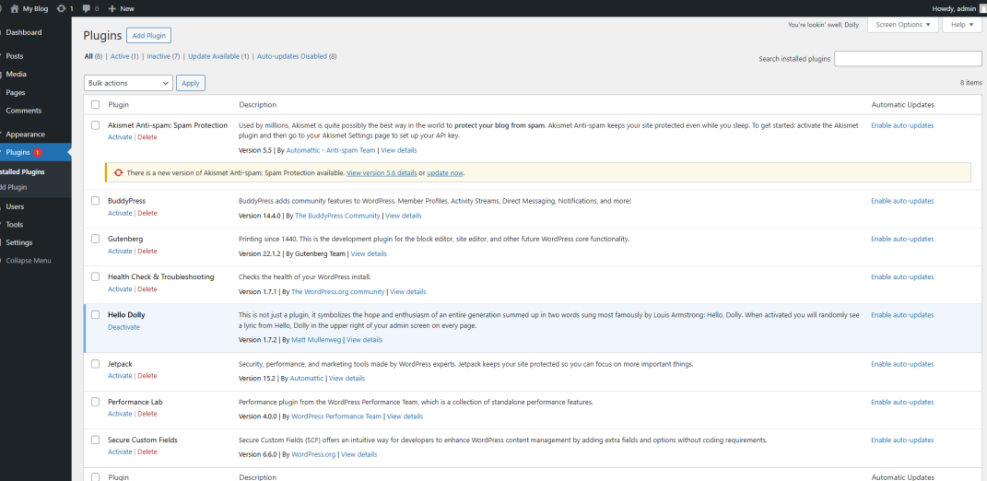
Navigate to Plugins » Installed Plugins and filter by Active.
Pick a Lightweight Blogging Theme
A clean, minimal theme usually loads faster than one full of animations and bundled builders. Check your theme demo on a speed tool before you commit. If you rely on a page builder, use it only where needed and keep most blog posts in the Classic Editor or block editor for leaner markup.
Set Up Caching and CDN Correctly
Caching and a content delivery network reduce server work and move your content closer to readers. Together, they often cut load times more than any other single change.
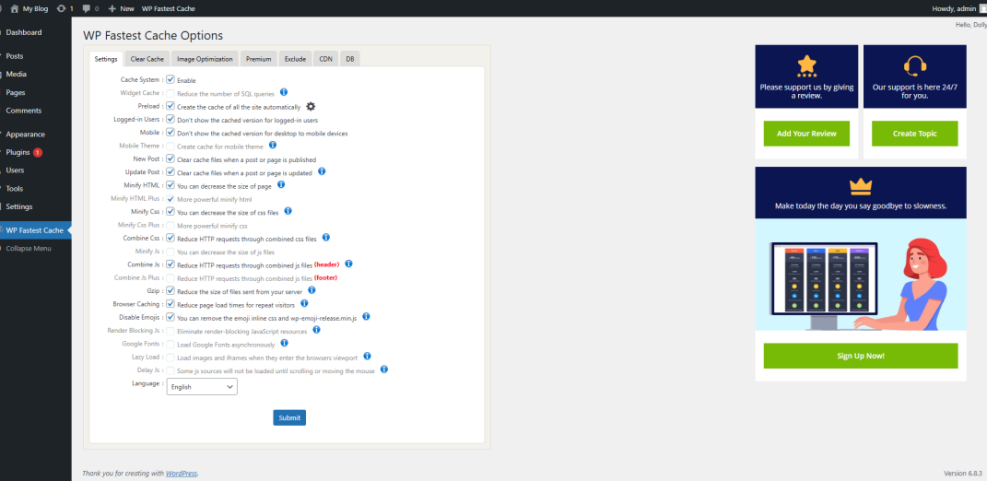
Configure a Caching Plugin Safely
- Install one reputable caching plugin rather than several overlapping tools.
- Enable basic page caching and browser caching first, then save changes.
- Test your homepage and a long post while logged out in an incognito window.
- Only then experiment with options like CSS and JavaScript minification.
- If a feature breaks your layout, disable it and clear the cache.
Moving slowly through caching settings keeps you from chasing weird visual bugs across your theme.
Navigate to Settings » Your Caching Plugin and open the General or Basic tab.
When Does a CDN Make Sense?
A CDN helps most when readers come from many countries or your posts use lots of media. If your audience is local and your host already has edge caching, you can wait. Once traffic grows, connect a CDN through your host or DNS provider and let it handle static assets like images, CSS, and JavaScript.
Optimize Images and Media Files
Blog posts often carry dozens of images, especially for tutorials and travel or recipe content. Large files are one of the most common reasons for poor speed scores.
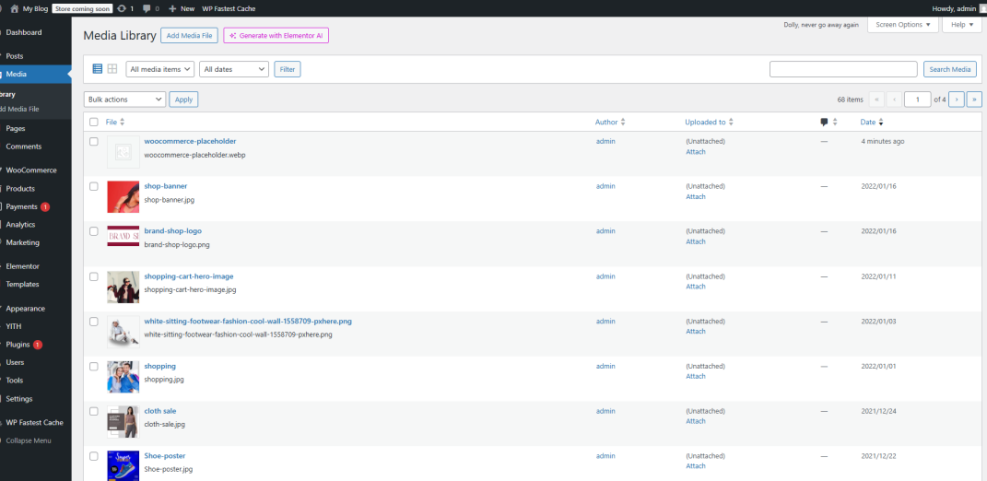
Compress and Resize Blog Images
- Resize images to the maximum size they appear on screen before you upload them.
- Export them at reasonable quality, not maximum, to keep file sizes small.
- Use a compression or optimization plugin to bulk compress existing images.
- Convert heavy images to modern formats like WebP where possible.
Focusing on the images used in your top posts can yield big gains without reworking your entire media library at once.
Navigate to Media » Library and switch to List view.
Handle Video and Embeds Efficiently
Whenever possible, host videos on platforms built for streaming and embed them instead of uploading large files directly. Use lazy loading for iframes and consider thumbnail previews for YouTube videos. This keeps your pages light while still delivering rich media experiences for readers.
Clean Up Database and Background Tasks
Over time, your WordPress database accumulates spam comments, post revisions, and transients. Background tasks like scheduled events can also pile up, especially when plugins come and go.
Run Safe Database Optimization
- Create a fresh backup of your site before you touch the database.
- Use a well maintained optimization plugin to remove spam, trash, and expired transients.
- Limit the number of post revisions stored for each article.
- Schedule light database cleanups monthly instead of rare heavy ones.
Small, regular cleanups reduce risk and keep your database lean enough to respond quickly to each page request.
Reduce Background Tasks and Cron Jobs
Many plugins schedule tasks such as email sending, cleanups, or imports. If these jobs run too often, they can slow the site during busy periods. Review your scheduled events using a cron management plugin and remove entries belonging to plugins you no longer use.
Improve Frontend and Core Web Vitals
Frontend optimization focuses on how quickly your theme, scripts, and styles reach the browser. This is where you refine the “last mile” of performance and target Core Web Vitals more precisely.
Fix Render Blocking Scripts and Styles
Many caching or optimization plugins can defer noncritical JavaScript and combine or minify CSS files. Start with the recommended defaults and test on both desktop and mobile. If a feature causes layout shifts or broken menus, roll it back and try a smaller change, such as deferring only specific scripts.
Improve Core Web Vitals for Bloggers
To improve Largest Contentful Paint, ensure that your main content appears quickly by using smaller hero images and efficient fonts. To reduce layout shifts, reserve space for images and ads so the page does not jump around while loading. For better responsiveness, avoid heavy scripts that block interaction when a reader first taps the screen.
Navigate to Appearance » SEO and UX, and where you will see it in daily work.”>Theme File Editor and open functions.php or your custom functionality plugin.
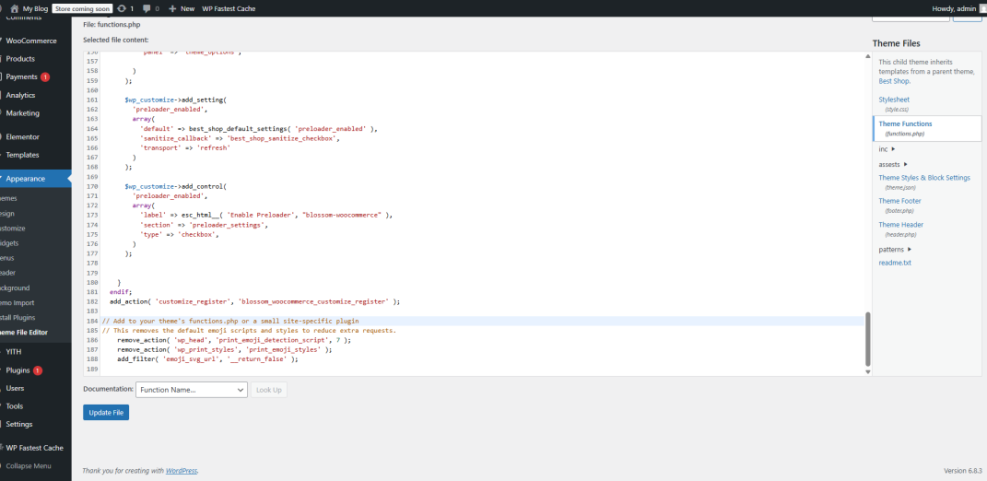
// This removes the default emoji scripts and styles to reduce extra requests. remove_action( 'wp_head', 'print_emoji_detection_script', 7 ); remove_action( 'wp_print_styles', 'print_emoji_styles' ); add_filter( 'emoji_svg_url', '__return_false' ); Changes like this are small, but together they remove unnecessary requests and keep your pages lighter for every visit.
Create a Simple Maintenance Routine of WordPress Performance
Sustainable WordPress performance comes from simple habits, not one huge optimization day. A short routine keeps your blog fast even as you publish more posts and install new tools.
Weekly and Monthly Speed Routine
- Run a quick speed test for your homepage and latest post.
- Update WordPress core, themes, and plugins after checking the change logs.
- Review new plugins or scripts and remove anything you no longer need.
- Bulk compress recent images added to your posts.
- Schedule a small database cleanup and verify backups are running.
This routine rarely takes more than a short block of time, yet it prevents most performance regressions before readers notice them.
If you want a deeper routine later, plan a separate guide such as Monthly Speed Audit to document every step in more detail.
WordPress Performance Checklist Conclusion
You do not need to be a developer to take control of WordPress performance. When you follow a structured checklist, you can move from testing, to hosting, to caching, to fine tuning without guesswork. Start with your biggest traffic pages, apply the steps from this guide, and track the gains in both speed scores and reader engagement.
Block out one focused session this week, work through the quick checklist, then add a recurring reminder for your maintenance routine. Over time, your blog builds a reputation for fast, reliable reading, which supports better rankings, stronger email growth, and any monetization strategy you choose to add later.
More WordPress Performance Guides You Might Like
To deepen your skills, plan additional guides that cover specific parts of performance and maintenance in more detail.
- Beginner guide to WordPress speed optimization
- WordPress backup strategy
- How to add google search console to WordPress
- Do you need hosting for WordPress
These future resources can link back to this checklist so readers always know where to start when speed questions come up.
Frequently Asked Questions About WordPress Performance
What is a good WordPress performance score?
How often should I run a speed test?
Do caching plugins replace good hosting?
Which images should I optimize first?
Can I break my blog by tuning performance?