WordPress Backup Plugins How to Choose and Configure the Best Tools
Practical setup tips for safe automatic restores and test backups

WordPress backup plugins protect your site when updates fail, plugins conflict, or hackers get in. Without a reliable backup system, even a small mistake can wipe out years of work, customer orders, or SEO progress in seconds.
You will learn how to choose the right backup plugin for your site, configure it safely, and run test restores so you know your backups really work before disaster hits. The guide walks through key features, setup steps, advanced tips, and common mistakes to avoid.
How to Choose WordPress Backup Plugins Safely
The quick answer is simple: choose a backup plugin that can back up both your database and files, schedule automatic backups, send copies to remote cloud storage, and restore your site in a few clicks. You also need a plugin that does not overload your server and fits your budget and technical level.
Independent guides often recommend plugins like Duplicator, UpdraftPlus, BlogVault, and Jetpack VaultPress because they support scheduled, offsite backups and simple restores. However, the “best” choice depends on your site size, traffic, hosting resources, and how comfortable you feel with configuration screens.
Core Features to Look For
Most high-quality plugins share a core feature set. They allow you to choose full or partial backups, define custom schedules, and connect to services like Google Drive, Dropbox, Amazon S3, or SFTP storage. They also compress files, keep multiple restore points, and log every backup run so you can see when something fails.
You should also look for one-click or guided restore tools. These tools help you restore the whole site or just the database without manually uploading files over FTP. Finally, check that the plugin supports your hosting limits and works well with other tools you already use.
Here is a compact comparison of some popular backup plugins, based on public tests and reviews.
| Plugin | Best For | Remote Storage | One-Click Restore |
|---|---|---|---|
| Duplicator | Flexible backups and migrations | Yes, multiple cloud providers | Yes, via package installer |
| UpdraftPlus | Simple scheduled backups | Yes, broad cloud support | Yes, inside WordPress dashboard |
| BlogVault | Managed incremental backups | Yes, offsite by default | Yes, with staging options |
| Jetpack VaultPress | Large or busy sites | Yes, real-time to cloud | Yes, with guided restore |
This table does not show every detail, but it highlights the key buying points: automation, storage options, and ease of restore.
[h3]How Many Backups Do You Need?[/h3]How Many Backups Do You Need?
Most sites need at least daily backups, plus several restore points kept over time. Busy stores may need hourly backups for orders and customer data. A good rule is to keep a mix of recent copies and a few older ones, such as seven daily backups and four weekly backups, stored safely offsite.
Do You Still Need Host Backups?
Yes, you should treat host backups as one layer, not your only safety net. Many hosts keep daily snapshots, but you often cannot control the timing or retention. A dedicated plugin gives you a second, independent set of backups that you own, which you can move to another host if you ever need to migrate.
Understanding Backup Types and Storage
Before you tweak settings, it helps to understand what your plugin actually backs up. WordPress runs on two parts: the database and the files. The database stores posts, pages, settings, and orders. Files include plugins, themes, uploads, and core WordPress files. Your plugin should cover both.
Full, Incremental, and Differential Backups
Full backups copy everything every time. They are simple, but they use more space and server resources. Incremental backups copy only what changed since the last backup. Differential backups copy what changed since the last full backup. Many modern backup services use incremental or differential methods to reduce load on your server and speed up the process.
Where Should You Store Backups?
You should never keep your only backups on the same server as your website. If the server fails, you lose both the website and the backups. Store at least one copy offsite, such as on S3, Google Drive, or a dedicated backup service, and keep access details in a secure password manager.
How Backup Plugins Affect Performance
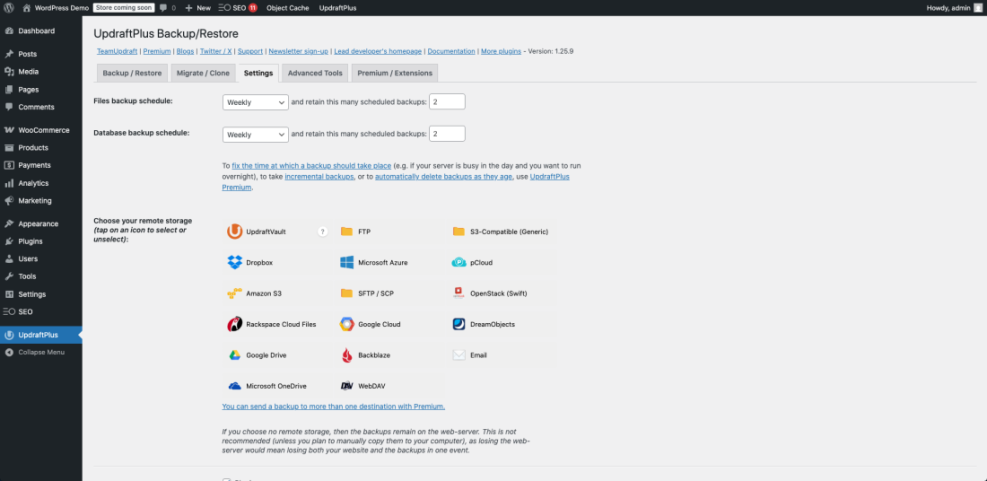
Backups can slow down a site if they run at the wrong time or try to zip very large files in one go. To reduce impact, schedule backups during low-traffic hours, split larger archives into smaller chunks, and exclude cache directories or temporary export files. Many plugins expose these options under “advanced” tabs.
Navigate to Settings » General in your plugin’s page to review any performance or resource options before you save your first schedule.
Configuring Your Backup Plugin Correctly
Once you install a plugin, you still need to configure it. Many site owners click “Activate” and assume they are safe, but default settings rarely match your content volume or business risk. You should take a few extra minutes to walk through all the key screens.
Basic Setup Checklist
- Install and activate your chosen backup plugin from the official WordPress.org repository or the vendor’s zip file.
- Open the plugin’s main settings page in your WordPress dashboard.
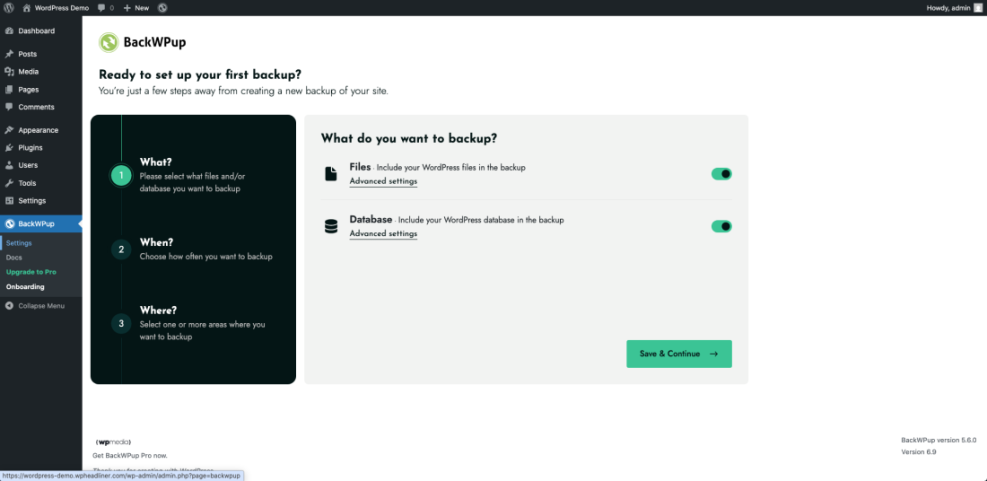
- Select both Database and Files for backup coverage.
- Connect at least one remote storage destination, such as S3, Dropbox, or Google Drive.
- Configure email or dashboard notifications for failures and successful runs.
These base settings ensure you capture all important data, store copies offsite, and learn quickly when a backup fails. You can refine options later, but this checklist gives you a safe starting point.
Navigate to Plugins » Installed Plugins, then click the plugin’s Settings link to confirm that database and file backups are both enabled.
Scheduling Smart Backup Jobs
Your schedule should match how often your content changes. A simple blog might run daily backups, while a busy store may need hourly database backups and daily full backups. You can often create separate jobs, such as one database-only job and one full-site job, so you stay flexible and efficient.
Most plugins offer cron-based schedules inside WordPress. Some premium tools support real-time or near-real-time backups that trigger when your content changes. Choose a level of automation that fits your hosting limits and risk tolerance.
Excluding Unnecessary Files and Tables
You rarely need to back up everything. Large cache folders, temporary export files, or log directories can waste space and slow down the archive process. Many plugins let you exclude specific paths and database tables. You can often skip cache directories and visitor session tables without losing any real value.
This is also a good moment to exclude any old backup archives that sit inside wp-content. If those archives get included in new backups, your backup size can grow quickly and even hit size limits on your host.
Testing Restores and Recovery Workflows
A backup is only as good as your ability to restore it. Many site owners learn that their backups are corrupt or incomplete during a real outage, which adds stress and downtime. You can avoid this by running regular test restores in a safe environment.
Why You Must Test Restores
Test restores confirm that your archives are readable, complete, and compatible with your current hosting stack. They also help you practice the exact steps you will take in an emergency, such as switching DNS, clearing caches, or disabling problem plugins before you go live again.
How to Run a Safe Test Restore
The safest place to restore a backup is a staging site or a temporary subdomain. You can create a new database, upload your backup archive, and let the plugin’s restore process rebuild the site. After the restore, click through key pages, submit a test form, and run a quick checkout if you use WooCommerce.
Using Backups During Migrations
Backups also help when you migrate to a new host or domain. Many tools bundle site files and the database into a single “package” that you can restore on the new server. Pair that with a clear Migration Checklist so you do not miss steps like updating URLs or changing email sending settings.
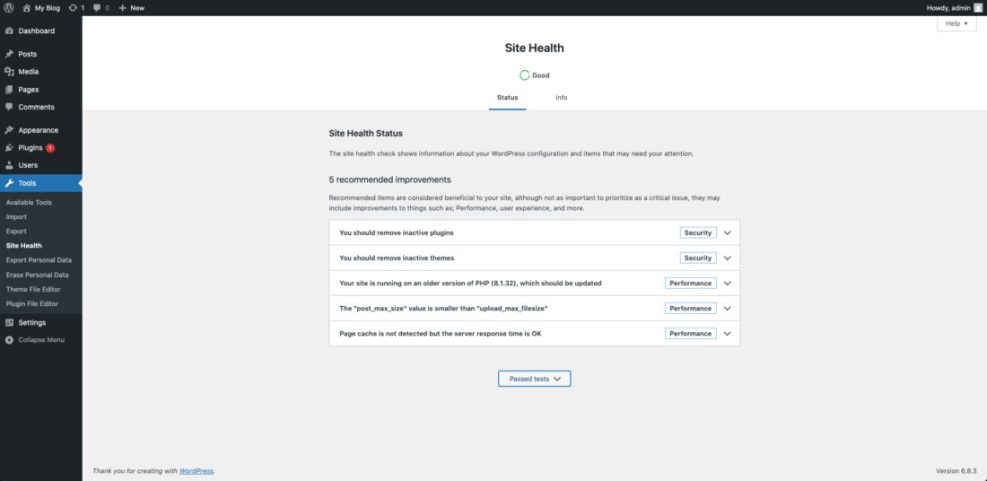
Navigate to Tools » Site Health after a test restore to confirm there are no critical errors before pointing real traffic to the restored site.
Advanced Tips for Safer Backup Setups
Once you have a basic backup routine, you can harden your setup even more. These tips help you protect archives from snooping, keep large sites stable during backups, and decide when paying for a premium service makes sense.
Protecting Backup Archives With .htaccess
If your backup plugin stores archives under wp-content, you should block direct web access to that folder. On Apache servers, you can drop a small .htaccess file into your backup directory to deny requests for zip, tar, gzip, and SQL files.
# .htaccess in wp-content/backups
<FilesMatch ".(zip|tar|gz|sql)$">
  Require all denied
</FilesMatch>
This configuration stops visitors and bots from downloading your backup archives directly if they guess or discover the file path.
Handling Large or High Traffic Sites
Large sites need more careful planning. Instead of running heavy full backups during the day, run them during off-hours and use incremental backups for the rest of the time. You may also need to increase PHP memory limits, split archives into smaller parts, and store copies on fast, dedicated object storage rather than shared web space.
At this size, you should also consider managed backup services that run most processing on their own infrastructure instead of your server, so visitors never feel the load.
When to Pay for Premium Backups
A free plugin is often enough for a small personal site. However, premium plans can add features like real-time backups, priority support, longer retention windows, and staging environments. If you run a store, membership site, or critical business presence, the cost of a paid backup service is usually tiny compared to even one major outage.
You can tie this into a broader care plan with regular updates, security checks, and uptime monitoring. For example, a structured Maintenance Plans approach makes it easier to justify premium backup tools to clients or stakeholders.
WordPress Backup Plugins Final Checklist
At this point you know that WordPress backup plugins are not just a “nice to have” tool. They form a key layer in your security and maintenance stack, along with updates, firewalls, and solid hosting. The right plugin makes recovery faster, easier, and far less stressful.
Your next step is simple. Choose one reliable plugin, set up at least one scheduled full backup and one database-only job, connect offsite storage, and run a full test restore on a staging site. Add those steps to your ongoing process, such as your monthly WordPress Security Overview, and you will stay far ahead of most site owners.
More WordPress Guides You Might Like
If you want to build a stronger maintenance routine around your new backup setup, these guides help you connect the dots between security, hosting, and support tasks.
- Best Website Maintenance Services
- Troubleshoot WordPress Migration Errors
- Best E-commerce Security Plugins
- Common WordPress backup errors and how to fix
- Best contact form plugins for WordPress
For deeper background reading, you can also check the official WordPress backup handbook and a detailed backup guide at WPBeginner, along with an automated backup strategies guide for more advanced automation ideas.
Frequently Asked Questions About WordPress Backup Plugins
How often should I back up my WordPress site?
Do I still need backups if my host already creates them?
What files and data should a good backup plugin include?
Where is the safest place to store WordPress backups?
How can I know my backup plugin is working correctly?