WooCommerce Speed Optimization Guide
Step-by-step performance playbook for faster, higher-converting WooCommerce stores


Slow WooCommerce stores quietly kill your revenue. Every extra second of load time can raise bounce rates, increase cart abandonment, and push your customers to faster competitors. If your shop, cart, or checkout pages feel sluggish, you are losing money even if everything “still works.”
This WooCommerce Speed Optimization Guide walks you through a clear, repeatable workflow: benchmark your current speed, fix hosting and caching bottlenecks, trim plugin and theme bloat, tune WooCommerce itself, and set up simple monitoring so your store stays fast as you grow.
We’ll focus on practical steps you can apply on any WordPress + WooCommerce setup, building on the foundations you may have learned in our WordPress speed optimization step-by-step guide. By the end, you’ll have a leaner, faster store that’s better for Core Web Vitals, SEO, and conversions.
Prerequisites
Before you start changing performance settings, make sure you have a safe environment and the right access. Speed work can break layouts or checkout if you rush it, so lay the groundwork first.
- Administrator access to your WordPress dashboard and WooCommerce store.
- Access to your hosting control panel (cPanel, Plesk, or custom panel).
- A recent full backup of your site and database.
- A staging site where you can safely test performance changes.
- Basic familiarity with installing/updating plugins in WordPress.
Step 1: Benchmark Your Current WooCommerce Speed
You can’t improve what you don’t measure. Start with a baseline so you can see how much faster your store gets—and so you can spot regressions later.
1.1 Choose your test pages
For WooCommerce, you should always test these critical templates:
- Shop or main product listing page.
- One or two key product detail pages (top sellers).
- Cart page.
- Checkout page.
1.2 Run lab tests
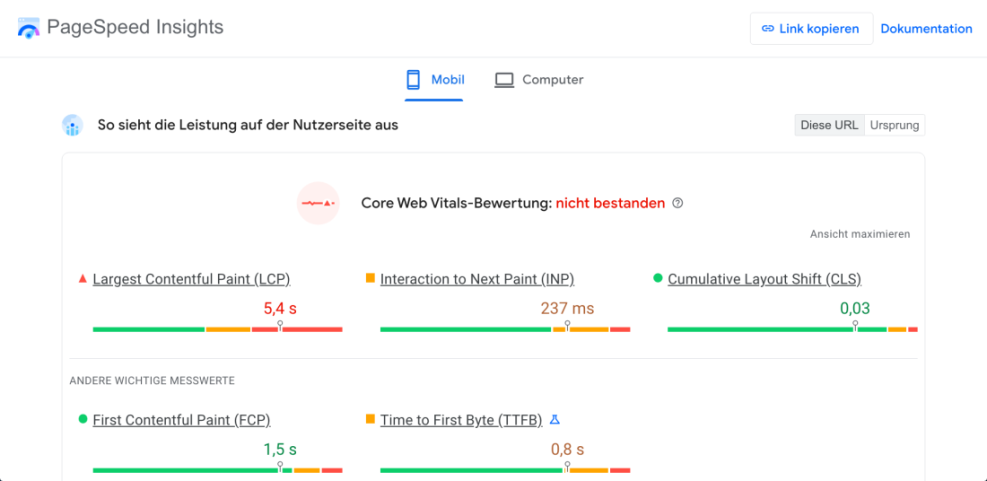
Use tools like Google PageSpeed Insights, GTmetrix, or WebPageTest to gather metrics. Run tests on desktop and mobile, from a location close to your target audience when possible.
- Open your chosen tool in a browser.
- Paste the URL of each key page and run a test.
- Record metrics like Largest Contentful Paint (LCP), Interaction to Next Paint (INP), Cumulative Layout Shift (CLS), and Time to First Byte (TTFB).
1.3 Record and tag your results
Create a simple spreadsheet or note where you log your results for each page and the date. This will become your performance diary.
Step 2: Optimize Hosting, PHP, and Server Stack
If your server is slow, no amount of front-end tweaking will save you. WooCommerce is database-heavy, so you need solid hosting, modern PHP, and a stable database layer to get good TTFB and overall performance.
2.1 Verify your hosting plan
Check whether you’re on a cheap shared plan that limits CPU, RAM, or concurrent processes. Look for signs like frequent “Resource Limit Reached” messages or slow dashboard performance even on simple admin pages.
- If your store has many products or high traffic, consider upgrading to a managed WordPress or WooCommerce-optimized plan.
- Avoid overcrowded shared hosting for serious e-commerce—your checkout page deserves better.
2.2 Check and update PHP version
WooCommerce and modern WordPress run best on recent PHP versions (e.g., PHP 8.x). Older versions are slower and may be insecure.
- Log in to your hosting control panel.
- Find the “PHP Version” or “MultiPHP Manager” section.
- Confirm your current PHP version and update to a recommended stable release supported by WooCommerce.
If you have SSH access, you can confirm PHP version from your terminal:
Where to run: Your hosting provider’s SSH terminal or console.
php -v2.3 Keep MySQL/MariaDB healthy
WooCommerce depends heavily on database queries. If the database is overloaded or misconfigured, every page will feel slow.
- Use your host’s database optimization tools (if available) to repair and optimize tables.
- Remove old transients and sessions with a database cleanup plugin or scheduled maintenance job.
- Monitor database size over time so you can catch runaway logs or tables.
Step 3: Configure Caching and CDN for WooCommerce Speed Optimization
Caching is one of the biggest wins for speed, but WooCommerce Speed Optimization has dynamic pages (cart, checkout, account) that you must not cache incorrectly. The goal is to cache aggressively where it’s safe and carefully exclude sensitive pages.
3.1 Set up page caching
Most performance plugins and managed hosts provide full-page caching. On a typical setup, you should:
- Install or enable your caching solution (plugin or host-level cache).
- Ensure standard pages (home, blog, product pages) are cached for logged-out users.
- Exclude
/cart/,/checkout/, and/my-account/from cache so users see real-time content.
3.2 Add browser caching and compression
Static files like images, CSS, and JavaScript should be served with far-future expiry headers and compressed.
- In your caching plugin or hosting panel, enable GZIP/Brotli compression.
- Turn on browser caching for static assets with reasonable expiry times (e.g., weeks or months).
3.3 Use a CDN wisely
A Content Delivery Network (CDN) serves your static assets from locations closer to your users. This reduces latency and can significantly improve mobile performance for global audiences.
- Connect your domain to a CDN (or enable it if your host provides one).
- Ensure images, CSS, and JS load from CDN URLs, while dynamic cart and checkout logic remain on your origin server.
3.4 Add object caching for database-heavy stores
Object caching stores results of expensive database queries in memory so repeated requests are faster. This is especially helpful for larger stores with many products or visitors.
To learn how to enable and configure persistent object caching (for example, using Redis) safely on WordPress, follow our Redis object caching beginner guide for WordPress.
Step 4: Reduce Plugin and Theme Bloat
Every plugin, widget, and fancy theme feature adds weight. Many WooCommerce stores are slow not because of WooCommerce itself, but because of unnecessary add-ons and bloated themes.
4.1 Audit your plugins
- Go to Plugins > Installed Plugins in your WordPress dashboard.
- List all plugins and categorize them as “critical,” “helpful,” or “unused.”
- Deactivate and remove anything that doesn’t provide clear value (e.g., old slider plugins, duplicate SEO tools, unused page builders).
4.2 Simplify your theme
A heavy multipurpose theme with dozens of bundled plugins and scripts can slow down WooCommerce pages. If you’re using a flexible theme like Jannah, disable the features you don’t actively use:
- Turn off unused sliders, animations, or page builder blocks for product pages.
- Remove demo content and widgets you don’t need.
- Ensure your product templates are clean and focused on product info and calls-to-action.
4.3 Trim third-party scripts
Chat widgets, popups, tracking pixels, and embedded videos all add requests. Limit them, especially on cart and checkout pages.
- Keep mission-critical scripts (analytics, tag manager, payment scripts).
- Delay or remove non-essential widgets from high-intent pages like checkout.
Step 5: Optimize Images, Scripts, and Fonts
WooCommerce stores are image-heavy by nature. Every product photo, icon set, and font file adds to your page weight. Here you’ll optimize these assets without sacrificing design.
5.1 Compress and resize product images
Start with product images, since they often represent the largest portion of your page size.
- Decide on maximum dimensions for catalog and single-product images (e.g., 800–1200px on the long edge).
- Use an optimization plugin or external tool to compress images and convert them to WebP where compatible.
- Regenerate thumbnails after changing image sizes so WooCommerce uses the optimized versions.
5.2 Lazy-load below-the-fold content
Lazy-loading defers loading images until they are near the viewport. Most modern WordPress setups implement this automatically, but verify your product grids and related products are covered.
- Ensure lazy load is enabled in your performance or image optimization plugin.
- Avoid lazy-loading above-the-fold hero images that need to appear immediately.
5.3 Defer or delay non-critical JavaScript
Heavy JavaScript is a common cause of poor INP and long Total Blocking Time. Defer scripts that are not needed for initial rendering.
- Use your performance plugin’s “defer” or “delay” JS options to postpone marketing scripts, chat widgets, and other non-essential code.
- Test thoroughly—if add-to-cart or checkout buttons misbehave, remove those scripts from the defer list.
5.4 Optimize fonts
Loading multiple custom font families and weights can significantly slow down your store.
- Limit fonts to 1–2 families and only the weights you actually use.
- Enable font-display swap or similar options so text appears quickly even before fonts fully load.
Step 6: WooCommerce-Specific Performance Tweaks
Now that you’ve tuned the general WordPress stack, it’s time to address WooCommerce’s unique performance challenges: dynamic fragments, product queries, and heavy checkout flows.
6.1 Reduce WooCommerce Speed Optimization fragments and AJAX calls
WooCommerce Speed Optimization uses cart fragments and AJAX to update the mini-cart dynamically. This is convenient but can generate frequent background requests.
- Disable AJAX add-to-cart on the shop page if you don’t truly need it.
- Consider reducing or removing the mini-cart widget on high-traffic pages.
6.2 Limit related products and up-sells
Each related-products section can trigger additional queries and images. Keep them focused and limited.
- Reduce the number of related products shown per page.
- Use targeted up-sells and cross-sells rather than huge “You may also like” grids.
6.3 Simplify cart and checkout
The checkout page should be the fastest page on your site, not the slowest. Remove anything that doesn’t help the user complete the order.
- Minimize form fields—only collect what you actually need to fulfill orders.
- Avoid loading carousels, large banners, or sliders on cart and checkout pages.
- Keep third-party marketing scripts to an absolute minimum at checkout.
For more ideas focused specifically on WooCommerce, review our WooCommerce performance tips for faster stores once you’ve implemented the steps in this guide.
Step 7: Test and Monitor Your Store Over Time
Speed optimization is not a one-time project. Plugins, themes, and WooCommerce itself update regularly, and each update can affect performance—for better or worse.
7.1 Re-test after every major change
- After theme updates, major WooCommerce releases, or new plugin installations, rerun your key page tests.
- Compare results to your original baseline. If metrics get worse, roll back or adjust until performance recovers.
7.2 Schedule regular performance checkups
Set a monthly or quarterly reminder to run your full speed audit again.
- Test the same URLs you benchmarked in Step 1.
- Update your performance diary with new scores and notes.
7.3 Monitor real-user experience
Lab tests are useful, but real users’ devices and connections matter more. Use your analytics or performance tools to watch real-user metrics (Core Web Vitals) and prioritize fixes based on actual traffic patterns.
Keep WooCommerce Speed Optimization Fast as You Grow
You’ve now walked through a complete WooCommerce Speed Optimization workflow: benchmarking, server tuning, caching, plugin and theme cleanup, asset optimization, and store-specific tweaks. Taken together, these steps can dramatically improve load times and user experience on your product, cart, and checkout pages.
As your catalog and traffic grow, keep performance part of your regular maintenance routine. Review new plugins carefully, keep your hosting and PHP stack modern, and treat every big design change as a reason to re-test. A fast WooCommerce store isn’t just nice to have—it’s a direct advantage for SEO, ad performance, and revenue.
Further Reading
- WooCommerce performance tips for faster checkouts
- Comprehensive WooCommerce optimization strategies
- Beginner guide to WordPress speed and Core Web Vitals
- WordPress speed optimization checklist for busy site owners
- How to choose fast WordPress hosting
Frequently Asked Questions
Why is my WooCommerce store still slow after using a caching plugin?
What should I do if my WooCommerce checkout page is slow?
How often should I test my WooCommerce site speed?
Is it safe to remove plugins and code just for speed?
Do I need to pay for premium hosting or plugins to get a fast store?