Why is WordPress Maintenance Important
WordPress security and maintenance workflow

WordPress maintenance is what keeps your site secure, fast, and dependable long term, instead of something that breaks at the worst possible moment. Without regular WordPress maintenance, you increase the risk of hacks, data loss, slow performance, and lost search rankings.
In this guide, you will learn what ongoing maintenance really involves, why it matters for security, speed, SEO, and revenue, and how to start building a simple routine you can follow or delegate to a professional care plan.
What You Need to Start
- Administrator access to your WordPress dashboard.
- Login details for your web hosting control panel or SFTP.
- At least one reliable backup solution installed or configured at the hosting level.
- Basic understanding of which plugins and theme your site is using.
- Thirty to sixty minutes of focused time to review your current maintenance habits.
What WordPress Maintenance Includes Day to Day
Many site owners think maintenance means “clicking Update once in a while”, but a healthy routine covers several areas working together. Seeing the full picture makes it easier to justify the time or cost.
- Log in to your dashboard and navigate to Dashboard » Updates to see pending core, plugin, and theme updates.
- Check that automatic background updates are enabled for minor and security releases.
- Review your backup plugin or hosting panel to confirm that automatic backups are scheduled and recent restore points exist.
- Scan for malware or suspicious changes using your security plugin or your host’s security tools.
- Run a quick front-end check of your home page, key landing pages, and checkout or contact forms.

If your updates page shows no pending updates and you can see recent backup points and a clean security scan, your basic maintenance foundation is in place.
Maintenance Methods for Managing a WordPress Site
There is more than one way to handle ongoing WordPress maintenance tasks, and each method fits slightly different skills, budgets, and site types. The table below compares the main methods so you can quickly choose the one that feels easiest and safest for your site.
| Method | Where You Use It | Main Purpose |
|---|---|---|
| DIY Manual Maintenance | WordPress dashboard and hosting control panel | Maximum control over updates, backups, and checks for small or low-risk sites. |
| Managed Hosting Tools | Your host’s control panel or custom dashboard | Simplify routine maintenance with one-click updates, built-in backups, and basic security. |
| Maintenance & Security Plugins | Plugins section inside the WordPress dashboard | Automate repetitive work like backups, database cleanup, image optimization, and security scans. |
| WP-CLI and Developer Tools | SSH terminal with WP-CLI and deployment tools | Scriptable, fast maintenance for developers managing multiple or complex sites. |
| Professional WordPress Care Plan | External provider, freelancer, or agency | Hands-off maintenance with proactive monitoring, fixes, and expert support. |
Using the Dashboard for Everyday Maintenance
For most site owners, the WordPress dashboard is the main control center for day-to-day maintenance. Get comfortable with these areas and you will cover most of what your site needs:
- Dashboard » Updates – review and run core, plugin, and theme updates.
- Plugins » Installed Plugins – deactivate, delete, or configure plugins you no longer need.
- Appearance » Themes – manage your active theme and remove unused themes that can become a security risk.
- Users » All Users – remove accounts you no longer need and adjust roles to limit access.
- Tools or your Security menu – run malware scans and enable login protection features.
- Settings and plugin-specific menus – fine-tune performance options such as caching, backups, and image optimization.
Once you know where these controls live, routine maintenance becomes a quick, focused session instead of a stressful guessing game.
How Maintenance Protects WordPress Security
Security is the most urgent reason WordPress maintenance is important. The single most effective step you can take is keeping core, plugins, and themes up to date, alongside basic hardening.
- Go to Dashboard » Updates and install all available WordPress core, plugin, and theme updates after confirming you have a fresh backup.
- Navigate to your security plugin (for example under Security or Tools) and run a full scan to detect malware or file changes.
- Review Users » All Users and remove accounts you do not recognize or no longer need, especially administrator accounts.
- Enable Two Factor Auth or another two-factor method for all administrator logins using your chosen security plugin.
- Check that your hosting account uses strong passwords and, where available, IP restrictions or firewalls.
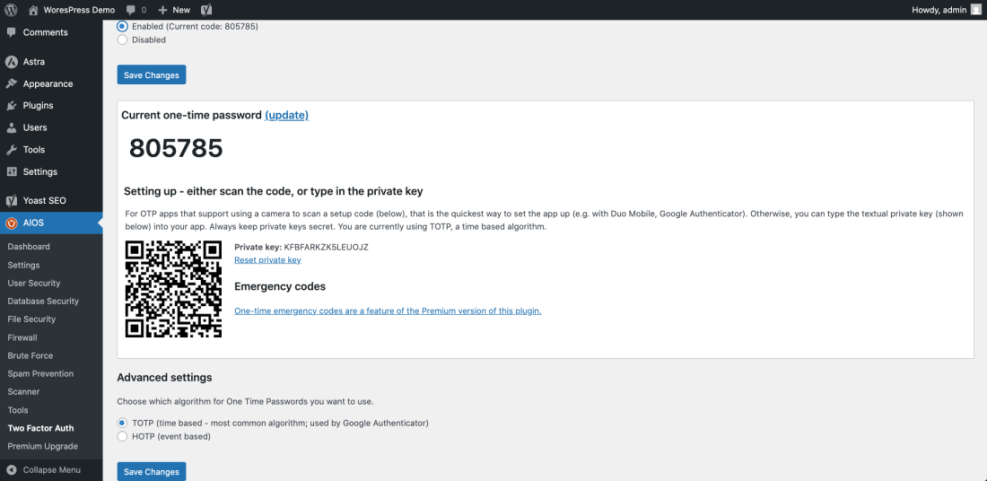
When maintenance is working, your site should stay on the latest supported WordPress version, show clean scan results, and limit admin access to only the people who truly need it. Over time, this dramatically lowers your odds of being hacked.
For a deeper primer on basic protections, read Beginner WordPress security best practices guide and WordPress security complete overview.
How Maintenance Keeps WordPress Fast and Stable
Even if your site is secure, lack of maintenance can make it frustratingly slow. Extra plugins, bloated databases, and unoptimized images all add up. Consistent maintenance keeps your pages loading quickly, which improves user experience and search visibility.
- Run a speed test using tools like PageSpeed Insights or WebPageTest to see real performance metrics and Core Web Vitals.
- In your dashboard, go to Plugins » Installed Plugins and deactivate or remove plugins you no longer use.
- Open your caching plugin settings and confirm that page caching and, if available, browser caching are enabled and working.
- Use an image optimization plugin or workflow to compress large images before or after upload.
- Regularly clean up database overhead and transients using safe tools or plugins designed for Database Optimization.
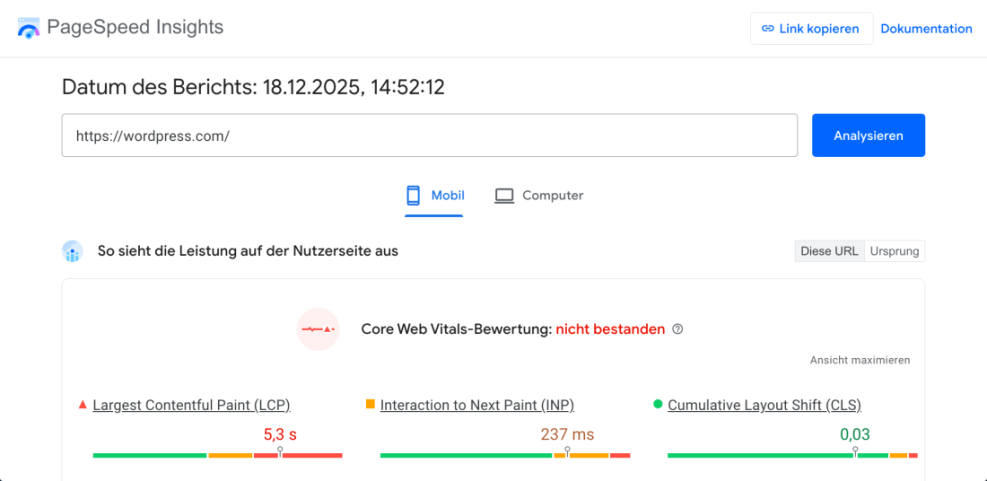
As you maintain performance, your site should consistently pass basic Core Web Vitals thresholds, feel responsive on mobile, and avoid random slowdowns caused by bloated plugins or database clutter. Resources such as Complete WordPress Performance Optimization can help you go deeper.
Why Maintenance Supports SEO and Conversions
Search engines reward sites that stay fast, secure, and available. Poor maintenance leads to broken links, outdated sitemaps, 404 errors, and crawl issues that quietly erode rankings and conversions over time.
- Connect your site to Google Search Console and review reports for coverage issues, slow URLs, and security warnings.
- Check that your SEO plugin is updated and still configured correctly for titles, meta descriptions, and sitemaps.
- Fix obvious 404 errors by redirecting old URLs to the most relevant live pages.
- Test your key funnels, such as contact forms and checkout, to ensure they still work after recent updates.
- Monitor your main keyword rankings and organic traffic to spot drops that may signal technical or performance problems.
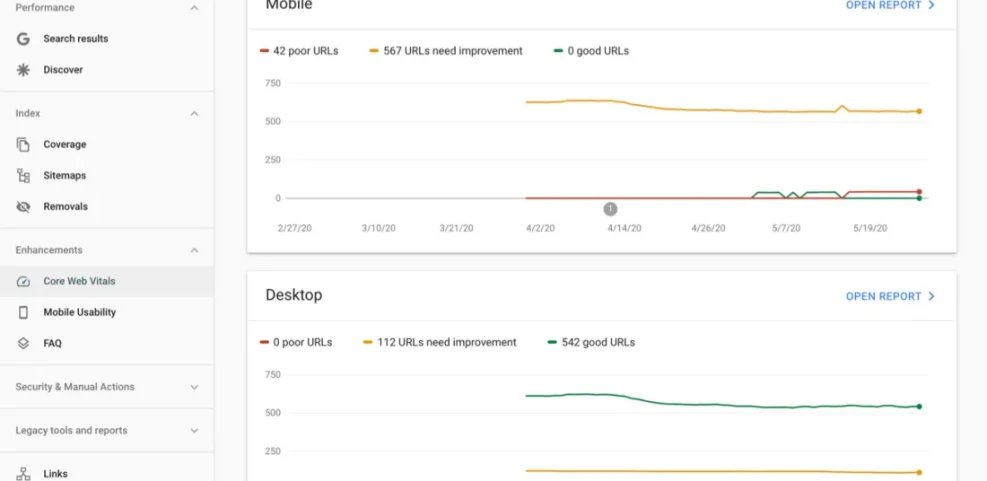
Healthy maintenance helps your SEO by preserving uptime, speed, and crawlability, so your content strategy and link building efforts can keep paying off. For a more focused SEO walkthrough, see WordPress seo complete beginners guide.
How Maintenance Prevents Downtime and Data Loss
Backups and uptime monitoring are your safety net when something goes wrong. Maintenance is important because it ensures that this safety net actually exists and works before an emergency happens.
- Review your backup plugin logs or hosting backup section to confirm backups run at least daily for busy sites and weekly for small blogs.
- Perform a test restore to a Staging Site or local environment to verify that backups are complete and usable.
- Set up Uptime Monitoring using your host or a third-party service so you receive alerts if your site goes down.
- Create a simple written disaster recovery plan that lists who to contact, where backups are stored, and how to restore quickly.
- Update this plan whenever you change hosts, plugins, or your backup strategy.
When maintenance is handled well, you can confidently say “We can restore this site quickly” instead of hoping your host has a backup somewhere. For detailed help, review WordPress backup strategy and WordPress disaster recovery walkthrough.
When to Use a Professional WordPress Care Plan
At some point, it can be more efficient to pay for a care plan than to juggle updates, backups, and troubleshooting alone. Knowing when to make this shift is part of understanding why WordPress maintenance is important.
- Estimate how many hours per month you spend on updates, fixes, and chasing issues caused by neglected maintenance.
- Calculate the value of a single hour of your time based on what you could earn in your business instead.
- Multiply those hours by your hourly value to see the “hidden cost” of doing everything yourself.
- Compare that cost to trusted maintenance plans that include monitoring, backups, security, and support.
- Match your site type (blog, local business, WooCommerce, membership) to a plan that covers your specific needs.
High-value sites such as stores, membership sites, or lead-generation sites usually benefit most from a professional plan. To understand what a good package should include, read What is managed WordPress.
Conclusion You Are Ready to Go
WordPress maintenance is important because it quietly protects every part of your online presence. It reduces security risks, keeps your site fast and user friendly, protects your SEO, and ensures you can recover quickly if something breaks.
You do not need to become a server expert to benefit. Start with a simple routine that covers updates, security checks, backups, and basic performance tuning. As your site grows, refine that routine or hand it off to a professional care plan so you can focus on content and customers.
If you want a ready-made monthly workflow, follow the steps in WordPress maintenance plan monthly.
Further Reading
- WordPress migration checklist for blogs
- WordPress maintenance backup plan
- Beginner checklist optimizing WordPress blog posts
- Install WordPress step by step
- Maintenance Automation Setup
Frequently Asked Questions
How often should I perform WordPress maintenance on my site
Can I rely only on automatic WordPress updates
Do small blogs really need a full maintenance routine
What is the biggest risk of skipping WordPress maintenance
Should I handle maintenance myself or hire a professional