What is a Slug in WordPress
Beginner’s guide to cleaner, SEO-friendly URLs in WordPress

When you publish a post or page in WordPress, the platform automatically creates a piece of text that becomes part of the URL. That little piece of text is called a slug, and it plays a big role in how readable and SEO-friendly your links are.
If your slugs are long, messy, or full of random characters, they can confuse visitors and search engines. In this guide, you’ll learn exactly what a slug is in WordPress, how it fits into your permalinks, and how to create clean, optimized slugs for posts, pages, and custom content types.
If you’re completely new to WordPress, you may want to first skim our WordPress guides and tutorials overview so you understand the basics of how your site is structured, then come back here to fine-tune your URLs.
Prerequisites
You don’t need to be a developer to work with slugs in WordPress, but a few basics will make this much easier.
- Access to your WordPress admin dashboard (you can log in as an Editor or Administrator).
- A basic understanding of posts, pages, and how to create or edit them.
- Optional: Familiarity with what a permalink is and how WordPress builds your URLs.
Step 1: Understand What a Slug Is (and How It Fits into a Permalink)
In WordPress, a slug is the part of the URL that identifies a specific post, page, category, or tag in a human-readable way. It comes after your domain name and, usually, after any prefix you’ve defined.
For example, if your post URL is https://example.com/what-is-slug-in-wordpress/, then the slug is what-is-slug-in-wordpress. WordPress generates this slug from your post title, but you can (and should) edit it.
The slug sits inside the permalink, which is the full URL structure you use for your content. If you’re not sure how permalinks work, read our guide on what a permalink is in WordPress to see how slugs fit into the bigger picture.
- Domain:
https://example.com - Permalink structure:
/post-name/ - Slug (post name):
what-is-slug-in-wordpress
The slug matters because it affects readability, click-through rate, and how clearly search engines understand what the page is about.
Step 2: Find and Edit the Slug for Posts and Pages
WordPress automatically creates a slug from your title when you first enter it. But the auto-generated slug is rarely perfect. You’ll usually want to shorten it, remove stop words, and make it more descriptive.
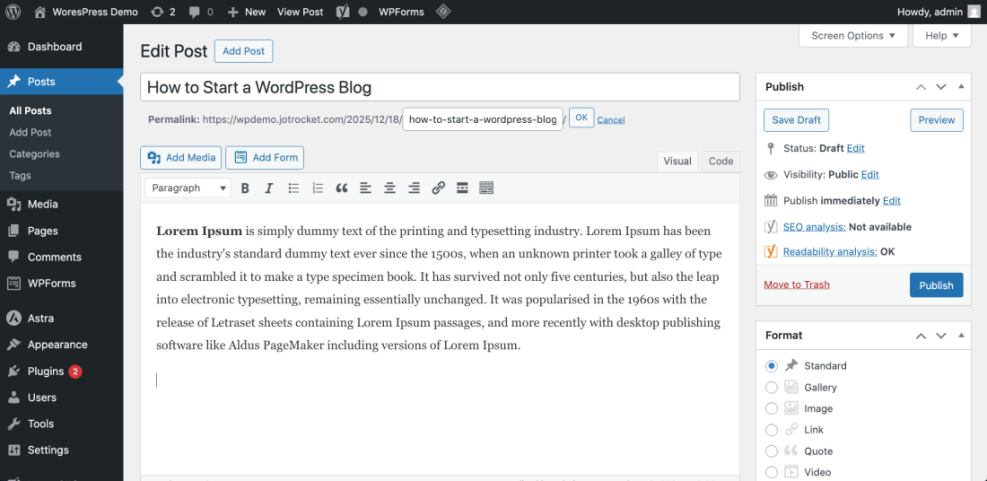
2.1 Editing the slug in the Classic Editor (with Jannah or similar themes)
- Log into your WordPress admin area.
- Go to Posts > All Posts (or Pages > All Pages).
- Hover over the post or page you want to change and click Edit.
- Under the title field, look for the Permalink line. You’ll see your URL with an editable part at the end.
- Click the Edit button next to the slug.
- Type your new, cleaned-up slug (lowercase letters, numbers, and hyphens only).
- Click OK, then click Update to save the changes.
2.2 Editing the slug in the Block Editor (Gutenberg)
- Open your post or page in the Block Editor.
- On the right-hand sidebar, open the Post (or Page) panel.
- Find the Permalink or URL Slug section.
- Enter your desired slug (WordPress will auto-convert spaces to hyphens).
- Click Update or Publish to store the change.
2.3 Editing category and tag slugs
- Go to Posts > Categories or Posts > Tags.
- Hover over a category or tag and click Edit.
- Use the Slug field to define a short, lowercase, hyphen-separated slug.
- Click Update to save.
Step 3: Follow SEO-Friendly Best Practices for WordPress Slugs
Now that you know where slugs live, the next step is learning how to write them well. A clean slug helps both humans and search engines understand your page.
3.1 General rules for good slugs
- Keep it short: Ideally 3–6 words that summarize the topic.
- Use lowercase: WordPress will handle this automatically, but it’s best practice.
- Use hyphens, not underscores: Hyphens are the standard word separators for URLs.
- Avoid special characters: Stick to letters, numbers, and hyphens only.
- No stop words (if possible): Words like “a”, “the”, “of”, “and” can often be removed.
3.2 Include your main keyword—but don’t stuff
Your slug should normally include the primary keyword phrase you’re targeting, because it gives search engines a clear hint about the topic. However, avoid repeating the keyword or stuffing variations unnaturally.
For example, for a post titled “10 Easy Ways to Speed Up Your WordPress Site in 2025”, a good slug might be:
speed-up-wordpress-site
This is cleaner than something like 10-easy-ways-to-speed-up-your-wordpress-site-in-2025.
If you want a deeper SEO overview beyond slugs, check out our complete beginner’s guide to WordPress SEO.
3.3 Make the slug match the content
The slug should still accurately describe what’s on the page. Don’t try to force a high-volume keyword into the slug if it doesn’t fit the page’s real topic—this can hurt user trust and your long-term SEO performance.
Step 4: Change Existing Slugs Safely (Without Breaking Your Site)
Changing a slug on a published post or page also changes its URL. If you don’t handle this carefully, visitors and search engines may hit 404 errors when they follow old links.
4.1 When it’s okay to change a slug
- The post is new and hasn’t been widely shared yet.
- The current slug is very long, unclear, or autogenerated (e.g.,
?p=123orhello-world-2). - You’re improving the SEO of an older article as part of a larger update.
4.2 Always add a redirect from the old slug
Before you change a slug on content that already receives traffic, plan a redirect from the old URL to the new one. Most SEO or redirection plugins make this easy.
- Note the existing URL before you change anything.
- Update the slug using the steps in Step 2.
- Create a 301 redirect from the old URL to the new URL in your chosen plugin or in your server config.
- Test the old URL in a browser to confirm it forwards correctly.
4.3 Advanced: Updating slugs with WP-CLI (optional)
If you manage many posts and are comfortable with the command line, you can use WP-CLI to update slugs in bulk. Run commands in your server’s SSH terminal from the WordPress installation directory.
wp post update 123 --post_name="new-slug-example"Replace 123 with the post ID and new-slug-example with your desired slug. You’ll still need to handle redirects for any URLs that change.
Step 5: Fix Common WordPress Slug Problems
Sometimes slugs don’t behave exactly how you expect. Here are some frequent issues and how to solve them.
5.1 WordPress keeps adding “-2” or “-3” to your slug
If WordPress adds numbers to the end of your slug (e.g., my-post becomes my-post-2), it means a URL with that slug is already in use—possibly in the trash or as a draft.
- Search your posts, pages, and custom post types for the original slug.
- Check the Trash tab to see if an old version is still there.
- Delete or change the slug on the conflicting item.
- Try editing the slug again on the current post.
5.2 Slugs don’t match what you see in the browser
If the URL in your browser doesn’t match the slug you edited, your permalink settings may be overriding it.
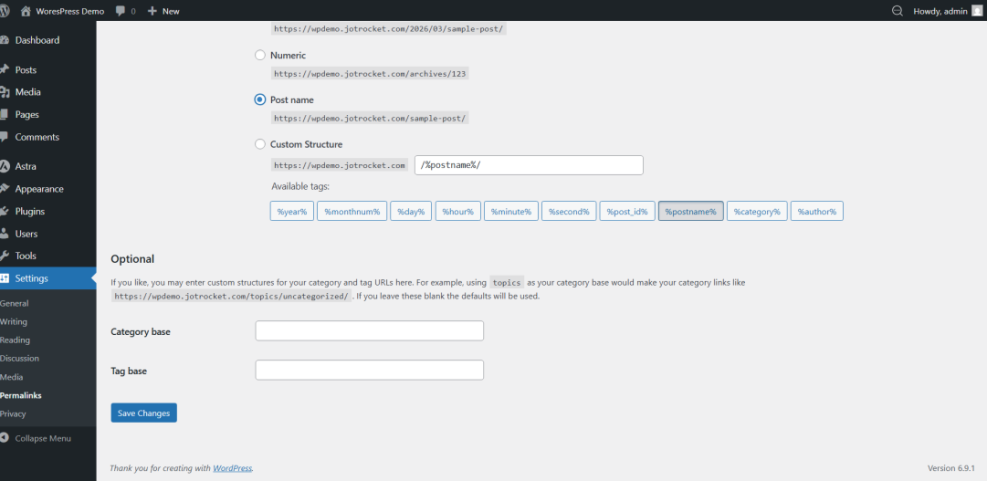
- Go to Settings > Permalinks in the WordPress dashboard.
- Ensure you’re using a structure like Post name or a custom structure that includes
%postname%. - Click Save Changes (this also flushes rewrite rules).
5.3 Slugs with non-English characters look strange
Some languages and special characters are encoded in URLs, which can make them look long or messy. If this bothers you, consider:
- Transliterating the slug into Latin characters (e.g., using “berlin-urlaub” instead of accented versions), or
- Using a plugin that handles multilingual slugs in a cleaner way.
Slugs generally do not expose sensitive information, but they can reveal a bit about your site structure. Avoid putting usernames, private IDs, or confidential data in slugs.
Bringing It All Together: Slugs as the Foundation of Clean URLs
A WordPress slug may look like a tiny piece of your site, but it has a big impact on how users and search engines experience your content. Clean, descriptive slugs make URLs easier to read, easier to remember, and more likely to earn clicks.
If you follow the best practices in this guide—keeping slugs short, keyword-aligned, and consistent—you’ll avoid messy links and reduce the risk of broken URLs when you update content. Combined with sensible permalink settings and proper redirects, your slugs will quietly support your SEO instead of getting in the way.
Further Reading
- Beginner Guide to Categories and Tags in WordPress
- Step-by-Step Guide to On-Page SEO in WordPress
- Internal Linking in WordPress for Beginners
- How to Add Title Tags in WordPress
Frequently Asked Questions
What is the difference between a slug and a permalink in WordPress?
https://example.com/what-is-slug-in-wordpress/, the slug is what-is-slug-in-wordpress. The permalink is the entire URL, which includes your domain, any prefixes (like date or category), and the slug itself. Is it safe to change the slug of a published post?
How short or long should a WordPress slug be?
Can slugs cause security problems on my WordPress site?
Do slugs directly impact rankings, or just user experience?