Optimizing WordPress Checkout Performance
A technical checklist to make your WooCommerce checkout faster and more reliable.


A slow or unreliable checkout is one of the most expensive problems a WooCommerce store can have. Every extra second and every error message at checkout increases abandonment, payment failures, and support tickets.
In this guide, you’ll walk through a practical, technical checklist to optimize WordPress checkout performance. You’ll benchmark the current experience, tune hosting and caching, trim heavy scripts and fields, streamline payment and shipping logic, and finish with load testing and monitoring so your checkout stays fast even under traffic spikes.
If you also want UX and conversion tweaks like copy, layout, and trust signals, see our WooCommerce performance guide for faster checkouts. Here, we’ll focus on the under-the-hood changes developers and power users can apply for a truly fast checkout.
Prerequisites
Before you change anything that touches the checkout, you need a safe environment and basic access in place.
- An existing WordPress site with WooCommerce installed and configured.
- Administrator access to WordPress and your hosting control panel.
- A working SSL/TLS certificate (HTTPS) on your store.
- A staging site or development copy of your store for testing changes.
- Recent database and file backups you know how to restore.
Step 1: Benchmark Your Current Checkout Performance
You can’t improve what you don’t measure. Start with a baseline so you can confirm that each optimization actually makes your checkout faster.
- Open an incognito/private browser window and go through the full checkout process as a real customer: add product to cart, view cart, and proceed to checkout.
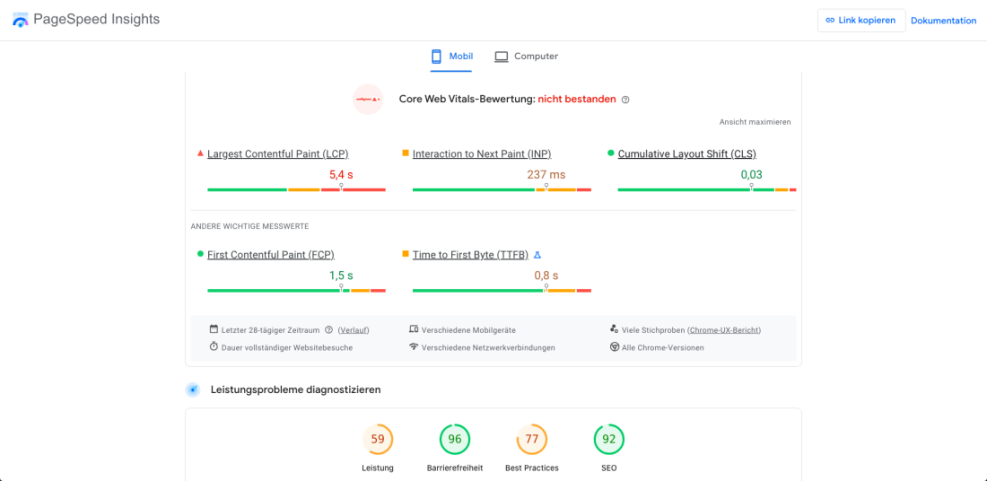
- Use tools like PageSpeed Insights, WebPageTest, or GTmetrix and test the checkout URL directly (e.g.
/checkout/), not just the homepage. - Record key metrics for the checkout page: Time to First Byte (TTFB), Largest Contentful Paint (LCP), total page size, number of requests, and total load time.
- Repeat the test with and without being logged in (if you allow guest checkout and logged-in customers).
Save screenshots and export reports so you can compare “before and after” once your optimization work is done.
Step 2: Optimize Hosting, PHP, and SSL for Checkouts
If your hosting is underpowered, no amount of plugin tuning will make checkout truly fast. WooCommerce requires more resources than a basic blog, especially at checkout where PHP and database work spike.
- Check PHP version: In your hosting control panel, ensure you’re using a supported, modern PHP version (PHP 8.0+ is recommended for performance and security). Update if necessary.
- Review resource limits: Confirm that CPU, RAM, and concurrent process limits are adequate for your typical peak traffic. Shared hosting with tight limits often struggles at checkout.
- Verify HTTPS performance: Use modern TLS and HTTP/2 where available. These reduce overhead and improve asset loading on the checkout page.
- Monitor TTFB under load: If Time to First Byte for checkout is consistently high (e.g., > 600 ms), it’s a sign you may need a better hosting plan or managed WooCommerce hosting.
Step 3: Configure Safe Caching Rules for Cart and Checkout
Page caching is essential for a fast WordPress site, but misconfigured caching can break cart and checkout behavior. Your goal is to cache aggressively everywhere except highly dynamic e-commerce pages.
- Open your caching plugin settings or server cache configuration (e.g., Nginx, Varnish, LiteSpeed).
- Confirm that
/cart/,/checkout/, and/my-account/are excluded from page caching. Many WooCommerce-aware caching plugins do this automatically, but verify. - Exclude URLs with query parameters like
?add-to-cart=and other dynamic endpoints if your cache tool doesn’t handle them out of the box. - Enable browser caching, compression (GZIP/Brotli), and HTTP/2 or HTTP/3 for static assets (CSS, JS, images) to make static resources load faster on checkout.
For a store-wide optimization overview (beyond checkout), you can follow our WooCommerce optimization checklist in parallel with this guide.
Step 4: Simplify and Optimize the Checkout Form
Every extra field, validation rule, and script running at checkout adds overhead. Simplifying the form improves both performance and conversion rates.
- Remove non-essential fields: In
WooCommerce > Settings > Accounts & Privacyand your checkout field editor (if using one), remove fields you don’t truly need (e.g., fax, company for B2C, unnecessary notes). - Disable unused features: Turn off guest account creation, coupons, or additional registration prompts at checkout if they’re not vital to your business.
- Limit third-party scripts: Load analytics, heatmaps, and marketing pixels on the order confirmation page instead of the checkout page whenever possible.
- Defer non-critical JavaScript: Configure your performance plugin to delay or defer scripts that are not required for core checkout functionality.
You can also restrict heavy scripts like cart fragments or sliders to non-checkout pages by adding a small snippet to your child theme’s functions.php file or a snippets plugin (run via WordPress admin, not directly on the server):
// Only load heavy scripts where needed, not on checkout
function wpheadliner_optimize_checkout_assets() {
    if ( is_checkout() || is_cart() ) {
        return; // Keep everything needed on these pages
    }

    // Example: dequeue a global slider script on all non-cart/checkout pages
    wp_dequeue_script( 'my-slider-handle' );

    // Example: prevent WooCommerce cart fragments from loading site-wide
    wp_dequeue_script( 'wc-cart-fragments' );
}
add_action( 'wp_enqueue_scripts', 'wpheadliner_optimize_checkout_assets', 99 );
Step 5: Tune Payment Gateways and Shipping Methods
Payment and shipping extensions often call external APIs, add scripts, and perform extra calculations. Poorly configured integrations can make checkout feel slow even if the page itself is optimized.
- Reduce gateway choices: Offer only the 2–3 payment methods your customers actually use. More options mean more scripts, icons, and API calls.
- Optimize gateway settings: In each gateway’s settings screen, disable features you don’t need (e.g., extra fraud checks, saved card vaults) if they significantly slow processing.
- Streamline shipping zones: In
WooCommerce > Settings > Shipping, reduce overlapping zones and methods so WooCommerce does fewer calculations at checkout. - Avoid heavy live rates if possible: If live carrier API calls (UPS, FedEx, etc.) are slow, consider flat rate or table rate options for common scenarios.
- Test external API latency: Use your browser’s Network tab to see how long payment and shipping API responses take during checkout.
Step 6: Clean Up the Database and Enable Object Caching
WooCommerce checkouts hit the database hard: orders, sessions, stock updates, and more. A bloated or unoptimized database can slow down every order.
- Clean transients and sessions: Use a database optimization plugin or WP-CLI to remove expired data. On SSH (or your host’s terminal), run:
# Run these WP-CLI commands from your site root (SSH)
wp transient delete-expired
wp option delete _site_transient_timeout_wc_reports
wp wc delete --user=<admin-id> --batch=50 --order_status=trash
Always take a fresh backup before running any destructive database command, and test on staging if possible.
- Prune old orders and logs: Configure retention policies for abandoned carts, pending orders, and log tables in your analytics or security plugins.
- Use persistent object caching: If your host supports Redis or Memcached, enable object caching so repeated queries during checkout are served from memory instead of disk.
For a step-by-step walkthrough, follow our Redis object cache beginner guide for WordPress to reduce database load across your entire store, including checkout.
Step 7: Load Test and Monitor Your Checkout
Once you’ve tuned hosting, caching, scripts, and integrations, you need to confirm that checkout holds up under real-world traffic and stays fast over time.
- Simulate concurrent checkouts: Use load testing tools (or your host’s built-in tools) to simulate multiple users checking out at the same time. Start small and gradually increase concurrent users.
- Watch key metrics: Monitor TTFB, CPU usage, database queries, and error rates (HTTP 500/502) while the test runs.
- Review logs: Check your web server error logs and WooCommerce logs for repeated errors or timeouts.
- Set up ongoing monitoring: Use uptime and performance monitoring tools to alert you if checkout slows down or starts throwing errors in the future.
Bringing Your Checkout Up to Speed
Optimizing WordPress checkout performance is not a single switch but a sequence of small, intentional improvements. You’ve seen how hosting, caching rules, checkout fields, integrations, and database health all interact to determine how fast your customers can place an order.
By benchmarking first, then working methodically through each layer of the stack and finishing with load testing and monitoring, you can deliver a checkout that feels instant and reliable. Keep this checklist handy, revisit it after major updates, and treat checkout as a critical part of your ongoing performance strategy—not a set-and-forget feature.
Further Reading
- WooCommerce Performance Tips for Faster Stores
- WordPress Performance Tuning Beginner Guide
- Caching Plugin Comparisons for WordPress Performance
- WordPress Speed Optimization Checklist
Frequently Asked Questions
Customers see “Your cart is empty” on checkout after I enabled caching. What went wrong?
/cart/, /checkout/, and /my-account/. Clear all caches, then test again in a private browser window. Why does the checkout sometimes hang on “Processing…” when using a specific payment gateway?
WooCommerce > Status > Logs) for timeouts or error messages.Temporarily disable other plugins, switch to a default theme, and test again to rule out conflicts. If the issue persists, contact the gateway provider with your logs and consider switching to a better-performing alternative. How fast should my WooCommerce checkout be for good conversions?
Does optimizing checkout performance affect payment security?
How long does it take to optimize WordPress checkout performance, and do I need a developer?