Managed WordPress Hosting Full Guide
Practical tips for faster safer WordPress sites


Managed WordPress hosting gives you speed, security, and expert support without forcing you to become a server administrator. Instead of patching PHP, tweaking caches, or worrying about downtime, you let specialists handle the heavy lifting so you can focus on content, leads, and sales.
This guide walks you through what a managed host actually does, how it differs from shared or VPS plans, which features matter most, when it makes sense to upgrade, and how to move your existing site without drama or downtime.
What Managed WordPress Hosting Really Provides
At a high level, managed WordPress hosting is a premium service where your provider configures and maintains the full stack for a WordPress site. You still own your content and plugins, but the host handles performance tuning, updates, security hardening, backups, and monitoring for you.
What Do You Actually Get?
Typically, you get optimized servers with a built-in caching layer, automatic WordPress core and sometimes plugin updates, daily or hourly backups, staging sites, and a control panel focused on WordPress tasks instead of raw server settings. In addition, you usually gain 24/7 support from people who work with WordPress all day.
Who Is Managed Hosting Best For?
Managed hosting works best for serious blogs, business sites, and ecommerce stores where uptime has a clear cost. If losing your site for a few hours would hurt your reputation or revenue, then paying more per month for expert hosting often costs less than a single bad outage.
Is Managed Hosting Worth the Extra Cost?
For many sites, the answer is yes once traffic and revenue reach a certain point. Although the monthly price is higher than basic shared plans, you trade that money for saved time, fewer plugin conflicts, fewer hacks, and more predictable performance during traffic spikes and promotions.
How Managed Hosting Compares to Other Plans
Before you switch, you should understand how managed WordPress hosting differs from shared, VPS, and generic cloud hosting. The biggest differences involve who manages updates, how resources are allocated, and what kind of support you receive.
Shared Hosting vs. Managed Hosting
Shared hosting places hundreds of sites on the same server with minimal isolation. Because every site competes for CPU and memory, one noisy neighbor can slow everyone down. Managed plans use stricter limits and WordPress-specific tuning, so performance stays more stable when traffic spikes.
The following table summarizes the most important differences between typical shared hosting and managed WordPress hosting.
| Feature | Shared Hosting | Managed WordPress Hosting |
|---|---|---|
| Performance Tuning | Generic server setup | WordPress-optimized stack and caching |
| Updates | You handle most updates | Core and security updates handled for you |
| Security | Basic firewalls, limited hardening | Firewalls, malware scanning, and hardening |
| Backups | Sometimes weekly, often manual | Automatic daily or hourly backups |
| Support | General hosting support | WordPress-focused support |
| Scalability | Limited, often throttled | Plans tuned for higher traffic |
| Price Range | Very low monthly cost | Higher cost, more value |
When you compare costs, remember to add the hidden cost of your own time and potential downtime if you stay on cheap shared hosting while traffic grows.
Is Managed WordPress Hosting Faster Than Shared Hosting?
In most cases, yes. Managed providers use server-side caching, tuned PHP workers, and often a CDN integration that make WordPress respond much faster under load. As a result, your site usually delivers better Core Web Vitals and smoother experiences for visitors on slow connections.
How About VPS or Cloud Servers?
VPS and unmanaged cloud servers give you full control, which sounds great until you must configure firewalls, updates, and monitoring. Managed WordPress hosting gives you many VPS-level benefits but outsources the system administration to experts while you manage content and business decisions.
Essential Features in a Managed Host
Not every provider uses the term “managed” in the same way. Therefore, you should look past marketing pages and confirm which practical features you actually receive with each plan.
Performance and Caching Tools
Look for built-in server caching that works with WordPress out of the box. In addition, a global CDN, image compression, and HTTP/2 or HTTP/3 support help your pages load quickly for visitors in different regions without extra plugins or complex setups.
Security, Backups, and Uptime Monitoring
Strong managed hosts bundle web application firewalls, malware scanning, automatic backups, and basic uptime monitoring. In addition, they often block common attack vectors like XML-RPC abuse and weak login attempts so that brute-force bots cannot hammer your login page all day.
[h3]What Security Features Matter Most?[/h3]You want automatic backups stored off-server, easy one-click restores, active malware scanning, and clear recovery support. Because incidents still happen, the real question becomes how quickly you can roll back your site, patch the issue, and get back online with minimal data loss.
Developer and Workflow Tools
If you build more than one site, features like staging environments, SSH access, WP-CLI, and Git deployment save a huge amount of time. In addition, some managed platforms make it easy to clone a site as a starting point for new projects, which speeds up client work.
Pros and Cons for Different Sites
Managed WordPress hosting is not right for every website. Because it costs more than basic shared hosting, you want to connect the pros and cons directly to your goals, traffic levels, and technical comfort.
Advantages for Growing Businesses and Stores
Business sites and WooCommerce stores gain the most value. Better uptime, stronger security, and faster checkout flows translate into more leads and sales. In addition, expert support becomes critical when you run promotions or experience traffic spikes from social media, email campaigns, or ads.
Drawbacks and Limitations to Consider
On the downside, managed plans cost more and sometimes limit heavy or risky plugins. Furthermore, you may not receive full root access to the server, which frustrates developers who want to customize low-level settings. However, most site owners never need that level of control.
Should Small Hobby Sites Use Managed Hosting?
If you run a small personal blog with minimal traffic, then a basic shared or simple cloud plan may be enough. However, once real customers depend on your site, the balance shifts quickly toward a managed solution that reduces risk even if monthly costs increase.
When You Should Upgrade Hosting
Timing your move can save you stress and money. Ideally, you switch to managed WordPress hosting before performance or security problems hurt your business, but after your project proves that it deserves the investment.
Signs Your Current Hosting Is Holding You Back
Common warning signs include slow page loads during peak hours, frequent “resource limit reached” messages, unexplained downtime, and support agents who constantly blame WordPress itself. In addition, repeated hacks or malware infections often signal that your platform lacks proper hardening.
When Is It Time to Switch Plans?
It is time to switch when your site earns real revenue, or when downtime would be embarrassing in front of clients, customers, or partners. At that point, a plan that includes monitoring, backups, and quick recovery becomes a core business expense instead of a nice-to-have feature.
Budget Ranges You Can Expect
Entry-level managed WordPress hosting usually starts around the cost of a few coffees per month, with higher tiers for stores and busy sites. Therefore, factor in not just the sticker price but also how much a few hours of your time or a bad outage would cost your business.
How to Choose a Reliable Provider
Once you decide to upgrade, you still need to choose a partner. Because hosts love marketing buzzwords, you should evaluate them using concrete criteria, not vague claims like “blazing fast.”
Check Real Performance and Limits
Look for transparent information on PHP workers, bandwidth, and storage. In addition, scan their docs for any strict limits on visits, inodes, or caching rules that could affect your site. Clear, specific numbers are a good sign that the company knows how to capacity-plan.
Evaluate Support Quality and Channels
Good managed hosts provide 24/7 support via chat or tickets and make it easy to reach humans. Before you commit, you can send a few pre-sales questions about migrations or plugins. As you read their replies, you will quickly see whether they understand WordPress deeply.
Review Backup, Restore, and SLA Details
Carefully read how often backups run, how long they are stored, and how restores work. Some platforms offer one-click restores directly from the control panel. Furthermore, check any uptime guarantees and how credits or refunds work when they miss those targets.
Migrating Your WordPress Site Safely
Moving to managed WordPress hosting does not have to be scary. Many providers include a free migration service or an automated plugin that copies your site for you while the old version stays online until you switch DNS.
How Do You Prepare for a Move?
First, take a fresh backup at your current host and download it. Next, list mission-critical plugins such as ecommerce, membership, or forms. Finally, confirm that your new provider supports those tools and any custom code your developer added so nothing breaks after the move.
Step-by-Step Migration Overview
You can often follow a simple process to migrate without downtime.
- Sign up for your managed WordPress hosting plan and create a new site.
- Request a free migration or install the host’s migration plugin.
- Run the migration to copy files and the database to the new server.
- Set up a temporary preview URL and test the cloned site thoroughly.
- Update DNS records to point your domain to the new host.
- Monitor logs, orders, and forms closely during the first day.
When you follow a clear checklist like this, you greatly reduce the risk of broken pages or lost form submissions during the transition.
From your WordPress Dashboard, go to Tools » Site Health to confirm there are no critical issues before you migrate.

Can You Rely on Host-Provided Migration Plugins?
Most migration tools from reputable managed hosts work well for typical sites. However, extremely large databases or custom setups might require a manual migration handled by support or your developer. Always test the cloned site thoroughly before changing DNS records.
Post Migration Performance and Security Tips
Once your managed WordPress hosting is live, you should fine-tune your site so you get the full benefit of the new environment. Thankfully, most optimizations only take a few minutes.
Clean Up Plugins and Caching
Because your new host already provides server-side caching, you may not need heavy caching plugins anymore. Therefore, you can disable or remove overlapping tools that cause double caching, such as multiple page cache plugins running at the same time.
Force HTTPS in the Admin Area
After your SSL certificate is active, forcing HTTPS in the WordPress admin area improves security. You can add the following line to your wp-config.php file just above the line that says “That’s all, stop editing.”
define( 'FORCE_SSL_ADMIN', true );Because this depends on valid SSL at the host level, always confirm that your certificate works correctly before adding this constant to avoid redirect loops.
Enable Uptime and Analytics Monitoring
Set up uptime alerts so you receive an email or message when your site goes offline. In addition, connect your site to an analytics tool to track traffic and behavior. When you combine uptime, speed tests, and conversions, you gain a clear view of how your new hosting performs.
In your WordPress Dashboard, open Plugins » Add New and search for a lightweight monitoring or analytics integration recommended by your host.

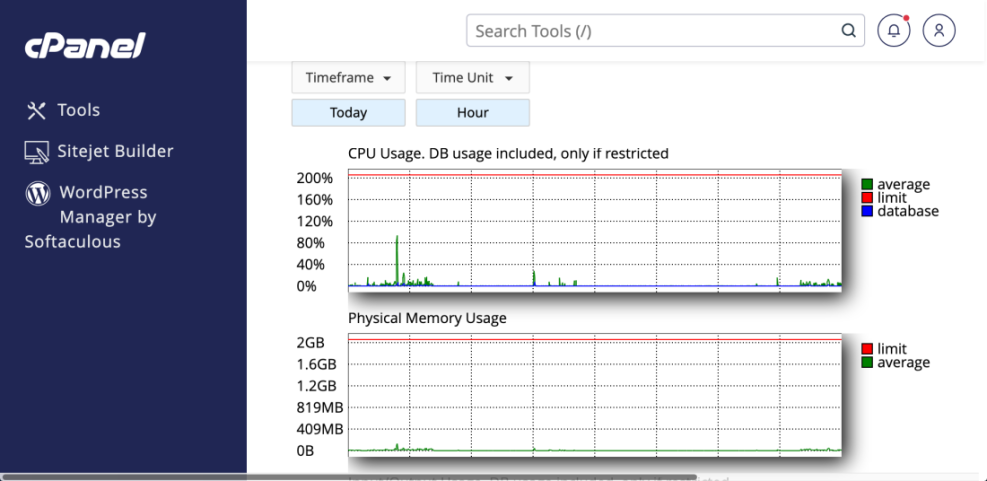
Next, log in to your hosting control panel and review their own performance graphs so you can confirm that CPU, RAM, and PHP workers stay within reasonable limits.
Managed WordPress Hosting Conclusion
Managed WordPress hosting turns your server stack into a service instead of a side job. When you let specialists handle performance, backups, and security, you free your time for content, sales, and strategy. Over time, that trade-off usually beats saving a few dollars on a bare-bones shared plan.
Your next step is to list your current pain points, traffic, and revenue, then compare a few managed providers honestly against that reality. After you know what you need and what each host offers, you can choose a platform that supports your goals instead of holding your WordPress site back.
More WordPress Guides You Might Like
Once you understand managed hosting, you can boost your results further by improving performance, security, and conversion on the application side of WordPress.
- WordPress speed optimization checklist
- Beginner Guide to WordPress Backup and Restore Strategies
- What is the difference between WordPress and woocommerce
- How do i secure my WordPress downloads
- WordPress business blog content strategy
These topics build on a solid hosting foundation, helping you serve faster pages, protect customer data, and convert more visitors into subscribers or buyers.
Frequently Asked Questions About Managed WordPress Hosting
What is managed WordPress hosting in simple terms?
How much does managed WordPress hosting usually cost?
Do I still need caching or security plugins on a managed host?
Can I move my existing WordPress site without downtime?
Is managed WordPress hosting overkill for a small blog?