If you are wondering how to start a blog on WordPress, you are in the right place. WordPress powers a huge percentage of the web, and with the right setup you can go from idea to live blog in a single afternoon.
In this step by step guide, you will choose a niche and domain name, pick hosting, install WordPress, select a theme, add essential plugins, write your first posts, and finally launch your new blog to the world.
Whether you want to start a personal blog, a niche site, or a professional brand blog, the process below will walk you through each stage in plain language.
Step 1: Choose the Right Platform to Start a Blog on WordPress
Before you start your blog, you need to understand the difference between the two “flavors” of WordPress:
- WordPress.org – You install this free software on your own hosting account. It is often called self-hosted WordPress and gives you full control.
- WordPress.com – A hosted service where your blog runs on their platform. It has free and paid plans with different limits.
Most serious blogs use self-hosted WordPress.org because it offers more flexibility, plugins, themes, and ways to make money. WordPress.com is fine for simple personal blogs, but it can be more limited unless you pay for higher-tier plans.
WordPress.org vs WordPress.com for starting a blog
| Feature | WordPress.org (self-hosted) | WordPress.com (hosted) |
|---|---|---|
| Software cost | Free | Free & paid plans |
| Hosting | You arrange hosting yourself | Included with the plan |
| Plugins & themes | Full access to thousands of options | Limited on free/low plans |
| Monetization | Full control (ads, affiliates, products) | Restricted on some plans |
| Best for | Long-term, professional blogs | Hobby or simple blogs |
In this guide, we will focus mainly on starting a blog with self-hosted WordPress.org, because it’s what most bloggers end up using.
Step 2: Plan Your Niche, Domain, and Hosting for a WordPress Blog
Next, decide what your blog will be about and secure the address and home for your site.
Pick a clear, focused blog niche
- Choose a topic you can write about regularly (travel, parenting, tech, fitness, finance, etc.).
- Narrow it down enough that visitors instantly understand what your blog is for.
- Think about who your ideal reader is and what problems you’ll help them solve.
Choose a domain name for your WordPress blog
- Keep it short, easy to spell, and easy to remember (for example, happykitchenblog.com).
- Avoid hyphens, numbers, and confusing spellings if possible.
- Try to match your blog’s name or niche.
Select hosting to start a blog on WordPress
- Look for hosting that supports easy WordPress installation.
- Check for good uptime, support, and beginner-friendly tools.
- Shared hosting is fine when you are just starting; you can upgrade later.
Step 3: Install WordPress to Start Your Blog
Once you have hosting and a domain, it’s time to install WordPress so you can actually start your blog.
- Log in to your hosting control panel (often called cPanel or a custom dashboard).
- Look for a tool labeled WordPress, 1-Click Install, or App Installer.
- Choose your domain name from the list and click to install WordPress.
- Set your site title, admin username, password, and admin email.
- Complete the installer and wait for the success message.
After installation, you can log in to your new blog at yourdomain.com/wp-admin using the credentials you just created.
Step 4: Configure Basic Settings for Your WordPress Blog
Before you publish your first post, take a few minutes to adjust the basic settings that affect how your WordPress blog works.
Set your blog title and tagline
- In your dashboard, go to Settings » General.
- Enter a clear Site Title and a short Tagline that describes your blog.
- Check that your WordPress Address (URL) and Site Address (URL) match your domain.
Choose SEO-friendly permalinks for your blog posts
- Go to Settings » Permalinks.
- Select the Post name option so your URLs look like /my-first-blog-post/.
- Click Save Changes.
If you want more background on URLs.
Set your time zone and discussion options
- Still in Settings » General, choose your Time Zone, Date Format, and Time Format.
- Check the Discussion settings to decide how comments should work on your blog.
Step 5: Choose a Theme to Design Your WordPress Blog
Your theme controls how your new WordPress blog looks. You can start with a free theme and upgrade later if needed.
Install a blog-friendly WordPress theme
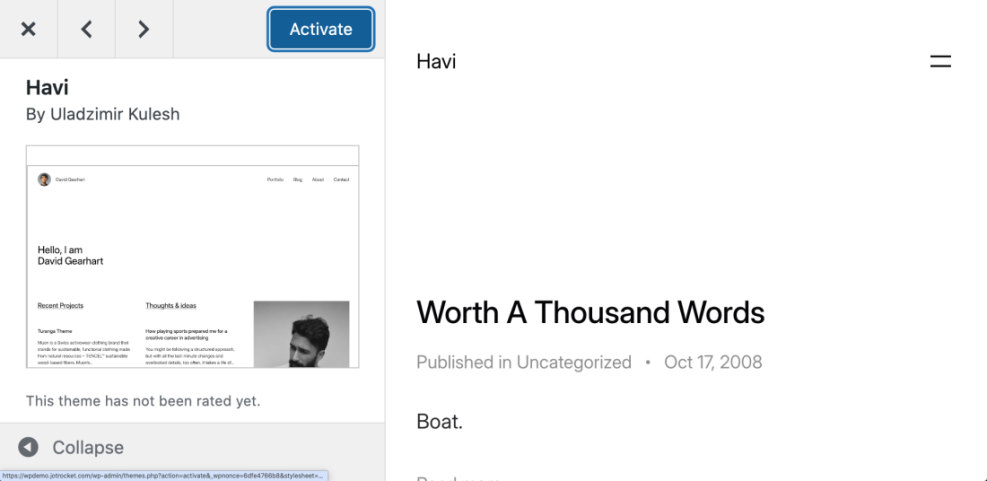
- In the dashboard, go to Appearance » Themes and click Add New.
- Use the search bar to find a theme designed for blogging (look for clean, readable layouts).
- Click Preview to see how it looks, then click Install » Activate on your favorite.
Customize the look of your WordPress blog
- Use Appearance » Customize or the Site Editor (for block themes) to adjust colors, fonts, and layout.
- Add your logo and site icon (favicon) if you have one.
- Set a static homepage or use your latest posts as the front page, depending on your blog style.
Step 6: Add Essential Plugins When You Start a Blog on WordPress
Plugins extend what WordPress can do. When you start a blog on WordPress, you don’t need dozens of plugins—just a small set of essentials.
Core plugin types for a new WordPress blog
| Plugin Type | What It Adds | Blogging Use |
|---|---|---|
| SEO | Meta titles, descriptions, sitemaps | Helps your posts rank in search engines. |
| Performance | Caching, minification, image optimization | Makes your blog load faster for readers. |
| Security | Firewall, login protection, malware scans | Protects your blog from common attacks. |
| Forms | Contact forms, newsletter opt-ins | Lets readers contact you or join your list. |
| Backups | Automatic site backups and restore | Safeguards your content against mistakes. |
How to install plugins on your WordPress blog
- Go to Plugins » Add New.
- Search for the type of plugin you need (for example, “SEO” or “contact form”).
- Click Install Now and then Activate.
For more details on safety, see How to Backup WordPress Site before you start experimenting with lots of plugins.
Step 7: Create Pages and Posts for Your New WordPress Blog
Now it’s time to actually start blogging on WordPress by adding content.
Create core pages for your blog
Most new blogs need at least these pages:
- About – Tell readers who you are and what your blog is about.
- Contact – Provide a form or email address so people can reach you.
- Privacy Policy – Often required, especially if you collect emails or use analytics.
- Go to Pages » Add New.
- Enter a title (such as “About”) and write your content using the block editor.
- Click Publish when you are ready.
Write your first WordPress blog posts
- Go to Posts » Add New.
- Write a helpful, focused article aimed at your ideal reader.
- Add headings, images, and internal links to other relevant pages.
- Set a Featured Image so your post looks good in lists and social shares.
- Click Publish to make the post live.
Don’t worry about perfection. Your first posts help you find your voice and start building momentum.
Step 8: Set Up Menus and Navigation for Your WordPress Blog
Good navigation makes it easy for readers to explore your WordPress blog and find your best content.
Create a main menu for your blog
- Go to Appearance » Menus (or Appearance » Editor for some block themes).
- Create a new menu and select its location (usually Primary or Header).
- Add your key pages: Home, Blog, About, Contact, and any important categories.
- Save your menu and refresh your site to see it in action.
Add helpful sidebar and footer elements
- Use sidebar or footer areas to add a search bar, recent posts, categories, or an email signup.
- Go to Appearance » Widgets (or use the Site Editor) to manage these areas.
Step 9: Optimize Your WordPress Blog for SEO and Sharing
With your content and layout in place, it’s time to help people actually find your blog.
On-page SEO basics for WordPress blog posts
- Use a clear, descriptive title that includes your main keyword.
- Write a short meta description that tells searchers why they should click.
- Use headings (H2, H3) to break up your content logically.
- Add internal links to other relevant posts and pages on your site.
- Use descriptive alt text for images.
Connect analytics and search tools to your blog
- Set up a free analytics tool to see your traffic and popular posts.
- Register your site with search console tools so you can submit sitemaps and monitor search visibility.
Step 10: Launch and Promote Your New WordPress Blog
Once your basic setup is ready and you have at least a few solid posts, it’s time to launch.
Final checks before you start a blog on WordPress publicly
- Make sure your key pages (Home, About, Contact, Blog) look good.
- Check your blog on mobile and desktop devices.
- Test your contact form and any email signup forms.
- Ensure your site is not blocked from search engines in Settings » Reading.
Promote your WordPress blog after launch
- Share your best posts on social media where your audience hangs out.
- Join relevant communities and answer questions, linking to your posts when helpful.
- Ask friends, colleagues, or existing followers to check out your new blog.
- Start building an email list early so you can notify readers about new content.
Ongoing Maintenance After You Start a Blog on WordPress
Starting a blog on WordPress is just the beginning. Keeping it healthy ensures your content stays online and your readers have a good experience.
If you want someone else to handle more of the technical work, you can look into What is Managed WordPress Hosting as your blog grows.
Conclusion You Now Know How to Start a Blog on WordPress
You’ve seen how to start a blog on WordPress from scratch—choosing a niche, registering a domain, setting up hosting, installing WordPress, picking a theme, adding plugins, creating content, and finally launching your site.
Don’t wait for everything to be perfect. Publish your first posts, learn from your readers, and keep improving as you go. With consistency and a solid WordPress setup, your new blog can grow into a powerful asset over time.
Frequently Asked Questions About Starting a WordPress Blog
Is WordPress free to start a blog?
How long does it take to start a blog on WordPress?
Do I need to know code to start a WordPress blog?
Can I change my theme later?
How many posts should I publish before launching my blog?
What if I want to pause or hide my blog later?