When you learn how to SEO WordPress properly, you make it much easier for search engines to understand your content and send the right visitors to your site. Good WordPress SEO is not about tricks, it is about clear structure, fast pages, and helpful content that answers real questions.
In this guide you will check core WordPress settings, install and configure an SEO plugin, set up clean permalinks, optimize titles and meta descriptions, improve content and internal links, add schema where it matters, and make sure performance and Core Web Vitals support your SEO work. By the end, you will have a checklist you can reuse on every new site when you want to SEO WordPress without getting lost in technical jargon.
What You Need Before You SEO WordPress
- Administrator access to your WordPress dashboard.
- Basic familiarity with installing and configuring plugins.
- At least a few published posts or pages to optimize.
- Access to Google Search Console and Google Analytics (or a similar analytics tool).
- Optional staging site if you want to test SEO changes before applying them to a live site.
Step 1: Fix Core WordPress Settings That Affect SEO
Before you worry about keywords and backlinks, make sure your basic WordPress settings are not blocking search engines or creating messy URLs. This is the foundation of every “SEO WordPress” checklist.
- Log in to your WordPress dashboard and go to Settings » General.
- Check the Site Title and Tagline fields:
- Use a short, descriptive site title (for example, “WP Headliner Tutorials”).
- Use a simple tagline or leave it blank if your brand does not need one.
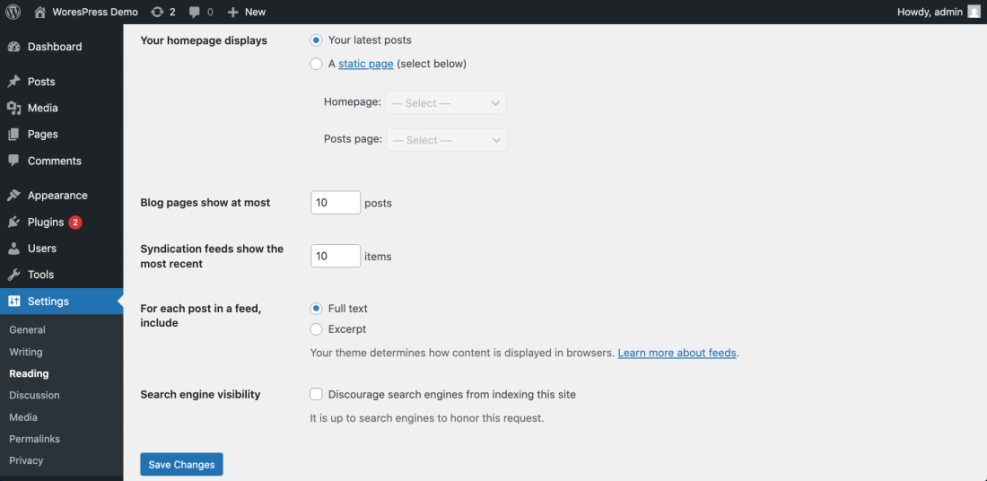
- Go to Settings » Reading and scroll to Search engine visibility.
- Make sure “Discourage search engines from indexing this site” is unchecked on live sites.
This single checkbox has broken many WordPress SEO efforts because it tells Google not to index your site at all.
Set SEO-Friendly Permalinks Once
- Go to Settings » Permalinks.
- Choose Post name as your permalink structure in most cases.
- Click Save Changes.
A clean URL like /how-to-seo-wordpress/ is much better for users and search engines than long, numeric URLs with dates and ID numbers.
Step 2: Install and Configure a WordPress SEO Plugin
To SEO WordPress efficiently, you should use a dedicated SEO plugin. These tools help you control titles and meta descriptions, XML sitemaps, indexing rules, and schema without touching code.
- From the dashboard, go to Plugins » Add New Plugin.
- Search for a reputable SEO plugin (Yoast SEO, Rank Math, or another trusted option).
- Click Install Now, then Activate.
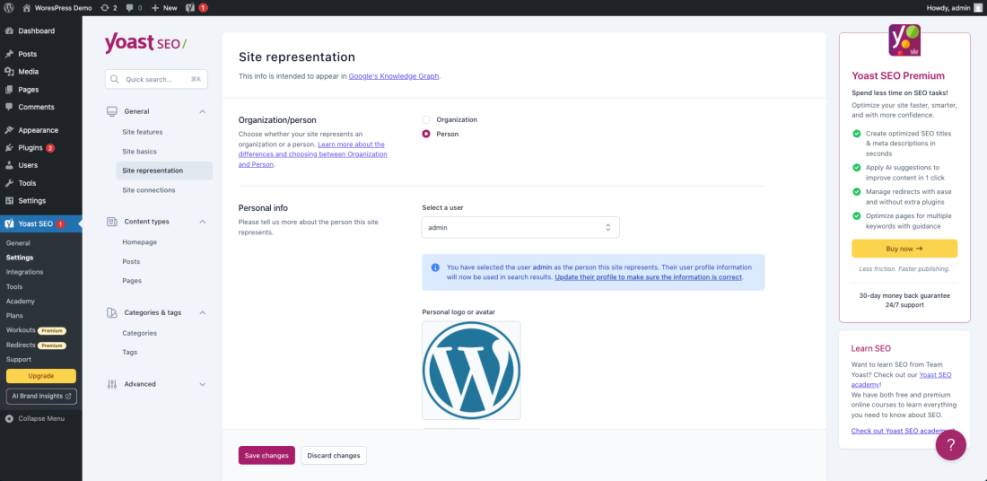
- Run any Setup Wizard the plugin offers to configure basic settings:
- Choose whether your site is a personal blog, business, or something else.
- Set your organization name and logo if requested.
- Connect Search Console or Analytics if the plugin supports it.
Enable XML Sitemaps
- In your SEO plugin settings, find the XML Sitemap or Sitemaps section.
- Enable XML sitemaps so search engines can discover your content structure more easily.
- Click the sitemap link (usually something like
/sitemap_index.xml) to open it in a new tab.
Later, you will submit this sitemap to Google Search Console as part of your WordPress SEO setup.
Step 3: Optimize SEO Titles and Meta Descriptions
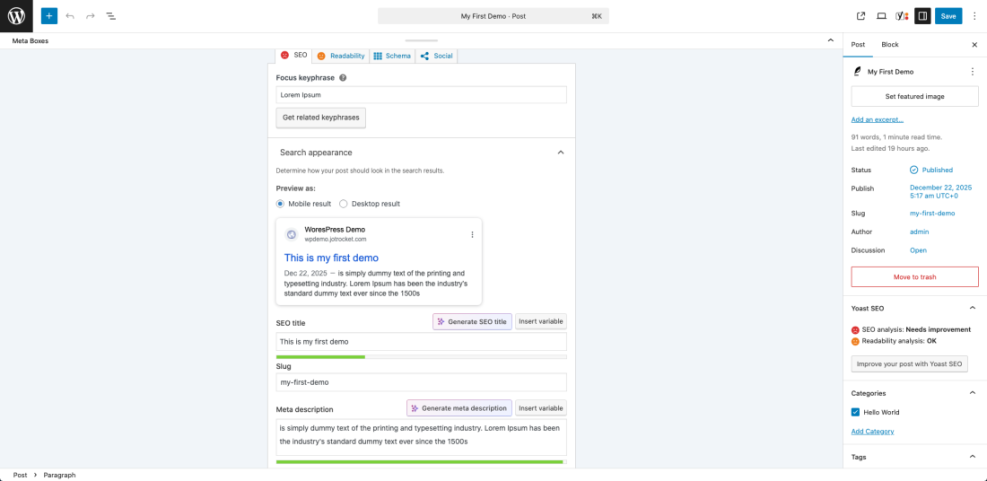
When you SEO WordPress pages and posts, your title tags are one of the most important on-page elements. They influence both rankings and click-through rates from search results.
- From the dashboard, go to Posts » All Posts and open a key article to edit.
- Scroll to the SEO plugin box below the editor (or sidebar panel, depending on your plugin).
- Enter a focused SEO title that:
- Includes your main keyphrase near the beginning.
- Stays within the suggested length (no cut-off in previews).
- Promises a clear benefit (guide, checklist, tutorial, etc.).
- Write a meta description that:
- Summarizes the main benefit of the page.
- Uses your keyphrase or a close synonym once, naturally.
- Stays under about 155–160 characters.
Set Default Patterns for Titles
- Open your SEO plugin’s Search Appearance or Titles & Metas settings.
- Define a simple pattern for posts such as
Post Title - Site Name. - Do the same for pages, categories, and tags.
Defaults save time so you only customize SEO titles and descriptions on your most important content, while the rest still looks clean in search results.
Step 4: Create and Optimize SEO-Friendly Content
Tools and settings matter, but content is where “SEO WordPress” really becomes valuable. Every post should target a clear topic and be easy for readers to scan.
- Pick one primary keyphrase per post (for example, “how to SEO WordPress” for this topic).
- Use it naturally in:
- The first paragraph.
- At least one subheading (H2 or H3).
- The URL slug, if appropriate.
- A few times in the body, where it fits logically.
- Add related phrases and synonyms to avoid stuffing (for example, “WordPress SEO basics,” “optimize your WordPress site for search”).
- Break long posts into short sections with descriptive headings and bullet lists.
On-Page SEO Checklist for Each Post
| Element | Good Practice | Where to Edit |
|---|---|---|
| Keyphrase in Intro | Mention once in the first paragraph. | Content editor. |
| Headings | Use H2/H3 to reflect the topic, avoid stuffing. | Block editor heading blocks. |
| Images | Use descriptive alt text, including context. | Image block settings. |
| Internal Links | Link to 2–5 relevant posts or pages. | Content editor link tool. |
| Slug | Short, readable and includes the main topic. | Permalink or URL slug box. |
Step 5: Improve Internal Links and Site Structure
Search engines use internal links to understand which pages on your site are most important. When you SEO WordPress properly, you treat internal links as a roadmap for both users and crawlers.
- Identify 3–5 cornerstone or “must read” articles in your niche.
- Edit related posts and add natural links pointing to those cornerstone guides.
- Link back from cornerstone posts to other relevant content so users can dig deeper.
- Use descriptive anchor text (for example, “beginner WordPress SEO checklist” rather than “click here”).
Use Menus and Widgets for SEO-Friendly Navigation
- Go to Appearance » Menus and add links to your most important pages and categories.
- Add a Navigation Menu or Recent Posts widget to your sidebar or footer.
- Make sure users can reach any important page in 3 clicks or fewer from the homepage.
Good navigation reduces bounce rates, which indirectly supports your WordPress SEO efforts.
Step 6: Add Schema Markup Where It Matters
Schema (structured data) helps search engines understand what your content represents: an article, product, FAQ, recipe, and so on. Many SEO plugins add basic schema automatically when you SEO WordPress with their recommended settings.
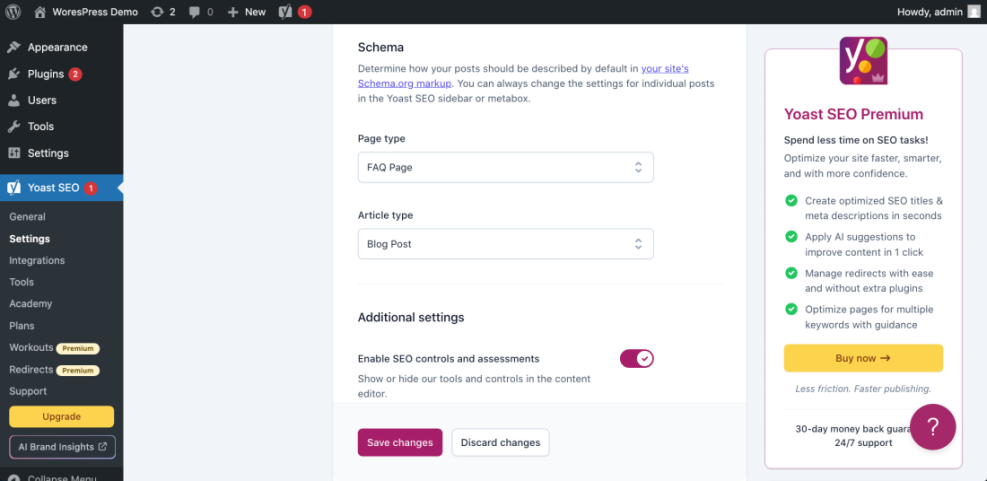
- Open your SEO plugin’s Schema or Search Appearance settings.
- Set the default schema type for:
- Posts – often “Article” or “BlogPosting”.
- Pages – often “WebPage”.
- On individual posts, choose more specific schema when appropriate (for example, “FAQPage” for FAQ posts).
- Use FAQ or HowTo blocks if your SEO plugin supports them, so it can generate valid schema automatically.
Step 7: Improve Speed and Core Web Vitals for Better SEO
Technical SEO is not only about sitemaps and meta tags. Site speed and Core Web Vitals are a big part of modern WordPress SEO because they affect real user experience.
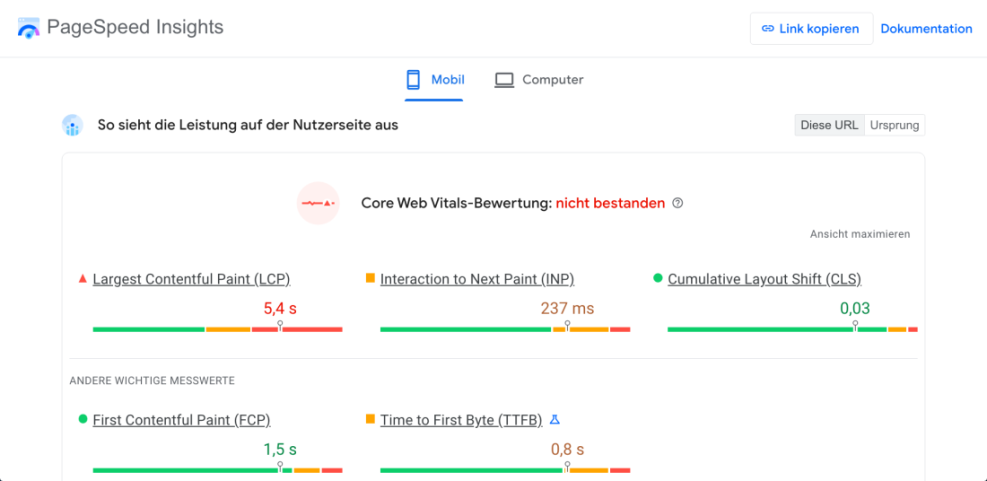
- Run a speed test on your homepage and a long article using PageSpeed Insights.
- Note your LCP (Largest Contentful Paint) and CLS (Cumulative Layout Shift) scores for mobile.
- Enable caching and image optimization if you have not already.
- Reduce or remove heavy sliders, popups, and unnecessary scripts, especially above the fold.
Step 8: Connect to Google Search Console and Submit Your Sitemap
Once your basic “SEO WordPress” setup is complete, you want to make sure search engines can crawl and index your content properly.
- Go to Google Search Console and add your site as a new property.
- Verify ownership using one of the suggested methods (DNS record, HTML file upload, or HTML tag).
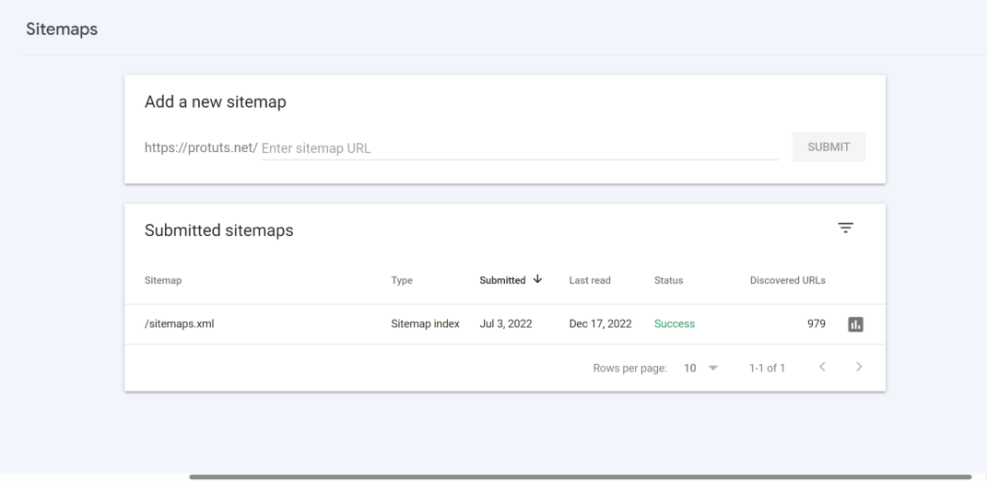
- In the left menu, click Sitemaps.
- Enter the URL of your XML sitemap (for example,
https://example.com/sitemap_index.xml) and click Submit.
Monitor Indexing and Fix Basic Issues
- In Search Console, open the Pages or Indexing report.
- Check which URLs are indexed and which are excluded.
- Fix common issues like:
- Accidental
noindextags on important pages. - Broken URLs that return 404 errors.
- Duplicate URLs caused by parameters or archives you do not need.
- Accidental
As you continue to SEO WordPress, Search Console becomes your main feedback loop for crawling and indexing.
Step 9: Maintain and Improve Your WordPress SEO Over Time
SEO is not a one-time switch. The most successful WordPress sites treat SEO as a regular habit instead of a panic project right before a redesign.
- Each month, review:
- Your top 10 pages by traffic (in Analytics).
- Your top queries and pages by impressions and clicks (in Search Console).
- Update older posts with:
- Fresh examples and screenshots.
- New internal links to recent content.
- Better headings and clearer introductions.
- Fix broken links and redirect outdated URLs when you remove or merge content.
- Regularly audit plugins and themes for performance and compatibility.
Conclusion You Know How to SEO WordPress Step by Step
You have walked through the core steps to SEO WordPress: fixing basic settings, installing and configuring an SEO plugin, optimizing titles and meta descriptions, improving content and internal links, adding schema, boosting performance, and connecting to Search Console for ongoing feedback.
Use this process each time you publish a new post or launch a new site. When you treat “SEO WordPress” as a structured checklist instead of a mysterious trick, you build a site that search engines can understand and visitors actually enjoy using.
Further Reading on WordPress SEO
- WordPress seo beginner guide
- Internal linking WordPress beginners
- Beginner guide WordPress speed core web vitals
- How to make an ecommerce website with WordPress
- WordPress seo complete beginners guide
Frequently Asked Questions About WordPress SEO
Is WordPress good for SEO out of the box
Do I need an SEO plugin to SEO WordPress
How many keywords should I target per post
How long does it take to see results from WordPress SEO
Will changing my theme affect SEO
What is the single most important step to SEO WordPress