How to Improve SEO Score on WordPress
How to turn your WordPress SEO score from red to green (the smart way)

When your SEO plugin shows a red or orange score, it can feel like your entire WordPress site is failing. Yoast SEO, Rank Math, and other tools rate your content with “SEO scores”, but they don’t always explain clearly what to fix first — or which fixes actually move the needle in Google.
In this guide, you’ll learn a practical, step-by-step process to improve your SEO score on WordPress, especially if you’re using the Classic Editor and a news-style theme like Jannah. We’ll focus on the changes that improve both your plugin scores and your real search visibility, so you’re not just chasing 100/100 for no reason.
If you’re brand-new to the concept of SEO in WordPress, start with an overview like What Is WordPress SEO?, then come back here for a focused “SEO score” improvement checklist.
Prerequisites
Before you start optimizing SEO scores, make sure a few basics are in place.
- Administrator access to your WordPress dashboard.
- A single SEO plugin installed (Yoast SEO, Rank Math, or similar).
- Backups enabled for your WordPress site (via plugin or hosting).
- Basic understanding of editing posts/pages in the Classic Editor or Block Editor.
Step 1: Benchmark Your Current SEO Score
You can’t improve what you haven’t measured. Start by understanding your current SEO scores and which pages are underperforming.
- List your key pages. Identify 5–10 important URLs: homepage, main category pages, top blog posts, and key landing pages.
- Check plugin scores. Edit each page in WordPress and look at its SEO score in your plugin (e.g., the traffic light in Yoast or score in Rank Math).
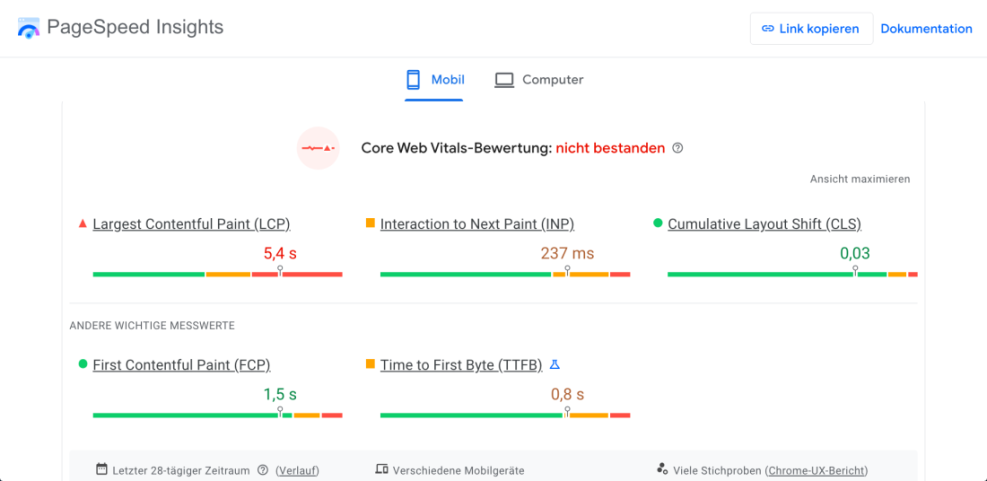
- Run external checks. Paste a few URLs into tools like Google PageSpeed Insights and your favorite SEO audit tool to see technical and content issues.
When you’re done, you should have a short list of URLs, their current plugin SEO scores, and any obvious red or orange warnings to target first.
Step 2: Install and Configure a WordPress SEO Plugin Correctly
If your SEO plugin is misconfigured, your scores — and indexation — will suffer, no matter how good your content is.
- Use only one SEO plugin. In your WordPress dashboard, go to Plugins > Installed Plugins. Deactivate any extra SEO plugins so you only have one active.
- Run the configuration wizard. Most plugins have a setup wizard under SEO > Dashboard or similar. Follow the steps to set:
- Site type (blog, news site, online store, etc.).
- Organization or person details.
- Homepage SEO title and meta description defaults.
- Search appearance for posts, pages, and archives.
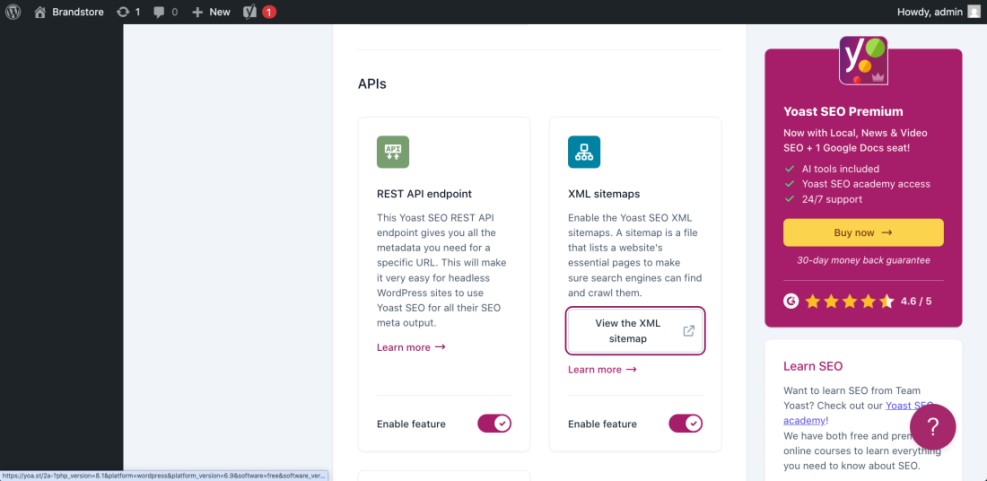
- Enable XML sitemaps. Ensure your SEO plugin generates an XML sitemap and submits it to search engines. Most plugins do this automatically, but confirm in the Sitemap settings section.
- Check indexing settings. In your SEO plugin’s “Search Appearance” or “Indexing” section, confirm that important content types (Posts, Pages) are set to “index” and not “noindex”.
If you’re still deciding which plugin to use, compare options using a guide like Best WordPress SEO Plugins and Tools before you invest time configuring the wrong one.
Step 3: Improve On-Page SEO for Your Key Pages
Your SEO score is heavily influenced by on-page factors: titles, meta descriptions, headings, keyword usage, and content quality. This is where you’ll often see the biggest jump from red to green.
- Set a clear focus keyword. In the SEO box under your content, enter a specific focus keyphrase your page should rank for (e.g., “WordPress backup strategy” instead of just “WordPress”).
- Optimize your SEO title. Use the plugin’s SEO title field to create a compelling, keyword-rich title (usually 50–60 characters). Include your brand name at the end for important pages.
- Write a strong meta description. In 140–155 characters, summarize the benefit of your page, include your main keyword naturally, and add a soft call to action.
- Structure headings correctly. Use one
<h1>per page (usually your post title), then descriptive<h2>and<h3>headings that include related phrases. - Improve content depth. Answer the main question thoroughly, include supporting subtopics, and add examples, screenshots, and data where relevant.
- Optimize images. Give each image a descriptive file name and write alt text that describes the image and, when relevant, supports the topic.
For a deeper walkthrough of these elements, follow the step-by-step on-page SEO guide for WordPress and use it as a checklist while you edit each key page.
Step 4: Boost Page Speed and Core Web Vitals
Many SEO “score” tools factor in page speed and Core Web Vitals. Slow-loading Jannah layouts with heavy images or ads can drag your scores down, even if your content is strong.
- Install a caching plugin. Use a reputable caching plugin and enable page caching, browser caching, and compression. Test your site after activation to ensure layouts don’t break.
- Compress and resize images. Before uploading, resize images to the maximum width needed by your theme and compress them using an image optimization plugin or external tool.
- Limit heavy scripts. Disable unused sliders, animation scripts, and social widgets on pages where they aren’t needed. Check your theme options and widget areas.
- Consider a CDN. If your audience is global, enabling a CDN can reduce load times and improve speed-related scores.
Step 5: Fix Key Technical SEO Issues in WordPress
Technical problems can silently prevent your content from ranking, no matter how much you optimize titles and headlines. Basic technical checks can quickly improve SEO health scores in many tools.
- Ensure search engines can index your site. Go to Settings > Reading and confirm that “Discourage search engines from indexing this site” is unchecked.
- Verify robots.txt and sitemaps. From your SEO plugin, open the robots.txt editor and sitemap URLs to ensure important sections (like /blog/ or /category/) are not blocked.
- Fix broken links. Use an SEO or link-checking tool to find 404 errors and redirect them to relevant working URLs via your SEO plugin or a redirection plugin.
- Check canonical URLs. On important pages, confirm the canonical URL reflects the main version of the content and does not mistakenly point elsewhere.
- Use HTTPS everywhere. Ensure your site uses an SSL certificate and redirects HTTP to HTTPS so tools don’t flag mixed content or insecure URLs.
Step 6: Improve Internal Linking and Site Structure
Internal links help search engines understand which content is most important and how topics are related. Many SEO score tools include checks for internal links to and from a page.
- Add contextual links. Within your articles, link relevant phrases to other in-depth articles on your site — especially cornerstone content and key landing pages.
- Use descriptive anchor text. Instead of “click here”, link using keywords that reflect the target page’s topic (e.g., “WordPress backup strategy checklist”).
- Update old posts. When you publish a new article, edit older relevant posts to add links pointing to the new content. This helps get it crawled and ranked faster.
- Leverage menus and sidebars. Use your main navigation, footer menu, and sidebar widgets to highlight your most important categories and evergreen guides.
As you add internal links, you’ll often see plugin SEO scores improve automatically because you’re meeting their “internal links” recommendations while also strengthening your site architecture.
Step 7: Track Your SEO Score and Real-World Results
Improving your SEO score is not a one-time project. You should track both plugin scores and real performance metrics to know what’s working.
- Re-run SEO score checks monthly. Review your most important pages and see which warnings have been resolved and which issues keep coming back.
- Monitor keyword rankings. Use a rank tracking tool or search console to watch how your main keywords move as you optimize content.
- Watch traffic and engagement. Use analytics to compare organic sessions, time on page, and conversions before and after optimizations.
- Document your changes. Keep a simple changelog of major SEO improvements (new internal links, title updates, speed fixes) so you can tie results to actions.
Turning SEO Scores Into Real Search Wins
Improving your SEO score on WordPress is really about improving how search engines and users experience your content. When you configure your plugin correctly, optimize on-page elements, speed up your site, fix technical issues, and strengthen internal links, those scores naturally climb — and rankings usually follow.
Instead of chasing perfection on every minor recommendation, focus on the high-impact tasks in this guide for your most important pages. Over time, you’ll see more green scores in your plugin and, more importantly, more organic traffic and conversions from your WordPress site.
Further Reading
- How to Increase SEO on WordPress
- How to Add SEO Keywords to a WordPress Website
- Image Optimization Checklist for WordPress Websites
- Internal Linking in WordPress for Beginners
- WordPress Speed Optimization Step by Step
Frequently Asked Questions
What is a “good” SEO score for a WordPress page?
Why didn’t my SEO score improve after editing my content?
Do better SEO scores always mean higher Google rankings?
Is it safe to use multiple SEO or schema plugins at the same time?
How often should I run an SEO audit on my WordPress site?