If you are searching for how to fix cumulative layout shift WordPress issues, you are really trying to stop your pages from jumping while they load. Cumulative Layout Shift (CLS) is the Core Web Vitals metric that measures how much your WordPress page moves as resources load in the background.
By the end, you will know exactly how to fix cumulative layout shift WordPress posts, pages, and templates by stabilizing images, fonts, embeds, and ads so your layout stays still for visitors on both mobile and desktop.
What You Need to Start
- Access to your WordPress dashboard with an Administrator user.
- A modern browser such as Google Chrome with Developer Tools enabled.
- Access to Google Search Console and PageSpeed Insights for your site.
- Basic familiarity with editing Pages and Posts in WordPress (Classic Editor or block editor).
- Optional staging site where you can safely test theme, CSS, and plugin changes.
Maintenance Methods for Managing a WordPress Site
There is more than one way to handle ongoing WordPress maintenance tasks, and each method fits slightly different skills, budgets, and site types. The table below compares the main methods so you can quickly choose the one that feels easiest and safest for your site.
| Method | Where You Use It | Main Purpose |
|---|---|---|
| DIY Manual Maintenance | WordPress dashboard and hosting control panel | Maximum control over updates, backups, and checks for small or low-risk sites. |
| Managed Hosting Tools | Your host’s control panel or custom dashboard | Simplify routine maintenance with one-click updates, built-in backups, and basic security. |
| Maintenance & Security Plugins | Plugins section inside the WordPress dashboard | Automate repetitive work like backups, database cleanup, image optimization, and security scans. |
| WP-CLI and Developer Tools | SSH terminal with WP-CLI and deployment tools | Scriptable, fast maintenance for developers managing multiple or complex sites. |
| Professional WordPress Care Plan | External provider, freelancer, or agency | Hands-off maintenance with proactive monitoring, fixes, and expert support. |
Step 1: Measure Cumulative Layout Shift
Find Problem URLs in Core Web Vitals
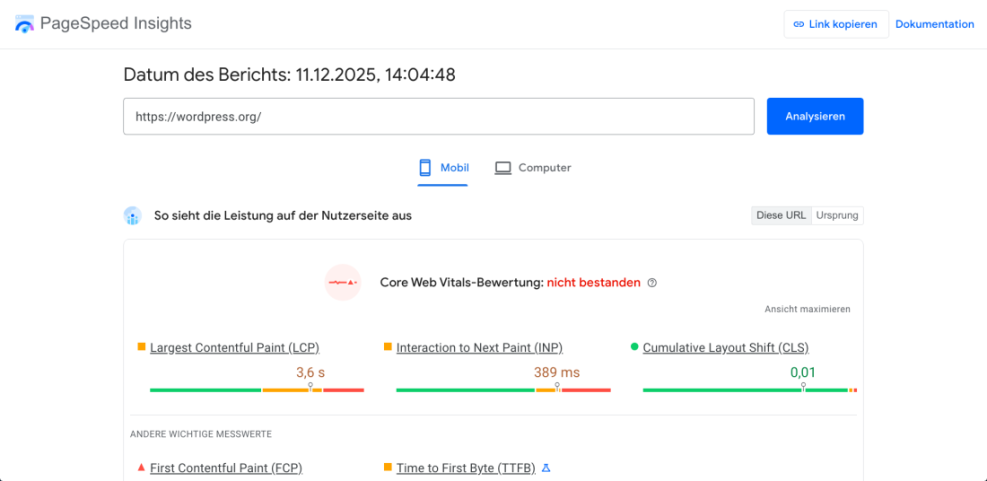
Start by measuring where CLS is actually a problem so you focus on the templates and devices that need the most help. This first audit step is crucial if you want a reliable plan for how to fix cumulative layout shift WordPress wide instead of guessing at the causes.
- Open Google Search Console and select your verified WordPress property.
- In the left menu, click Experience and then select Core Web Vitals.
- Open both the Mobile and Desktop reports and scroll to see URLs with Poor or Needs improvement status.
- Click an issue group, then click a sample URL and choose PageSpeed Insights to open a detailed report for that page.
- In PageSpeed Insights, scroll to the Diagnostics and Opportunities sections and note any items mentioning Cumulative Layout Shift or layout shifts.
In the Core Web Vitals report, look for patterns such as specific page types, templates, or only mobile users having poor CLS scores.
Step 2: Identify Elements That Cause Layout Shifts
Use Chrome DevTools to Capture Layout Shifts
Next, find which elements actually move when the page loads. This shows whether images, fonts, ads, or scripts are responsible.
- Open an affected page in Google Chrome.
- Right click anywhere on the page and click Inspect to open Developer Tools.
- Click the Performance tab, then enable the option for Web Vitals or Experience if available.
- Click the Reload button in the Performance panel to record a new profile as the page loads.
- After recording, hover over the Layout Shift markers in the timeline to highlight elements that moved on the page.
- Make a list of the specific blocks or elements that move, such as hero images, sliders, ads, embedded videos, or sticky headers.
You should now know exactly which parts of your layout jump during load on real devices.
Step 3: Fix Image and Video Layout Shifts in WordPress
Images and videos without reserved space are one of the most common causes of Cumulative Layout Shift in WordPress. Because they are so visible above the fold, they are usually the first place to look when deciding how to fix cumulative layout shift WordPress layouts in a safe, non-destructive way.
Set Explicit Dimensions for Key Images
- Log in to your WordPress dashboard and go to Pages » All Pages.
- Edit a page that showed poor CLS and locate the main hero image or featured image area.
- In the block editor, click the image block and open the right sidebar under Block settings. Under Dimensions or Size, set an explicit Width and Height that matches the aspect ratio you want.
- In the Classic Editor, click the image, then click the Edit pencil icon. Ensure the Size dropdown uses a defined size (such as Large) and that the Width and Height fields are filled.
- Repeat this for above the fold images on other templates such as your blog archive, category pages, and landing pages.
Reserve Space for Embedded Videos
- For embedded videos (YouTube, Vimeo, etc.), wrap the iframe in a container that reserves space using CSS.
Use a responsive container with a fixed aspect ratio so the browser always knows how much space the video needs before it loads.
Example CSS for Responsive Video Embeds
.responsive-embed {
  position: relative;
  width: 100%;
  max-width: 800px;
  margin: 0 auto;
  aspect-ratio: 16 / 9;
}
.responsive-embed iframe {
  position: absolute;
  inset: 0;
  width: 100%;
  height: 100%;
  border: 0;
}Step 4: Fix Font Related Layout Shifts
Custom web fonts can cause CLS when the browser swaps from a fallback font to the final font after the page has already rendered.
Test System Fonts and Simpler Typography
- In your WordPress dashboard, go to Appearance » Customize and open the Typography or Fonts section.
- If your theme offers a System font or Default option, test using that on a staging site. System fonts often produce zero font related layout shifts.
Optimize Custom Font Loading
- If you must use Google Fonts or other custom fonts, check your performance or caching plugin settings for options like Optimize fonts, Preload fonts, or font-display behavior.
- Host critical fonts locally in your theme or a child theme instead of loading them from external CDNs when possible.
- Add a preload tag for your most important heading and body fonts so they arrive early in the loading sequence.
Preload Critical Fonts with a Snippet
You can preload a local font in your theme using a small snippet in functions.php or a site specific plugin.
function wpheadliner_preload_fonts() {
  ?>
  <link rel="preload"
        href="<?php echo esc_url( get_stylesheet_directory_uri() ); ?>/fonts/your-font.woff2"
        as="font"
        type="font/woff2"
        crossorigin>
  <style>
    @font-face {
      font-family: 'Your Font';
      src: url('<?php echo esc_url( get_stylesheet_directory_uri() ); ?>/fonts/your-font.woff2') format('woff2');
      font-display: swap;
    }
  </style>
  <?php
}
add_action( 'wp_head', 'wpheadliner_preload_fonts', 5 );Step 5: Stabilize Ads and Third Party Embeds
Ads, chat widgets, social feeds, and other third party embeds often inject content after the page loads, pushing text and buttons around.
Reserve Space for Ads and Widgets
- List all ad blocks and widgets that appear above the fold on affected pages, including header ads, in-content ads, and sticky bars.
- For each ad location, edit your widget, block, or theme area in WordPress under Appearance » Widgets or the page builder interface.
- Wrap ad code in a container with a fixed min-height that matches the typical height of the ad unit so surrounding content never jumps.
Handle Sticky Bars and Live Widgets
- Ensure any sticky banners, cookie notices, or chat widgets overlay the page instead of pushing content downward when they appear.
- For social and map embeds, use a responsive wrapper similar to your video embeds so they reserve space while loading.
After reserving space for third party content, layout shifts caused by ads and embeds should be significantly reduced.
Step 6: Fix Theme, Header, and Page Builder Layout Shifts
Your theme and page builder can also introduce CLS through dynamic headers, sliders, or delayed content.
Stabilize Your Header and Logo
- In the WordPress dashboard, go to Appearance » Customize and open the Header section.
- Set a consistent Logo size and Header height so the header does not expand after fonts or logos finish loading.
Simplify Heroes, Sliders, and Animations
- Review hero sliders or carousels on the homepage and landing pages. If they cause large shifts, test a static hero image with fixed height instead.
- If you use a page builder, open the layout and check for sections that appear late (animations, delayed popups, or lazy loaded rows) and move them below the fold when possible.
- Disable unnecessary entrance animations that move entire sections vertically as the page becomes interactive.
Once your header, hero, and key sections have defined sizes and simpler behavior, the page should feel much more stable during load.
Step 7: Retest Cumulative Layout Shift and Monitor
Finally, confirm that your fixes actually improved CLS and keep an eye on real user data over time so you can keep applying what you learned about how to fix cumulative layout shift WordPress templates whenever you redesign parts of your site.
Recheck Key URLs in PageSpeed Insights
- Open PageSpeed Insights again and test the same important URLs you measured in Step 1.
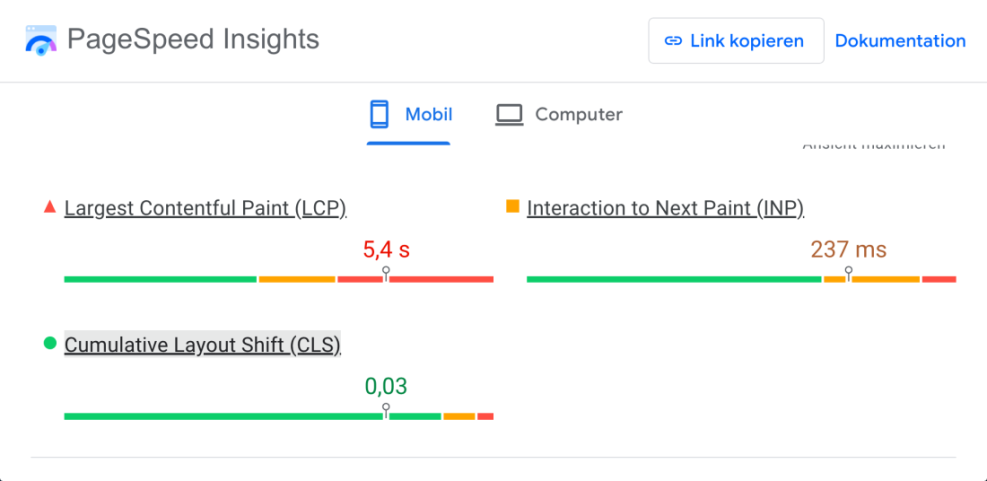
- Check the Cumulative Layout Shift value for both Field data and Lab data. Aim for a CLS score in the Good range.
Validate Fixes in Search Console
- In Google Search Console, return to Core Web Vitals and click Validate fix for issue groups you addressed.
- Wait for Google to recrawl and re-evaluate your URLs. Revisit the reports after a few days or weeks to confirm that poor CLS groups are shrinking.
- Add a recurring reminder to retest key templates whenever you change themes, add new plugins, or redesign hero sections.
Over time, your WordPress site should maintain low CLS scores as long as you test new features and layouts before pushing them live.
Conclusion You Are Ready to Go
Key Takeaways
You have measured Cumulative Layout Shift, identified the specific elements that move, and applied WordPress friendly fixes for images, videos, fonts, ads, and theme layouts. Taken together, these steps show you how to fix cumulative layout shift WordPress installations in a structured, repeatable way.
Keep using Search Console, PageSpeed Insights, and Chrome DevTools whenever you change themes, plugins, or layouts. By reserving space for content and loading fonts and embeds responsibly, you protect your Core Web Vitals scores and give visitors a smoother browsing experience.
Further Reading
- Beginner guide WordPress speed core web vitals
- Beginner guide WordPress speed core web vitals
- WordPress speed optimization step by step
Frequently Asked Questions
CLS Basics for WordPress
What is a good Cumulative Layout Shift score for WordPress pages
Do caching plugins alone fix Cumulative Layout Shift
Will changing my WordPress theme reduce CLS problems
Fixing and Monitoring CLS Issues
How do I know if fonts are causing layout shifts on my site
Can lazy loading images increase Cumulative Layout Shift
Should I worry more about mobile or desktop CLS first
How often should I recheck CLS after making changes