If you are new to WordPress development, it is normal to feel nervous about changing code. One small typo in the wrong file can make your entire site show a white screen or a “critical error” message.
What This Guide Will Help You Do
In this guide, you will learn how to safely Edit WordPress Files using your hosting file manager, SFTP, and the built-in editors. You will see which folders are safe to touch, which files to avoid, and how to back up and test changes so you can customize your site without constant fear of breaking it.
What You Need to Start
- Access to your WordPress admin dashboard (login URL, username, and password).
- Access to your hosting control panel such as cPanel, Plesk, or a custom dashboard.
- File access via hosting File Manager or an SFTP client such as FileZilla.
- A code editor such as VS Code, Sublime Text, or Notepad++ installed on your computer.
- A recent full site backup that you can restore quickly if something goes wrong.
Prepare Your Backup First
If you do not already have a backup solution in place, set that up first. You can follow a detailed Install WordPress step by step before you Edit WordPress Files.
Step 1: Learn the WordPress File Layout
Why File Layout Matters
Before you edit anything, it helps to understand how WordPress organizes its files. This lets you focus on the right folders and avoid core files that WordPress itself manages.
WordPress is usually installed in a folder like public_html or a directory named after your domain. Inside that folder, you will see three important directories plus several core files.
How to Locate Key WordPress Folders
- Log in to your hosting control panel and open File Manager.
- Open the folder that contains your WordPress site, often public_html.
- Confirm you can see the folders wp-admin, wp-content, and wp-includes.
- Open wp-content and look for themes, plugins, and uploads.
- Open the themes folder and find the folder that matches your active theme name.
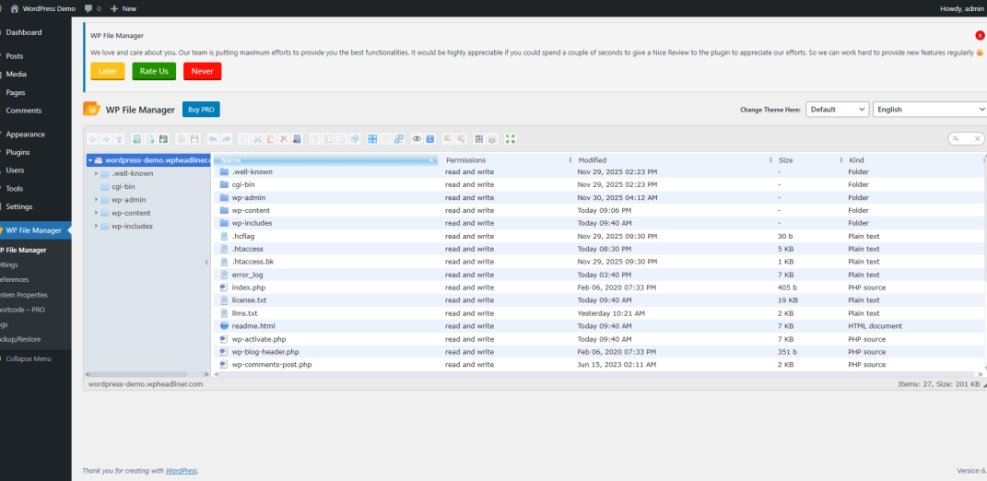
As a rule of thumb, you will normally Edit WordPress Files inside wp-content/themes (and sometimes wp-content/plugins). Files inside wp-admin and wp-includes are part of core WordPress and should almost never be edited directly.
Step 2: Create a Safe Restore Point
Run a Fresh Backup Before Editing
Before you Edit WordPress Files on a live site, always create a backup. This gives you a quick way to undo mistakes without rebuilding everything from scratch.
- Log in to your WordPress dashboard.
- Open your backup plugin or your hosting account’s backup section.
- Run a new full backup that includes both Files and Database.
- Download a copy of the backup file to your computer for extra safety.
- Check that the backup is listed as completed and available to restore.
Use Snapshots for Quick Rollbacks
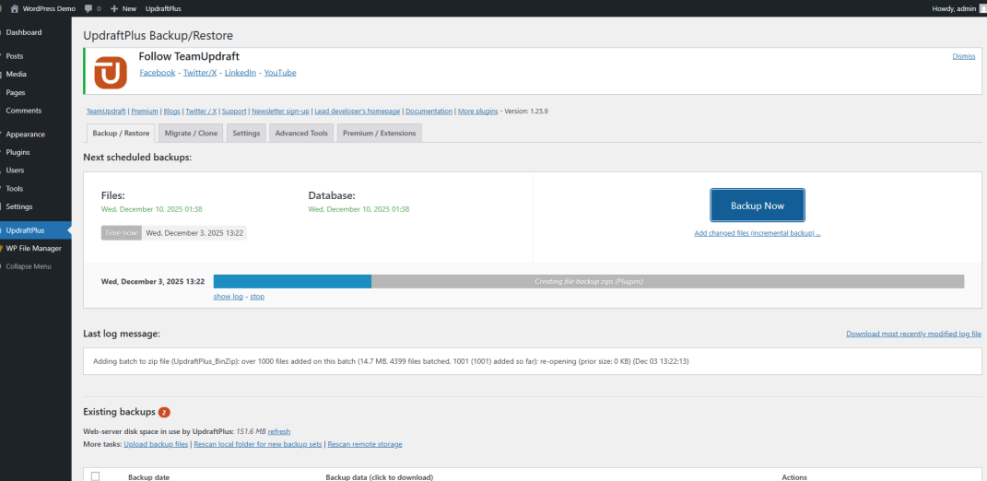
If your host offers one-click restore points or snapshots, create one immediately before you change any files. It is often faster to roll back from a snapshot than from a manual archive.
Step 3: Choose the Safest Editing Method
Main Ways to Edit WordPress Files
You have several ways to Edit WordPress Files. Some are quick and built into WordPress, while others use external tools but give you more safety and control.
Here are the most common methods:
- Theme File Editor – In your dashboard, go to Appearance » Theme File Editor to view and edit theme files directly.
- Plugin File Editor – Go to Plugins » Plugin File Editor to view plugin files (use this sparingly).
- Hosting File Manager – Use your hosting control panel to edit files from your browser.
- SFTP client – Connect with an SFTP app like FileZilla to download, edit, and upload files from your computer.
- Local development environment – Advanced users can clone the site locally, edit files, and deploy changes back to the server.
Dashboard Editors vs External Tools
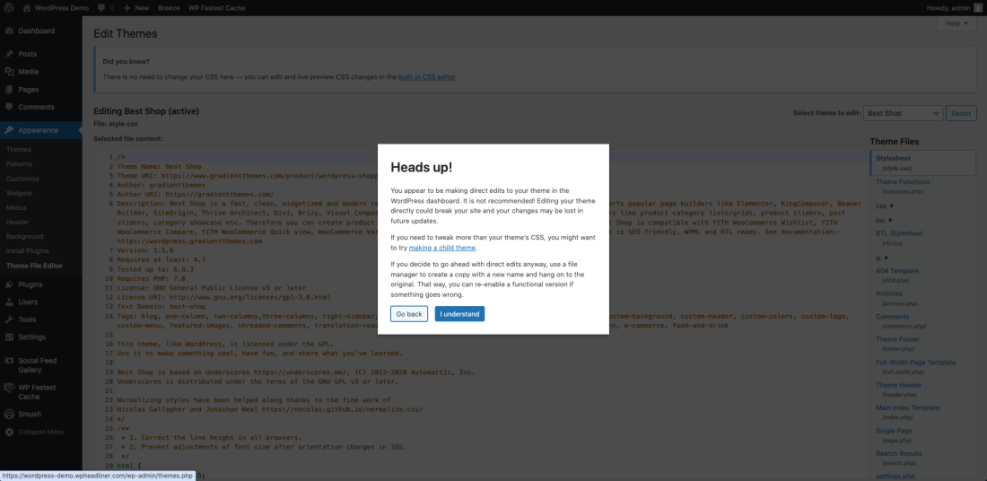
The WordPress Theme File Editor displays a ‘Heads up!’ warning about direct code modifications and suggests using a child theme.The built-in editors are convenient but risky because changes are applied directly to the live site. When possible, use SFTP and a real code editor so you can keep local copies, use undo, and test in a more controlled way. A Beginner guide to WordPress speed optimization walks you through secure connections.
Key Differences Between WordPress File Editing Methods
Side-by-Side Comparison of Methods
Use this comparison to keep the strengths and risks of each editing method clear in your mind.
| Aspect | Dashboard Editors (Theme/Plugin) | SFTP & Local Editor |
|---|---|---|
| Where you edit | Directly inside the WordPress admin area in your browser. | On your computer using a code editor, then upload via SFTP. |
| Risk level | Higher risk – a single syntax error can instantly break the live site. | Lower risk – you can test locally, keep copies, and upload only when ready. |
| Version control | Limited – no easy history or diff unless you copy code manually. | Better – you can store files in Git or keep dated backups on your machine. |
| Speed and convenience | Fast for tiny tweaks; no extra software needed. | Slightly slower setup but much better for regular or complex edits. |
| Best use cases | Very small changes after a backup, emergency fixes. | Ongoing development, custom features, larger theme and plugin changes. |
Choosing the Right Method for Your Changes
From a safety perspective, you can think of the dashboard editors as a shortcut and SFTP plus a local editor as the “professional” way to Edit WordPress Files for anything beyond quick, low-risk tweaks. Use dashboard editors only for tiny changes after a backup, and use SFTP and a local editor for recurring work, new features, or larger refactors.
Step 4: Edit Theme and Child Theme Files
Work in a Child Theme First
Most layout and design changes live in your theme. To avoid losing your work when the theme updates, it is best to edit a child theme instead of the main theme.
- In the WordPress dashboard, go to Appearance » Themes and confirm which theme is marked as Active.
- If a child theme exists, make sure it is active. If not, create or install a child theme before heavy changes.
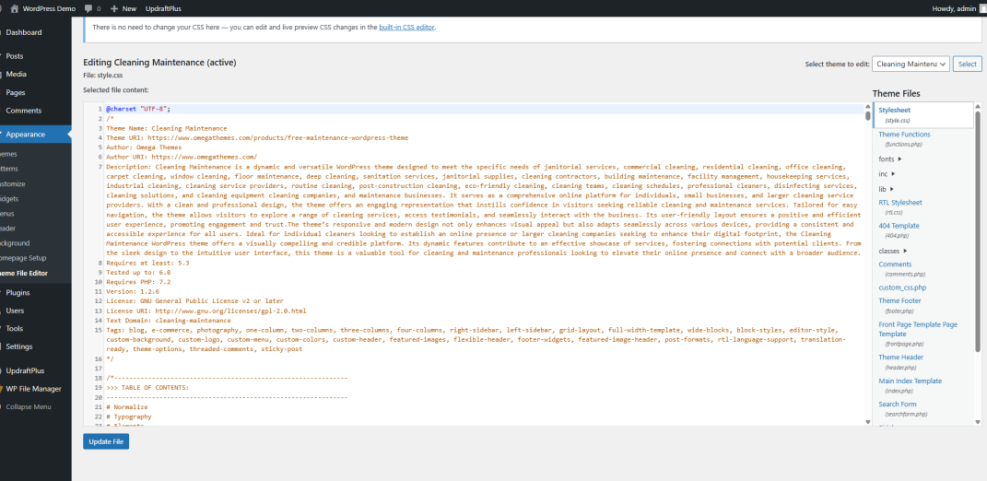
- Go to Appearance » Theme File Editor and select your child theme from the dropdown.
- Click style.css to adjust CSS or functions.php to add PHP snippets.
- Make a small change and click Update File (or edit the file via SFTP and upload it back).
Example: Change Excerpt Length
Here is an example of a simple snippet you might add to a child theme’s functions.php to change the length of post excerpts:
/**
 * Change blog excerpt length.
 */
function wpheadliner_custom_excerpt_length( $length ) {
    return 30; // number of words.
}
add_filter( 'excerpt_length', 'wpheadliner_custom_excerpt_length', 999 );
After saving, view a blog archive page in a private browser window to confirm that excerpts are shorter. If you see an error, remove the snippet or restore the previous version of the file.
Step 5: Edit Plugin and Custom Code Files Safely
Start With Plugin Settings
Plugins add features like forms, SEO, and ecommerce. Editing plugin files directly can be dangerous because updates overwrite your changes. It is better to keep custom code in a child theme or a small custom plugin whenever possible.
- Go to Plugins » Installed Plugins and find the plugin you want to change.
- Check the plugin settings page for built-in options or custom code boxes.
Last Resort: Edit Plugin Files
- Only if there is no other way, go to Plugins » Plugin File Editor and choose the plugin from the dropdown.
- Locate the specific file and function you need to adjust, rather than modifying the main plugin file.
- Make the smallest possible change, click Update File, and test the feature immediately.

For long-term projects, keep your hooks and filters in a child theme or custom plugin instead. That way you can safely update plugins without losing custom behavior every time there is a new release.
Step 6: Edit Core Configuration Files Carefully
Key Files That Control Your Site
Some of the most powerful settings live in configuration files like wp-config.php and .htaccess. These control database access, debug mode, and redirects. Wrong edits here can make your site unreachable.
- Connect via SFTP or open File Manager in your hosting control panel.
- In the site root, locate wp-config.php and .htaccess.
- Download copies of both files to your computer before editing.
- Open wp-config.php in your code editor and scroll near the line that says
/* That's all, stop editing! */. - Add only the lines you need, save the file, and upload it back to the server.
Example: Turn on Debug Mode
For example, to enable debug mode while you are troubleshooting an error, you can add:
define( 'WP_DEBUG', true );
define( 'WP_DEBUG_LOG', true );
define( 'WP_DEBUG_DISPLAY', false );
When you finish debugging, set WP_DEBUG back to false and clear out old logs.
If you see a blank page or “There has been a critical error on this website” after editing wp-config.php, immediately restore the backup copy you downloaded before editing instead of guessing further changes.
Step 7: Test Changes and Roll Back When Needed
Basic Testing After File Changes
Once you Edit WordPress Files, always test the results like a visitor and be ready to undo changes if something looks wrong.
- Open your site in an incognito or private browser window.
- Visit key pages such as your homepage, a blog post, and any important landing or checkout pages.
- Trigger the feature you changed, such as loading a template, submitting a form, or clicking a menu item.
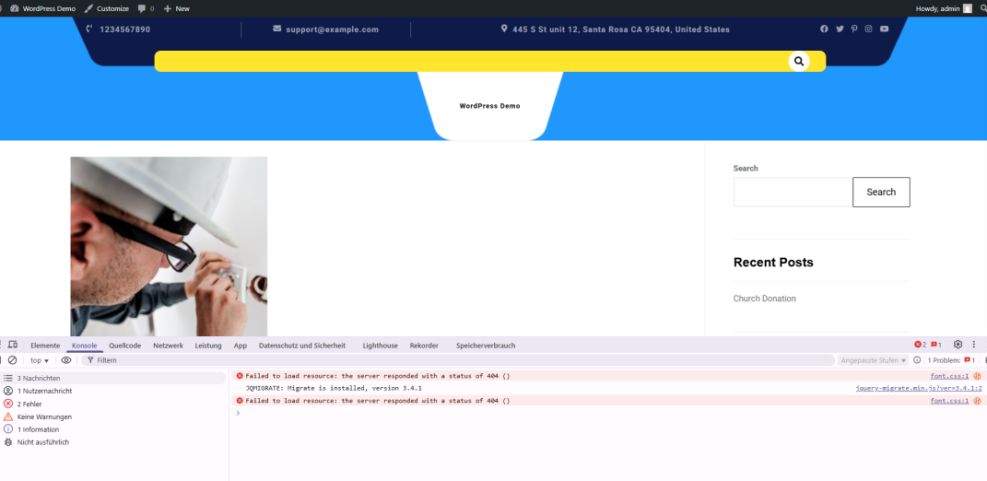
- Check your browser’s developer console for JavaScript errors and, if debug mode is on, note any PHP warnings or notices.
- If there is a problem, revert the last file you edited or restore your most recent backup.
Use a Staging Site for Safer Testing
If you make file changes often, consider using a staging site where you can experiment safely. After everything works on staging, you can repeat the changes or push them to your live site.
Conclusion You Are Ready to Go
Putting It All Together
The big picture is straightforward. WordPress stores your themes, plugins, and uploads in predictable folders, and you can Edit WordPress Files safely as long as you have backups, use the right tools, and test carefully.
You now know where to find key files, how to work in a child theme, when to avoid editing plugin and core files, and how to treat configuration files with extra care. With small, incremental changes and a solid restore plan, you can confidently customize your site’s design and functionality.
Further Reading
- How to edit WordPress files
- How to use ai in WordPress
- Common WordPress backup errors and how to fix
- Install WordPress step by step
Frequently Asked Questions
Which WordPress files should I avoid editing
Is it safe to use the Theme File Editor
Should I edit plugin files directly
Do I need a child theme to edit CSS
What should I do if my site breaks after editing a file
Can I edit WordPress files from my phone