How to Create a Website Like Airbnb with WordPress
Practical WordPress tips and strategies

If you want to create a website like Airbnb with WordPress, you can combine booking, payment, and marketplace plugins into a vacation rental platform. Instead of custom coding an entire app, you rely on proven WordPress tools to handle listings, calendars, and secure payments.
In this guide, you will learn step by step how to create a website like Airbnb with WordPress. The process includes planning your rental concept, installing the right plugins, building property pages, adding search and booking flows, connecting payments, and hardening your marketplace.
What You Need to Start
- A self hosted WordPress site on a reliable host with SSL enabled so it can safely run a website like Airbnb.
- Access to the WordPress Admin dashboard with an administrator account.
- A modern, responsive theme that works with WooCommerce or booking plugins for an Airbnb style rental marketplace.
- A payment gateway account such as Stripe or PayPal that you can connect to WooCommerce.
- Basic business rules for your rentals such as pricing, minimum nights, and cancellation policies before you launch your Airbnb style website.
Step 1: Plan your website like Airbnb marketplace
Before you touch plugins, define how your website like Airbnb should work. Clear rules about listings, hosts, and bookings will guide every technical decision later.
Define your rental rules and model
- Decide if you will rent your own properties only or allow multiple hosts to list on your site, like a smaller Airbnb style platform.
- List the property types you will accept. For example, apartments, private rooms, and entire homes.
- Write down booking rules. Include minimum stay, maximum guests, and check-in and check-out times.
- Choose your fee model. You might charge a host commission per booking or guest service fees, similar to bigger sites like Airbnb.
- Sketch the ideal flow from the homepage to booking confirmation on your Airbnb style website.
Step 2: Set up WordPress and hosting correctly
A stable foundation prevents booking outages. Configure hosting and WordPress settings so your website like Airbnb can handle search traffic and booking spikes.
Configure WordPress basics
- Sign up with a performance focused WordPress host. Install WordPress using their one click installer or the official How To Install WordPress on Any Host tutorial.
- Log in to WordPress Admin by visiting
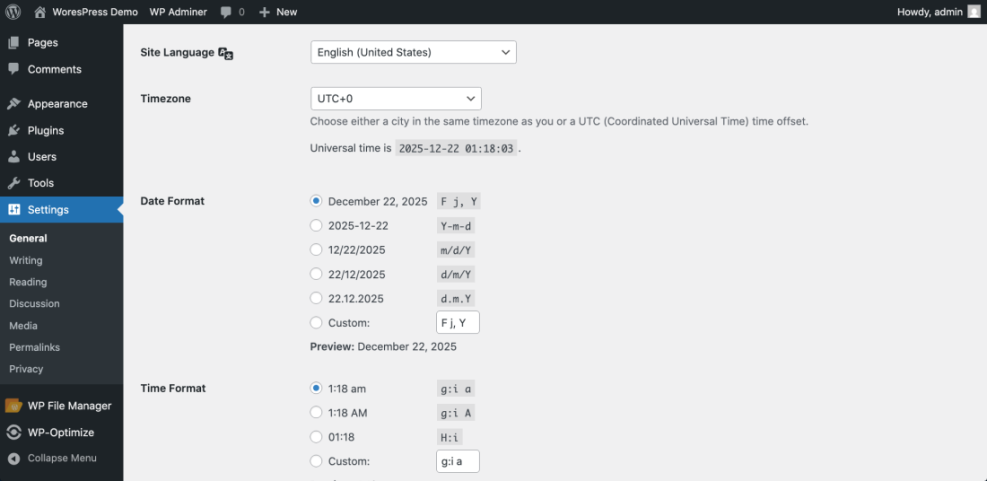
/wp-adminon your domain and entering your admin credentials. - Go to Settings » General. Set your Site Title, Tagline, and Timezone to match your target market.
- Visit Settings » Permalinks and select Post name. This makes your property URLs clean and SEO friendly.
- Check that your site loads over HTTPS. Your browser should show a secure padlock icon on the homepage.
Step 3: Install WooCommerce and booking plugins
Airbnb style booking needs products, carts, and payments. WooCommerce handles ecommerce, while a booking plugin turns products into date based rentals so your website like Airbnb can take reservations automatically.
Install ecommerce and booking tools
- In your WordPress dashboard, go to Plugins » Add New.
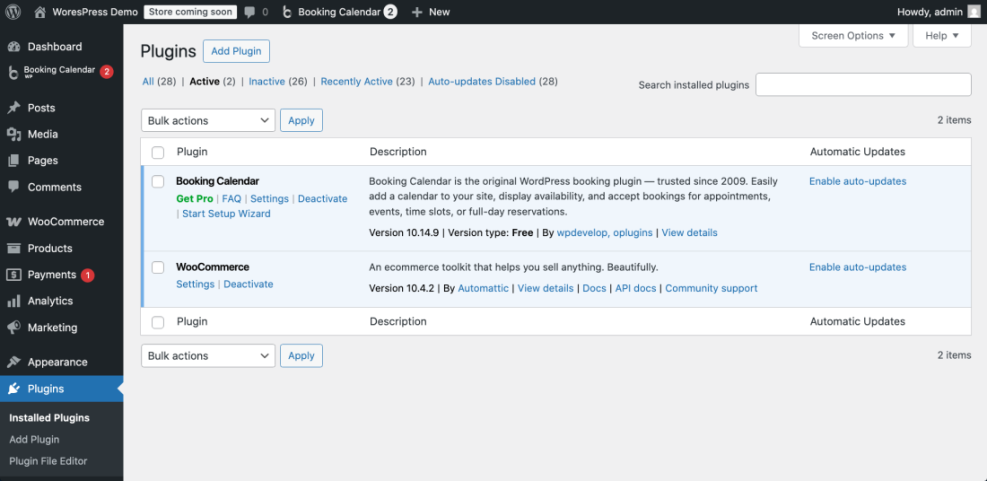
- Search for WooCommerce. Click Install Now, then click Activate. This adds products, checkout, and payment settings.
- Run the WooCommerce setup wizard. Choose your store country, currency, and options for selling services or bookings.
- Return to Plugins » Add New. Search for a booking plugin such as Booking Calendar, then install and activate it to add availability rules.
- If you want multiple hosts, install a multivendor plugin that integrates with WooCommerce. This lets each host manage their own listings and payouts on your Airbnb style marketplace.
Quick reference: main setup methods for a website like Airbnb
| Method | Where You Use It | Main Purpose |
|---|---|---|
| WooCommerce + Booking Plugin | WordPress dashboard » Plugins » Add New » Install WooCommerce and a booking plugin | Turn properties into bookable products with calendars, availability rules, carts, and secure checkout so your website like Airbnb can accept bookings. |
| Multivendor Marketplace Add-on | Plugins » Add New » Install a WooCommerce compatible multivendor plugin | Let multiple hosts list and manage their own rentals while you earn commissions per booking in your Airbnb style marketplace. |
| Property Custom Post Type | CPT/fields plugin interface or theme functions.php | Organize listings in a dedicated Property post type with fields for guests, bedrooms, amenities, and pricing. |
| Custom Search & Filters Code | Child theme functions.php or a custom functionality plugin | Fine tune Airbnb style search and filtering by date, location, and guest count beyond default plugin options. |
It also helps to review a guide such as Woocommerce performance tips for faster stores before adding rentals.
Next, check that menu items like WooCommerce, Products, and your booking plugin appear in the sidebar. Make sure the default shop and cart pages load without errors.
For plugin details, see the official WooCommerce plugin page and a booking solution like Booking Calendar on WordPress.org.
Step 4: Create property listing structure
Airbnb uses clear property listings with photos, amenities, and availability. You can recreate this in your website like Airbnb by defining a Property custom post type and custom fields.
Register the Property post type
- Go to Plugins » Add New. Install a custom post type and custom fields plugin if you prefer a visual interface instead of code.
- Create a new post type named Property or Rental. Enable Title, Editor, Featured Image, and Custom Fields.
- Add taxonomies such as Location and Property Type so guests can filter by city and listing style.
- Create custom fields for Max Guests, Bedrooms, Amenities, and a link to the related WooCommerce booking product.
- Create two or three sample properties. Fill out all fields and confirm the layout shows all key details.
If you prefer code, register your Property post type in your theme’s functions.php file or in a small functionality plugin.
function wpheadliner_register_property_cpt() {
    $labels = array(
        'name' => 'Properties',
        'singular_name' => 'Property',
    );

    $args = array(
        'labels' => $labels,
        'public' => true,
        'has_archive' => true,
        'supports' => array( 'title', 'editor', 'thumbnail' ),
        'rewrite' => array( 'slug' => 'properties' ),
    );

    register_post_type( 'property', $args );
}
add_action( 'init', 'wpheadliner_register_property_cpt' );
Visit Properties » All Properties. Check that your sample listings display correctly on the front end archive of your Airbnb style website.
Step 5: Build search and booking pages
Guests expect to search Airbnb style listings by date, location, and guest count. You will build a search form and make sure results follow your availability and booking rules so your website like Airbnb feels intuitive.
Build the main search experience
- Create a new page called Search Rentals. Add your booking plugin shortcode or block for an availability search form.
- Add dropdowns or filters for Location, Property Type, and Guests. Map each field to your custom post type taxonomies or meta fields.
- Set the form’s action or results page to your Properties archive or a custom results template that lists matching rentals.
- Edit your main navigation under Appearance » Menus. Add Search Rentals and All Properties so visitors can quickly find listings.
- Submit a test search. Confirm that only properties with available dates are shown and that each result links to a booking enabled listing page.

Add smart filters with custom code
To gain more control in your website like Airbnb, you can filter the property archive query with PHP. This ensures only properties that match search parameters appear.
function wpheadliner_filter_property_search( $query ) {
    if ( is_admin() || ! $query->is_main_query() ) {
        return;
    }

    if ( is_post_type_archive( 'property' ) ) {
        $meta_query = array();

        if ( ! empty( $_GET['guests'] ) ) {
            $meta_query[] = array(
                'key' => 'max_guests',
                'value' => intval( $_GET['guests'] ),
                'compare' => '>=',
                'type' => 'NUMERIC',
            );
        }

        if ( ! empty( $meta_query ) ) {
            $query->set( 'meta_query', $meta_query );
        }
    }
}
add_action( 'pre_get_posts', 'wpheadliner_filter_property_search' );
Test this by visiting your property archive with ?guests=2 in the URL. Only properties that can host at least two guests should appear.
Step 6: Configure payments and optimize performance
Once search and listings work, you must ensure guests can pay securely. Pages also need to load fast so people complete bookings instead of abandoning your website like Airbnb.
Connect payment gateways
- Go to WooCommerce » Settings » Payments. Enable gateways such as Stripe or PayPal.
- Click each method’s Set up link. Enter the API keys from your payment provider.
- Open WooCommerce » Settings » Accounts & Privacy. Enable guest checkout or require an account, based on your rules.
- Configure emails such as New Order, Booking Confirmed, and Cancelled Order under WooCommerce » Settings » Emails.
- Install a caching plugin if your host does not provide server caching. Exclude booking, cart, and checkout pages from caching.
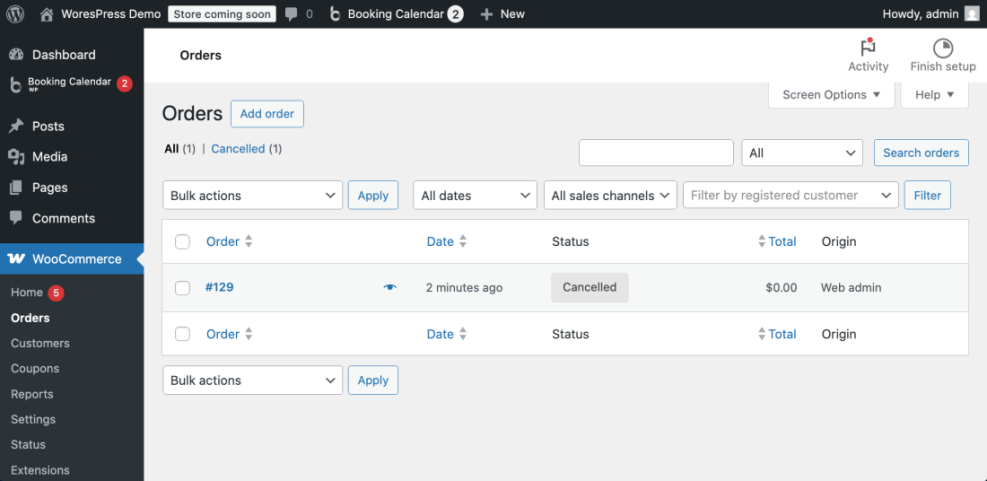
- Run a full test booking in test mode. Check that the order appears under WooCommerce » Orders.
Improve speed and reliability
For larger marketplaces, use a performance checklist such as WordPress speed optimization checklist. This helps keep booking pages fast even when your Airbnb style website gets more traffic.
Step 7: Secure and maintain your rental site
Airbnb style sites handle real money and personal data. You must protect logins, backups, and updates so a hacked or broken website like Airbnb never affects incoming reservations.
Protect your Airbnb style website
- Install a reputable security plugin. Enable the firewall, login protection, and malware scanning features.
- Set up automatic daily backups through your host or a backup plugin. Store copies in external cloud storage.
- Turn on two factor authentication for administrator accounts. Limit dashboard access to trusted hosts and staff.
- Create a simple monthly checklist to update plugins, themes, and WordPress core on a staging site. Push changes to production after you test them.
- Follow a guide such as WordPress migration checklist for blogs. Use it for regular security reviews.
Test your backups by restoring them on a separate environment. Confirm that failed login attempts are blocked by your security plugin.
Conclusion You Are Ready to Go
By now you have planned your rental concept, installed WooCommerce and booking tools, built Property listings, and created search and booking pages. You also connected payments and secured your site. With these pieces in place, you now have a website like Airbnb built with WordPress.
Next steps include automation such as reminders, reviews, and analytics. Use real user behavior to keep improving your Airbnb style marketplace.
Further Reading
- Woocommerce performance tips for faster stores
- Designing High Converting Booking Flows in WordPress
- WordPress migration checklist for blogs
- How to speed up a WordPress site
- Advanced developer hooks for WordPress optimization with code
Frequently Asked Questions
Getting started with a website like Airbnb
Can I build an Airbnb style site without coding
Which WordPress theme works best for rental marketplaces
Managing hosts, fees, and scalability
Do I need a multivendor plugin for multiple hosts
How do I handle cancellations and refunds for bookings
Is WordPress scalable for thousands of listings
Fees, revenue, and social proof
Can I charge service fees like Airbnb does
How do I collect reviews for properties