How To Choose The Right WordPress Hosting
A practical checklist to match your WordPress site with the best hosting plan

Choosing WordPress hosting can feel overwhelming. Every provider promises “blazing fast speed”, “unlimited everything”, and “24/7 expert support”, but those buzzwords don’t tell you if a plan is actually right for your site.
The good news: you don’t need to guess. By looking at a few critical factors—your goals, performance needs, security, support, and budget—you can confidently narrow down your options to a hosting plan that fits right now and can grow with you.
This guide gives you a practical, step-by-step checklist to evaluate any host. If you’re not yet sure what WordPress hosting actually is, read WordPress hosting explained first, then come back to choose the right plan.
Prerequisites
Before you start comparing plans, gather a few details about your website. Having these in front of you will make it much easier to filter out bad fits quickly.
- Website type: Blog, business site, portfolio, WooCommerce store, membership site, LMS, etc.
- Traffic levels: Current visitors per month and realistic expectations for the next 12–24 months.
- Revenue model: Are you selling products, services, or running ads? How much downtime can you tolerate?
- Technical comfort level: Do you prefer a “do it for me” host or are you happy configuring servers and tools?
- Budget: A realistic monthly or yearly budget (for example, $5–$15/month for a small blog vs more for a store).
- Shortlist of hosts: A list of 3–5 providers you’re considering so you can score them against the same checklist.
Step 1: Clarify your website goals and growth plans
Hosting is not one-size-fits-all. A small personal blog and a busy WooCommerce store have very different requirements, even if both use WordPress.
- Define your primary goal. Are you trying to build an audience, sell products, capture leads, or power an internal tool? Your goal affects how much downtime and slowness you can accept.
- Estimate your growth. Think about where you want your site to be in 12–24 months. Will you add more content, products, or members? That growth will increase traffic and resource usage.
- List your “must-have” features. For example, WooCommerce support, staging environments, email hosting, or specific PHP extensions.
- Decide how hands-on you want to be. If you don’t want to manage updates, backups, or performance tuning, you’ll be happier on a more hands-off plan.
Step 2: Understand the main types of WordPress hosting
Most providers sell similar types of plans, but they package and market them differently. Understanding the core types helps you see through labels and focus on what matters.
Shared WordPress hosting
With shared hosting, your site runs on a server shared with many other websites. It’s usually the cheapest option and popular with beginners.
- Pros: Very low cost, easy setup, usually includes a simple control panel (like cPanel) and one-click WordPress installs.
- Cons: Fewer resources, performance can suffer when neighbors are busy, and support may be less WordPress-specific.
- Best for: New blogs, basic brochure sites, and small projects with modest traffic.
Managed WordPress hosting
Managed WordPress hosting is tailored specifically to WordPress. The host manages performance tuning, security hardening, and updates for you.
- Pros: Better performance, automatic updates, built-in caching, staging environments, and expert WordPress support.
- Cons: Higher cost per month, may limit certain plugins or custom server tweaks.
- Best for: Serious blogs, business sites, and stores where reliability and support matter more than rock-bottom price.
If you want a deeper dive into what “managed” actually covers, read more about managed WordPress hosting after you finish this checklist.
VPS and cloud hosting
Virtual Private Servers (VPS) and cloud platforms (like customized cloud instances) give you dedicated resources and more control.
- Pros: Better and more predictable performance than cheap shared hosting, greater flexibility, and higher ceilings for growth.
- Cons: Usually requires more technical knowledge (or a managed layer on top), and misconfiguration can hurt performance or security.
- Best for: High-traffic blogs, busy WooCommerce stores, agencies hosting multiple client sites, or advanced users.
Dedicated servers
With a dedicated server, you get an entire physical server just for your sites.
- Pros: Maximum control and resources, with no noisy neighbors.
- Cons: Most expensive option, requires strong server management skills or a fully managed service.
- Best for: Very high-traffic or specialized applications where you’ve outgrown VPS or need strict compliance.
Step 3: Compare performance and server resources
Performance is where cheap hosting often fails. A slow site hurts user experience, conversions, and SEO, so it’s worth paying attention to the details.
When comparing hosts, look closely at:
- Server hardware: SSD or NVMe storage, modern CPUs, and enough RAM for your expected traffic.
- PHP version and PHP workers: Support for current PHP versions and enough PHP workers to handle concurrent requests without queueing.
- Caching: Built-in server-level caching (opcode caching, page caching, and ideally object caching like Redis) tuned for WordPress.
- Data center locations: Servers near your primary audience to reduce latency.
- CDN integration: Easy integration with a CDN to serve static assets closer to visitors.
- Resource limits: Clear limits on CPU, memory, storage, and inodes so you don’t hit “invisible walls”.
Ask the host if they provide staging environments, performance reports, or guidance on how to optimize WordPress performance inside WordPress itself, not just at the server level.
Step 4: Evaluate security, backups, and updates
A good host adds an extra layer of protection around your WordPress site. Poor security can lead to hacks, data loss, and downtime at the worst possible time.
Compare hosts based on:
- SSL certificates: Free automatic SSL (e.g., Let’s Encrypt) and easy renewal built in.
- Web Application Firewall (WAF): Protection against common attacks like SQL injection and brute-force login attempts.
- Malware scanning and cleanup: Regular scans and clear policies on how infections are handled.
- Automatic backups: Daily (or more frequent) backups with simple one-click restores and reasonable retention periods.
- Update management: Options for automatic WordPress core, theme, and plugin updates with rollback if something breaks.
- Access controls: Two-factor authentication (2FA) for the hosting panel, SSH key support, and restricted SFTP/FTP accounts.
Step 5: Check support quality and WordPress expertise
Support is often the difference between a minor issue and a full-blown outage. You want a host that understands WordPress and can help when things go wrong.
Evaluate support by checking:
- Availability: 24/7 support is ideal, especially if your visitors are global.
- Channels: Live chat, tickets, and phone support (if important to you).
- WordPress expertise: Ask if their team can help with common WordPress issues, not just server restarts.
- Response and resolution times: Do they share typical times or offer an SLA (Service Level Agreement)?
- Knowledge base and docs: Good documentation and tutorials can save you a lot of time.
Step 6: Review pricing, contracts, and value
Price matters, but you shouldn’t choose hosting on price alone. Focus on value—what you get for what you pay—over the cheapest number.
When comparing pricing:
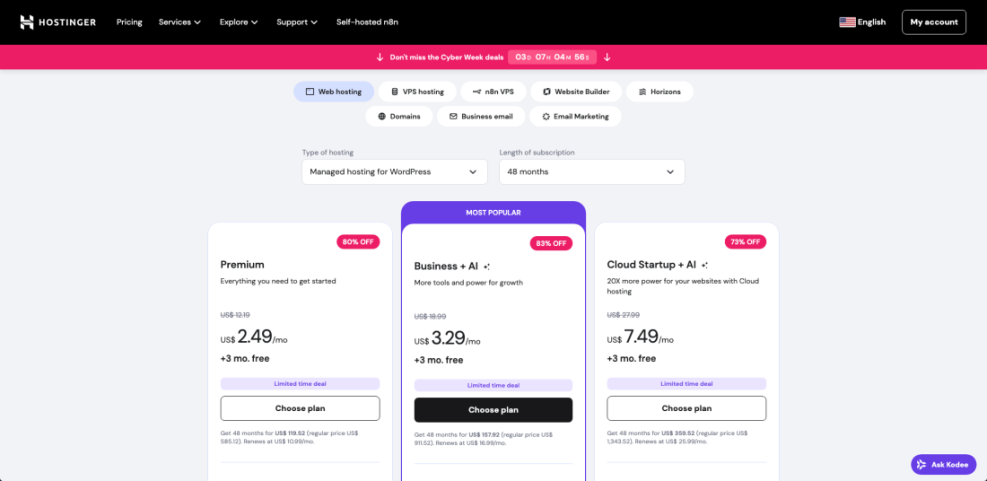
- Intro vs renewal price: Many hosts offer low introductory rates and much higher renewals. Always check the renewal price.
- Billing cycles: Annual plans are usually cheaper long term, but monthly plans are lower risk if you’re still testing.
- Included features: SSL, email, backups, staging, and migrations might be included—or costly add-ons.
- Overage fees: Understand what happens if you exceed bandwidth, storage, or visitor limits.
- Refund policy: Look for a clear money-back guarantee period to safely test the host.
Step 7: Shortlist, test, and migrate safely
Once you’ve compared several hosts using this checklist, it’s time to test your top choice and, if you’re happy, move your site.
- Create a comparison sheet. Score each host on performance, security, support, and pricing based on everything above.
- Shortlist 1–2 finalists. Remove any host that fails your must-have requirements or has unclear limits.
- Sign up for a test plan. Ideally choose a monthly or refundable plan so you can walk away if it’s not a fit.
- Set up a staging or test site. Install your theme and key plugins, then run real tests (speed, admin responsiveness, checkout flows, etc.).
- Use the host’s migration tools. Many WordPress hosts offer free assisted migrations or plugins to move your site safely.
- Monitor for a few days. Track uptime, page load time, and any error messages in your logs.
- Decide and commit. If everything looks good, switch your domain’s DNS to the new host and extend your plan.
Confidently pick the WordPress hosting that fits you
Choosing the right WordPress hosting isn’t about chasing the lowest price or the loudest marketing claim. It’s about matching a host’s performance, security, support, and pricing to your specific site and growth plans.
By clarifying your goals, understanding hosting types, digging into performance and security features, and properly testing your shortlist, you can choose a provider that will keep your site fast, stable, and ready to grow. Treat hosting as a long-term partner and you’ll avoid costly migrations and downtime later.
Further Reading
- How Does WordPress Hosting Work?
- Managed WordPress Hosting Guide
- Fastest WordPress Hosting Providers
- WordPress Hosting Backups
Frequently Asked Questions
How much should I pay for WordPress hosting as a beginner?
What should I do if my WordPress site is still slow on a new host?
Is shared hosting secure enough for WordPress?
Can I change WordPress hosts later without downtime?
Do I really need managed WordPress hosting?