A website builder can seem confusing when you just want to get a simple site online. There are many tools, flashy templates, and conflicting reviews, and it is hard to know which choice will still work for you in a year or two.
This guide walks you through the key steps to choose the right tool for your needs. You will see how different builders work, which criteria matter most, how to compare real options, and how to test a platform before you commit time and money.
Website Builder Basics For WordPress Users
Before you compare tools, it helps to understand what a website builder actually does. In simple terms, it is software that lets you design pages, manage content, and publish a site without coding. Most tools use drag-and-drop sections and ready-made templates.
What Is A Website Builder?
A website builder is a visual tool that lets you create and update web pages without writing HTML, CSS, or JavaScript. You usually choose a template, customize colors and fonts, drag in blocks like images and contact forms, then publish your site to your domain with a few clicks.
There are two main types of builders you will see. Hosted platforms bundle hosting, themes, and the editor in one subscription. Self-hosted options like WordPress let you pick your own hosting and then add a theme or page builder plugin on top.
Is WordPress A Website Builder?
WordPress is a content management system, but with a modern block editor and visual page builders, it also behaves like a website builder. You install WordPress on hosting, choose a theme, then use the block editor or a page builder plugin to design your pages visually.
If you already use WordPress or plan to, you can treat it as your main platform and compare it to hosted tools. You gain more flexibility, especially when you connect SEO plugins, performance optimizations, and custom functionality for online stores or memberships.
To understand these terms, remember that a WordPress site separates hosting, design, and content, while many other website builders wrap everything into one service. This difference affects cost, lock-in, and how much control you have over your data.
How Does A Drag And Drop Builder Work?
A drag and drop website builder gives you a canvas and a toolbar of blocks such as headings, images, columns, and buttons. You drag blocks into place, change their settings in a side panel, and the builder writes the underlying code for you in the background.
Key Factors When Choosing A Website Builder
When you compare tools, it is easy to get lost in fancy demos. Instead, focus on a few core factors: ease of use, design control, performance, SEO options, pricing, and long-term flexibility. These areas determine how smooth your daily work will be.
What Should You Look For In A Site-Building Tool?
Look for a website builder that is simple to learn, offers clean templates, and includes solid SEO settings like title and meta description fields. In addition, check that it loads pages quickly, supports mobile-friendly layouts, and allows you to grow from a basic site to a store if needed.
To keep things clear, here is a simple comparison of factors you should rate for each platform you test.
| Factor | Why It Matters | What To Aim For |
|---|---|---|
| Ease Of Use | Determines how fast you can launch and update pages. | Intuitive editor, short learning curve, clear onboarding. |
| Design Flexibility | Controls how unique and professional your site can look. | Modern templates, layout control, reusable sections. |
| Performance | Affects load time, user experience, and rankings. | Fast hosting, optimized code, image compression options. |
| SEO Tools | Helps search engines understand and index your pages. | Custom titles, meta descriptions, clean URLs, sitemaps. |
| Pricing | Impacts your monthly or yearly budget. | Clear plans, fair limits, predictable costs as you grow. |
| Ownership | Determines how easily you can move or export your site. | Access to files, export tools, open standards. |
Use this framework as a checklist whenever you sign up for a trial or demo. It keeps you focused on real needs instead of marketing promises, and it makes it easier to compare notes across different platforms later.
For WordPress users, performance and SEO are especially important. You can combine a reliable hosting plan with proper caching, as explained in a future Beginner guide to WordPress speed optimization article to get solid results from almost any modern theme or page builder.
How Much Do Website Builders Cost?
The cost of a website builder usually ranges from around $10–$30 per month for hosted platforms, or $5–$20 per month for WordPress hosting plus optional premium themes or plugins. Remember to include domain registration, email, and occasional developer help in your long-term budget.
You may also want to consider accessibility and legal requirements. Aim for contrast ratios of at least 4.5:1 for normal text and 3:1 for large text, as recommended by the WCAG 2.1 AA guidelines. Good templates make it easier to reach these targets without extra design work.
Comparing Popular Site-Building Options
Now that you know what to look for, you can compare common categories of tools. You will usually choose between hosted builders, self-hosted WordPress with a visual editor, or ecommerce-focused platforms if you mainly sell products.
Below is a compact overview of how these categories compare for a typical small business site or blog.
| Type | Pros | Cons |
|---|---|---|
| Hosted Website Builder | All-in-one, easy setup, support included. | Less control, limited export, higher long-term cost. |
| WordPress + Theme | Flexible, huge ecosystem, strong SEO plugins. | Requires separate hosting and maintenance. |
| WordPress + Page Builder | Advanced layouts, reusable blocks, visual editing. | Can bloat pages if overused; needs optimization. |
| Ecommerce Platform | Built-in cart, payments, product management. | May be overkill for simple sites or blogs. |
When you read reviews, remember that many comparisons focus on design only. You should also test how easy it is to manage content, whether you can set proper SEO titles and meta descriptions, and how quickly pages load on a typical 4G connection.
If you choose WordPress, you can use the block editor and extend it with a visual builder later. This path gives you more freedom to follow advanced How to add keywords in WordPress without hurting practices or add custom post types when your site grows beyond simple pages and posts.
Is A Free Plan Enough For You?
A free website builder plan can be fine for early experiments or a personal hobby site. However, it often adds platform branding, limits features, and does not allow custom domains or ecommerce. For a serious business, plan to upgrade to a paid plan once your site is stable.
When comparing offers, look closely at resource limits and whether the platform supports tools like PageSpeed Insights and analytics. Performance and tracking matter as much as the initial look of your homepage.
How To Test A Website Builder Before Committing
Instead of guessing which website builder will work best, run a quick test project. Build a one-page site with your logo, headline, services, and contact form. This mini project reveals how the editor feels and how quickly you can get to a publishable result.
How Do You Run A Practical Test?
The best test is to recreate a simple homepage and one service or blog page using real text and images. Time how long it takes, note where you get stuck, and check the preview on a phone and laptop. You will quickly see if the tool fits your working style.
- Create a free or trial account with your chosen platform.
- Pick a simple, clean template aimed at your niche.
- Add your logo, brand colors, and basic typography choices.
- Build a homepage with a hero section, services, and contact block.
- Create one inner page such as “About” or a sample blog post.
- Test the site on mobile and desktop, and note any layout issues.
- Run a basic speed and SEO check using online tools.
This short checklist gives you a realistic sense of the platform without a big time investment. You can repeat it with two or three options, then compare which version felt easier, looked better, and produced the fastest sample site.
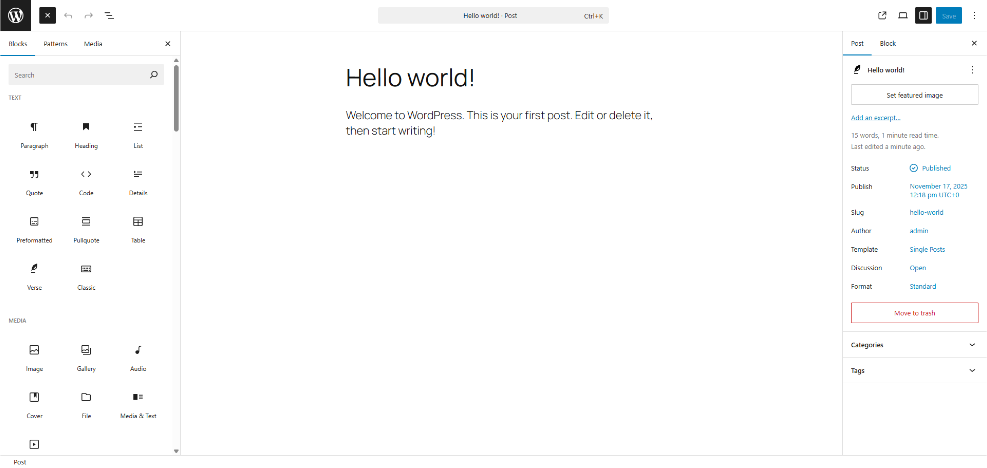
In WordPress, for example, you might go to Appearance → Themes, activate a clean theme, and then use the block editor to add sections. A future Best WordPress seo plugins and tools tutorial could show you detailed block patterns for this step.
What Is A Good Trial Period For A Website Builder?
A good trial period is at least 7–14 days, which gives you enough time to build a small site, test performance, and invite feedback from a friend or client. Shorter trials can still work if you plan your test tasks in advance and stay focused while you evaluate the tool.
During tests, pay attention to small details such as how media is organized and whether terms like SEO settings are easy to find. These details matter once you have dozens of pages to manage.
Making Your Final Decision
After you test a few platforms, it is time to decide. At this stage, you know which website builder felt most natural, which produced the best-looking pages, and which fits your budget. Now you should also think about long-term content strategy and growth.
List your top two options and write down the main pros and cons for each. Factor in hidden costs like transaction fees, add-on apps, or premium templates. Then choose the platform that gives you space to grow without becoming too complex for your current skills and schedule.
For many users, a well-configured WordPress site with a visual editor hits the sweet spot between flexibility and control. You can start small, then add more advanced features like custom fields, multilingual support, or ecommerce as your needs evolve.
Conclusion
Choosing a website builder is easier when you focus on real-world tasks instead of marketing promises. Define your goals, shortlist a few tools, then run a small trial project that reflects how you actually work. This approach reveals which platform really supports your daily tasks.
By comparing ease of use, design flexibility, performance, SEO, and long-term ownership, you can pick a solution that fits your skills and budget. Once you commit, protect your investment with regular backups, basic performance tuning, and a simple content plan so your site keeps improving over time.
More WordPress Guides You Might Like
The following guides, planned or existing, complement your knowledge about website builders, WordPress, and building professional sites that are fast, secure, and easy to manage.
- Beginner guide to WordPress speed optimization
- WordPress seo complete beginners guide
- How to design a website with WordPress
- WordPress migration checklist for blogs
- Step-By-Step Guide To Launching A WooCommerce Store
Use these resources to go deeper into performance, SEO, design, security, and ecommerce once you have chosen your preferred platform. Together, they help you build a site that not only looks good but also loads fast, ranks well, and stays secure.
Frequently Asked Questions About Site Builders
How Do I Know Which Website Builder Is Right For Me?
Is A website builder Better Than Hiring A Developer?
Can I Switch From One Website Builder To Another Later?
Do I Need Coding Skills To Use A Website Builder?
How Important Are SEO Features In A Website Builder?