If you want to check traffic on WordPress website and see how many people visit your posts and pages, you don’t need to guess or rely on “gut feeling.” With the right tools, you can see exactly where visitors come from, what they read, and how long they stay.
In this guide, you’ll learn the main ways to measure visitors on a WordPress site, including built-in stats, Google Analytics (GA4), and privacy-friendly tools like Matomo. We’ll also cover how to view your traffic reports, what the basic metrics mean, and how to avoid common tracking mistakes.
What You Need Before You Check Traffic on WordPress Website
- A working WordPress site with administrator access.
- Login details for your hosting control panel or email (for any verification emails).
- A Google account if you plan to use Google Analytics (GA4).
- Optional: FTP or file manager access if you prefer to add tracking code manually (not required for most beginners).
- A recent site backup before you install new plugins or change theme files.
Step 1: Understand the Traffic Metrics on Your WordPress Website
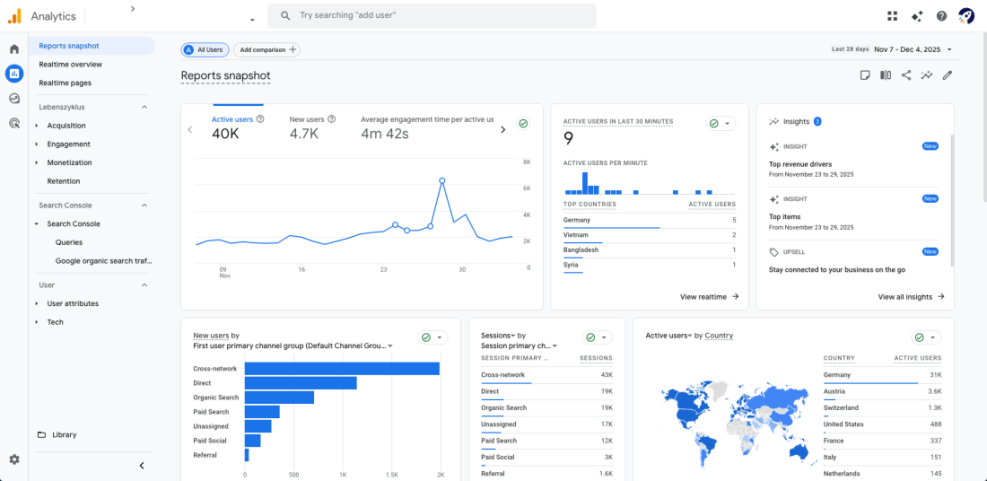
Before you actually check traffic, it helps to understand the basic terms you’ll see in your reports. This makes it easier to know whether your WordPress website is growing or not.
- Users (Visitors) – The number of unique people who visited your site in a period.
- Sessions – A session is a visit; one user can have multiple sessions.
- Pageviews – How many times individual pages were loaded.
- Traffic source – Where visitors came from (search, social, direct, referral, etc.).
- Bounce rate / Engagement – How quickly people leave or how much they interact with your content.
If you know these basics, any traffic tool you use on your WordPress site will make much more sense.
Step 2: View Basic Traffic Stats on Your WordPress Site or Jetpack
Some WordPress setups include basic stats without needing a separate analytics service. This is usually enough if you just want a quick overview of how many people visit.
- In your WordPress dashboard, look for a menu item like Jetpack » Site Stats or Stats.
- Open the stats page to see a graph of daily views and visitors.
- Scroll down to see your Top posts & pages, Referrers, and Search terms (if available).
- Adjust the date range to compare this week vs last week or this month vs last month.
- Make a note of your average daily visitors so you can see if your WordPress website traffic is trending up or down.

Step 3: Set Up Google Analytics (GA4) to Check Traffic on WordPress Website
To really check traffic on WordPress website in depth, most site owners use Google Analytics. The current version is called GA4.
- Go to analytics.google.com and sign in with your Google account.
- Click Start measuring to create a new account and property.
- Enter an account name (for example, your brand or business name).
- Create a new Web data stream and enter your site URL (like https://example.com).
- Copy the Measurement ID that GA4 gives you (it starts with
G-).
You now have an analytics property ready to receive data from your WordPress website. Next, you’ll connect this ID to your site.
Step 4: Connect Google Analytics to WordPress With a Plugin
The easiest way to add GA4 to WordPress is with an analytics plugin so you don’t touch theme files.
- In your WordPress dashboard, go to Plugins » Add New.
- Search for Google Analytics or GA4 and choose a reputable plugin with recent updates and good reviews.
- Click Install Now, then Activate.
- Open the plugin’s settings page from the new menu in your sidebar.
- Paste your GA4 Measurement ID or click a Connect to Google button if the plugin uses OAuth.
- Save your settings and clear any caching plugin so the new tracking code loads for visitors.
To confirm everything works, visit your site in a private browser tab and check the Realtime report in GA4—you should see at least one active user.
Step 5: Read Your WordPress Traffic Reports in Google Analytics
Once GA4 is connected, it will start recording visitors. Give it a few hours or days, then log in to see how much traffic your WordPress website gets.
- Go to analytics.google.com and open your GA4 property.
- Click Reports » Acquisition to see where your traffic comes from (search, social, direct, etc.).
- Open Engagement » Pages and screens to see which pages get the most views.
- Adjust the date range in the top-right corner to compare different weeks or months.
- Use filters to focus on a specific country, device type, or traffic source.
Look for patterns: which posts bring in the most visitors? Are they coming from Google, social networks, or referrals? This helps you decide what content to create next.
Step 6: Use Matomo or Other Privacy-Friendly Analytics for WordPress
If you prefer to avoid Google Analytics or want more control over your data, you can use tools like Matomo (self-hosted or cloud) to check traffic on a WordPress website.
- Sign up for a Matomo account or install the self-hosted version on your server.
- Create a new site in Matomo and copy the provided tracking code or site ID.
- In WordPress, install a Matomo or generic analytics plugin that supports Matomo integration.
- Paste the tracking code or connect via API as instructed by the plugin.
- Wait for data to collect, then log in to Matomo to view visits, referrers, and page reports.
Step 7: See WordPress Traffic Inside Your Dashboard
You don’t always need to leave your site to view stats. Many analytics plugins can show a summary of your traffic directly in the WordPress admin area.
- Open your analytics plugin’s settings and look for an option like Dashboard widget or Admin reports.
- Enable the widget so it appears on the main Dashboard screen.
- Refresh your admin dashboard and look for a graph showing visitors, pageviews, and top pages.
- Change the date range to see last 7 days, 30 days, or a custom period.
- Use this quick snapshot to monitor your traffic without logging into multiple tools every day.
This is especially useful if clients or team members log in and want a simple view of how the site is performing.
Step 8: Track Conversions, Not Just Visits
Checking traffic numbers alone doesn’t tell you if your WordPress website is successful. You also need to know whether visitors do what you want them to do.
Why Traffic Quality on Your WordPress Website Matters
- In GA4 or Matomo, set up events or goals such as contact form submissions, purchases, or newsletter signups.
- Create a simple “thank you” page for key actions and use it as a conversion target.
- Use UTM parameters on links you share in email or social media to track which campaigns bring engaged visitors.
- Compare traffic sources by conversion rate, not just number of visitors.
- Focus your marketing on channels that send fewer but more valuable visits.
Quick Comparison of Ways to Check Traffic on WordPress Website
Use this table to choose the best traffic-tracking method for your site.
| Method | Where You Use It | Main Purpose |
|---|---|---|
| Built-in / Jetpack Stats | WordPress dashboard » Jetpack » Site Stats | Get a quick snapshot of views and visitors without leaving WordPress. |
| Google Analytics (GA4) | analytics.google.com + analytics plugin | See detailed traffic reports, behavior, and conversion data across devices. |
| Matomo or Similar Tools | External analytics dashboard + WordPress plugin | Track privacy-friendly analytics while keeping more control over your data. |
| Hosting / Server Logs | Hosting control panel (cPanel, Plesk, etc.) | Use raw server stats as a backup or to compare against other tracking tools. |
| Dashboard Widgets | WordPress admin » Dashboard | See key traffic metrics at a glance inside the WordPress backend. |
Conclusion: You Can Now Check Traffic on WordPress Website Confidently
You’ve seen several ways to check traffic on WordPress website—from simple built-in stats to full analytics platforms like GA4 and Matomo. Start with a basic solution for quick numbers, then add a more advanced tool as soon as you want deeper insights into your visitors and conversions.
Check your reports regularly, look for trends instead of obsessing over daily ups and downs, and use the data to guide your content and marketing decisions. Done right, traffic analytics become a roadmap for steady, sustainable growth.
Frequently Asked Questions About Checking WordPress Traffic
Do I really need Google Analytics, or are WordPress stats enough?
Will adding analytics slow down my WordPress site?
How long does it take before I can see traffic data?
Can I track traffic on multiple WordPress sites with one account?
What should I check first when I look at my traffic reports?
Do I need visitor consent for tracking?