In this tutorial, you will learn how to change your password directly in the dashboard, recover a lost password by email, reset it in the database through phpMyAdmin for emergencies, and even update it with WP-CLI. By the end, you will have a hardened login that keeps attackers out and still lets you back in easily.
What You Need Before Changing Your WordPress Password
- Administrator access to your WordPress site or at least access to your own user account.
- Access to the email address linked to your WordPress user for password reset emails.
- Hosting control panel access such as cPanel or a similar dashboard for phpMyAdmin, if you plan to use the database method.
- Basic familiarity with logging in to the WordPress dashboard at /wp-admin or /wp-login.php.
- Optional but recommended: a recent backup of your database before editing it directly.
Step 1: Choose the Best Method to Change Your Password
Different situations call for different ways to change a WordPress password. The table below helps you decide which method you should follow first.
| Method | Where You Use It | Main Purpose |
|---|---|---|
| Change Password from Profile | WordPress dashboard » Users » Profile / All Users | Safely update your own or another user’s password when you can already log in to the WordPress dashboard. |
| Reset Forgotten Password by Email | WordPress login page » “Lost your password?” link | Recover access when you forgot your password but still have access to the email address linked to your WordPress account. |
| Reset Password in Database (phpMyAdmin) | Hosting control panel » phpMyAdmin » wp_users table | Emergency method for changing a password directly in the database when email resets fail and you’re locked out of the site. |
| Change Password with WP-CLI | SSH terminal with WP-CLI installed | Fast, scriptable password updates for developers or power users managing multiple sites or user accounts from the command line. |
| Secure Account After Password Change | WordPress dashboard » Profile & Security/2FA plugin settings | Add two-factor authentication, log out other sessions, and clean up user roles so your new password and login stay secure long term. |
Once you know which method fits your situation, follow the detailed steps below.
Step 2: Change WordPress Password from Your Profile
When you can already log in to your WordPress dashboard, this is the safest and most user friendly way to change your own password or update another user’s password as an administrator.
- Log in to your WordPress dashboard by visiting yourdomain.com/wp-admin and entering your current username and password.
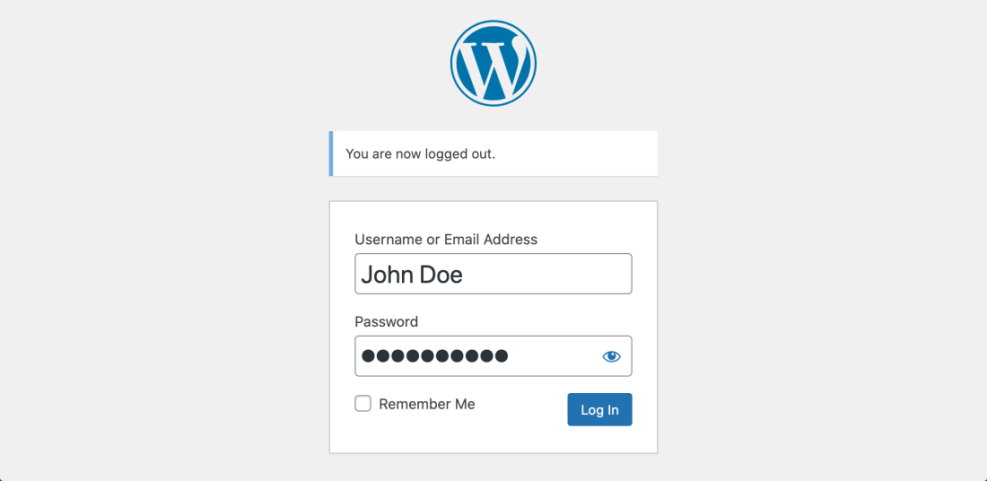
- In the left sidebar, navigate to Users » Profile (for your own account).
If you are an administrator changing someone else’s password, go to Users » All Users and click the username you want to edit.
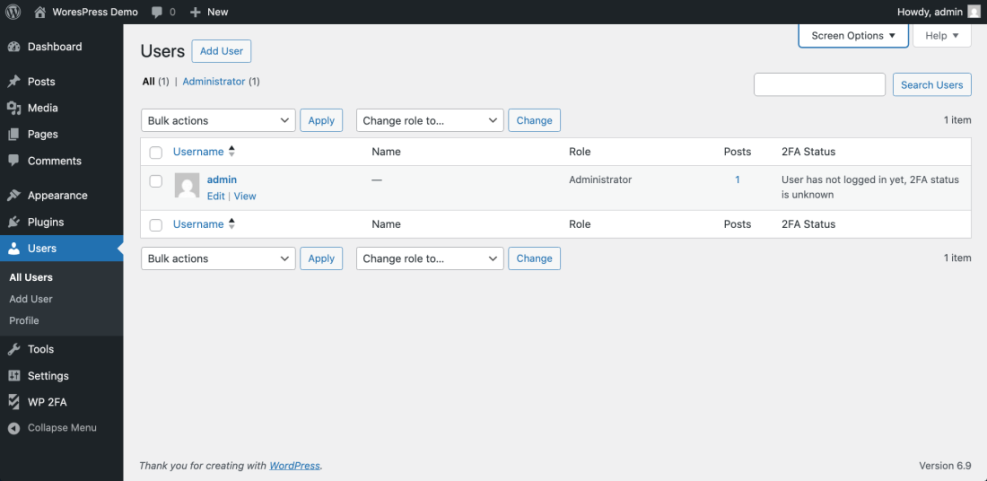
- Scroll down to the Account Management section. Click the Set New Password button under the password field.
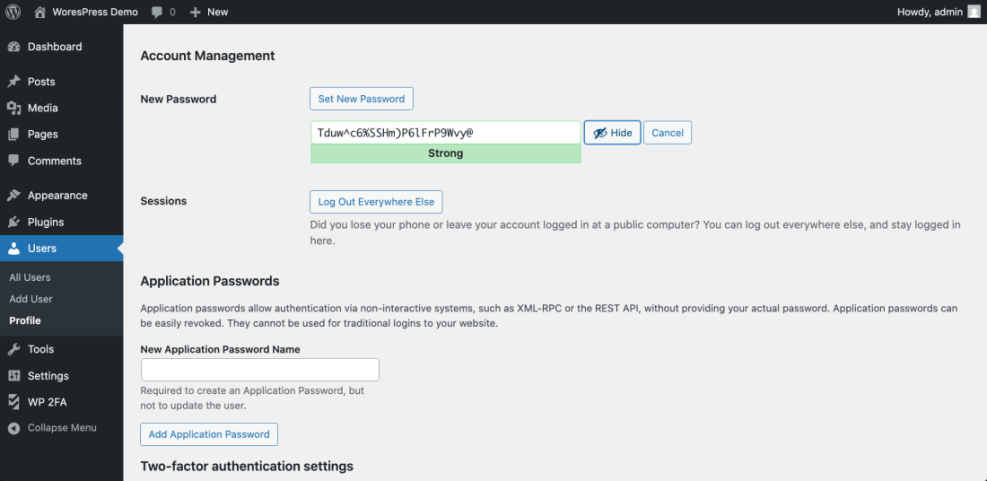
- WordPress will generate a strong password automatically. Either keep it or type your own strong password. Aim for at least 12 characters with a mix of upper and lower case letters, numbers, and symbols.
- Copy the new password to a secure password manager, then scroll to the bottom and click Update Profile to save the change.
Confirm this step is complete by logging out using the top right Log Out link and logging back in with your new password. If the login works, your change was successful.
Step 3: Reset a Forgotten Password by Email
Use this method when you cannot remember your current password but still have access to the email address attached to your WordPress user account.
- Visit your login page at yourdomain.com/wp-login.php.
- Click the Lost your password link below the login form.
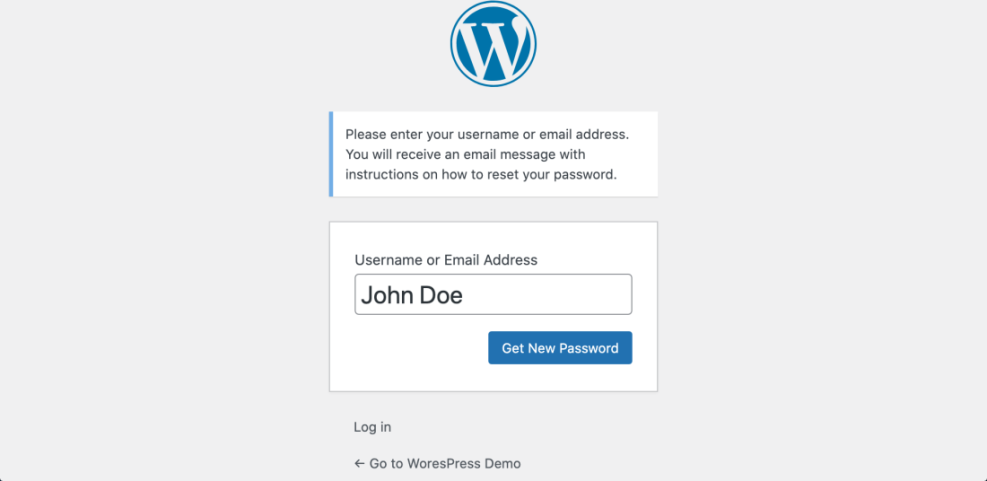
- On the password reset form, enter your Username or Email Address associated with the account, then click Get New Password.
- Check your inbox for a password reset email from WordPress. If you do not see it, look in your spam or junk folder and confirm that your site can send emails correctly.
- Next, click the reset link in the email. On the reset page, either accept the generated strong password or type a new one, then click Save Password.
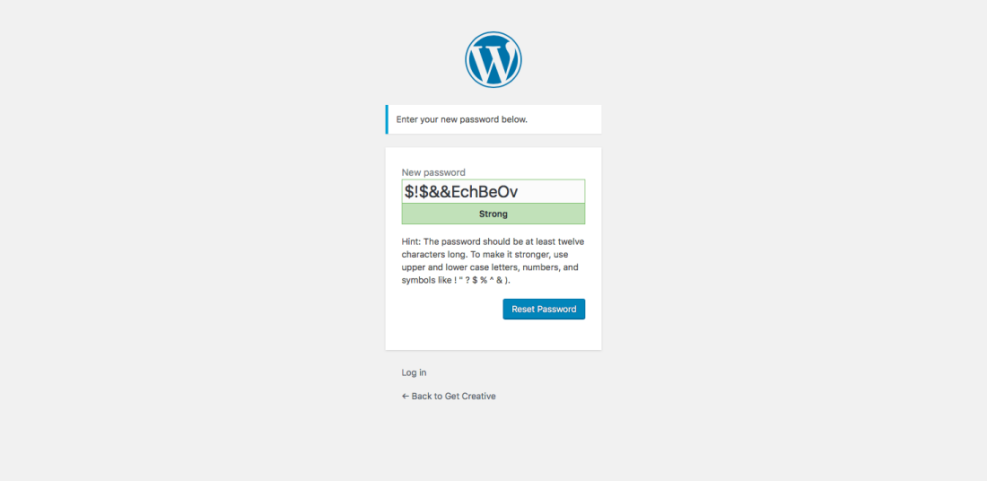
After saving, return to the login page and sign in with your username and the new password. If you can log in, your reset worked.
Should the reset email never arrive, you may have an issue with email deliverability or SMTP settings. In that case, move on to the phpMyAdmin or WP-CLI methods so you can still change the password.
Step 4: Reset WordPress Password in the Database with phpMyAdmin
When password reset emails fail and you are locked out, you can change your password directly in the database using phpMyAdmin. This approach is more technical, so take your time and work carefully.
- Log in to your hosting control panel such as cPanel, Plesk, or your host’s custom dashboard.
- Open phpMyAdmin from the database section of your control panel.
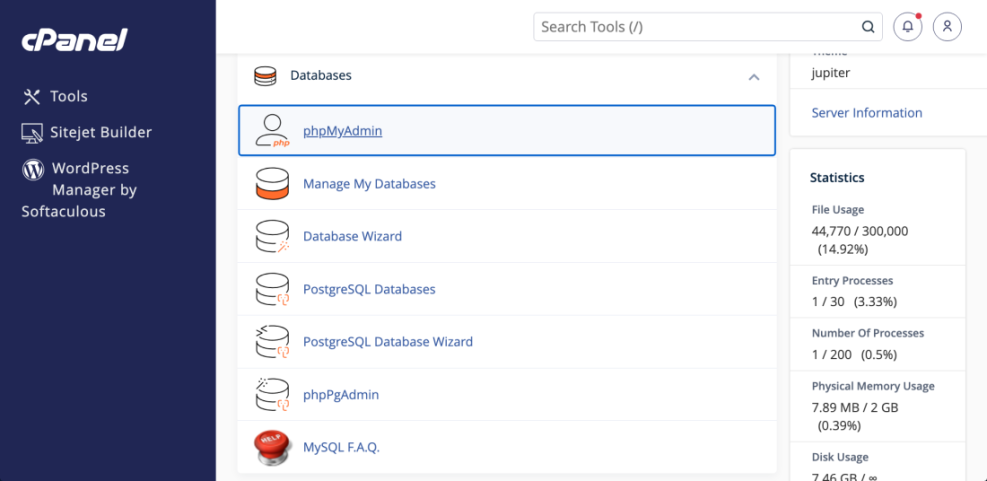
- In phpMyAdmin, select your WordPress database from the left sidebar. Look for the table ending in _users (often wp_users unless you changed the prefix), then click it.
- Find the row for the user whose password you want to reset and click Edit for that row.
- In the user_pass field, select MD5 from the function drop-down if available. Enter your new password in plain text in the value box.
- Scroll down and click Go to save the changes.
Now go back to your WordPress login page and try signing in with the same username and the new password you entered. On first login, WordPress will rehash the MD5 value with its current password hashing method, improving security automatically.
For easier recovery next time, consider enabling reliable email sending or setting up regular backups after you regain access.
Step 5: Change WordPress Password with WP-CLI
If your host provides SSH access and WP-CLI, you can change passwords quickly from the command line. This is ideal for developers and power users who manage many sites or user accounts.
- Connect to your server using an SSH client and log in with your hosting account credentials.
- Navigate to your WordPress installation directory where wp-config.php is located.
- Run a WP-CLI command to update the password, replacing the username and password with your own values:
wp user update admin --user_pass="StrongNewPassword123!" - If you are not sure which username to use, list all users first with:
wp user list - After running the update command, open your site’s login page in the browser and log in with the updated password.
WP-CLI is fast, scriptable, and does not require opening phpMyAdmin. Just remember to keep SSH access secure and never share commands that contain real passwords in public tickets or chats.
Step 6: Secure Your Account After Changing the Password
Changing your password is only the first step. Locking down your login and cleaning up old access will reduce the risk of future compromises.
- Enable two factor authentication on your account using a reputable security or login plugin. Most tools let you use an authenticator app or SMS code in addition to your password.
- Log out of all other sessions. In your Profile screen, look for the Sessions or Log Out Everywhere Else option and click it to invalidate old logins.
- Review the Users » All Users list and remove or downgrade any accounts that no longer need administrator access.
- Update any saved passwords in browsers, FTP tools, and password managers so they match the new value. Delete old notes, messages, or screenshots that include your previous password.
- In cases where you changed your password because you suspected a hack, run a full security scan with your security plugin and follow a basic hardening checklist to remove malware and close common gaps.
When these items are complete, your new password will be much harder to abuse and you will have better control over who can access the site.
Conclusion Your WordPress Password Is Safely Updated
By now you have seen several reliable ways to Change WordPress Password, from the simple dashboard profile update to emergency database and WP-CLI methods. Whether you forgot your login or needed to secure a compromised account, you can regain access without waiting on support.
Because you also enabled protections like two factor authentication, logged out other sessions, and cleaned up user access, you turned a routine password change into a major security upgrade. Keep your new password in a secure password manager and schedule occasional security checkups so your WordPress login stays strong over time.
Further Reading and Resources
- Official WordPress Password Reset Documentation
- WordPress seo complete beginners guide
- How do i secure my WordPress downloads
- WordPress migration checklist for blogs
WordPress Password Change Frequently Asked Questions
What if I do not receive the password reset email
Can I change another users password as an administrator
Is editing the database safe for changing passwords
How often should I change my WordPress password
Does changing my password log out other logged in devices