How to Add Meta Keywords in WordPress
A practical guide to using legacy meta keywords with plugins and code (without hurting your SEO)


Meta keywords are one of those SEO settings that refuse to die. Even though major search engines ignore the <meta name="keywords"> tag, clients, stakeholders, and legacy tools still sometimes ask you to “add meta keywords in WordPress.”
In this guide, you’ll learn how to add meta keywords in WordPress using two approaches: via any SEO plugin that still supports them and with a lightweight code snippet that works without a plugin. You’ll also see best practices so you don’t accidentally hurt your SEO or performance.
If you’re new to on-page optimization, it’s smart to pair this with a broader step-by-step guide to on-page SEO in WordPress, because meta keywords are just a tiny (and optional) part of the picture.
Prerequisites
Before you start adding meta keywords, make sure you have the right access and safety steps in place. You’ll be working inside the WordPress admin and possibly touching theme code.
- A working WordPress site where you can log in as an Administrator.
- Access to the post or page editor (Classic Editor or Block Editor).
- Optional: An SEO plugin installed and configured if you want the plugin-based method.
- Optional but strongly recommended: A recent full backup of your site (files and database).
functions.php directly can break your site if there’s a typo. Step 1: Understand What Meta Keywords Really Do
Meta keywords are an HTML tag that looks like this inside your page’s <head> section: they simply list words or phrases you think are relevant to the page. For example, a blog post about WordPress SEO might include “wordpress seo, meta keywords, on-page optimization.”
However, major search engines (including Google) have publicly stated they do not use the meta keywords tag for rankings. That means adding meta keywords in WordPress will not suddenly boost your organic visibility. It’s mainly useful today for legacy internal search tools, minor search engines, or when a client explicitly requires it.
<meta name="keywords" content="wordpress meta keywords, add meta keywords in wordpress, legacy seo settings">Step 2: Add Meta Keywords with an SEO Plugin (When Supported)
Many modern SEO plugins (including popular options like Yoast SEO and Rank Math) no longer support meta keywords at all. That’s intentional, because the tag is obsolete for rankings. Still, some plugins and themes expose a “Meta Keywords” or “Keywords” field that outputs a meta keywords tag for you.
If your plugin offers a meta keywords option, follow these steps to use it safely:
- Log in to your WordPress dashboard and open the post or page where you want to add meta keywords.
- Scroll down to the SEO plugin panel below the content editor. Look for a tab or section labeled “Advanced,” “Additional,” or “Other meta tags.”
- Find the field named “Meta Keywords,” “Keywords,” or similar. Enter 3–8 focused phrases that actually appear in your content, separated by commas.
- Click Update or Publish to save your changes.
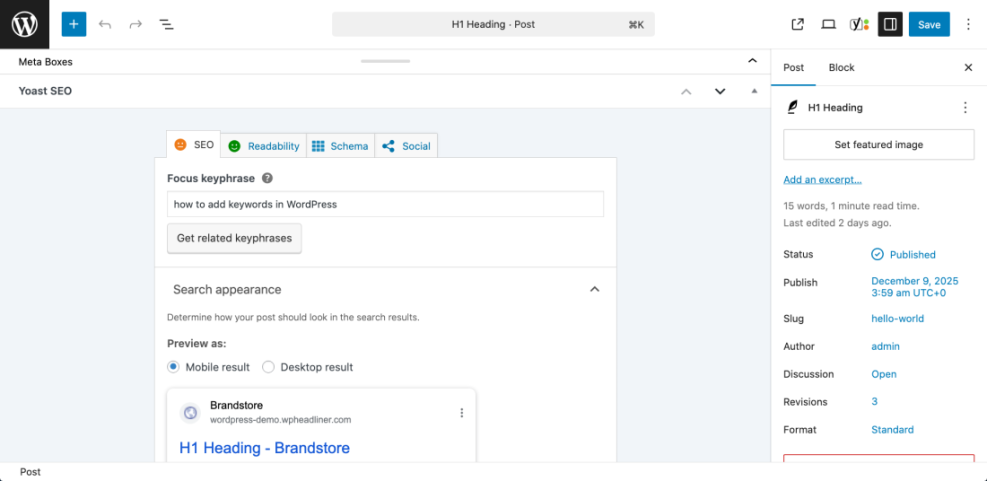
Step 3: Add Meta Keywords Manually Without a Plugin
If your SEO plugin doesn’t support meta keywords—or you prefer full control—you can output the meta keywords tag with a small code snippet. This approach works well if you’re comfortable with basic PHP and understand how to use a child theme or a code snippets plugin.
At a high level, you’ll store meta keywords in a custom field on each post and then print that value inside the <head> section using the wp_head hook.
- In your WordPress admin, install and activate a safe “Code Snippets” style plugin, or ensure you have a child theme ready. You’ll add your code there, not in the main theme.
- Add the following snippet to your child theme’s
functions.phpfile or via your code snippets plugin (run it on the front end):function whp_meta_keywords_tag() { if ( ! is_singular() ) { return; } $keywords = get_post_meta( get_the_ID(), 'meta_keywords', true ); if ( empty( $keywords ) ) { return; } echo '<meta name="keywords" content="' . esc_attr( $keywords ) . "\" />\n"; } add_action( 'wp_head', 'whp_meta_keywords_tag' );This code checks if you’re on a single post or page, retrieves a custom field called
meta_keywords, and outputs a meta keywords tag if the field isn’t empty. - Edit any post or page where you want meta keywords, and add a custom field:
- In the Classic Editor, enable “Custom Fields” in the screen options if needed, then create a field named
meta_keywords. - In the Block Editor, use a custom fields plugin or a custom meta box that maps to the same
meta_keywordskey.
Put your comma-separated keyword phrases in the field value and click Update.
- In the Classic Editor, enable “Custom Fields” in the screen options if needed, then create a field named
- View the page source for that post to confirm the
<meta name="keywords">tag is present inside the<head>section.
esc_attr() when outputting user-entered data inside HTML attributes. This protects against malformed HTML and basic injection issues. If you want a deeper, code-first walkthrough focused entirely on the snippet method, see our dedicated guide on how to add meta keywords in WordPress without a plugin.
Step 4: Check That Meta Keywords Are Output Correctly
Once you’ve configured meta keywords via a plugin or code, verify that the tag is actually output in the page’s HTML. A simple view-source check is usually enough.
- Open the page in your browser and make sure any caching or security plugins have finished deploying changes.
- Right-click the page and choose View Page Source (or use your browser’s equivalent menu option).
- Press Ctrl + F (or Cmd + F on Mac) and search for
meta name="keywords". - Confirm that the tag appears once in the
<head>section and that itscontentattribute matches the keywords you entered.
Step 5: Use Meta Keywords Without Hurting Your SEO
Even though meta keywords no longer drive rankings, poor implementation can still signal low-quality SEO (for example, obvious keyword stuffing). Treat them as a tidy, optional signal, not a shortcut.
- Keep it short: 3–8 keyword phrases are usually enough for a single page.
- Use phrases that already appear in your headings or body content; don’t add unrelated terms just to “cover more keywords.”
- Avoid repeating the same phrase multiple times—search engines can see that as spammy, even if they ignore the tag itself.
- Skip competitor brand names and misleading phrases; they can hurt trust and don’t help rankings.
- Make sure your more important meta tags (title and description) are properly set up—see our guide on how to add meta tags in WordPress for a complete overview.
Bring Meta Keywords Back Under Control
Adding meta keywords in WordPress is no longer an SEO game changer, but it can still be useful when you need to support legacy tools or satisfy specific client requirements. With the plugin-based and manual methods above, you can add the tag cleanly without bloating your site or introducing errors.
Most importantly, you now know how to keep meta keywords in their proper place: as an optional, low-priority setting behind real on-page SEO work. Combine this guide with your broader content and optimization strategy, and you’ll keep both search engines and stakeholders happy.
Further Reading
- How to Add Meta Description in WordPress
- How to Add Title Tags in WordPress
- How to Add SEO Keywords in a WordPress Website
- How to Add Keywords in WordPress Without Hurting Your SEO
- WordPress SEO: Complete Beginner’s Guide
Frequently Asked Questions
Do meta keywords still help SEO in WordPress?
Why can’t I find a Meta Keywords field in my SEO plugin?
My meta keywords tag isn’t showing in the page source. What went wrong?
<meta name="keywords"> in the page source, first clear any page caching and CDN caches, then reload the page. Cached HTML often hides recent changes.For the manual method, double-check your code snippet for syntax errors, confirm it’s active, and make sure the meta_keywords custom field is filled in for that specific post. For plugin-based methods, verify the feature is enabled and that you’ve saved the post after adding keywords. Can meta keywords create security or privacy problems?
esc_attr() to avoid malformed HTML and basic injection issues in the <head> section. Is it worth the time to add meta keywords to every WordPress post?