How to Build an Editorial Calendar in WordPress
A simple system to plan and schedule WordPress blog posts

An editorial calendar keeps your WordPress content organized, predictable, and stress free. Without a plan, posts slip, ideas disappear, and your publishing rhythm breaks. When you map your content in advance, you protect your time, support your SEO goals, and make blogging feel manageable again.
By the end of this guide, you will know how to choose the right tool, outline topics, and build a reusable calendar inside WordPress. You will also see how to connect your schedule to SEO, track progress with your team, and adjust the plan without losing control when life happens.
Editorial Calendar Basics in WordPress
What Is an Editorial Calendar?
An editorial calendar is a simple plan that shows what you will publish, where it will appear, and when it will go live. Instead of guessing each week, you see upcoming posts in a calendar view. This makes it easier to balance topics, support campaigns, and keep a consistent posting habit.
Why Plan Content in Advance?
When you plan ahead, you avoid last minute writing and weak topics. In addition, a calendar lets you cluster related posts, support launches, and cover seasonal themes on purpose. You also give yourself time to collect images, internal links, and keywords so each article ships ready to rank.
How Often Should You Publish New Posts?
The best schedule is the one you can follow for months, not just days. For example, a solo blogger might publish once a week, while a small team can handle two or three posts. Start with a pace that feels easy, track results, and only increase frequency when your workflow feels stable.
Define Your Content Strategy First
Clarify Your Blog Goals
Before you touch any plugin, decide what you want your content to achieve. Do you want more email subscribers, more product sales, or more search traffic? When you write your goals in clear language, you can choose topics that move those numbers instead of chasing random ideas.
Decide Topics and Categories
Next, list three to five main themes that match your audience and offers. For example, a WordPress consultant might focus on performance, security, and content strategy. Then map each topic to existing categories in your blog so your calendar fills gaps instead of repeating the same ideas.
- List your top three audience problems.
- Match each problem to a core blog topic.
- Assign each topic to a WordPress category.
- Mark which posts should lead to a service or product.
This short checklist keeps your calendar tied to real reader problems rather than random keywords. Therefore, every scheduled post has a clear job in your business.
How Many Posts Can You Realistically Publish?
Look at your week and block time for research, writing, editing, and publishing. As a result, you see how many posts you can handle without burnout. If you feel unsure, cut your first plan in half. It is much easier to add extra posts later than to recover from a schedule that is too heavy.
Choose Your Editorial Calendar Tool
Built In vs. External Tools
You can run your calendar in many places, including spreadsheets, project tools, or WordPress itself. However, keeping the plan inside WordPress reduces friction. You see real post statuses, authors, and drafts in one place, and you drag posts on the calendar without copying dates between apps.
Should You Use a Plugin for Scheduling?
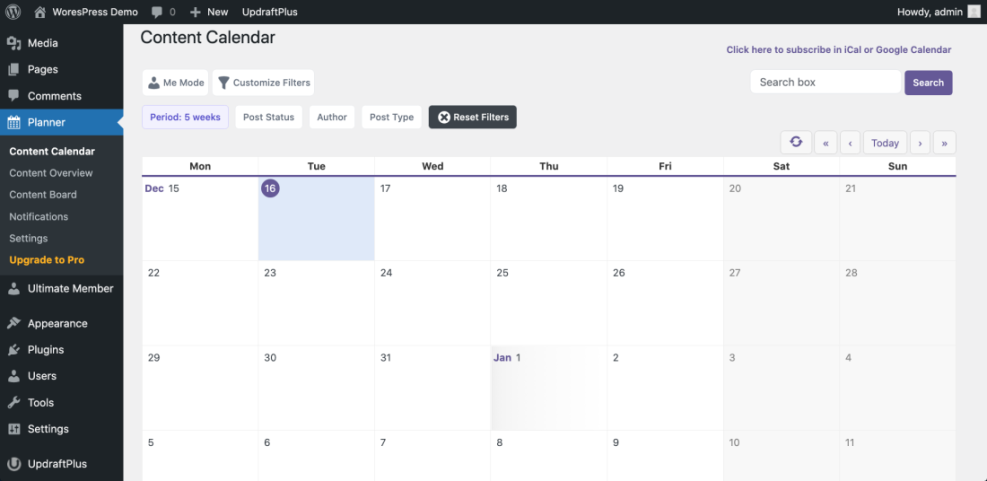
A dedicated calendar plugin gives you a visual month view, drag and drop scheduling, and quick access to post drafts. In addition, some tools add editorial comments, custom statuses, and notifications. If you publish more than a few times a month, this type of plugin usually pays off in saved time.
Comparing Popular Calendar Plugins
Several plugins provide a calendar view inside WordPress with different strengths. The table below shows three popular options and what they do best so you can choose a good starting point.
| Plugin | Best For | Key Features |
|---|---|---|
| Editorial Calendar | Solo bloggers | Simple month view, drag and drop scheduling, quick edit in calendar. |
| PublishPress Planner | Small teams | Editorial comments, custom statuses, notifications, content overview. |
| Strive Content Calendar | Growing blogs | Pipeline view, post checklists, idea stage, rescheduling tools. |
For a first calendar, many site owners start with the free Editorial Calendar plugin because it is light and easy to learn. As your workflow grows, you can explore advanced tools such as PublishPress Planner or Strive without changing the core habits you build now.
In the Dashboard, go to Posts » Calendar to see a month view of your upcoming content.
Build Your Calendar Inside WordPress
Create a Simple Monthly View
Start by setting up a clear monthly view so you see gaps and clusters. First, decide how many posts you want per week and mark those slots on the calendar. Next, assign each slot a rough topic based on your core themes instead of exact titles so you keep room for new ideas.
Add Post Ideas to the Calendar
Once you have empty slots, begin filling them with working titles. In addition, add a category or tag to each idea so future filtering stays easy. Try to mix formats such as tutorials, lists, and case studies. When you look at the calendar, you should see both variety and focus at a glance.
What If Your Schedule Changes?
Life and business change, so your calendar should bend without breaking. When something urgent appears, drag the planned post to a later date instead of deleting it. Therefore, your work stays in the system, and you keep a healthy backlog of ideas ready for slower weeks.
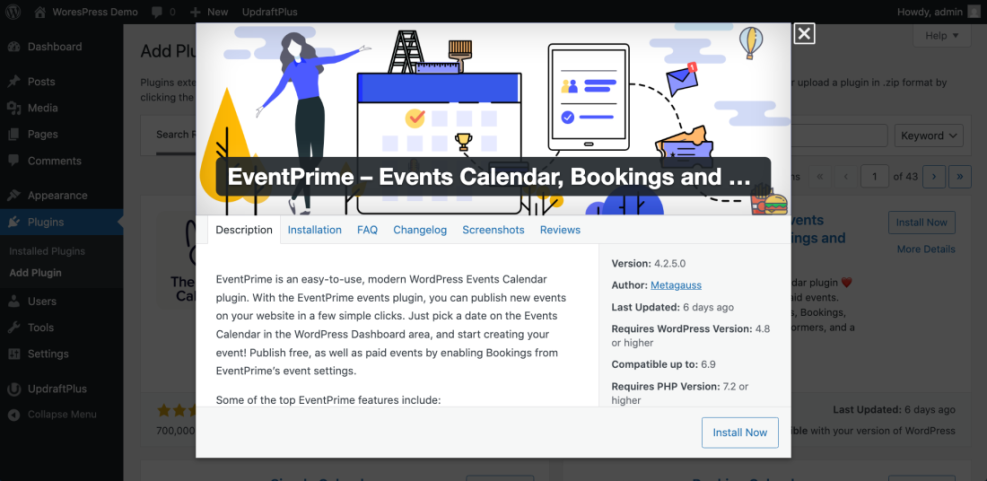
In the Dashboard, go to Plugins » Add New and search for your chosen calendar plugin before clicking Install Now and Activate.
- Open the calendar screen from the Posts menu.
- Click an empty day to create a new scheduled draft.
- Add a clear working title and select the right category.
- Set the post status to draft and assign an author when needed.
- Repeat the process to fill the next two to four weeks.
This simple routine gives you a rolling schedule that always shows the next several posts in line. As a result, you avoid publishing gaps and emergency writing sessions.
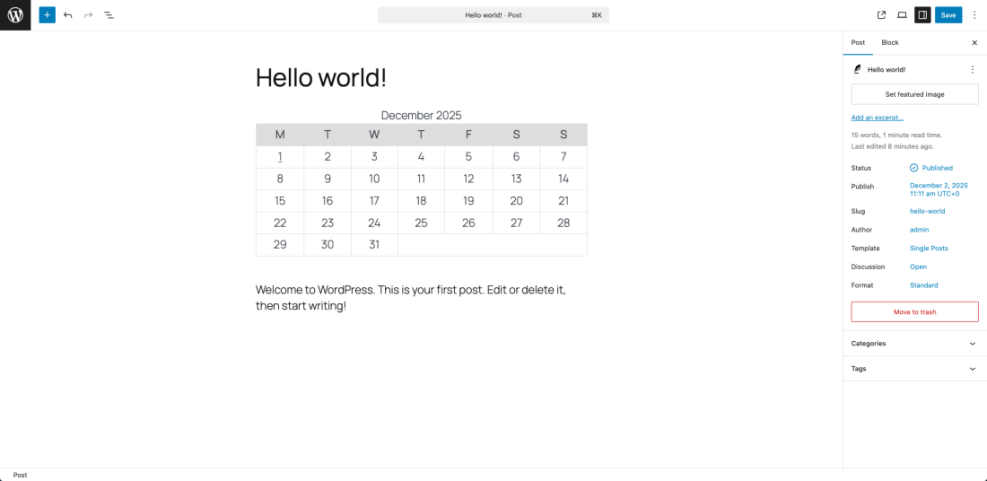
In the Dashboard, open Posts » Calendar and drag a post from one day to another to change the planned publish date.
Manage Ideas Deadlines and Workflows
Turn Ideas Into Drafts Quickly
Capture ideas as soon as they appear so they do not vanish. For example, you can add quick placeholders with short titles like “Speed up homepage” on future dates. Later, when you sit down to write, you already know what to work on and do not waste energy choosing topics.
Collaborate With Authors and Editors
When you work with others, use the calendar as your shared truth. Assign each post to an author and add notes in the post or plugin fields. In addition, pick clear deadlines for writing and review. This way, each person knows what to deliver and when, even if they log in from different time zones.
Track Status From Idea to Published
Default WordPress statuses such as Draft and Pending Review can feel limited. Therefore, many teams add extra statuses like “Outline,” “Writing,” and “Ready to Publish.” You can create custom statuses with a small code snippet in your theme’s functions.php file or in a small functionality plugin.
function wpheadliner_register_editorial_status() {
    register_post_status( 'editorial-review', array(
        'label'                     => 'Editorial Review',
        'public'                    => false,
        'exclude_from_search'       => true,
        'show_in_admin_all_list'    => true,
        'show_in_admin_status_list' => true,
        'label_count'               => _n_noop(
            'Editorial Review <span class="count">(%s)</span>',
            'Editorial Reviews <span class="count">(%s)</span>'
        ),
    ) );
}
add_action( 'init', 'wpheadliner_register_editorial_status' );
After you register a status like this, you can assign it to posts and filter your list to see which articles still need editorial review before publishing.
Optimize Your Calendar for SEO
Align Posts With Keyword Research
Once your basic calendar works, connect it to keyword research. Map each scheduled post to one main keyword and a few related phrases. In addition, track which keywords support the same content theme so you can build small clusters of posts that link together and help each other rank.
Plan Evergreen and Seasonal Content
A strong calendar mixes evergreen posts with timely topics. Evergreen posts bring steady search traffic for years, while seasonal content supports events, launches, or holidays. Therefore, review each month and mark at least one article as long term. Then add seasonal posts around key dates that matter to your audience.
Measure Results and Adjust Plan
Over time, you should adjust your calendar based on real data. Look at which posts earn search traffic, comments, and conversions. For example, if tutorials outperform opinion pieces, plan more step by step guides. You can also connect your calendar to a simple analytics review routine every month.
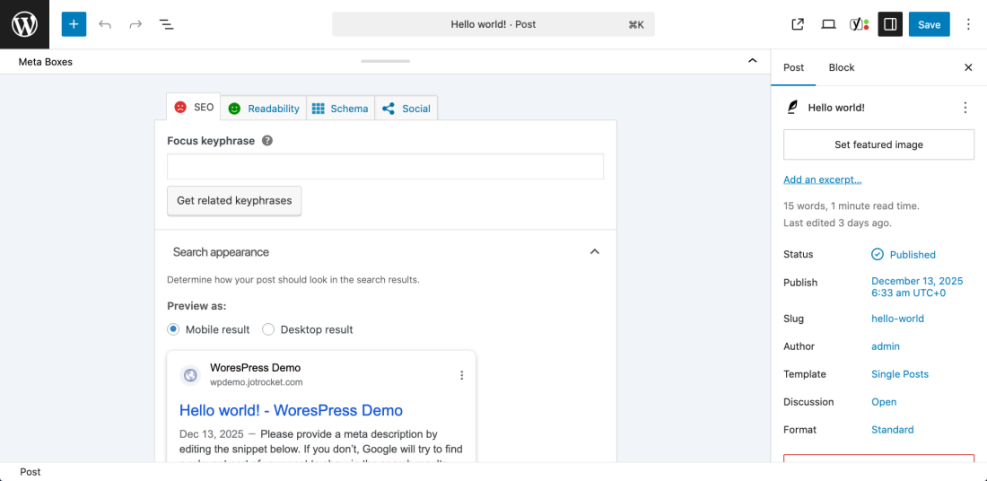
In the Dashboard, edit a post and scroll to the SEO plugin meta box below the content to set your focus keyphrase and SEO title.
To deepen your system, connect calendar planning with a WordPress business blog content strategy and a Reusable Onpage SEO Checklist. This way, every scheduled post follows the same high quality process from idea to publication.
Editorial Calendar: Conclusion
Next Steps for Your Content Plan
You do not need a complex system to gain value from an editorial calendar. Start by picking one plugin, mapping four weeks of topics, and setting realistic dates. As you practice, you will add workflows, statuses, and SEO notes, but the core habit stays the same: decide in advance what to publish and when.
Now open your WordPress Dashboard and block out the next month of content. Assign each slot a purpose, a topic, and a clear owner. When you treat your calendar as a non negotiable part of your marketing, your blog becomes more consistent, more focused, and much easier to manage over the long term.
More WordPress Guides You Might Like
Once your basic calendar runs smoothly, you can expand your skills with related WordPress topics. The ideas below make great next steps and can also become future articles in your own content library.
- WordPress business blog content strategy
- Categories tags beginner guide
- How to do seo for WordPress blog
- How to do seo for WordPress blog
Use these topics as prompts for your own calendar so you always have a list of strategic articles ready to plan, write, and publish.
Frequently Asked Questions About Editorial Calendar
Do I need an editorial calendar if I only post once a month?
Which editorial calendar plugin should a beginner start with?
How far ahead should I plan my WordPress content?
Can I use a spreadsheet instead of a WordPress editorial calendar?
What should I do when I miss a scheduled publish date?