
Booking Performance in WordPress Optimize Booking Plugins and Speed
Practical steps to speed up appointment and reservation plugins

Booking performance is the difference between a visitor booking with you or leaving for a faster competitor. When your booking pages load slowly or feel clunky, you lose trust, search visibility, and real revenue.
You will learn how to keep booking pages fast, how to tune WordPress, and how to configure booking plugins without breaking reliability. The guide walks through quick wins, deeper technical tweaks, and ways to measure results so you can keep performance under control as your site grows.
Booking Performance in WordPress Quick Wins
Start by focusing on the specific URLs where people actually book. Your homepage can be fast, yet a slow booking form still hurts conversions. Therefore, always test the booking form URL first and treat it as its own mini project.
How Fast Should a Booking Page Load?
A practical target is under three seconds on a typical mobile connection for the first view of the booking page. Ideally, returning visitors should see cached versions in about one to two seconds. When you hit those ranges, drop-offs shrink and more visitors complete the booking.
Measure the Real Booking URL
Always test the full booking flow, not just a blank landing page. For example, run performance tests on the page where date, time, and customer details are entered. Then repeat tests after enabling or disabling features so you can see which changes help or hurt.
Which Changes Give Fastest Results?
Usually, the fastest gains come from turning off unused features in the booking plugin, enabling a caching plugin, and optimizing images and fonts on the booking template. In addition, trimming extra tracking scripts and chat widgets from booking pages often saves another noticeable chunk of loading time.
- Test booking URLs, not just the homepage.
- Disable unused booking plugin modules.
- Turn on a well-configured caching plugin.
- Compress and resize images on booking templates.
- Limit third-party scripts on booking steps.
These early steps show quick wins and give you a baseline you can compare against after deeper optimizations.
Choose Hosting and Theme That Support Bookings
If the server is slow, no plugin tweak will fully fix the problem. Good hosting and a lean theme are the foundation for every booking system, because each appointment request triggers PHP, database queries, and sometimes external APIs.
Why Hosting Matters for Booking Speed
Shared plans with crowded servers often struggle during busy hours. In contrast, managed WordPress hosting or a tuned VPS usually handles peak booking traffic better. You gain faster PHP execution, better database tuning, and built-in caching that all help your booking pages stay responsive.
Best PHP and Database Versions for Bookings
Use a modern PHP version recommended by your host and keep MySQL or MariaDB updated. Newer versions process code and queries more efficiently. As a result, each booking request finishes faster, which reduces the chance that users see spinners or timeouts during checkout.
Should You Use a Heavy Page Builder on Booking Pages?
Many page builders add dozens of CSS and JavaScript files to every page. That overhead is fine for rich content pages but often overkill for a simple booking form. Whenever possible, build booking templates with the block editor or a lightweight layout so you can keep assets small and easier to cache.
Open your hosting dashboard and click Metrics or Performance to view server usage.
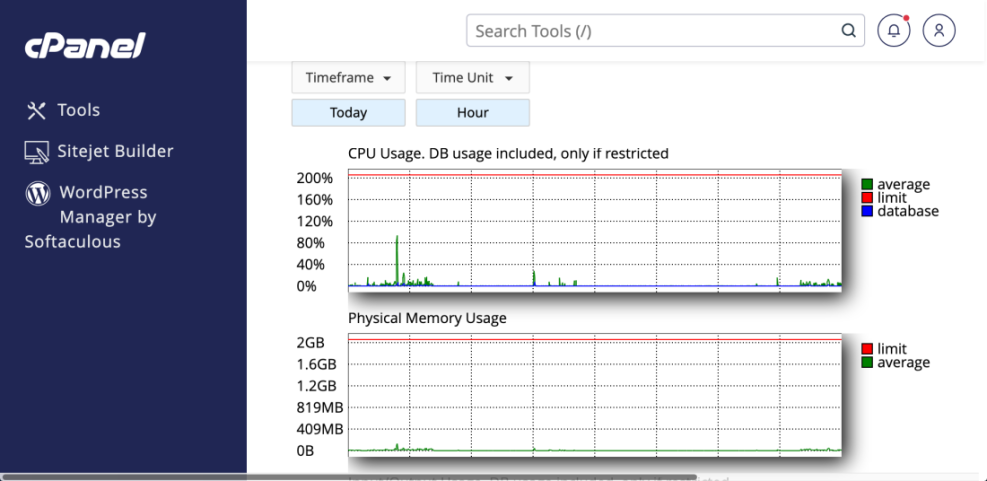
When you see CPU and I/O spikes at the same moments your bookings slow down, it is a strong signal that you need either more resources or better caching in front of WordPress.
The table below compares a lean, optimized setup with a bloated one for booking performance.
| Aspect | Optimized Booking Setup | Bloated Booking Setup |
|---|---|---|
| Plugin size | Lightweight core, few extras | Large plugin with many bundled features |
| Active add-ons | Only essential add-ons enabled | Many add-ons active by default |
| Third-party scripts | Minimal external tracking | Several marketing and chat scripts |
| Database queries per booking | Reduced and indexed | High, with unoptimized meta queries |
| Typical mobile load time | Around 2–3 seconds | Often 5 seconds or more |
Aim for the optimized pattern by cutting unneeded features and scripts before you invest in more complex changes.
Configure Booking Plugins for Faster Requests
Even the best booking plugin can slow down your site when every optional module is active. Therefore, you should treat plugin settings as performance settings, not just feature toggles.
Limit Calendars and Search Filters
Long calendar ranges, multiple location filters, and advanced search widgets often need extra queries. Instead, show only the most relevant options first. For example, load a single month at a time and let people switch months, rather than loading an entire year of availability at once.
Reduce Extra Steps in the Booking Flow
More steps mean more page loads, more scripts, and more chances for users to drop off. Where possible, combine related fields on fewer steps. As a result, you send fewer HTTP requests, and customers reach the payment gateway sooner.
How Do Add-ons Affect Booking Speed?
Each add-on can add scripts, styles, and extra database queries, even when a visitor does not use its feature. Review your add-ons regularly and deactivate any that do not directly support your booking goals. You can always re-enable them during tests if needed.
In your WordPress dashboard, go to Bookings » Settings and open the General tab.
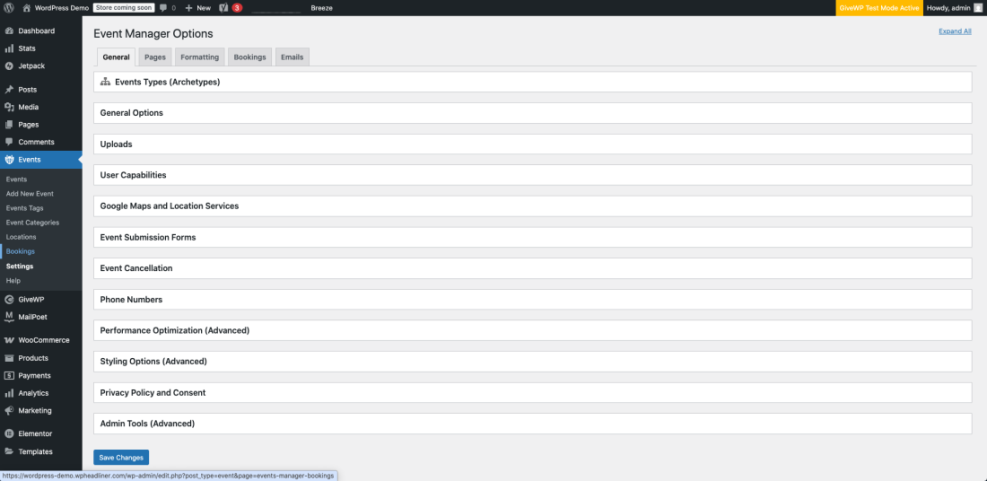
Some plugins also offer an option to load the form with AJAX. When implemented well, this can improve perceived speed by loading the page shell first and then the form. However, you still need to measure the final experience on slower mobile devices.
You can even remove unused scripts on the booking page with a small code snippet.
add_action( 'wp_enqueue_scripts', function() {
    if ( is_page( 'booking' ) ) {
        // Example: remove a slider script not used on the booking page.
        wp_dequeue_script( 'homepage-slider' );
        wp_dequeue_style( 'homepage-slider' );
    }
}
Always test script changes on a staging site first so you do not accidentally break a feature that relies on those assets.
Exploring a curated list of booking tools helps you pick plugins that are fast by design, before you start optimization work.
Use Caching and CDN Without Breaking Bookings
Caching is one of the strongest tools for better booking performance, but it must be configured carefully. Booking forms, carts, and checkout pages should respond in real time, while surrounding content can safely be cached.
Full Page Cache vs. Dynamic Portions
Use full page caching for static content around the form, such as headings and images. Then, let the booking form itself stay dynamic using shortcodes or blocks that bypass cache. Many performance plugins support this pattern with rules that exclude specific cookies or parameters.
Exclude Checkout and Cart Pages From Cache
Always exclude cart, checkout, and account pages from caching. These screens handle personal data and payment details, so they must reflect real-time state. Otherwise, visitors may see stale availability or even another customer’s data on shared devices.
Can You Cache Booking Confirmation Pages?
Confirmation pages often show similar information for many bookings, which makes them good cache targets. However, if you display personal details or sensitive data, keep them dynamic. In borderline cases, consider partial caching where the confirmation message is static but personal data loads through AJAX.
Go to Settings » Caching in your dashboard and open the Page Rules or Cache tab.
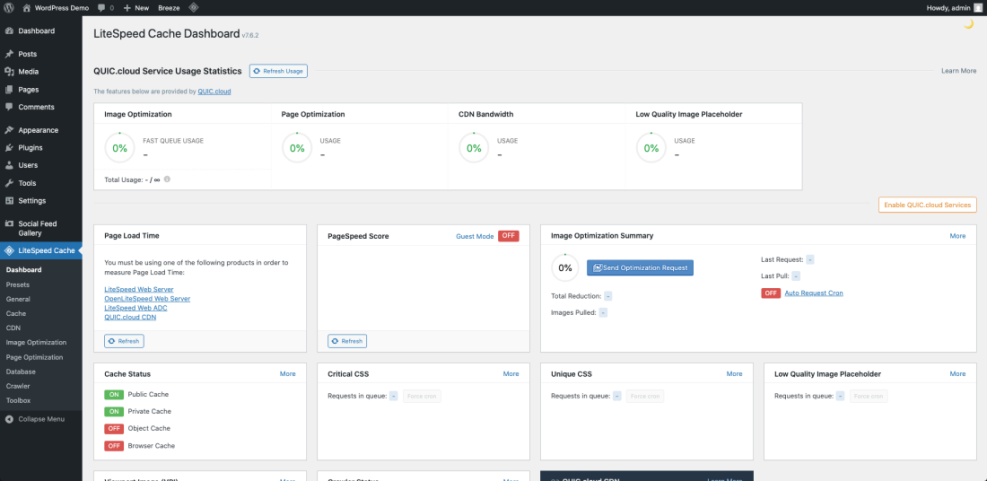
In addition, a content delivery network can serve images, CSS, and JavaScript closer to visitors. That reduces latency for users far from your server and makes mobile booking smoother.
Following a structured guide for caching, images, and CDNs ensures that your booking pages benefit from the same best practices as the rest of your site.
Optimize Database, Cron Jobs, and Logs
Booking systems create many records over time. Unused entries, spam bookings, and oversized logs can slow down queries. Therefore, regular database housekeeping matters as much as frontend tweaks.
Clean Expired Sessions and Transients
Many plugins store temporary data in the options table. Over time, expired transients pile up. Use a trusted optimization tool or run scheduled cleanups to remove obsolete entries, then monitor query times to confirm that your booking pages respond faster.
Tidy Old Bookings Safely
For compliance and reporting, you might need to keep booking data for a long time. Still, you can often archive historic bookings to a separate table or export and delete very old entries. As a result, the database has less to scan during live availability checks.
Optimize Cron and Background Tasks
Background tasks such as email reminders and sync jobs should not run at the same moment as your busiest booking windows. When possible, move heavy cron events to quieter hours. Advanced users can switch to a server-level cron so WordPress does not have to spawn extra processes on every page view.
You can also tune your database using developer hooks and safe optimization tools to keep booking queries lean.
Combining tuned hosting with regular database maintenance gives you a solid base for both performance and stability during booking peaks.
Track Booking Speed and Conversion Metrics
Performance work is only complete when you can see its impact. Therefore, you should track both technical and business metrics for your booking pages.
Use Speed Testing Tools on Booking URLs
Run tools like synthetic speed tests directly on the booking URL, including key query parameters. Repeat tests after each change and keep historical results. This habit makes it easier to catch regressions when you update plugins or switch themes.
Monitor Real Users and Core Web Vitals
Lab tests are useful, but real users tell the full story. Analytics tools that report Core Web Vitals for actual visitors help you see how well your booking pages behave on real networks and devices. Aim to keep most visits in the good range for loading and interaction.
What Metrics Show Booking Performance Problems?
Watch for high bounce rates on booking pages, long time-to-first-interaction, and abandoned sessions just before payment. When those numbers rise, review your recent design changes, plugin updates, or marketing scripts added to the booking flow.
Visit PageSpeed Insights in your browser and paste the URL of your booking page.
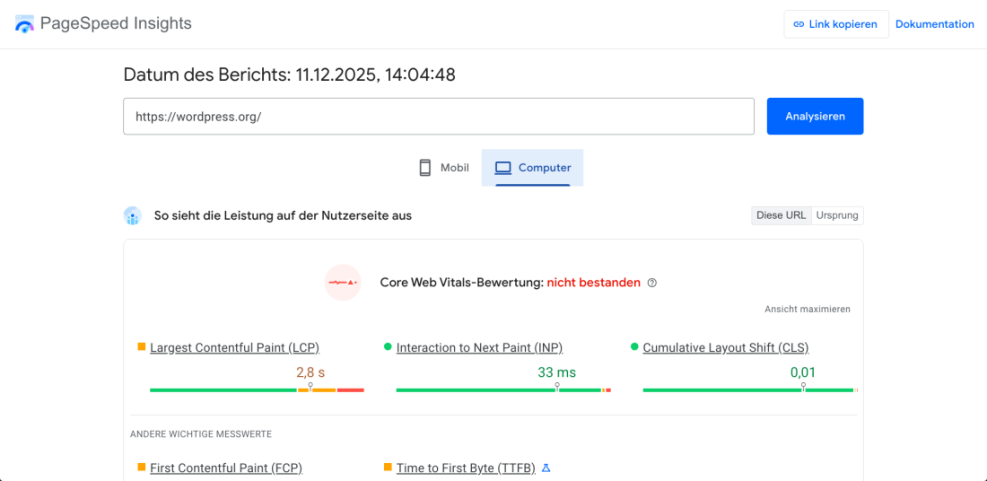
Combining those reports with booking conversion data helps you decide which performance changes are worth the time and which ones do not move the needle.
Booking Performance Next Steps
Now that you understand the key pieces of booking performance, choose one busy booking page and treat it as your test case. First, measure current speed and conversions. Next, apply the quick wins, then move through hosting, plugin tuning, caching, and database cleanup.
As you improve that first page, document your settings and results. Then you can roll the same pattern across other booking flows, confident that the changes are safe and effective. Over time, your WordPress site will feel faster, handle more bookings, and convert more visitors without needing a complete rebuild.
More WordPress Guides You Might Like
You can go deeper with performance and booking strategy using these related guides and planned resources.
- Best WordPress Caching Plugins
- WordPress Performance Speed Optimization
- How to do on page seo in WordPress
- Advanced developer hooks for WordPress optimization with code
- Designing High Converting Booking Flows in WordPress
Use these resources as a roadmap to keep improving your entire stack, from plugins and hosting to user experience and analytics.
Frequently Asked Questions About Booking Performance
How do I know if my booking pages are too slow?
Can a booking plugin alone fix performance issues?
Should I use a separate landing page for ads and bookings?
Is it safe to delete old booking data from the database?
How often should I review booking performance settings?





