Best WordPress Chat Plugins
Practical choices for live support, sales, and automation

WordPress chat plugins give you an easy way to offer fast, personal support without forcing visitors to pick up the phone or wait for an email reply. When you choose the right tool, you can answer questions in real time, reduce cart abandonment, and turn more casual visitors into paying customers.
You are going to see which types of chat tools exist, which plugins work best for different budgets, and how to add them safely to your site. You will also learn practical setup tips, performance checks, and daily habits that keep your chat support helpful instead of overwhelming.
Best WordPress Chat Plugins At A Glance
Top Picks For Most Websites
Most site owners can start with a short list of proven tools instead of testing dozens of options. LiveChat is a polished, premium solution with strong WooCommerce support and built-in ticketing, so it works well for growing stores and service businesses. Tidio combines live chat with AI chatbots, which keeps response times low even when you are offline.
Tawk.to is a good choice when you need a free forever chat tool with unlimited agents, even though you keep their branding unless you pay. HubSpot Chat works well if you already use HubSpot CRM, because every conversation can tie directly to deals and contact records. Finally, a plugin such as Bit Assist or a similar chat button tool can group WhatsApp, Messenger, and other messaging apps into one floating widget.
Which Chat Plugin Should You Choose?
If your site depends on sales, a premium tool like LiveChat or Tidio is usually worth the monthly fee because you get better routing, reports, and integrations. However, if your budget is tight, Tawk.to covers the basics very well and lets you grow later. HubSpot Chat makes sense when you want marketing, CRM, and live chat in one stack.
Free And Budget Friendly Options
Several plugins offer generous free plans that work for small sites and side projects. Tawk.to, Tidio, and some multichannel widgets let you chat with visitors at no cost, although you often trade white-label branding or advanced automation. Therefore, you should check how many chat agents, conversations, and sites are included in each free tier.
To compare the main options quickly, focus on how they balance features, pricing, and ease of use.
| Plugin | Best For | Free Plan | Key Highlights |
|---|---|---|---|
| LiveChat | Online stores and support teams | Free trial | Fast widget, WooCommerce integration, built-in ticketing |
| Tidio | Automation and small teams | Yes | Chatbots, workflows, email and Messenger integrations |
| Tawk.to | Budget conscious sites | Yes | Unlimited agents, browser dashboard, strong free tier |
| HubSpot Chat | CRM driven businesses | Yes | Built into HubSpot CRM, contact timelines, deal tracking |
| Multichannel Widget (e.g. Bit Assist) | WhatsApp and social messaging | Yes | Floating buttons for WhatsApp, Messenger, Telegram, and more |
This simple comparison helps you see which plugin matches your budget, team size, and tech stack. After you narrow it to two options, install each on a staging site and test how fast the widget loads and how smooth the chat experience feels on mobile devices.
Key Features To Compare In Chat Tools
What Features Matter Most In Chat?
When you compare live chat tools, you should look beyond the basic message box. Real-time notifications, mobile apps, offline message handling, canned responses, and routing rules all affect how quickly you can help visitors. In addition, clear reports show whether chat actually improves sales and satisfaction.
Chatbots Automation And Workflows
Many modern WordPress chat plugins ship with chatbots, flows, or AI agents. These tools can answer common questions, gather contact details, or qualify leads before a human joins the conversation. As a result, your team can focus on complex issues instead of typing the same answers all day.
- Trigger chatbots on pricing and checkout pages.
- Collect names, emails, and consent before a human joins.
- Send answers from a shared, approved knowledge base.
- Allow easy handoff from bot to human when needed.
These simple rules keep automation helpful instead of annoying. You should test every flow on desktop and mobile to confirm that visitors can reach a human without getting stuck in a loop.
Integrations With CRM And Email
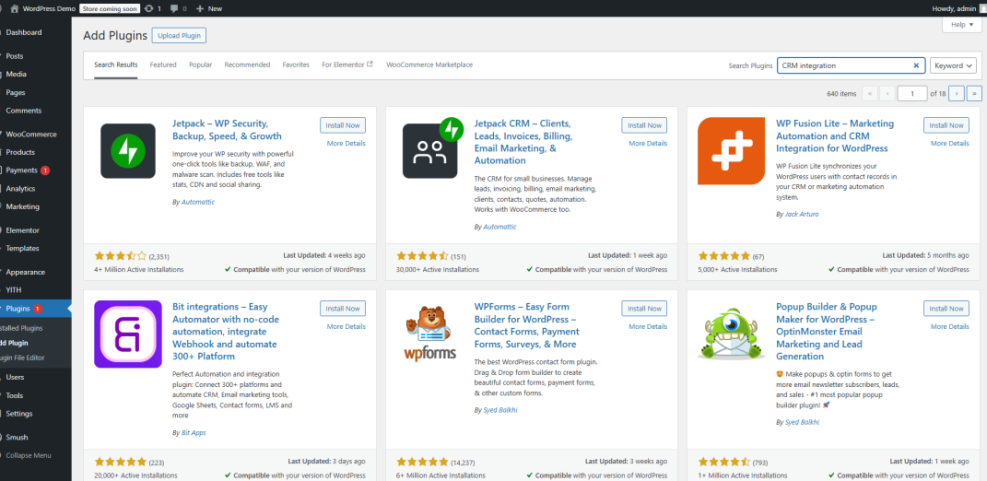
Good chat tools integrate cleanly with your CRM, email service, and helpdesk. For example, HubSpot Chat, LiveChat, and other premium plugins can attach chat transcripts to contacts and deals, which keeps your sales team informed. In addition, integrations with WooCommerce or Easy Digital Downloads help you see orders right inside the chat window.
Choosing The Right Plugin For Your Site
How Do You Add Chat To WordPress?
Adding chat to WordPress is simple if you follow a clear sequence and test each step.
- Decide whether you want a full helpdesk solution, a chatbot focused tool, or a simple chat bubble.
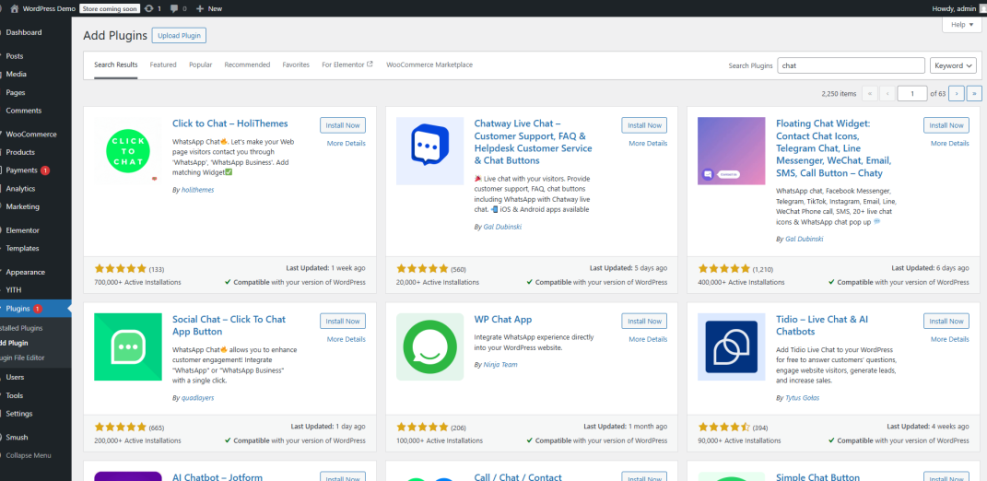
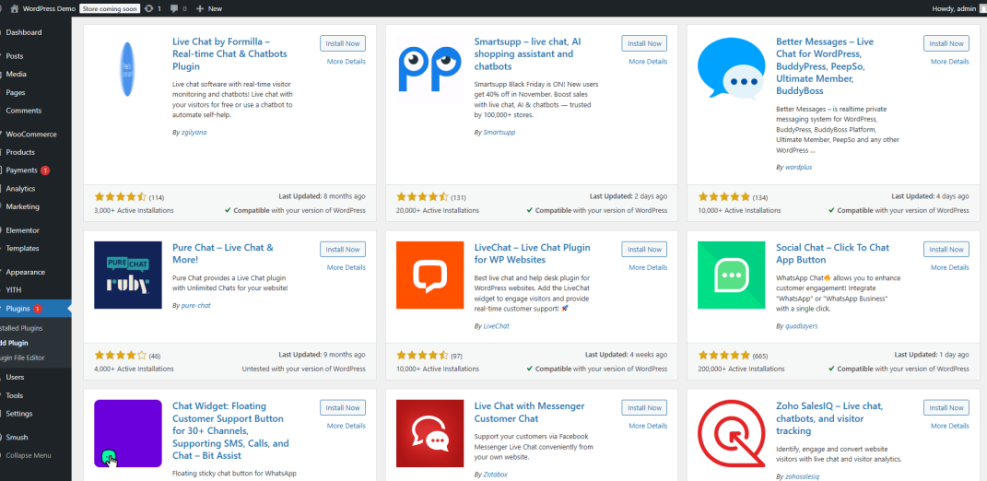
- Search for your chosen plugin in the WordPress Plugins screen and install it from the official directory.
- Activate the plugin, then connect it to your account on the provider’s website if required.
- Customize the widget colors, position, and greeting message so they match your brand.
- Open a private browser window and start a test chat to verify notifications, transcripts, and offline forms.
For more details on plugin installation, you can review the official WordPress plugin documentation. This keeps you aligned with best practices, even when you use premium chat tools.
Matching Chat To Your Business Goals
Your choice of plugin should match your main business goals, not someone else’s feature checklist. If you care about higher average order value, you might prioritize proactive chat on product and cart pages. However, if support quality matters more, you may choose better routing, notes, and satisfaction surveys instead of fancy widgets.
Does Live Chat Slow Down Your Site?
Any external script adds some weight, so you should measure performance after installing a chat plugin. Tools such as PageSpeed Insights or WebPageTest help you see whether the widget delays rendering. In many cases, you can enable asynchronous loading, which lets your page content appear first while the chat box loads in the background.
When you need to learn the basics first, a guide on how to Install WordPress gives you a solid foundation before you add extra features like live chat.
Practical Setup Tips And Best Practices
Where Should The Chat Widget Appear?
Most sites use a bottom-right chat bubble because visitors expect it there, but you still have options. You can hide chat on low-value pages, such as legal notices, and keep it on high-intent pages, such as pricing or product listings. In addition, many plugins let you show different greetings by page or device type.
Reducing Noise With Smart Triggers
If every visitor sees a pop-up immediately, many people close it without reading. Therefore, it is better to trigger chat after a visitor spends a few seconds on the page, scrolls a certain distance, or shows exit intent. You can also target high-value segments, such as returning customers or visitors with items in the cart.
Tracking Results From Live Conversations
After chat is live, you should track metrics that connect directly to business value. Useful numbers include chats per day, first response time, resolution rate, and conversion rate for visitors who used chat. Over time, these reports show whether your plugin choice and workflows really help or just add noise.
WordPress Chat Plugins Conclusion
Live chat turns your WordPress site into a place where visitors can talk to a real person instead of guessing alone. When you pick a plugin that fits your budget and tools, you can answer questions faster, close more sales, and collect feedback that improves your content and products.
A simple path is to start with Tidio or LiveChat if you want strong automation or helpdesk features, or Tawk.to if your budget is zero and you accept their branding. Then add a multichannel widget for WhatsApp and other apps once you know how visitors prefer to talk. The key is to launch, measure, and refine your setup instead of chasing every feature at once.
More WordPress Guides You Might Like
Once your chat system is in place, you can strengthen the rest of your customer journey by improving speed, checkout, and email follow-up. The following planned guides are natural next steps.
- Woocommerce performance tips for faster stores
- Developer hooks for optimizing WordPress plugins with code
- Creating A Knowledge Base For Chatbots
- Developer hooks for WordPress database and file optimization
- Best rank tracker tools for serp tracking
These resources help you connect live chat with ecommerce, performance, and analytics, so your support system grows alongside your WordPress business.
Frequently Asked Questions About WordPress Chat Plugins
Do you need a chat plugin for a small site?
Which free chat plugin works best with WordPress?
Can you use WhatsApp or Messenger instead of live chat?
How many chat agents do you need to start?
What is the impact of chat plugins on page speed?