Best FTP Clients for WordPress Users
Move WordPress files faster and with more control


FTP clients let you connect directly to your WordPress files when the dashboard is not enough. With the right app, you can fix broken plugins, upload large themes, and manage your site files with far more control than the built-in editor offers.
In this guide, you discover when FTP access is helpful, how to use it safely, and which tools work best on Windows and Mac. You also see a simple connection checklist, a comparison table of leading apps, and practical tips to avoid breaking your live site while you work.
Best FTP Clients for WordPress
If you want a quick answer, start with a small set of trusted FTP clients. FileZilla is the most common choice because it is free, cross platform, and recommended in many WordPress tutorials. WinSCP is an excellent option on Windows, while Cyberduck, Transmit, and ForkLift work very well on macOS.
All of these clients support secure protocols like SFTP or FTPS, organize multiple sites with saved profiles, and offer clear transfer queues. When you pick one, focus on security, ease of use, and how well it fits your operating system and budget instead of chasing long feature lists.
What Makes an FTP Client or SFTP Client Good for WordPress?
A solid FTP app should support SFTP, save multiple site profiles, and handle drag and drop transfers smoothly. It should also show clear logs, allow quick file edits, and resume interrupted uploads. When these basics work well, you spend less time fighting the tool and more time fixing issues or deploying changes.
Is SFTP Better Than Traditional FTP Clients for WordPress?
SFTP is usually the better choice because it encrypts your login details and file transfers. Plain FTP sends everything in clear text, which exposes your password to anyone who listens on the network. When your host supports SFTP, switch to it and set your client to use that protocol by default for every saved site profile.
When Do You Actually Need an FTP Client for WordPress?
You usually reach for FTP when you cannot log in to the WordPress dashboard, need to remove a broken plugin, or must upload large files that the media library refuses. It also helps when you edit wp-config.php, manage child themes, or move backup archives between your computer and the server with full control.
Top FTP Clients and Tools for Windows and Mac
Several mature FTP clients have proven themselves for WordPress work. The list below focuses on tools that support secure protocols, work well on common operating systems, and are easy enough for a beginner to use while still offering features for power users.
FileZilla FTP Client Overview and Best Use Cases
FileZilla is a free, open source client that runs on Windows, macOS, and Linux. It supports FTP, FTPS, and SFTP, and it includes a site manager, transfer queue, and directory comparison features. Many official WordPress tutorials use FileZilla in their screenshots, so it is often the easiest starting point for new site owners.
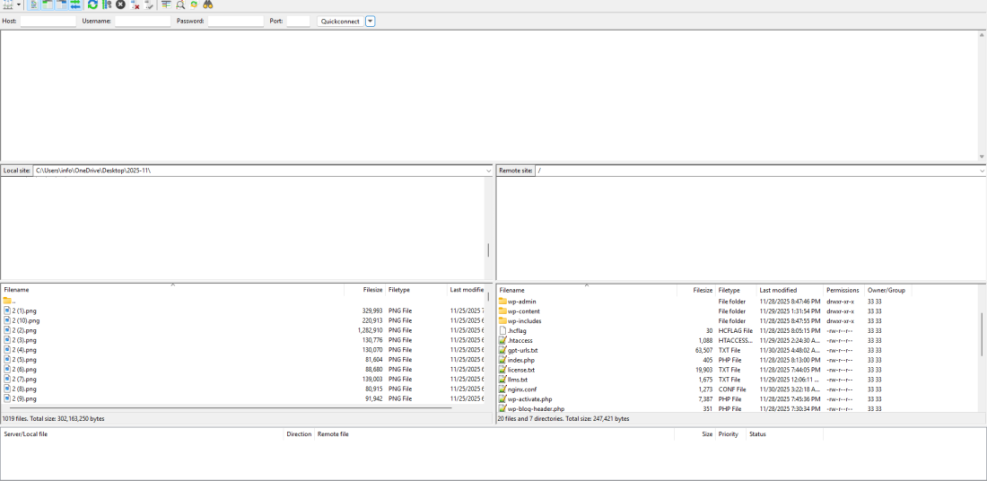
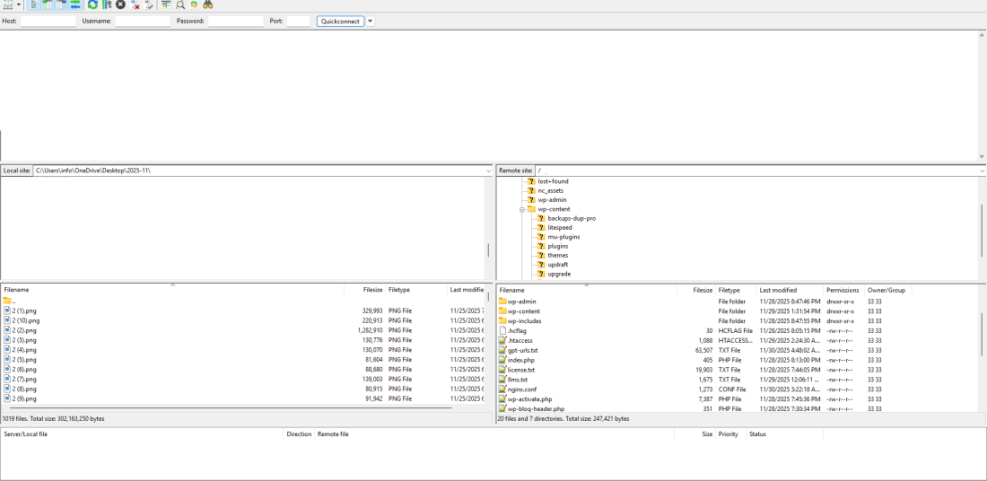
Because FileZilla is so common, you can find many troubleshooting guides and video tutorials when something behaves strangely. It also handles large transfer queues well, so you can upload or download an entire wp-content directory and monitor progress from a single pane instead of moving files one by one.
WinSCP FTP Client for Windows Power Users
WinSCP is a popular choice for Windows users who prefer a more advanced interface. It supports SFTP, FTP, FTPS, SCP, WebDAV, and even S3, and it includes powerful synchronization and scripting tools. If you manage many WordPress installs on different servers, its saved sessions and folder sync options can save a lot of time.
In addition, WinSCP integrates with external editors and supports a dual pane layout. This layout makes it easy to compare local theme or plugin folders with the remote server and push only the files that changed instead of syncing everything after each modification.
Cyberduck and Other FTP Clients for Mac Users
On macOS, Cyberduck offers a clean interface with strong SFTP support and easy bookmarking for multiple websites. It integrates with popular text editors and supports external storage services, which helps when your workflow involves several remote systems. Many Mac users prefer its native look and simple menus over more crowded interfaces.
Transmit, ForkLift, Commander One, and similar paid tools add extra features, such as folder synchronization, cloud storage mounts, and better search. These can be worth the price if you manage many client sites or handle frequent deployments, yet a free client like FileZilla or Cyberduck is more than enough for most personal projects.
To make the choice easier, here is a compact comparison of some leading options.
| Client | OS Support | Protocols | Price Range | Best For |
|---|---|---|---|---|
| FileZilla | Windows, macOS, Linux | FTP, FTPS, SFTP | Free | Most WordPress users |
| WinSCP | Windows | FTP, FTPS, SFTP, SCP | Free | Windows power users |
| Cyberduck | Windows, macOS | FTP, SFTP, WebDAV | Donationware | Clean cross platform UI |
| Transmit | macOS | FTP, SFTP, WebDAV, S3 | Paid | Professional Mac workflows |
| ForkLift | macOS | FTP, SFTP, WebDAV | Paid | Finder style file manager |
This table helps you narrow your options based on operating system, protocol support, and budget. You can start with a free client, then move to a paid alternative later if your workflow grows more complex.
Connect WordPress With FTP Clients Safely
Once you pick an app, the next step is creating a secure connection profile for your site. The exact screens differ between clients, yet the process always follows the same pattern, so you can reuse this checklist no matter which tool you prefer.
What FTP Client Login Details Do You Need From Your Host?
Your host usually provides a hostname, username, password, and port number. Sometimes you also see a choice between FTP and SFTP ports. You can find these details in your hosting control panel or welcome email, and you should copy them carefully to avoid frustrating connection errors later.
- Hostname or server address from your hosting panel
- FTP or SFTP username and strong password
- Port number, usually 21 for FTP or 22 for SFTP
- Root directory path, often the public_html or httpdocs folder
With this small checklist, you always know what to request from support if something is missing. It also keeps different projects organized when you manage several sites across multiple hosting providers.
Step by Step FTP Client Connection Example in FileZilla
The steps below show a typical connection flow using FileZilla, yet the same logic applies to most other FTP clients.
- Open FileZilla and click the Site Manager menu option.
- Create a new site entry and give it a clear name, such as your domain.
- Enter the hostname, choose SFTP if available, and set the port number.
- Switch the logon type to Normal, then add your username and password.
- Save the profile and click Connect to open your first session.
- Browse to the folder that contains wp-admin, wp-content, and wp-includes.
This simple flow sets up a reusable profile so you do not retype credentials each time. It also ensures you land in the correct WordPress root folder instead of an empty directory with confusing paths.
How Do You Test That Your FTP Client Connection Works Safely?
After you connect, create a small test file in a temporary folder and delete it again. This confirms that you have write access without touching critical directories. Then confirm that the connection uses SFTP or FTPS by checking the protocol display in your client and the port number your profile uses.
Safer File Management Practices When Using FTP Clients
Working directly with site files always carries some risk. However, a few simple habits greatly reduce the chance that you lock yourself out of WordPress or break a key feature while you experiment with changes.
Avoiding Plain FTP Clients and Using Secure SFTP
Many hosts still offer plain FTP, yet it no longer matches modern security expectations. Whenever possible, switch your FTP clients to SFTP or FTPS and update older profiles. In addition, avoid connecting from unknown networks such as shared WiFi hotspots when you handle production site logins.
Secure protocols keep your login data and file contents encrypted during transfer. Therefore, even if someone captures network traffic, they cannot read your credentials or downloaded PHP files. This single setting change often delivers the biggest security gain with almost no extra effort.
How Do You Prevent Breaking Your Site When Using an FTP Client?
Before you delete a plugin folder or edit a theme file, always create a backup copy. You can download the file to your computer or duplicate it on the server with a .bak suffix. If the site fails after a change, you can quickly restore the original file and bring your WordPress front end back online.
It also helps to make one change at a time and reload the site after each adjustment. That way, if an error appears, you know exactly which file caused it instead of debugging several edits at once while your visitors see a fatal error message.
When Should You Use the Host File Manager Instead of an FTP Client?
Some tasks, such as quickly editing a single file on a shared host, might feel easier in the control panel file manager. These tools run in the browser and sometimes include syntax highlighting, yet they are often slower and less flexible than FTP apps. You can still use them as a fallback when you work on public computers.
Alternatives to FTP Clients for Managing WordPress Files
FTP clients are powerful, yet they are not the only way to work with your WordPress files. Depending on your hosting plan and workflow, you may already have other tools that handle everyday tasks without opening a separate transfer app each time.
Using Your Hosting Control Panel Instead of an FTP Client
Most hosts provide a file manager inside cPanel, Plesk, or a custom dashboard. This tool lets you upload, rename, move, and delete files from the browser. It is handy when you need quick access from a new laptop or do not want to keep site credentials stored in a local FTP client on shared hardware.
Code Editors With Built In Remote Support as FTP Client Alternatives
Some code editors can connect directly to SFTP or FTP and sync files in the background. This approach works well when you frequently edit theme templates or custom plugins. Instead of manually uploading changes after each save, you let the editor handle uploads, which reduces the number of steps in your daily workflow.
What About WordPress File Manager Plugins vs FTP Clients?
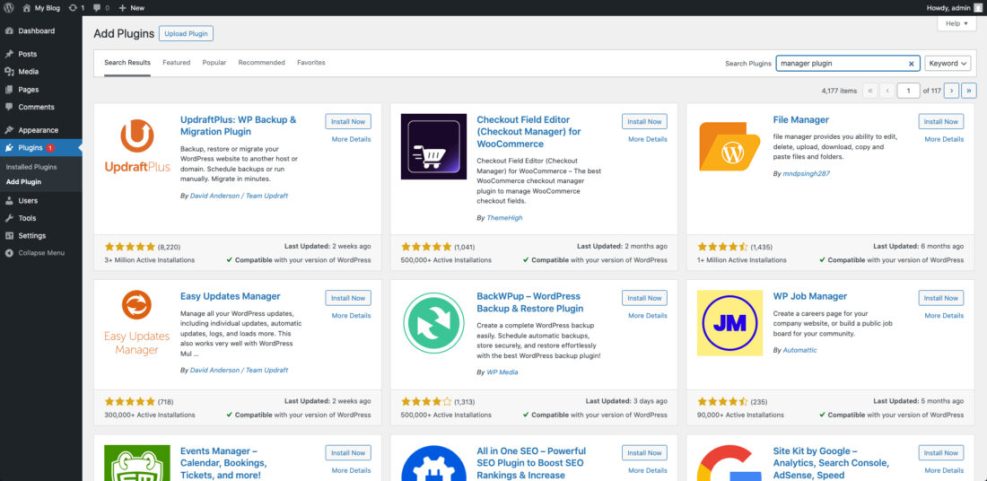
File manager plugins offer a file explorer inside the WordPress dashboard, yet they can add security risk if not maintained carefully. Therefore, use them only when you fully trust the developer and keep them updated. In many cases, a regular FTP client or your hosting file manager gives you similar control with a smaller attack surface.
For deeper background on safe site setup, you can also read the official WordPress.org documentation and hosting specific guides that explain how files map to your server environment.
FTP Clients Conclusion
With the right FTP clients in your toolbox, you gain direct, flexible access to your WordPress files whenever the dashboard falls short. The next step is simple: pick one cross platform client such as FileZilla, create a secure SFTP profile for your main site, and practice a safe test upload on a noncritical project.
Once you feel comfortable, expand your setup with a more advanced option like WinSCP or a paid Mac tool if your workflow demands it. Combine secure protocols, routine backups, and small, reversible changes, and FTP becomes a reliable ally instead of a scary last resort when something breaks on your live site.
More WordPress Guides You Might Like
If you want to keep improving how you manage and protect your site, these planned guides will build on what you learned about secure file access and safe troubleshooting.
- Common WordPress backup errors and how to fix
- Install WordPress step by step
- Beginner guide to WordPress speed optimization
- Advanced developer hooks for WordPress optimization with code
- How to move WordPress site to new host
As you read through these topics, you will round out your toolkit for handling updates, migrations, and emergency fixes without relying solely on your host’s support queue.
Frequently Asked Questions About FTP Clients
Do I really need an FTP client for a basic WordPress site?
Which FTP protocol should I use with WordPress?
Can I use the same FTP client for multiple WordPress sites?
Is a paid FTP client worth the cost for WordPress work?
What is the safest way to edit theme files with FTP?