Best Contact Form Plugins for WordPress
Choose secure, fast forms without technical stress


The right contact form plugins help you collect leads, support requests, and feedback without touching code. When you choose well, forms work reliably, load fast, and send emails that actually reach your inbox.
You will see how the most popular WordPress form plugins compare, which features really matter, and how to set up your first form step by step. By the end, you can match a plugin to your budget, skills, and website goals with confidence.
Best Contact Form Plugins Compared
Most sites do not need dozens of options. Instead, a small group of battle-tested plugins covers almost every use case:
- WPForms – Beginner-friendly drag-and-drop builder with strong templates.
- Contact Form 7 – Lightweight, free, and very flexible with addons.
- Gravity Forms – Premium plugin for complex workflows and integrations.
- Formidable Forms – Great for displaying form data on the front end.
- Fluent Forms – Fast builder with generous free features.
- Forminator – Good free option for quizzes, polls, and payments.
- Ninja Forms – Modular plugin where you buy only the addons you need.
These tools cover simple contact forms, multi-step lead funnels, payment forms, and surveys. Therefore, you can usually pick from this list and avoid unmaintained or low-quality plugins.
For a quick overview, compare the most common choices below before you install anything.
| Plugin | Best For | Free Version | Starting Price / Year |
|---|---|---|---|
| WPForms | Beginners, small business sites | Yes | Around $50 |
| Contact Form 7 | Developers, simple free forms | Yes | Free |
| Gravity Forms | Agencies, complex workflows | No | Around $60 |
| Formidable Forms | Data-heavy and directory sites | Yes | Around $40 |
| Fluent Forms | Site owners needing powerful free tier | Yes | Around $40 |
| Forminator | Quizzes, polls, and payments | Yes | Paid add-ons |
The prices change over time, so always check the official pages, but this range helps you budget before you commit.
Which Contact Form Plugin Is Easiest?
For non-technical users, drag-and-drop builders such as WPForms or Fluent Forms usually feel easiest. You see the form as you build it, and you can drag fields into place. In contrast, Contact Form 7 uses shortcodes and markup, which suits developers but often confuses beginners.
How Many Form Plugins Should You Use?
In most cases, you should use only one form plugin per site. Multiple form builders load extra CSS, JavaScript, and database tables, which can slow pages down and create conflicts. If you outgrow a plugin, migrate your forms to a new tool instead of running several builders together.
How To Choose A Form Plugin
Before you install anything, define what you actually need your forms to do. This avoids both overspending on complex tools and getting stuck with a plugin that cannot grow with your site.
What Features Do You Really Need?
Start with a short wishlist so you can compare plugins quickly.
- Simple contact form with name, email, and message fields.
- Spam protection with reCAPTCHA, hCaptcha, or honeypot.
- Email notifications and autoresponder messages.
- File uploads, multi-step forms, or conditional logic.
- Payment support for Stripe, PayPal, or other gateways.
- Integrations with your email marketing or CRM tools.
When you know which features you actually use, you pick a plugin that matches your needs instead of chasing every checkbox on a comparison chart.
Does The Plugin Affect Speed?
Every plugin adds some overhead, but good form builders load only what they need on pages that actually contain a form. Therefore, choose plugins that avoid loading heavy assets globally. You can also test performance with tools like PageSpeed Insights after you publish your first form.
How Does It Handle Spam?
Spam bots target every public form. For that reason, you should look for support for reCAPTCHA or similar tools, hidden honeypot fields, and basic blocking for repeated IP addresses. Good plugins give you several anti-spam tools so you do not rely on a single filter.
Reliable email delivery also matters. You can improve this by connecting your site to a transactional email provider and using a guide such as Beginner guide to WordPress speed optimization instead of relying on your host’s default PHP mail function.
WPForms Lite And Pro Overview
WPForms focuses on ease of use. You get a drag-and-drop builder, a library of templates, and helpful onboarding that walks you through your first form in a few clicks.
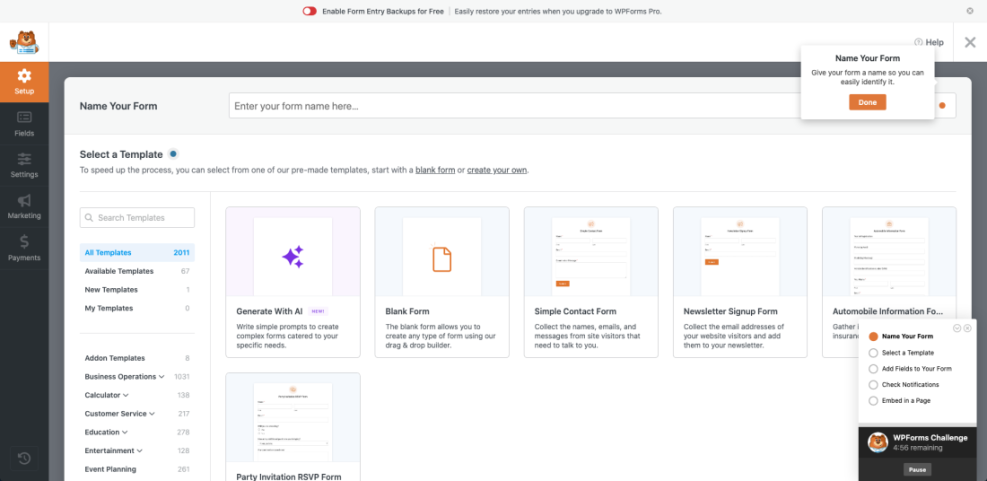
The free WPForms Lite version covers basic contact forms, simple payment requests, and spam protection. In addition, the Pro version unlocks multi-step forms, advanced conditional logic, more payment gateways, and powerful marketing integrations for tools such as Mailchimp and Stripe.
When Should You Use WPForms?
WPForms works well when you want to build professional forms quickly and you do not want to manage code or shortcodes. It suits small business sites, local services, and blogs that plan to grow into lead capture, bookings, or donations later on.
Key Advantages Of WPForms
- Clean, visual builder that matches the live form layout.
- Helpful templates for common use cases such as contact, quote, and survey forms.
- Built-in spam protection options and AJAX submissions.
- Reliable integrations with email marketing and payment providers.
Because the plugin hides complex settings behind sensible defaults, it reduces setup errors and helps beginners ship working forms faster.
Downsides To Consider
WPForms uses a yearly license, so costs can add up if you manage many sites. Also, some advanced features sit behind higher tiers, which may push you toward upgrades sooner than you expect. If you only need one simple contact form, free plugins might be enough.
For a deeper walkthrough, you could follow a dedicated WPForms Tutorial that covers settings, notifications, and entry management in more detail.
Contact Form 7 Strengths And Limits
Contact Form 7 has powered forms on millions of sites for many years. It is completely free, open source, and very flexible when you are comfortable editing shortcodes and markup.
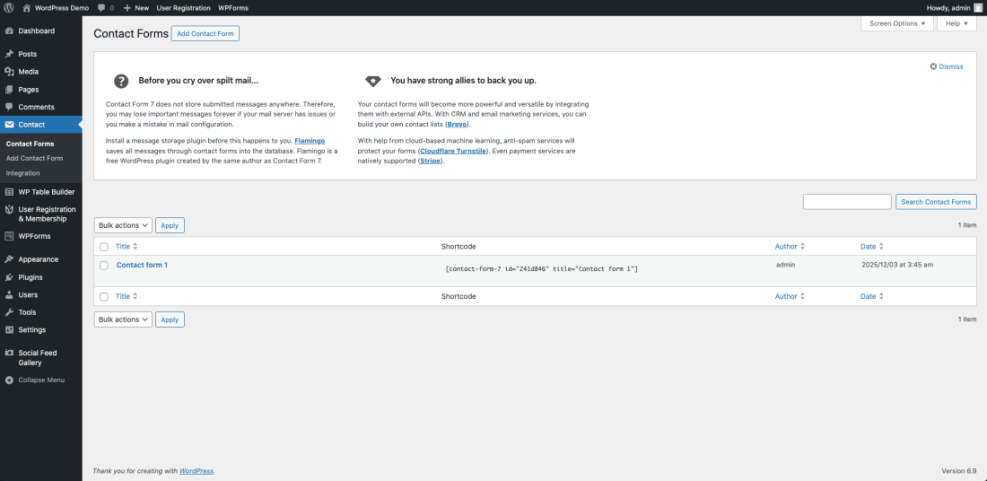
Instead of a visual builder, Contact Form 7 uses form tags in a text editor. This approach keeps the plugin very light. However, new users often find the interface confusing and may copy example code without understanding how it works.
Who Is Contact Form 7 Best For?
Contact Form 7 suits users who are comfortable editing shortcodes and troubleshooting conflicts. Developers often choose it because it integrates well with custom themes, hooks, and external services. Casual site owners who want a visual builder usually prefer alternatives.
Typical Addons You Will Install
Because the core plugin stays lean, you normally install addons for spam protection, styling, or advanced fields. For example, you might add an accessibility defaults addon, a multi-step module, or a reCAPTCHA helper. This modular approach keeps your site flexible but requires more management.
Common Issues And Fixes
Many issues come from caching plugins, missing reCAPTCHA keys, or misconfigured mail settings. Therefore, you should test forms after each update and review error messages in the browser console. If emails never arrive, switch to SMTP delivery instead of relying on your host’s default mail function.
Alternatives For Advanced Form Needs
If your forms need calculations, complex workflows, or front-end data display, you may need more than basic plugins. In that case, premium tools or powerful free alternatives can save you development time.
Gravity Forms For Complex Workflows
Gravity Forms is a premium-only plugin that targets agencies and power users. It offers deep integrations, powerful conditional logic, and a robust addon ecosystem. Therefore, it works well for quote calculators, application forms, and multi-step onboarding flows.
Formidable And Fluent For Power Users
Formidable Forms shines when you want to display form entries as directories, listings, or charts on the front end. Meanwhile, Fluent Forms offers a very fast builder and generous free features, including advanced fields and marketing integrations, which makes it attractive for budget-conscious users.
Forminator And Ninja For Flexible Free Plans
Forminator stands out for quizzes, polls, and payment forms with a strong free tier. In addition, Ninja Forms lets you buy specific addons, so you only pay for features you actually need. This modular pricing model often benefits small sites that require one or two advanced features.
For a broader market view, you can compare several of these plugins in independent reviews such as Zapier’s summary of the best WordPress form plugins, which tests usability and features side by side.
Setting Up Your First Contact Form
Once you choose a plugin, you can build your first form in just a few minutes. The exact screens differ, but most modern builders follow a similar pattern.
Install And Activate The Plugin
- Log in to your WordPress dashboard.
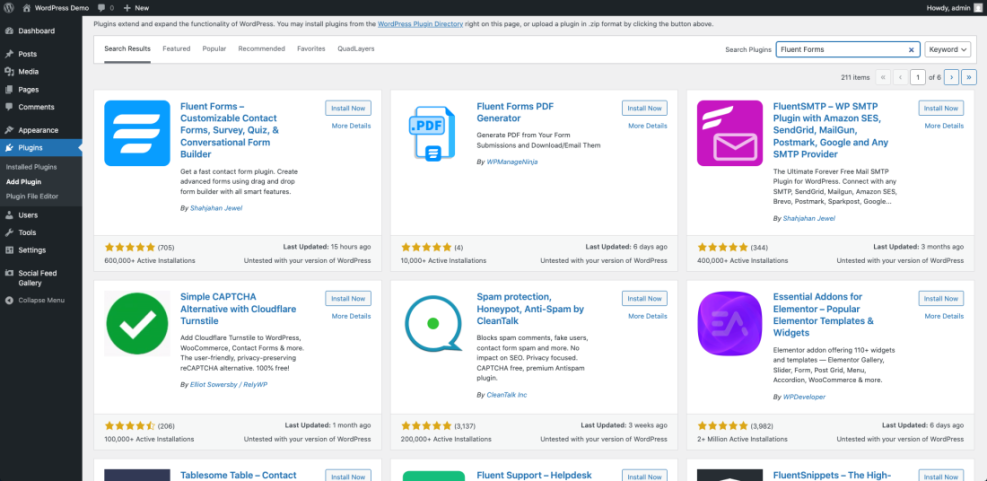
- Go to Plugins > Add New.
- Search for your chosen plugin by name, such as WPForms or Fluent Forms.
- Click Install Now, then click Activate.
After activation, most plugins add a new menu item in the dashboard where you can manage forms and settings.
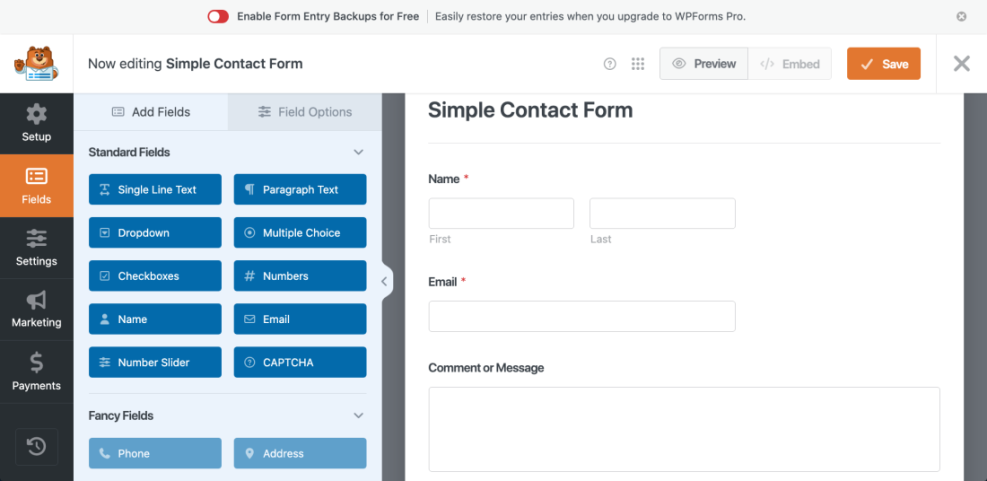
Build The Form Structure
- Open the plugin’s menu and click Add New or Create Form.
- Choose a template such as “Simple Contact Form.”
- Add or remove fields like phone number, subject, or dropdown options.
- Adjust labels, placeholders, and required field settings.
At this stage, you can also enable spam protection options such as reCAPTCHA or honeypot fields in the plugin’s settings screen.
Embed And Test The Form
- Create or edit a page where you want the form to appear.
- Insert the plugin’s block, widget, or shortcode for your form.
- Update or publish the page.
- Open the page as a visitor and submit several test entries.
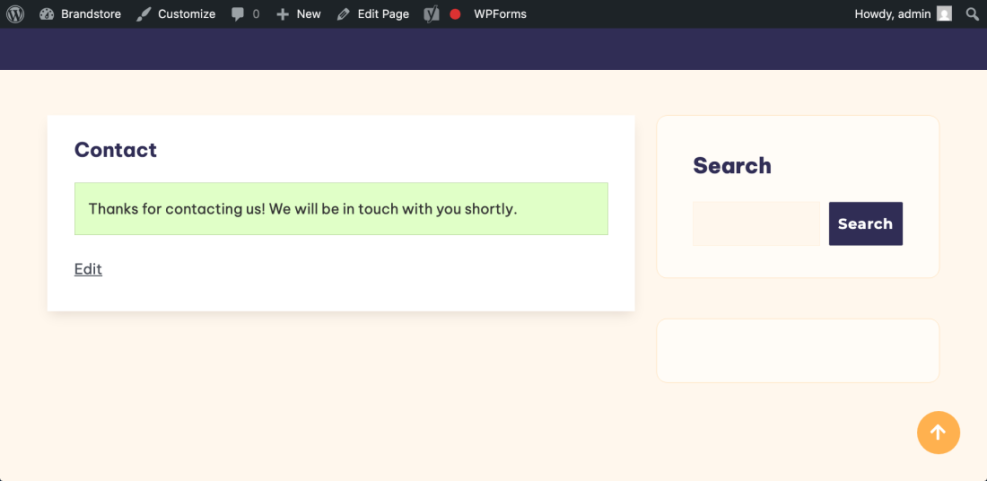
Next, verify that you receive notification emails and that confirmation messages or thank-you pages look correct on desktop and mobile devices.
If email delivery fails, connect a transactional email service using a plugin and follow a guide similar to Install WordPress to ensure your hosting and DNS settings support reliable sending.
Contact Form Plugins Conclusion
Effective forms are more than a few fields on a page. When you pick the right plugin, you protect your inbox from spam, keep pages fast, and capture leads in a way that fits your workflow.
As a practical default, many site owners start with WPForms or Fluent Forms for ease of use, or Contact Form 7 when they prefer a lightweight, code-driven tool. However, if your site depends on complex workflows or front-end data views, Gravity Forms or Formidable Forms may serve you better.
The best next step is simple. Choose one plugin that matches your needs, build a single well-designed contact page, and thoroughly test notifications and spam protection. After that, expand into multi-step forms, payments, or surveys only when your site actually requires them.
More WordPress Guides You Might Like
Once your contact forms work smoothly, you can strengthen other parts of your WordPress site to support more traffic, better security, and higher conversions.
- WordPress seo complete beginners guide
- Common WordPress backup errors and how to fix
- Developer hooks for optimizing WordPress plugins with code
- WordPress seo complete beginners guide
- Best free WordPress blog themes
Reviewing these topics helps you build a stable, secure, and conversion-focused WordPress stack around your chosen form plugin.
Frequently Asked Questions About Contact Form Plugins
Which contact form plugin is best for beginners?
Are free contact form plugins safe to use?
Will a contact form plugin slow down my site?
How do I stop spam from contact forms?
Can I switch form plugins later without losing data?