Choosing the right Keywords WordPress owners want to rank for is only half the job. To see real results, you must place those keywords correctly across your entire website, not just in one blog post.
In this guide, you will add Keywords WordPress to key parts of your WordPress website, including your site title, tagline, homepage, SEO titles, images, and internal links. By the end, your site will be structured around clear topics without keyword stuffing.
What You Need to Start Adding Keywords in WordPress
- First, make sure you have access to your WordPress admin dashboard with an account that can edit Settings and pages.
- Next, prepare a short list of primary keywords and supporting phrases for your business or website.
- Then install an SEO plugin such as Yoast SEO, All in One SEO, or Rank Math and ensure it is active.
- Finally, create a recent backup of your site in case you need to undo changes.
Step 1: How Search Engines Read Keywords on Your WordPress Site
Before you start editing, you need to understand where search engines read keywords on a WordPress website. This insight helps you avoid random changes and, instead, focus on high impact areas for your main Keywords WordPress phrase.
- First, log in to your WordPress dashboard by visiting /wp-admin and entering your username and password.
- Then open your public homepage in a new browser tab so you can see changes as you go.
- After that, look at the browser tab text, main heading, navigation menu labels, and footer links. Note where your main topics already appear.
- Finally, scroll through the page and look for section headings, image captions, and call to action buttons.
Next, review your homepage from top to bottom with your Keywords WordPress list next to you so you can spot gaps quickly.
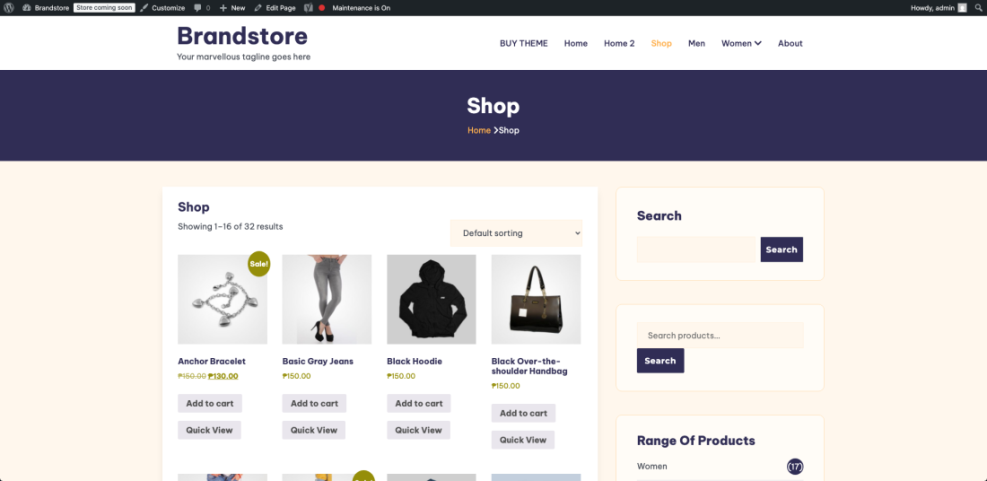
As a quick check, you should have a list of where keywords already appear and which areas feel generic or off-topic.
Quick Reference: Key Places to Add WordPress Keywords
Instead of guessing, use this table as a shortcut to see which parts of WordPress you will update in this tutorial.
| Method | Where You Use It | Main Purpose |
|---|---|---|
| Site Title & Tagline | Settings » General in the WordPress dashboard | Set a strong sitewide signal for your main topic and location that can appear in browser tabs and search snippets. |
| Homepage Headings & Intro | Homepage content editor under Pages » All Pages | Tell visitors and search engines what you do in plain language using your primary keyword in the main heading and first paragraph. |
| SEO Titles & Meta Descriptions | SEO plugin meta box (Yoast, All in One SEO, Rank Math) | Control how each page appears in Google with keyword-focused, click-worthy titles and descriptions. |
| Categories, URLs & Menus | Permalinks, Categories, and Menus screens | Organize content so related topics are grouped together and URLs reinforce your main keywords. |
| Images & Internal Links | Block editor or Classic editor inside each page or post | Add supporting relevance with descriptive alt text and internal links that point to related content using natural keyword phrases. |
Step 2: Choose a Main WordPress Keyword or Topic for Your Website
Each WordPress website should have one main topic that describes what you do. This primary phrase is the core Keywords WordPress focus that guides how you phrase your site title, tagline, and homepage content.
Define your site’s main focus
To begin, take a moment to decide which audience you serve and what result you help them achieve. This simple step makes it easier to choose a primary keyword that fits your actual offer, instead of chasing random terms that will never convert.
- First, open your keyword list and highlight one phrase that best describes your whole website, such as “affordable wedding photographer Chicago” or “WordPress maintenance services”.
- Then pick two to four closely related support phrases you can use in headings and paragraphs.
- After that, avoid choosing a keyword that is too broad, such as “shoes” or “marketing”.
- Finally, write your primary keyword at the top of a notepad or document so you can copy and paste it later.
When you are done, you should have one clear main keyword and a few variations you can use naturally in your copy.
Step 3: Add Keywords to Your Site Title and Tagline
Your site title and tagline are some of the strongest sitewide keyword signals in WordPress. They appear in the browser tab, header, and search results snippet, and they are a perfect place to reinforce your core Keywords WordPress phrase.
- To start, from the WordPress dashboard, navigate to Settings » General.
- In the Site Title field, keep your brand name but add a short descriptive keyword. For example, Skyline Dental becomes Skyline Dental Family Dentist in Austin.
- Next, in the Tagline field, add a short sentence that includes your primary keyword and one variation.
- Then scroll down and click Save Changes.
After saving, navigate to Settings » General again and confirm your updated Site Title and Tagline are still there.
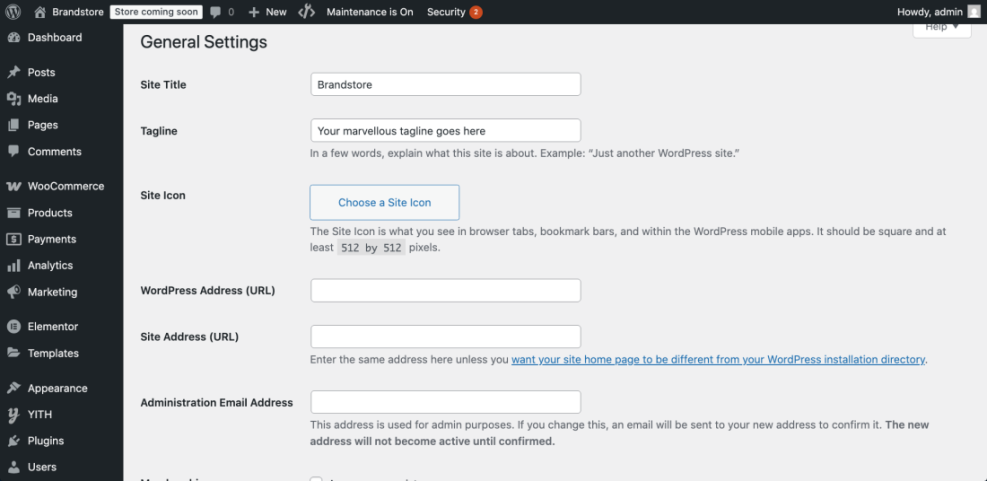
To verify success, refresh your homepage. As a result, your browser tab text and possibly the header should now reflect your main Keywords WordPress focus along with your location or specialty. For more detail on this screen, you can review the official WordPress General Settings documentation.
Step 4: Clarify Your Homepage Message with WordPress Keywords
Your homepage should clearly state who you serve and what you offer using your chosen keywords. In most cases, this is the page where you first introduce your main Keywords WordPress phrase to visitors and search engines.
Edit the top of your homepage
First, focus on what visitors see without scrolling: your main heading, opening paragraph, and any buttons or calls to action. These areas should explain your service in plain language, while naturally including your primary keyword once or twice.
- In the dashboard, go to Pages » All Pages.
- Then find the page that is set as your homepage, often titled Home or your brand name, and click Edit.
- In the main content editor, rewrite the first paragraph so it includes your primary keyword in a natural sentence.
- Next, update the main heading at the top of the page (usually a Heading 1 in the Classic Editor or a Heading block) to combine your main benefit with a key phrase.
- After that, add one or two subheadings that include support keywords, for example “Our WordPress maintenance services” or “Custom website design packages”.
- Finally, click Update to save your changes.
After updating, click View Page from the top admin bar to check your updated homepage.
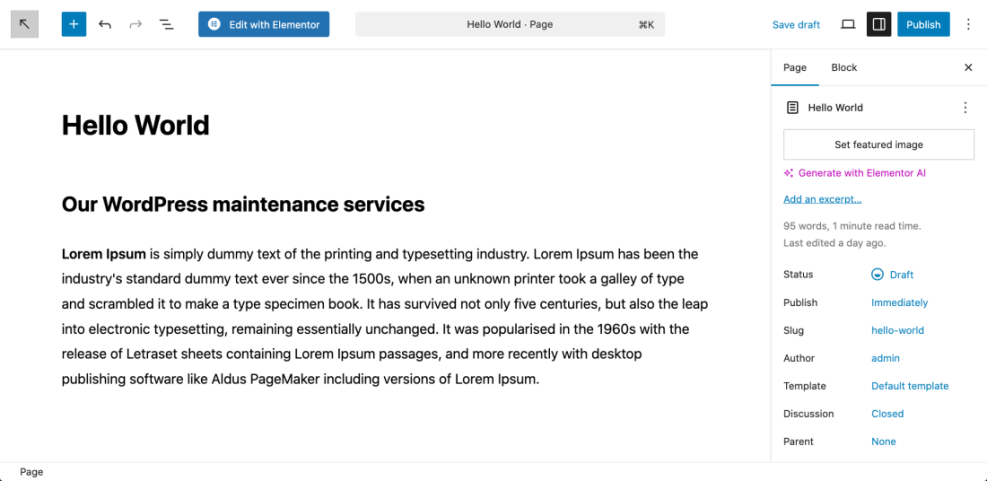
To confirm this step worked, read the first screen of your homepage without scrolling. If a new visitor can immediately understand what you do and where you are, and you can see your main Keywords WordPress phrase in both the heading and opening paragraph, you are on the right track.
Step 5: Add SEO Keywords in WordPress Titles and Meta Descriptions
SEO plugins let you fine tune how your pages appear in search results. In this step, you will apply your keywords to the SEO title and meta description for your homepage and other key pages that target your primary Keywords WordPress phrase.
Configure SEO titles and slugs
Your SEO title and slug tell search engines what a page is about. Therefore, keeping them short, descriptive, and aligned with your main keyword helps Google understand when to show your content.
- First, make sure an SEO plugin is installed and active. If you still need one, follow the tutorial How to install a plugin in WordPress and then return here.
- Next, edit your homepage again by going to Pages » All Pages and clicking Edit.
- Then scroll under the content editor until you see your SEO plugin meta box, such as Yoast SEO or All in One SEO.
- In the SEO title field, include your brand plus your primary keyword. For example: Skyline Dental | Family Dentist in Austin.
- In the Slug field, use a short hyphenated phrase that supports your keyword, such as family-dentist-austin if appropriate.
- Then, in the Meta description field, write 1–2 sentences that use your main keyword and one variation while clearly stating your offer.
- Finally, save or update the page.
Write a concise meta description
To avoid truncation, keep your meta description within the recommended length so it is fully visible in search results. Ideally, you should aim for one clear sentence that includes your primary keyword, one synonym, and a simple call to action.
After you finish editing, scroll to the SEO plugin preview area to confirm your new title and description look good on both mobile and desktop.
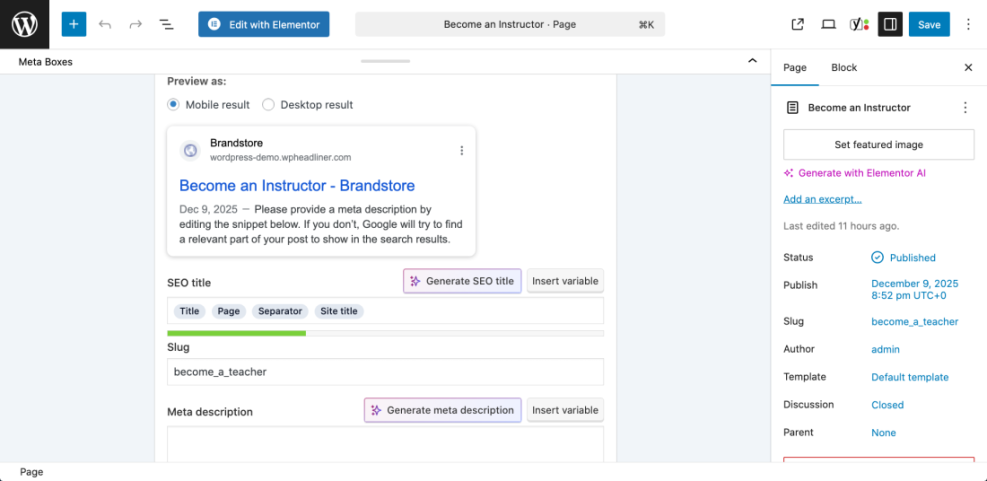
As a reference, an optimized snippet might look like this:
<title>Skyline Dental | Family Dentist in Austin</title>
<meta name="description" content="Skyline Dental provides gentle family dental care in Austin, TX including cleanings, fillings, and cosmetic dentistry for busy professionals." />
To verify success, search your brand name in Google after some time has passed. Eventually, your new SEO title and meta description should appear in the search results, especially for searches that include your Keywords WordPress focus.
If you want additional fine-tuning options, you may also review the Yoast SEO plugin page on WordPress.org for more configuration tips.
Step 6: Improve URLs Categories and Menus for WordPress Keywords
Your site structure tells search engines how topics relate to each other. Consequently, clean URLs, descriptive categories, and clear menu labels help your Keywords WordPress targeting work across many related posts instead of competing.
Adjust permalinks and category names
Updating your permalinks and category slugs to be descriptive makes it easier for both users and search engines to understand what a page is about before they even click. In addition, it keeps your structure consistent as your site grows.
- In the dashboard, go to Settings » Permalinks and confirm the Post name structure is selected for most blogs and small business sites.
- Then navigate to Posts » Categories and review each category name and Slug. Rename vague labels like “Stuff” to descriptive ones such as “WordPress tutorials”.
- Next, use your keyword list to adjust category names so they align with real topics, not random ideas.
- After that, go to Appearance » Menus and check that your main menu labels use clear wording that matches the topics and keywords you want to rank for.
- Finally, save changes in each screen you update.
Review your main navigation
After updating categories and menus, scan your navigation as a visitor would. The labels should be short, descriptive, and logically grouped so people can quickly find content related to your main keyword themes.
As a final check for this step, navigate to Posts » Categories and confirm your updated slugs and names look consistent.
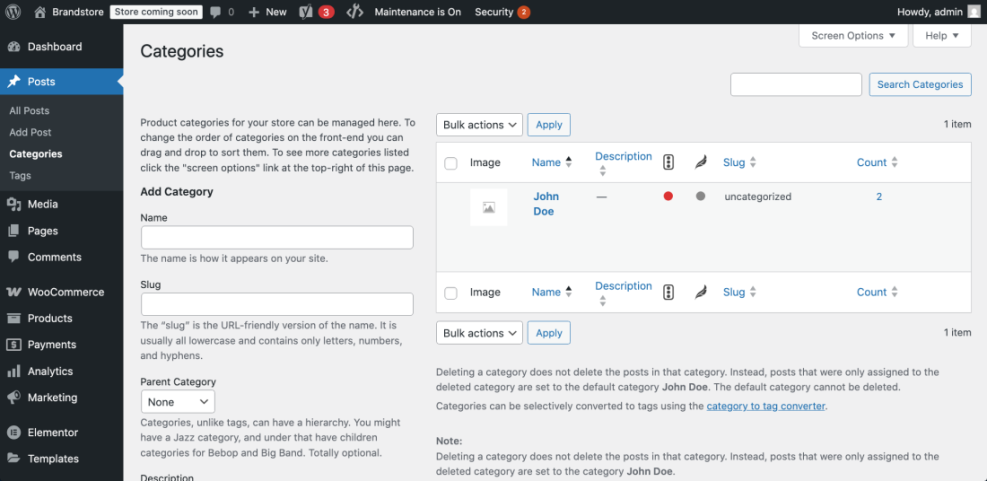
To verify success, visit your homepage and check your main navigation. Menu labels, category archive titles, and URLs should now reinforce your main topics instead of using generic wording.
For a deeper explanation of organizing topics, you can also see Categories tags beginner guide and Best WordPress seo plugins and tools.
Step 7: Refine WordPress Images and Internal Links with Keywords
Once your sitewide elements are set, you still need to reinforce Keywords WordPress inside individual pages and posts. This step helps you add relevance without stuffing.
Optimize image alt text
Alt text should describe what is in the image and why it matters in the context of the page. Whenever it feels natural, add a brief reference to your topic, but avoid forcing your exact keyword into every image.
- First, open an important service page or blog post by going to Pages or Posts and clicking Edit.
- Then ensure your primary keyword or a close variation appears in the first 100 words of the content.
- After that, use your support keywords in one or two subheadings, but avoid repeating the exact same phrase in every heading.
- Next, click on an image in the editor and fill in the Alternative Text field with a short description that includes a relevant keyword.
- Then highlight a phrase in your text, click the Insert/edit link button, and link to another relevant article such as Internal linking WordPress beginners or a related service page.
- Finally, update or save the page.
Add helpful internal links
Use internal links to connect related posts and pages so visitors can easily go deeper into a topic. In addition, linking contextually from phrases related to your Keywords WordPress focus helps search engines understand which pages are most important.
In the editor, click on an image and open its Alternative Text field to confirm your changes.
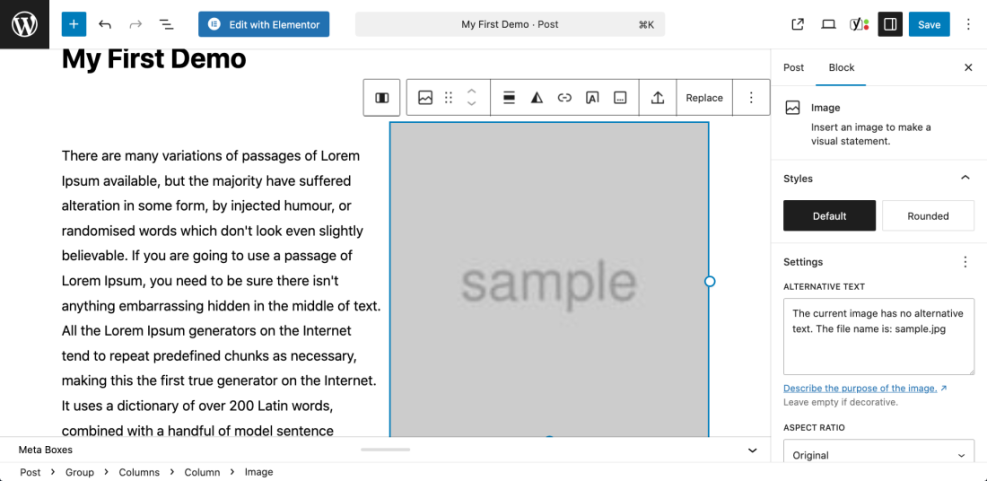
To verify success, read the page aloud. Your Keywords WordPress should feel like part of natural sentences. If it sounds robotic or repetitive, simply remove a few instances. For quick wins and structure ideas, you can also review How to add keywords in WordPress without hurting.
Step 8: Final Checks Before You Publish
The final step is to review your work as a whole. This last review makes sure your keywords are consistent, useful to readers, and not overused on any single page that targets your main Keywords WordPress phrase.
- First, open your homepage, one key service page, and one or two blog posts in separate tabs.
- Then check that each page clearly focuses on one primary topic, with a unique main keyword and a few variations.
- Next, run a quick Google search using site:yourdomain.com plus your main keyword to see which pages show up together.
- Finally, scan the search results for duplicate or confusing SEO titles and meta descriptions that you might want to refine.
For example, search for site:yourdomain.com “your main keyword” in Google to see how pages are grouped.
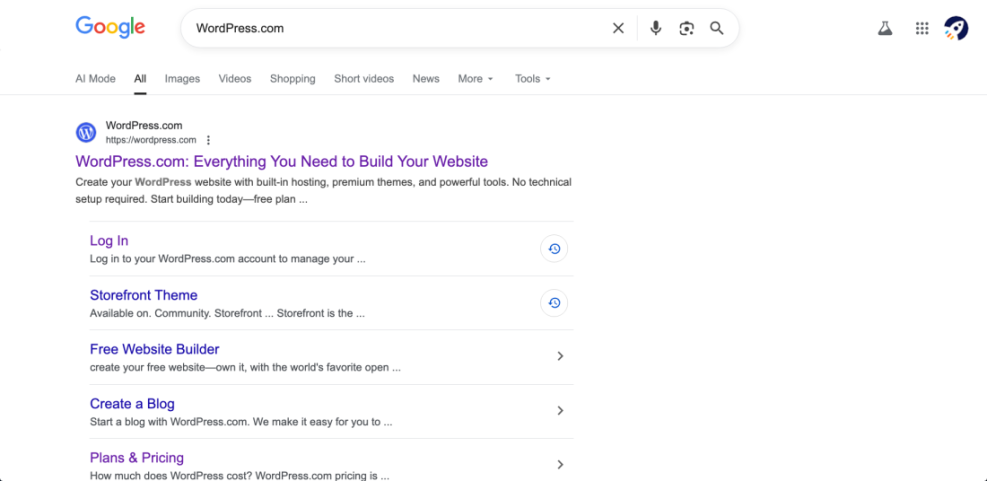
You will know this step is complete when each important page has a clear focus, your site title and homepage communicate your main topic, and your internal links logically connect related content.
Conclusion You Are Ready to Go
You have now added keywords across your WordPress website in a structured, sustainable way. As a result, your site title, tagline, homepage content, SEO titles, categories, images, and internal links all work together to reinforce your main topics and your chosen Keywords WordPress phrase.
From here, keep publishing focused content and refining individual pages using guides like WordPress seo complete beginners guide. Over time, this combination of sitewide structure and page-level optimization will help you earn more relevant traffic and better rankings.
Further Reading
- Best keyword research tools for seo
- Is WordPress good for seo
- How to add keywords in WordPress without hurting
- Internal linking WordPress beginners
- Best WordPress seo plugins and tools
Frequently Asked Questions
Homepage keyword usage
How many keywords should I use on my WordPress homepage
Meta keywords and old SEO practices
Do I still need meta keywords in WordPress
SEO keywords vs WordPress tags
What is the difference between SEO keywords and WordPress tags
Branding and keyword-rich site titles
Will changing my site title to include keywords hurt my brand
Updating your keyword targeting
How often should I update keywords on my WordPress website
Choosing a WordPress SEO plugin
Which SEO plugin is best for adding keywords in WordPress