Sticky post WordPress feature lets you pin important articles to the top of your blog list, above newer posts. As a result, it is a core option that highlights key content for visitors on your blog page.
In this guide you will learn what a sticky post is, how it behaves in different parts of your site, and how to create or remove one in both the Block Editor and Classic Editor. By the end, you will know when to use sticky posts, when to avoid them, and how to fix common problems if the sticky post does not appear where you expect.
What You Need to Start
Before you begin, you need a few basics in place. First of all, make sure you can log in to your own site.
- An existing WordPress site where you can log in as an Administrator or Editor.
- At least one published blog post you can practice with.
- Access to the WordPress dashboard at /wp-admin.
- Basic familiarity with either the Block Editor or the Classic Editor.
After you confirm those points, you are ready to work with sticky posts.
What Is a Sticky Post in WordPress
In simple terms, a sticky post is a regular blog post that you mark as special so it stays at the top of your main post list. Instead of following normal date order, WordPress treats it as “pinned” content and shows it before other, newer posts on the blog page.
How sticky posts differ from normal posts in WordPress
Normally, posts appear in reverse chronological order, with the newest post first. However, sticky posts ignore that rule on the main blog page. When you enable the sticky post WordPress option, that post jumps to the top of the list and stays there until you remove the setting.
Even so, the post is still part of your archive. It keeps the same URL, categories, tags, and publish date. In other words, you are not creating a new content type. Instead, you are only changing how WordPress orders that post in certain loops.
How Sticky Posts Behave on Your WordPress Site
Sticky posts affect only specific views of your site. Therefore, understanding where they work helps you avoid confusion later.
Where sticky posts appear in WordPress
- Blog posts page when it shows latest posts from your site.
- Home page when your front page is set to “Your latest posts”.
- Sometimes category or tag archives, depending on how your theme queries posts.
In these views, sticky posts appear at the top of the list. If you mark several posts as sticky, WordPress groups them together above normal posts and then sorts them by publish date inside that group.
Where sticky posts might not appear
- If your front page is a static page and not the latest posts list.
- On custom loops created by some themes or page builders.
- Inside widgets or blocks that use a custom query and ignore sticky posts.
Because of this behavior, you should always test sticky posts in the correct place. If you ask “why does my sticky post not work”, make sure you are looking at the real blog or archive view and not a static page that simply links to that post.
How to Create a Sticky Post in WordPress
You can turn any published post into a sticky post. However, the exact option looks slightly different in the Block Editor and the Classic Editor.
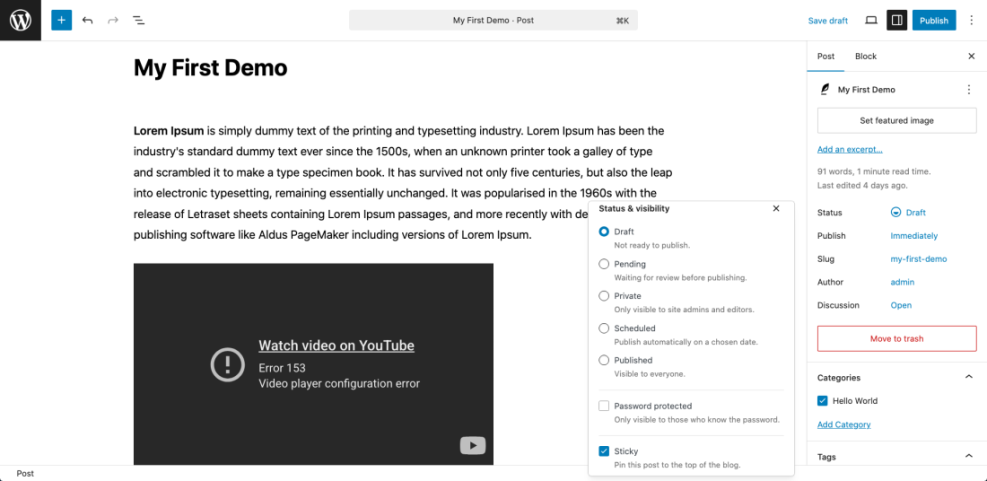
Make a sticky post in the Block Editor
- First, log in to your WordPress dashboard and go to Posts » All Posts.
- Next, click the title of an existing post you want to highlight to open it in the Block Editor.
- On the right side, open the Post settings panel if it is not visible.
- Then scroll to the Status and visibility section.
- Check the box labeled Stick to the top of the blog.
- Finally, click Update to save your changes.
After that, reload your blog page in a new tab and look for that post at the top of the list. At this point, the sticky post WordPress option is active.
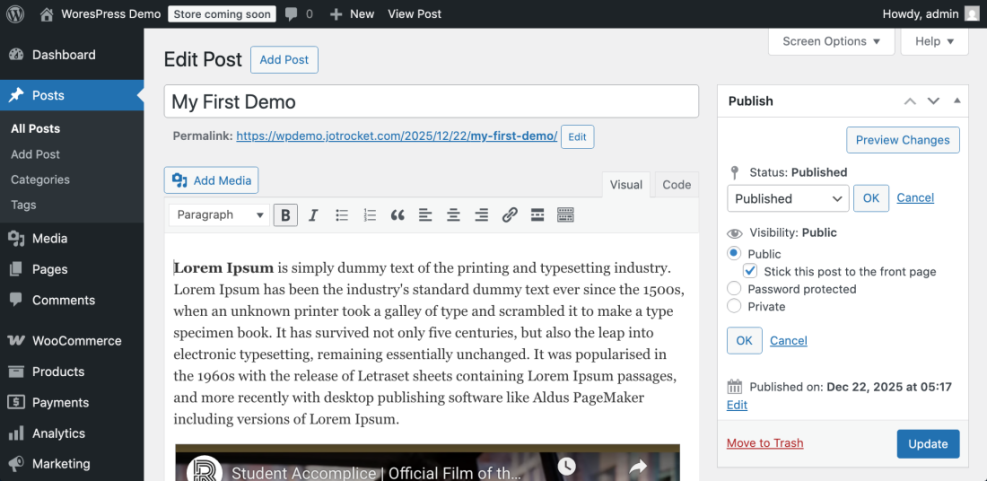
Make a sticky post in the Classic Editor
- Again, in the dashboard, go to Posts » All Posts.
- After that, click the title of the post to open it in the Classic Editor.
- Look for the Publish meta box on the right side.
- Click the Visibility link next to Public.
- Then check the box Stick this post to the front page.
- Click OK, then click Update.
Once you have done that, open your blog page in another tab and confirm the post now appears at the top of the list, above newer posts.
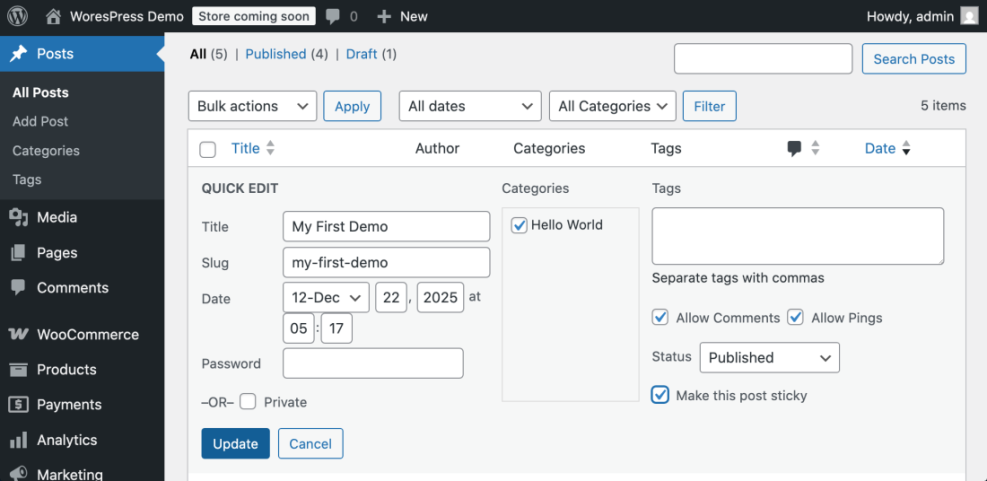
Use Quick Edit to toggle sticky status
- First, go to Posts » All Posts.
- Then hover over the post you want to pin.
- Click Quick Edit under the post title.
- After that, check or uncheck the box labeled Make this post sticky (wording can vary slightly by theme).
- Finally, click Update to save.
This method lets you change sticky status quickly without opening the full editor. As a result, it is very handy when you manage many posts.
Smart Ways to Use Sticky Posts on Your WordPress Blog
A sticky post WordPress setting is powerful when you use it with intent. Specifically, it is best for content you want almost every visitor to see.
Good candidates for sticky posts
- Welcome posts that explain who the blog is for and what to read first.
- Evergreen guides that you want new readers to find, such as your main setup tutorial.
- Important announcements that need attention for a few days or weeks.
- Roundup posts that link to your most helpful content.
When to avoid sticky posts
- News blogs where the newest story must always appear first.
- Sites with many announcements, where sticky posts would change too often.
- Blogs that rely on a very strict chronological reading order.
In practice, too many sticky posts can confuse visitors. Therefore, your blog page should still feel like a clear stream of recent content, with only a small number of pinned posts at the top.
How Themes Display Sticky Post WordPress Content
Most themes use a special CSS class on sticky posts so you can style them differently from normal posts. Typically, that class is .sticky in the HTML output.
Common visual treatments for sticky posts
- A “Featured” or “Pinned” label above the title.
- A different background color or border.
- Larger featured image or larger title font.
If your theme does not highlight sticky posts, you can add custom CSS that targets the .sticky class. In this way, you make your sticky post WordPress content stand out visually without changing the content itself.
Practical Sticky Post WordPress Tips
Sticky posts work best when you treat them like a small, curated shelf at the front of your store. Consequently, you should keep them tidy and up to date.
Keep the sticky posts list short
- Limit sticky posts to one to three at most.
- Review them every few months and remove any that are out of date.
- Update the content inside sticky posts so they stay accurate and useful.
Combine sticky posts with internal links
For example, you can use sticky posts as hubs that link to other key articles. Your sticky post might link to a tutorial like How to Create Your First Blog Post in WordPress. This flow helps new readers move deeper into your site.
Maintenance Methods for Managing a WordPress Site and Popups
There is more than one way to handle ongoing WordPress maintenance tasks, including keeping your WordPress popups healthy and secure. Because each method fits slightly different skills, budgets, and site types, it helps to compare them side by side. The table below compares the main methods so you can quickly choose the one that feels easiest and safest for your site.
| Method | Where You Use It | Main Purpose |
|---|---|---|
| DIY Manual Maintenance | WordPress dashboard and hosting control panel | Maximum control over updates, backups, and checks for small or low-risk sites. |
| Managed Hosting Tools | Your host’s control panel or custom dashboard | Simplify routine maintenance with one-click updates, built-in backups, and basic security. |
| Maintenance & Security Plugins | Plugins section inside the WordPress dashboard | Automate repetitive work like backups, database cleanup, image optimization, security scans, and monitoring your popup plugin. |
| SEO and UX, and where you will see it in daily work.”>WP-CLI and Developer Tools | SSH terminal with WP-CLI and deployment tools | Scriptable, fast maintenance for developers managing multiple or complex sites. |
| Professional WordPress Care Plan | External provider, freelancer, or agency | Hands-off maintenance with proactive monitoring, fixes, and expert support. |
Dashboard Overview for Managing Sticky Posts in WordPress
You manage sticky posts entirely from the WordPress dashboard. Therefore, there is no need for code changes or custom templates.
- Use Posts » All Posts to scan which articles are marked as sticky.
- Use Quick Edit to toggle sticky status without opening the full editor.
- Regularly review your sticky posts list to confirm each pinned article is still current and useful.
By following this small dashboard routine, you avoid outdated sticky posts and keep the top of your blog page focused on your best content.
Troubleshooting Sticky Post WordPress Problems
Sometimes the sticky post WordPress option is enabled but the post still does not appear where you expect. In that case, work through these checks before you contact your host or theme author.
Blog page is set to a static page
- First, go to Settings » Reading.
- Then check the option under Your homepage displays.
- If A static page is selected, note which page is the Posts page.
Next, open that Posts page in a new tab. Sticky posts appear at the top of this page, not necessarily on your static front page.
Theme or query ignores Sticky post WordPress setting
- Some themes use custom queries in templates that do not respect sticky posts.
- Similarly, page builders may show posts using a custom loop block that ignores sticky settings.
To test this, temporarily switch to a default theme such as Twenty Twenty Four. If the sticky post works there, the issue is in your theme or builder, not in the sticky post WordPress core feature.
Caching hides recent changes
- First, clear any caching plugin you use in WordPress.
- Then clear server level cache in your hosting control panel if available.
- Finally, refresh the page in a private or incognito browser window.
Very often, caches serve an older version of the page and make it look like the sticky setting did nothing.
Conclusion You Can Use Sticky Posts in WordPress Confidently
In conclusion, a sticky post is a simple but powerful WordPress feature. It lets you pin key articles to the top of your blog so visitors see your most important content first.
Now you know what a sticky post is, how it behaves in different parts of your site, and how to create, remove, or troubleshoot it. Consequently, you can use the sticky post WordPress feature for your best evergreen content and keep the list short, so your blog page stays both useful and easy to scan.
Frequently Asked Questions About Sticky Posts in WordPress
Common questions from WordPress users
Can I make more than one sticky post
Does a sticky post change my SEO rankings
Can I use sticky posts on custom post types
What happens if I uncheck the sticky option
Can I schedule a sticky post for later
Is a sticky post the same as a featured post in my theme