WordPress hosting is the specialized server environment that runs your WordPress website. It keeps your site available to visitors around the world. When you understand how WordPress hosting works, you can choose better plans and avoid slow loading times. You can also fix basic problems without panic.
If you have ever asked yourself, “How does WordPress hosting work?” this guide walks you through the full picture step by step.
In this tutorial you will follow the journey of a page request. You will see what happens from your visitor’s browser through DNS, web servers, PHP, the database, caching, and backups inside your WordPress hosting environment.
By the end, “How does WordPress hosting work?” will be an easy question for you to answer. You will also know how to talk to support using the same language they use. You will see where WordPress.org and WordPress.org documentation fit into the picture.
What You Need to Start with Your WordPress Site
Before you walk through how WordPress hosting works in detail, gather a few basic tools and logins. This lets you follow along with your own site instead of just reading theory.
It also helps you see how your own WordPress hosting account is set up in practice. That gives you a real answer to “How does WordPress hosting work?” for your specific site.
Logins and tools you will use
- Access to your WordPress hosting dashboard such as cPanel, Plesk, or a custom control panel.
- Login details for your domain registrar to view DNS settings for the domain connected to your WordPress hosting account.
- Administrator access to your WordPress dashboard at /wp-admin for the site you are hosting.
- A test WordPress site or a low traffic time on your current WordPress hosting so you can click around safely.
Navigate to your WordPress hosting account. Confirm you can open both the hosting control panel and your WordPress admin screen in separate browser tabs. This way you can see exactly how your own setup behaves while you read how it all works.
Step 1: Understand What WordPress Hosting Does
Your WordPress hosting plan is a bundle of hardware, software, and services. These parts work together to serve your pages every time someone visits your site. Knowing each piece helps you see why some WordPress hosting plans are faster or more stable than others.
This section gives you the big picture answer to “How does WordPress hosting work” at the server and account level.
Map the main areas of your panel
- Log in to your WordPress hosting dashboard. Locate the overview area labelled Websites, Hosting, or Sites.
- Find a section named Resource usage, Statistics, or CPU and RAM. This shows the limits for your plan and how your account is constrained.
- Locate separate areas for File Manager, Databases, and PHP or PHP Version inside your hosting control panel.
- Note whether your host mentions WordPress tools, 1-click installs, or Managed WordPress on this overview screen.
Review your resource usage
Open the Resource usage or Statistics page. Here you can see how many resources your site can use at once in your current WordPress hosting package.
To verify your understanding, answer three simple questions. Which screen shows your CPU and RAM usage? Where would you upload or edit files? Where are databases managed?
If you can point to those three areas, you know the basic moving parts of your WordPress hosting environment.
Step 2: Connect Your Domain, DNS, and Server
Your visitors reach your WordPress hosting because your domain name points to your server’s IP address through DNS. When DNS is wrong, your site feels down even if the WordPress hosting server itself is fine.
Without correct DNS, the question “How does WordPress hosting work?” has a disappointing answer. It does not work for visitors, because they cannot even reach your server.
Check where your DNS is hosted
- Log in to your domain registrar and open the DNS or DNS Management screen for the domain used by your WordPress hosting account.
- Check whether you are using your hosting provider’s nameservers or a third party DNS service such as Cloudflare.
Match DNS records to your server
- Locate the A record for your main domain (for example @ or your root domain). Note the IP address it points to.
- In a new tab, open your WordPress hosting control panel. Find the Server information or IP address value.
- Confirm that the DNS A record IP matches your hosting server IP value in the dashboard.
Open the DNS Management page for your domain. Compare the A record IP to the Server IP shown in your hosting account. This simple check often explains why a WordPress hosting setup looks broken from the outside.
To verify everything is working, type your domain into the browser and confirm it loads your WordPress site. If DNS is wrong, you may see a parked page or another site.
In that case, fix DNS first before blaming your WordPress hosting performance or switching to another web host.
Step 3: Follow a Page Request from Browser to WordPress
When someone visits a page, a long chain of events happens in fractions of a second inside your WordPress hosting environment. When people ask, “How does WordPress hosting work in practice?”, this page request flow is what they are really asking about.
Understand each step in the request
- The visitor types your URL and their browser asks DNS for your site’s IP address. That address points to your WordPress hosting server.
- DNS responds with your server IP. The browser connects to your web server using HTTP or HTTPS.
- The web server software, usually Apache, Nginx, or LiteSpeed, receives the request on your hosting server.
- The server passes the request to PHP. PHP loads WordPress core files such as index.php and wp-blog-header.php.
- WordPress loads your theme and plugins. It then queries the database and builds an HTML page in memory.
- The server sends the finished HTML along with CSS, JavaScript, and images back to the visitor’s browser.
Test the request with browser tools
Open your browser’s Developer Tools. Switch to the Network tab, then reload your homepage. Watch how many requests are made and how long they take on your current WordPress hosting plan.
To verify you follow the flow, identify which request is the main HTML document and which are assets like CSS or images. Slow HTML generation usually points to issues in your WordPress hosting stack, such as PHP or the database. Slow assets are often theme, plugin, or image problems.
Step 4: How PHP and the Database Power WordPress
WordPress is written in PHP and stores content in a MySQL or MariaDB database. Your WordPress hosting provider configures PHP and MySQL so WordPress can talk to the database using the settings in wp-config.php.
This is one of the deeper layers behind the simple question, “How does WordPress hosting work?”.
Open wp-config.php safely
- In your hosting dashboard, open File Manager or connect via SFTP to your site’s files on the server.
- Navigate to the folder where WordPress is installed on your hosting account. This is usually public_html or a subfolder such as public_html/blog.
- Locate the file named wp-config.php in the root WordPress folder.
- Use the View or Code Editor option to open the file in read-only mode without saving any changes.
Check your database credentials
Open wp-config.php in your file manager’s viewer. Look at the database connection settings your WordPress hosting company uses for this install.
define( 'DB_NAME', 'example_db' );
define( 'DB_USER', 'example_user' );
define( 'DB_PASSWORD', 'strong_password_here' );
define( 'DB_HOST', 'localhost' );
These lines tell PHP which database to connect to when WordPress loads. Your hosting platform configures the database server so these values work together securely.
Once you understand this database layer, “How does WordPress hosting work?” starts to feel much less mysterious.
To verify this layer is healthy, go to Tools » Site Health in your WordPress dashboard. Then check the Info tab for database and server details.
If WordPress can read this information without errors, your PHP and database connection are working as expected within your current hosting setup.
Step 5: Speed Up WordPress Hosting with Caching
Caching lets your WordPress hosting server reuse work instead of rebuilding every page from scratch. Good caching is a huge part of the practical answer to “How does WordPress hosting work for speed and performance?” because it reduces the load on PHP and the database.
Enable caching in your account
- Check whether your hosting provider advertises server level caching such as LiteSpeed Cache, NGINX cache, or Redis on your plan page.
- Log in to WordPress and install your host’s recommended caching plugin if they provide one for their environment.
- In your WordPress dashboard, go to Settings or the new Cache menu added by the plugin.
- Enable basic page caching, then save the settings and clear the cache on your site.
Verify that cached pages are faster
Open a private or incognito browser window and load your homepage. This helps you test how the site feels on your optimized hosting stack.
Navigate to the caching plugin’s main settings screen and enable its recommended default configuration for page caching. This usually works well with the server level caching your WordPress hosting company already provides.
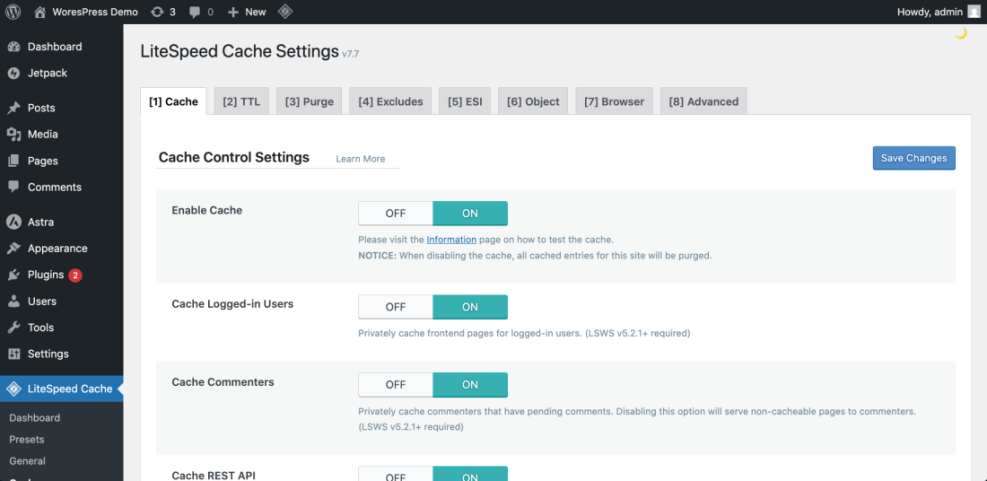
For an easy overview of concepts like page cache, browser cache, and object cache, read WordPress Cache Basics. If you use a managed WordPress host, dig deeper into their stack using Managed Hosting Caching Explained. This helps you avoid fighting against built in caching with plugin settings.
To verify caching is working, refresh your homepage a few times while logged out. Watch the first byte or initial server response time in your browser’s Network panel.
A cached page on a decent WordPress hosting platform should load noticeably faster than the first uncached request.
Step 6: Protect Your WordPress Site with Backups and Updates
Even the best WordPress hosting can fail through hardware issues, human error, or hacked plugins. Backups and a simple update routine are how you recover quickly instead of losing everything, no matter which WordPress host you use.
Good backup habits turn “How does WordPress hosting work when something breaks?” into a manageable process instead of a crisis.
Confirm how often backups run
- In your hosting dashboard, look for a menu named Backups, Snapshot, or JetBackup that covers your hosted sites.
- Confirm how often your provider backs up your account and how many restore points are stored.
Create a simple update routine
- Inside WordPress, go to Dashboard » Updates to see whether core, plugins, or themes need updates on your hosted site.
- Schedule a low traffic time each week to apply updates. Verify that backups exist in your hosting panel before you start.
- Once a month, perform a test restore on a staging or test site. This lets you practice recovery with your current provider.
Open your host’s Backups or Snapshot page and confirm the date and time of the last automatic backup. Make sure it includes your WordPress files and database.
For a deeper process that ties hosting backups, plugins, and restore tests together, follow the full WordPress Backup Guide.
To verify you are protected, make sure you can identify at least one recent off-site backup. Also confirm that you have successfully restored a test site in the last few months.
Maintenance Methods for Managing a WordPress Site and Popups
There is more than one way to handle ongoing WordPress maintenance tasks. This includes keeping your WordPress popups healthy and secure.
Each method fits slightly different skills, budgets, and site types. The table below compares the main methods so you can quickly choose the one that feels easiest and safest for your site and your hosting environment.
Choosing a maintenance style that fits you
| Method | Where You Use It | Main Purpose |
|---|---|---|
| DIY Manual Maintenance | WordPress dashboard and hosting control panel | Maximum control over updates, backups, and checks for small or low-risk sites on inexpensive WordPress hosting. |
| Managed Hosting Tools | Your host’s control panel or custom dashboard | Simplify routine maintenance with one-click updates, built-in backups, and basic security from your WordPress hosting provider. |
| Maintenance & Security Plugins | Plugins section inside the WordPress dashboard | Automate repetitive work like backups, database cleanup, image optimization, security scans, and monitoring your popup plugin on any WordPress hosting plan. |
| WP-CLI and Developer Tools | SSH terminal with WP-CLI and deployment tools | Scriptable, fast maintenance for developers managing multiple or complex sites on advanced WordPress hosting. |
| Professional WordPress Care Plan | External provider, freelancer, or agency | Hands-off maintenance with proactive monitoring, fixes, and expert support, regardless of which WordPress hosting company you use. |
Step 7: Choose the Right WordPress Hosting Type
Now that you understand the layers, you can compare shared, VPS, cloud, and managed WordPress hosting. Look at how each type handles resources, performance, and support instead of just looking at price.
When you compare plans, you are really comparing different answers to “How does WordPress hosting work as your site grows?”.
Compare hosting types side by side
- Review your current plan details in your hosting dashboard. Note whether it is labelled Shared, VPS, Cloud, or Managed WordPress.
- Estimate your monthly traffic and peak concurrent visitors using your analytics reports. This tells you what your hosting must handle.
- Write down any pain points such as slow admin, frequent errors, or limited support with your current provider.
Decide when to upgrade plans
- Compare your notes with articles like How To Choose Fast WordPress Hosting to see if another plan type or host fits better.
- Shortlist two or three hosting companies and ask pre-sales questions about caching, backups, staging, and support response times.
Open a new tab and read How to Choose the Best WordPress Hosting while you have your own plan details from your host in front of you.
To verify you have chosen well, monitor your site for a few weeks after any hosting change. If page loads, admin performance, and support interactions all improve, your new WordPress hosting type is a better fit for your site.
Conclusion You Are Ready to Tune Your Hosting Setup
You have seen how WordPress hosting ties together domains, DNS, servers, PHP, databases, caching, backups, and maintenance. All of these form a single environment that keeps your site online.
At this point you should be able to answer someone who asks, “How does WordPress hosting work?” in clear, simple language. You can base that answer on your own hosting panel and your real site.
Next steps for your own site
From here you can fine tune performance and choose better WordPress hosting plans. You can also talk with hosting support using clear technical language.
If you want a simple checklist to apply these ideas step by step, follow Beginner WordPress Hosting Checklist for Bloggers to tighten up your current setup.
Further Reading and Resources on WordPress Hosting
Frequently Asked Questions About WordPress Hosting
Picking the right hosting plan
Do I really need WordPress specific hosting
What is the difference between shared and managed WordPress hosting
How does my hosting affect WordPress speed
Managing, moving, and upgrading your hosting
Can I move my WordPress site to a new host later
What happens if my WordPress hosting server goes down
Do I need a CDN if I already have good hosting
How often should I review my hosting plan