Knowing how to change SEO title in WordPress is one of the quickest wins you can get for better rankings and click-through rates in Google.
In this guide, you will learn how to change SEO title in WordPress for individual posts and pages, for your homepage, and for your entire site using both the built-in settings and popular SEO plugins like Yoast SEO and Rank Math.
What Is an SEO Title?
The SEO title (also called the title tag) is the title search engines show in results, and it can be different from the visible post title on your page.
- Post title: The heading visitors see at the top of your article inside WordPress.
- SEO title: The clickable blue title that appears on Google, Bing, and other search engines.
WordPress themes usually generate the SEO title automatically from your post or page title, but SEO plugins let you customize it for better keywords and more attractive search snippets.
Before You Edit Your Title Tags
- Decide your focus keyphrase for the page, such as How to Change SEO Title in WordPress.
- Keep SEO titles between 50–60 characters so they don’t get cut off in search results.
- Include your brand name at the end when possible, e.g., | Your Brand.
- Write SEO titles for humans first and search engines second.
How to Change SEO Title in WordPress (Yoast SEO Method)
If you use Yoast SEO, changing the SEO title of a single post or page is very simple.
- Open your WordPress dashboard and go to Posts » All Posts or Pages » All Pages.
- Edit the post or page where you want to change the SEO title.
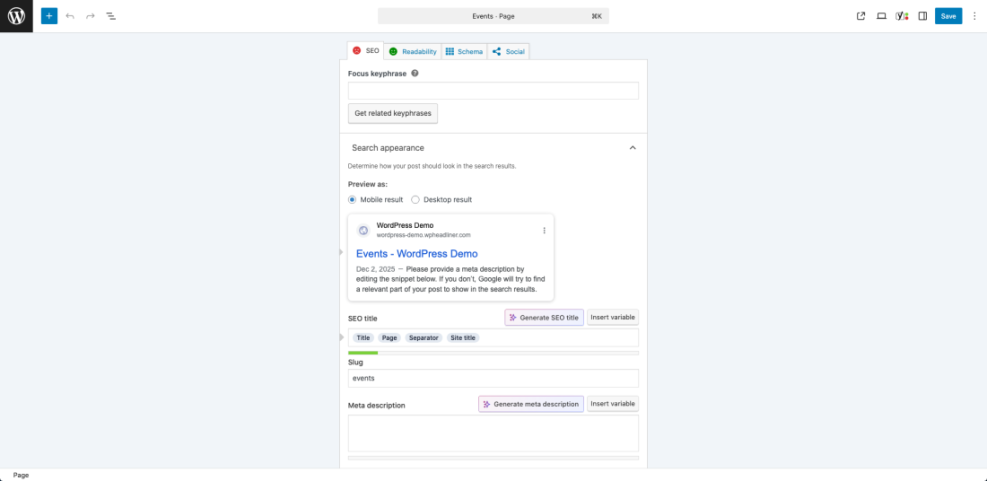
- Scroll down to the Yoast SEO meta box or click the Yoast icon in the block editor sidebar.
- Under the SEO tab, look for the Google preview panel.
- Click inside the SEO title field. You will see variables such as
Title,Page, andSeparatorplus yourSite title. - Type a custom SEO title, for example: How to Change SEO Title in WordPress (Step by Step).
- Make sure your focus keyphrase How to Change SEO Title in WordPress appears close to the beginning of the title.
- Check the colored bar under the preview. Aim for a green bar for ideal length.
- Click Update or Publish to save your new SEO title.
How to Change SEO Title in WordPress with Rank Math
If you prefer Rank Math, the process is just as easy.
- From the dashboard, go to Posts or Pages and edit the content you want to optimize.
- Click the Rank Math icon in the top right corner of the block editor to open the SEO options.
- Under the General tab, look for the Snippet section and click Edit Snippet.
- Find the SEO Title field. Rank Math may show variables like
%title%and%sitename%. - Replace or edit the SEO title to include your keyphrase, for example: How to Change SEO Title in WordPress – Beginner Guide.
- Watch the preview update as you type and keep the length within the recommended limit.
- Click Close, then hit Update to save your changes.
How to Change SEO Title in WordPress for the Homepage
The homepage SEO title is extremely important because it often ranks for your brand name and main keywords. Here is how to change it in different ways.
Adjust the Homepage Title with Yoast SEO
- In the WordPress dashboard, go to SEO » Search Appearance (or Settings » Content Types in newer versions).
- Click the General or Homepage section, depending on your Yoast version.
- If your homepage shows your latest posts, edit the Homepage SEO title field directly.
- If you use a static page for the front page, Yoast will link you to that page. Click the link and edit the SEO title from the page’s Yoast meta box.
- Use a clear SEO title like: WordPress Tutorials & Guides for Beginners | Your Brand.
- Save your changes.
Adjust the Homepage Title with Rank Math
- Go to Rank Math » Titles & Meta.
- Select the Homepage tab.
- Enter a custom SEO title for your homepage using variables or plain text.
- Click Save Changes.
Changing the Default Site Title
If you are not using an SEO plugin, WordPress uses your Site Title as part of the SEO title on most pages.
- Go to Settings » General in your WordPress dashboard.
- In the Site Title field, enter your brand or website name.
- Optionally, adjust the Tagline to describe your site in a short phrase.
- Scroll down and click Save Changes.
This does not give you full control over every SEO title, but it improves the default titles WordPress generates.
Using Title Templates to Speed Up SEO
Both Yoast SEO and Rank Math let you create title templates so you do not have to type every SEO title from scratch.
- In Yoast SEO, go to SEO » Search Appearance and set title templates for Posts, Pages, and custom post types.
- In Rank Math, go to Rank Math » Titles & Meta and configure templates for each content type.
A useful template for blog posts might look like:
%%title%% | %%sitename%%in Yoast SEO%title% | %sitename%in Rank Math
You can still override the template for important posts like this guide on how to change SEO title in WordPress by manually editing the SEO title for those posts.
Best Practices When You Change SEO Title in WordPress
Follow these tips when you change SEO title in WordPress to get better rankings and more clicks.
- Put the main keyword first: Start with phrases like How to Change SEO Title in WordPress before adding extra words.
- Avoid keyword stuffing: Use your keyphrase once per title in a natural way.
- Match search intent: If people want a tutorial, use words like Guide, Tutorial, or Step by Step.
- Make it clickable: Add value words like Fast, Easy, Beginner-Friendly, or Without Plugins when relevant.
- Stay consistent with your brand: Use the same brand formatting across all SEO titles.
Troubleshooting: When Your Title Won’t Update in Google
Sometimes you change SEO title in WordPress, but Google still shows the old one for a while. That is normal, but you can speed things up.
- Make sure you updated the post or page and cleared any caching plugins on your site.
- Check your page in an incognito browser to confirm the new SEO title appears in the page source.
- Use Inspect URL in Google Search Console and click Request indexing for the updated URL.
- Be patient – Google may still rewrite or shorten your title if it thinks a different version is more helpful to users.
Conclusion: Mastering SEO Titles in WordPress
By now you know exactly how to change SEO title in WordPress for individual posts and pages, for your homepage, and for your overall site.
Use Yoast SEO or Rank Math to control titles on every URL, follow best practices for length and keywords, and keep testing new SEO titles to improve your search rankings and click-through rates over time.
Frequently Asked Questions
Is the SEO title the same as the post title in WordPress?
Do I need a plugin to change SEO title in WordPress?
Will changing my SEO title affect rankings?
How often can I change SEO titles in WordPress?
Why does Google show a different title than my SEO title?