Beginner Guide to WordPress Categories and Tags
Simple structure tips to keep your WordPress blog easy to use


Many new bloggers feel lost when they see categories and tags in the WordPress editor. You might wonder which one to use, how many to add, or whether they change your SEO at all.
This beginner guide walks you through what each option does, how to plan a simple structure, and the exact steps to set everything up. You will see practical examples, common mistakes to avoid, and a few expert tweaks you can safely apply as your site grows.
How Categories and Tags Work
Categories group your posts into a few broad topics, while tags highlight specific details inside those posts. Together they form a simple navigation system that helps visitors scan your content and helps search engines understand how your posts relate to each other.
Understanding Categories at a Glance
Categories act like the main sections of a textbook. Each category covers a broad topic, and every post should sit in one primary category, with at most one extra if it truly fits two areas. This keeps your blog menu, archives, and URLs clean and easy to follow.
What Is a Tag in WordPress?
Tags work more like index keywords at the back of that same book. They describe specific angles, tools, or situations mentioned in a post. For example, a “SEO tips” category might hold posts tagged with “keyword research,” “internal links,” or “image optimization,” creating extra ways for readers to jump between related posts.
Plan Your Blog Taxonomy
Before you add anything in the dashboard, it helps to sketch a simple plan. A clear structure makes navigation easier today and avoids painful cleanup later when you already have hundreds of posts.
How Many Categories Should You Use?
Most blogs work well with around five to ten main categories. That range gives you enough room to grow without overwhelming visitors. Start with the topics you want to publish regularly, then make sure every planned post fits naturally into at least one of them.
Real Examples of Simple Structures
Different sites need different maps, but the same logic applies. Think about a few common setups and how you might group content.
- Personal finance blog: Budgeting, Saving, Investing, Debt, Side Hustles
- Food blog: Breakfast, Lunch, Dinner, Desserts, Meal Prep
- WordPress blog: Setup, Themes, Plugins, Performance, Security
With this kind of structure, visitors quickly see what your site covers, and you avoid vague catch-all categories like “Miscellaneous” or “Other.”
What Mistakes Do Beginners Make?
New users often create a new category for every post, which leads to dozens of thin archives with only one or two posts each. Another common issue is using both categories and tags for the same idea, such as having a “SEO” category and a “SEO” tag. Instead, decide where each topic belongs and keep your taxonomy lean. If you want to go deeper into planning topics, save time later with a solid WordPress business blog content strategy.
Set Up Categories in WordPress
Once you know your main topics, you can add them in the dashboard. WordPress gives you a dedicated Categories screen where you manage names, slugs, and parent-child relationships.
How Do You Add a Category?
Creating a category only takes a moment, and you can do it before or while writing posts. For a clean result, set everything up on the Categories screen first.
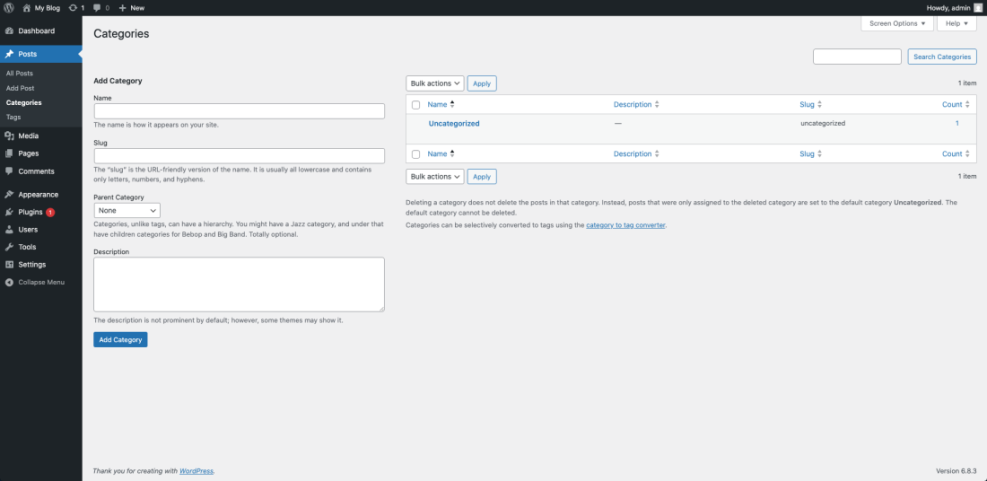
- Open your WordPress dashboard.
- Go to Posts » Categories.
- Enter a clear Name such as “SEO Tips.”
- Let WordPress auto-generate the Slug, or type a short version like “seo-tips.”
- Leave Parent Category as “None” for now, unless you plan a subcategory.
- Optionally add a short Description explaining what belongs here.
- Click Add New Category.
This gives you a reusable bucket you can assign to posts with a single click, rather than retyping similar labels over and over.
From your WordPress dashboard, go to Posts » Categories.
Using Parent and Child Categories
Sometimes a topic grows large enough to split into subtopics. In that case, you can use parent and child categories. For example, you might have a parent “WordPress Basics” category and child categories like “Setup,” “Themes,” and “Plugins.” A post in “Themes” will also appear in the main “WordPress Basics” archive.
- Use child categories only when the parent already has several posts.
- Avoid going deeper than one or two levels of nesting.
- Keep names short so URLs stay readable.
This structure supports both human readers and search engines without creating a maze of overlapping sections.
Editing or Deleting Old Categories
Over time you might find that some categories are too similar or rarely used. You can safely rename a category, and WordPress will update the URL if your permalinks use category slugs. When you delete a category, its posts move to the default category instead of disappearing, but you should still double-check that each post now sits in a logical place.
If you plan bigger URL changes, such as changing your whole permalink style, it is wise to prepare with a Beginner guide to WordPress speed optimization so you avoid broken links.
Set Up Tags for Details
Tags add another layer of navigation that cuts across categories. Therefore they work best when you use them for specific recurring themes, tools, or situations that your readers care about.
Add Tags While Writing Posts
Most of the time, you will add tags while editing a post. That way you only create tags that reflect real content instead of guessing in advance.
- Open a post in the editor.
- In the document settings, find the Tags panel.
- Type a short tag such as “keyword research” and press Enter.
- Repeat for two or three more focused tags.
- Update or publish your post.
This approach keeps tag creation close to the writing process, so each tag actually describes what appears in the post.
While editing a post, open the Post settings and look for the Tags panel in the sidebar.

Manage Tags on the Tags Screen
For cleanup work, you can use the dedicated Tags screen. It lists every tag on your site along with how many posts use it. If you see tags that appear only once or twice and duplicate another term, consider merging or deleting them to simplify your archives.
From your WordPress dashboard, go to Posts » Tags to see and edit the full list.
When Should You Skip Tags?
You do not have to use tags on every site. If you publish only a few posts per month, or if your categories already describe posts clearly, tags may add clutter instead of clarity. In that case, focus on a clean category structure first, then introduce tags later once you see real patterns in your content.
Use Categories and Tags for SEO
Categories and tags are part of the WordPress taxonomy system, and they can support your SEO when used well. They help search engines crawl related posts together, understand which topics you cover deeply, and discover new content faster.
The table below shows the main differences between categories and tags so you can decide how to use each one.
| Aspect | Categories | Tags |
|---|---|---|
| Purpose | Group posts into broad topics. | Highlight specific details or themes. |
| Structure | Hierarchical, can have parents and children. | Flat, no parent-child levels. |
| Requirement | Every post must have at least one. | Optional, posts can have none. |
| Typical Count | One main category per post. | Two to five focused tags per post. |
| URL Impact | Often appears in post URLs and menus. | Usually only in tag archive URLs. |
| SEO Role | Defines site structure and content hubs. | Improves internal linking and discovery. |
As you can see, categories build the skeleton of your site, while tags act more like connective tissue between related ideas.
Can Too Many Tags Hurt SEO?
A few tags per post are helpful, but dozens are not. When every tiny phrase becomes a tag, you create hundreds of nearly empty tag archives. Those thin pages rarely help readers, and search engines may struggle to see which ones matter.
Optimize Archive Pages for Search
Category and tag archive pages can rank in search results when they focus on a clear topic. You can strengthen them by writing a short description, ensuring the archive template shows helpful excerpts, and avoiding duplicate content. When possible, link from those archives to your cornerstone posts so search engines see them as key resources.
Click any category link under a post title in your theme to open its archive page.
Internal Linking From Taxonomy Pages
Well-structured categories and tags naturally group related posts. You can use that to support internal linking by featuring important posts in the archive description or by linking between related posts inside the content itself. Over time, this builds strong topic clusters that guide both readers and search engines through your site. For a deeper checklist, consider a future How to add keywords in WordPress without hurting.
Advanced Options for Taxonomies
Once your basic structure is in place, you can add a few light customizations. These tweaks are optional, but they help your categories and tags look and behave more professionally.
Simple CSS for Category Labels
You can style your category and tag links as small badges to make them more visible. This improves scanning for readers and gives your posts a polished look without changing themes.
Go to Appearance » Customize and open Additional CSS.
.post-categories a,
.post-tags a {
  display: inline-block;
  padding: 0.15em 0.6em;
  border-radius: 999px;
  font-size: 0.75rem;
  text-transform: uppercase;
}

.post-categories a {
  background: #f2f2f2;
}

.post-tags a {
  background: #e8f5ff;
}
After you save, your category and tag links appear as small pill-shaped labels that are easier to spot above or below the post content.
Convert Categories and Tags Safely
Sometimes you may realize a tag deserves to become a full category, or that a tiny category should become a tag instead. WordPress includes a Categories and Tags Converter tool that lets you switch them in bulk. Always review the list carefully before running a conversion so you do not move core topics by mistake.
Before major changes, it is smart to have a current backup in place, which fits naturally into a broader WordPress backup strategy.
When to Create Custom Taxonomies
If your site grows beyond simple blog posts, you might reach the limits of basic categories and tags. For example, a movie site might need “Genres” and “Actors,” while a recipe site might need “Ingredients.” In those cases, developers can register custom taxonomies so you keep categories and tags for broad navigation and use the new taxonomies for domain-specific filters.
Categories and Tags Conclusion
You now have everything you need to plan and configure a simple taxonomy that works with you instead of against you. Start by deciding on five to ten core categories, assign each post to one main category, and reserve tags for recurring details that truly help readers move between related posts.
Next Steps for Your Blog
Choose one existing post and clean up its category and tags using the ideas from this guide. Then repeat the process for a small batch of posts each week. As your archives become more focused, you will see clearer navigation, better internal links, and a structure that supports future SEO work instead of holding it back.
More WordPress Guides You Might Like
Once your categories and tags are under control, a few related skills will help you grow traffic and keep your site easy to navigate.
- How to start a blog WordPress
- Beginner checklist optimizing WordPress blog posts
- Beginner guide to WordPress speed optimization
- Is WordPress good for seo
- Internal linking strategies WordPress
These topics build naturally on a solid taxonomy, helping you publish content that is both well organized and ready to rank.
Frequently Asked Questions About Categories and Tags
What is the main difference between a category and a tag?
How many tags should I use on each post?
Can I change a category later without hurting SEO?
Should I use categories or tags in my URLs?
Do pages in WordPress also support categories and tags?