How to Speed Up Booking Plugins
Practical steps to make your WordPress booking system faster and more reliable

Booking plugins are some of the heaviest tools you can install on a WordPress site. Calendars, availability checks, payment processing, and email notifications all add database queries, scripts, and styles that can slow down your pages and cost you bookings.
In this guide, you’ll learn how to speed up booking plugins by auditing their impact, trimming unnecessary features, loading assets only where needed, configuring caching correctly, and reducing database and AJAX overhead. The goal is simple: keep your booking flow smooth while making the rest of your site feel instant.
If your entire site feels sluggish, start with a broader performance baseline using this step-by-step WordPress speed optimization guide, then come back to focus on booking-specific improvements.
Prerequisites
Before you start changing settings or adding code, make sure you have a safe way to test changes and roll back if something goes wrong.
- Administrator access to your WordPress dashboard.
- Ability to edit your theme’s
functions.phpfile or use a site-specific plugin. - A staging site or maintenance window so you don’t interrupt real bookings.
- A recent backup of your site and database.
- URLs of your main booking pages (e.g.,
/book-now/,/appointments/).
Step 1: Audit Your Booking Plugin’s Impact on Speed
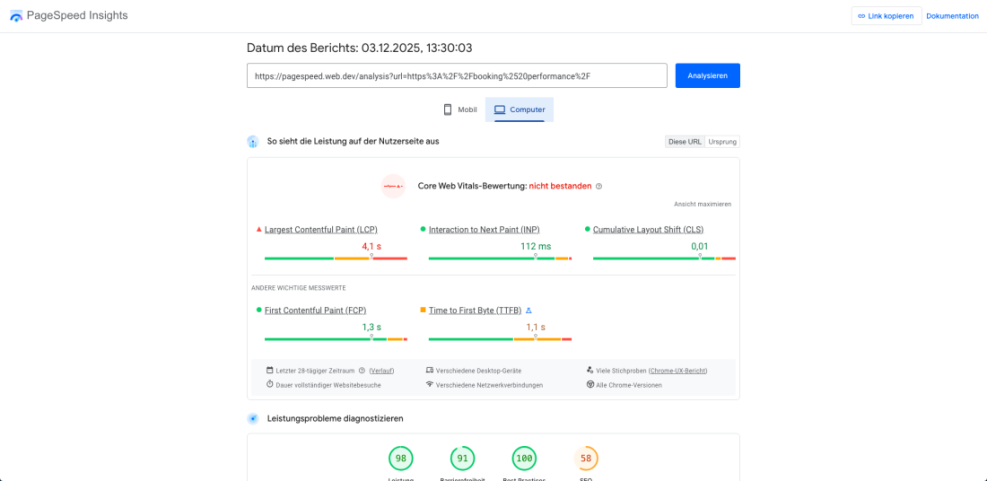
Before you can fix performance issues, you need to confirm how much your booking plugin is slowing things down. The best way to do this is to measure page speed with and without the plugin, and on pages that do and don’t use booking features.
1. Benchmark your booking pages
- Open the main booking page (for example,
/book-now/) in an incognito browser tab. - Run the URL through tools like PageSpeed Insights, GTmetrix, or WebPageTest and note metrics such as LCP (Largest Contentful Paint), TTFB (Time to First Byte), and total page size.
- Repeat the test for a non-booking page (such as your homepage or a simple blog post) to compare.
2. Compare with and without the booking plugin
- Temporarily disable your booking plugin from Plugins → Installed Plugins.
- Run the same speed tests again on your booking page and a non-booking page.
- If the non-booking pages get significantly faster while the booking page breaks, you’ve confirmed that the plugin is a major contributor to slowdowns.
3. Identify heavy assets and queries (optional, advanced)
For deeper insight, you can use tools like Query Monitor or your browser’s DevTools Network tab to identify:
- Large JavaScript or CSS files loaded by the booking plugin on every page.
- Slow AJAX requests related to availability checks, pricing, or calendars.
- Database queries that run on every page load instead of just booking-related pages.
Step 2: Load Booking Assets Only Where They’re Needed
Many booking plugins load their scripts and styles on every page, even though only one or two URLs actually contain booking forms or calendars. This is a major cause of unnecessary bloat.
1. Check your plugin’s built-in options
First, look for a setting inside your booking plugin that controls where assets load. Common labels include:
- “Load scripts only on booking pages”
- “Optimized asset loading”
- “Disable global scripts”
Enable these options, then clear your cache and rerun your tests from Step 1 to confirm that non-booking pages are lighter and faster.
2. Use conditional loading via code (when no setting exists)
If your booking plugin doesn’t provide asset control, you can dequeue its scripts and styles on non-booking pages. Add the following code to your child theme’s functions.php file or a site-specific plugin:
// Add this to your child theme's functions.php or a site-specific plugin
function whl_dequeue_booking_assets_on_non_booking_pages() {
    if ( is_admin() ) {
        return;
    }

    // Replace 'booking' with the slug of your booking page (e.g., 'book-now').
    if ( ! is_page( 'booking' ) ) {
        // Replace these handles with your booking plugin's actual style/script handles.
        wp_dequeue_style( 'booking-plugin-styles' );
        wp_dequeue_script( 'booking-plugin-scripts' );
    }
}
add_action( 'wp_enqueue_scripts', 'whl_dequeue_booking_assets_on_non_booking_pages', 20 );
To find the correct script and style handles, check the plugin’s documentation or use Query Monitor to inspect enqueued assets.
3. Avoid loading booking widgets in global areas
Remove booking shortcodes or widgets from global areas like the header, footer, or site-wide sidebars. Instead, link to a dedicated booking page. This keeps the heavy booking UI confined to a small number of URLs.
Step 3: Optimize Booking Plugin Settings for Performance
Even a well-coded plugin can slow down your site if you ask it to do too much work on every page load. Optimizing settings inside the booking plugin can dramatically reduce load.
1. Limit calendars and date ranges
- Show fewer months at once (for example, a single month instead of three).
- Block bookings too far in advance (e.g., only allow bookings 60–90 days ahead).
- Disable unnecessary live search or instant filtering options if they fire multiple AJAX calls.
2. Reduce form complexity
- Remove optional fields that don’t affect the booking decision.
- Disable unnecessary addons such as file uploads, long text areas, or conditional fields that require extra processing.
- Use multi-step forms only when they clearly improve conversions; otherwise, a simpler single-step form is easier to render.
3. Disable unused modules and integrations
- Turn off payment gateways you don’t use.
- Disable SMS or email integrations that are not required.
- Switch off built-in analytics if you already rely on external tools.
Step 4: Configure Caching Without Breaking Bookings
Caching can dramatically speed up WordPress, but booking pages are dynamic and must stay fresh. The trick is to cache as much as possible while protecting time-sensitive booking data.
1. Exclude critical booking URLs from full-page cache
- Open your caching plugin settings and locate the section for “Never cache the following pages” or “Exclude URLs”.
- Add the slugs of your booking, account, and checkout pages (for example:
/book-now/,/my-account/,/checkout/). - Save and clear the cache, then test by making a booking while logged out and logged in.
2. Avoid caching for logged-in customers and admins
- Enable the option “Do not cache pages for logged-in users” (or similar wording) in your caching plugin.
- This ensures that customers managing their bookings in an account area always see fresh data.
3. Use fragments or short cache lifetimes when needed
If your booking plugin supports fragment caching or has built-in compatibility with common caching plugins, enable those options. Otherwise, consider shorter cache lifetimes (for example, 5–15 minutes) on booking pages so availability updates appear quickly.
Step 5: Reduce Cron, AJAX, and Database Load
High-traffic booking sites often struggle not with front-end speed, but with background tasks and database overhead. Cleaning up these processes keeps your booking system responsive.
1. Optimize WordPress cron tasks related to bookings
- Connect to your server via SSH and navigate to your WordPress root directory.
- List scheduled cron events using WP-CLI:
# Run this command in your WordPress root via SSH
wp cron event list | grep booking
- Identify booking-related events that run too frequently (for example, every minute).
- Adjust their frequency inside the plugin settings, or disable non-essential background tasks if allowed.
2. Clean up old booking data
- Regularly purge cancelled, expired, or spam bookings from your database.
- Delete old logs, debug records, or test bookings after you finish troubleshooting.
- If your plugin offers a “data retention” setting, configure it to automatically remove data older than a sensible period (e.g., 6–12 months).
3. Consider object caching for busy sites
On high-traffic sites, enabling an object cache like Redis or Memcached helps reuse query results for availability and pricing calculations instead of hitting the database on every request. Check your host or managed WordPress plan to see if object caching is available and supported with your booking plugin.
For very busy calendars with complex pricing rules, you can also follow a more advanced booking performance guide to handle edge cases at scale.
Step 6: Test, Monitor, and Iterate
Performance optimization is an ongoing process, especially when your business depends on accurate, always-available booking data.
1. Repeat your speed tests
- Re-run PageSpeed Insights or your preferred testing tool on booking and non-booking pages.
- Compare metrics against your initial baseline from Step 1.
- Confirm that changes did not break booking flows or payment confirmations.
2. Watch real user behavior
- Monitor analytics to see if bounce rates drop on booking pages.
- Track conversion rates (visits to successful bookings) before and after your changes.
- Ask customers or staff if they notice the booking process feeling smoother.
3. Schedule regular reviews
Make a habit of reviewing booking performance whenever you update plugins, change hosts, or redesign your site. Small changes can add up over time and reintroduce bottlenecks.
Lock In a Faster Booking Experience
Speeding up booking plugins is about balance: you want customers to see accurate, real-time availability without forcing your site to work harder than it needs to. By trimming unused features, loading assets only where necessary, tuning cache rules, and reducing background load, you can keep your booking pages fast and reliable.
With the right setup, your booking system will feel lightweight to visitors while still giving you all the tools you need behind the scenes. Revisit these steps regularly, especially after big updates, so your booking experience stays as fast as the rest of your WordPress site.
Further Reading
- Comprehensive guide to WordPress performance and speed optimization
- WordPress speed optimization checklist for busy site owners
- How to fix common WordPress performance issues
- WooCommerce performance tips for faster stores and bookings
Frequently Asked Questions
Why did my booking plugin suddenly slow down my site?
What should I do if my booking calendar breaks after enabling caching?
How often should I review booking plugin performance settings?
Is it safe to cache booking pages that collect payments and personal data?
Do I need a developer to speed up booking plugins, and how long does it usually take?