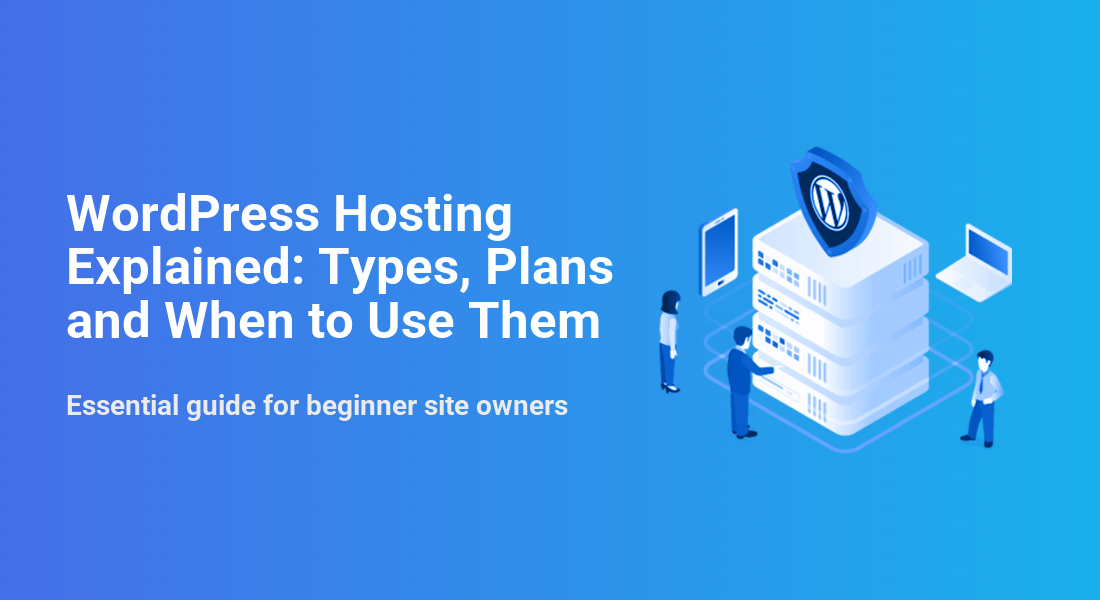
WordPress Hosting Explained: Types, Plans and When to Use Them
Essential guide for beginner site owners

WordPress hosting can feel confusing when you see so many plans and features. You know you need a safe, fast home for your website, but it is not always clear what makes one WordPress host better than another.
This guide walks through what WordPress hosting means, how it differs from basic web hosting, the main types you can choose from, and the key features that matter most. By following the steps and checklists, you can pick a plan that fits your budget and keeps your site healthy over the long term.
What Is WordPress Hosting
WordPress hosting is web hosting that is tuned specifically for WordPress websites. The server stack, support team, and tools all focus on running WordPress smoothly, so you spend less time on technical tasks and more time on your content.
Instead of a generic setup, the host usually provides the right PHP version, a database ready for WordPress, one-click installs, and automatic updates. This leads to better performance, simpler management, and fewer strange errors when plugins or themes update.
How Does WordPress Hosting Work
WordPress hosting runs your site on a server that is optimized for the WordPress core, plugins, and themes. The host configures web server software, PHP, and the database to work together, often with built-in caching and security rules. As a result, your pages load faster, and common problems get solved before you ever see them.
WordPress Hosting vs Regular Web Hosting
With regular hosting, the provider supports many apps and leaves more setup to you. With WordPress hosting, most of that setup is done in advance. You still manage your content and design, but the host handles key technical jobs like updates, server tuning, and basic security protections.
To see the main differences at a glance, compare a typical generic plan with a WordPress-specific plan.
| Feature | Generic SEO and UX, and where you will see it in daily work.”>Shared Hosting | WordPress Hosting |
|---|---|---|
| Setup | Manual WordPress install | One-click or pre-installed WordPress |
| Performance | Basic, not tuned for WordPress | Server-level caching and optimizations |
| Security | General website security rules | Rules focused on WordPress attacks |
| Updates | You handle most updates | Often automatic core and plugin updates |
| Support | Mixed knowledge of WordPress | Staff trained on WordPress issues |
| Best For | Any small site or app | Sites built only with WordPress |
This comparison shows why many site owners choose WordPress hosting once they know they will stay on WordPress for the long term.
Main Types of WordPress Hosting
There is no single “best” WordPress hosting plan, because each type fits a different stage of growth. Understanding the main types helps you avoid both overspending and outgrowing a starter plan too fast.
What Is Shared WordPress Hosting
Shared WordPress hosting places many websites on the same server, so costs stay low. This type works well for new blogs, small business sites, and test projects. However, heavy traffic on one site can slow others, so it is not ideal for busy stores or high-profile brands.
What Is Managed WordPress Hosting
Managed WordPress hosting includes higher performance plus hands-on services. The provider usually manages updates, server-side caching, advanced security, and sometimes staging sites. This costs more than shared hosting, but it saves time and helps you avoid mistakes that could break your live site.
VPS, Dedicated, and Cloud WordPress Plans
Virtual private servers, dedicated servers, and cloud clusters give you more resources and control. A VPS reserves a slice of a powerful machine, while a dedicated server gives you all its resources. Cloud WordPress hosting spreads your site across several servers so it can handle sudden traffic spikes more smoothly.
Before you decide, it helps to compare the most common WordPress hosting types side by side.
| Type | Best For | Typical Monthly Cost | Main Benefits |
|---|---|---|---|
| Shared | New or small sites | Around $5–15 | Low price, simple setup |
| Managed | Growing blogs, small stores | Around $20–60 | Better speed, updates handled for you |
| VPS | Heavy traffic or custom setups | Around $30–100 | More control, reserved resources |
| Dedicated | Large sites with special needs | From about $100+ | Full control, maximum power |
| Cloud | Sites with traffic spikes | Usage-based or tiered | Easy scaling, high uptime |
This overview keeps the choice grounded in real needs instead of marketing terms, so you can match your site’s traffic and budget to the right hosting tier.
Key Features to Look For
Choosing WordPress hosting is easier when you know which features have the biggest impact. Instead of chasing every extra, focus on performance, security, backups, and support. These four pillars keep your site online, fast, and safe.
Which Performance Features Matter Most
Good performance starts with solid hardware, but software tuning matters just as much. Look for SSD or NVMe storage, server-level caching, and support for modern PHP versions. In addition, check that the host uses tools that help you meet good Core Web Vitals scores, such as fast time to first byte and stable layouts.
What Security Should Your Host Provide
Security is a shared job between you and your host. A strong host adds firewalls, malware scans, automatic updates, and backups to your own plugin choices. In addition, using hosts that follow WordPress security best practices gives you a safer base before you install any extra tools.
Backups, Staging, and Recovery Options
Reliable backups turn scary mistakes into minor problems. Look for daily automatic backups stored off the main server, plus one-click restore options. Staging sites are also useful, because they let you test plugin updates or design changes safely before you push them live.
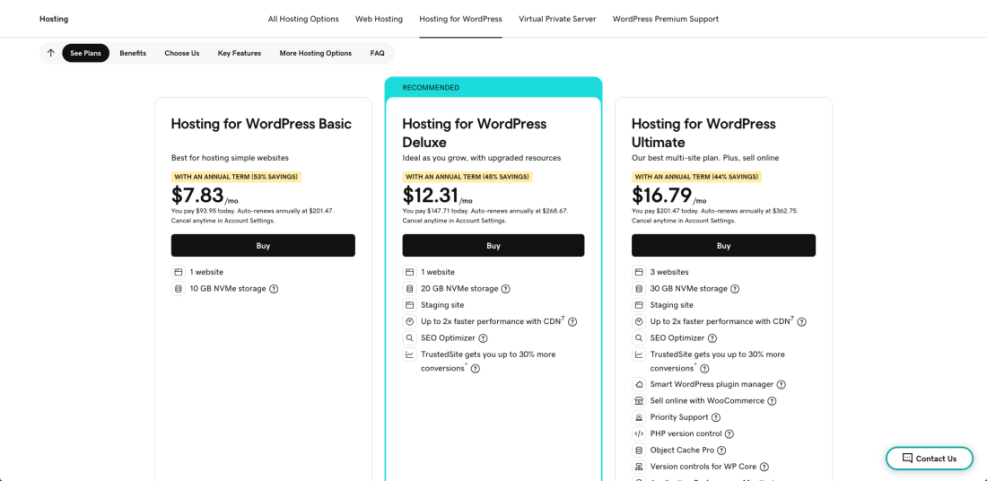
How Much Does WordPress Hosting Cost
Costs vary based on resources and services. Many starter plans fall in the range of $5–15 per month, while managed plans range higher. As traffic grows, you might pay more, but you also gain speed, better support, and fewer issues that cost time or sales.
How to Choose the Right Plan
Once you understand the basic types and features, you can follow a simple process to pick your plan. A small checklist keeps you from forgetting key details like backup policies or upgrade paths.
How Should You Match Hosting to Your Goals
Start by defining your website’s purpose and expected traffic. A simple local business site needs fewer resources than a busy online store. Therefore, listing your goals in advance helps you avoid both overkill and underpowered plans.
Step-By-Step Hosting Selection Process
- List your site type, content, and rough traffic expectations.
- Decide whether you want shared, managed, VPS, or cloud hosting.
- Check performance features such as SSD storage, caching, and PHP support.
- Review security tools, backup frequency, and restore options.
- Read recent reviews that mention support response times.
- Confirm upgrade paths and the cost to scale in the future.
This process forces you to compare real features instead of only looking at price tags or limited-time discounts.
Evaluating Support and Documentation
Support quality becomes obvious on your worst days, so it deserves attention now. Look for 24/7 channels like chat or tickets, plus a helpful knowledge base with clear screenshots. In addition, check if the host has guides written for non-developers, not just server experts.
Practical Setup Tips for Beginners
After you choose WordPress hosting, the next step is setting everything up correctly. A clean start avoids many performance and security problems later.
What Are the First Setup Steps
- Register or point your domain to your new host.
- Use the host’s one-click tool to install WordPress.
- Enable a free SSL certificate so your site loads over HTTPS.
- Create an admin user with a strong password and unique username.
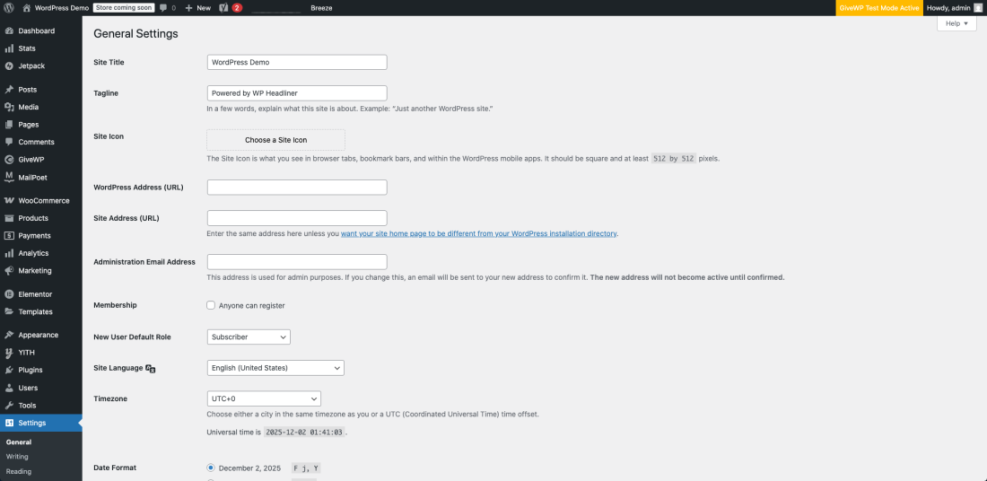
- Set your site title, tagline, timezone, and permalink structure.
These basic steps create a solid base that you can refine as you add themes, content, and plugins.
Essential Performance and Security Tweaks
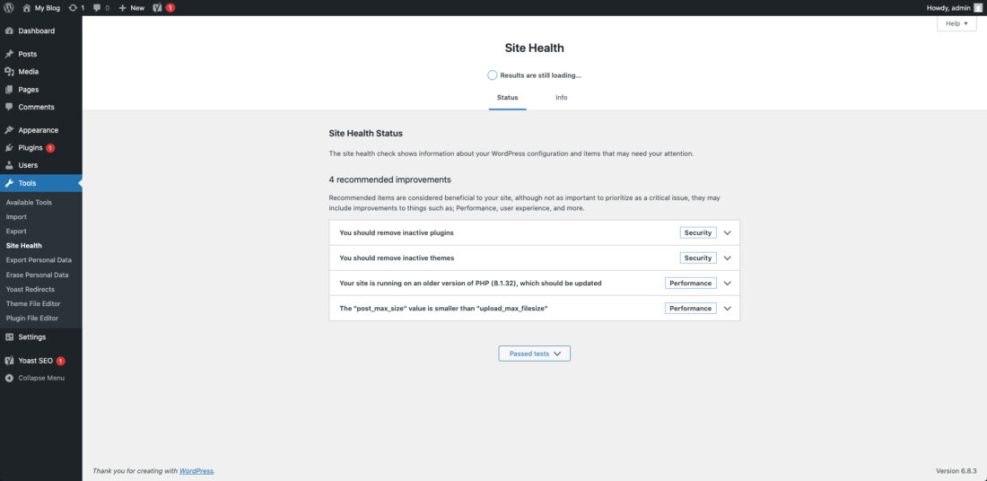
After the first setup, you can add a few simple tweaks to improve speed and safety. For example, install a reliable caching plugin, limit the number of plugins you use, and remove themes you do not need. In addition, make sure automatic updates are on for minor core releases and security patches.
Useful Tools and Next Steps
From here, you can use tools like PageSpeed Insights and performance plugins to measure and tune your site. For deeper learning, follow trusted WordPress optimization guides and security checklists. Over time, you will understand how each change affects your load times and overall stability.
When you are ready to expand, you might follow a guide on Install WordPress or plan a full optimization project with resources like Speed Up WordPress and a detailed Beginner WordPress security best practices guide.
WordPress Hosting Conclusion
Choosing WordPress hosting is not about chasing the biggest plan. Instead, it is about matching your site’s goals with the right balance of speed, security, support, and price. When those four areas line up, you gain a stable base that lets your content and business grow.
The next smart move is to review your current or planned site and walk through the selection steps in this guide. Then, pick one host and plan, set up cleanly, and monitor performance and uptime. As traffic grows, you can always scale up, but a thoughtful starting choice will make every later upgrade much easier.
More WordPress Guides You Might Like
The following resources can round out your knowledge as your site grows and your hosting needs evolve.
- WordPress seo complete beginners guide
- Choosing managed hosting WordPress
- WordPress migration checklist for blogs
- Install WordPress step by step
- Beginner guide WordPress speed core web vitals
As these planned guides become available, they will help you dive deeper into performance, security, and growth strategies tailored to WordPress site owners.
Frequently Asked Questions About WordPress Hosting
Is WordPress hosting different from regular hosting?
Do I need managed WordPress hosting for a small site?
When should I upgrade from shared to VPS or cloud?
How many visitors can basic WordPress hosting handle?
What should I test before moving my site to a new host?