WordPress SEO Roadmap for New Blogs: From Zero to First Rankings
Step by step roadmap to a healthy search friendly site

WordPress SEO is what makes your content show up when people search for answers on Google. Without it, even a beautiful site can sit in silence while competitors get the clicks and customers you wanted.
You are going to walk through the core setup, content, technical, and tracking basics that matter most for beginners. First you will see a quick answer section, then step by step actions you can take today to build a search friendly WordPress site.
WordPress SEO Basics in One Look
At a beginner level, WordPress SEO means setting the right site settings, installing a single SEO plugin, optimizing every post for one main keyword, keeping your site fast and mobile friendly, and tracking results in Google Search Console and analytics.
- Make sure your site is visible to search engines.
- Use SEO friendly permalinks and HTTPS.
- Install and run the setup wizard of one SEO plugin.
- Optimize each post’s title, meta description, headings, and images.
- Add internal links between related posts and pages.
- Send an XML sitemap to Google and monitor performance.
When you repeat these steps for every new piece of content, your site builds authority over time and rankings tend to improve steadily.
How Fast Can WordPress SEO Work?
Most new or small WordPress sites see the first clear improvements within a few weeks, but strong rankings often take several months. Search engines need time to discover new pages, crawl them, understand your topic, and compare your content to competing sites.
Setting Up a Solid SEO Foundation
Before you touch plugins or advanced tactics, you should fix three basic settings: search visibility, permalinks, and HTTPS. These changes only take a few minutes yet they prevent classic beginner mistakes that can quietly kill rankings.
Which Basic Settings Should You Fix First?
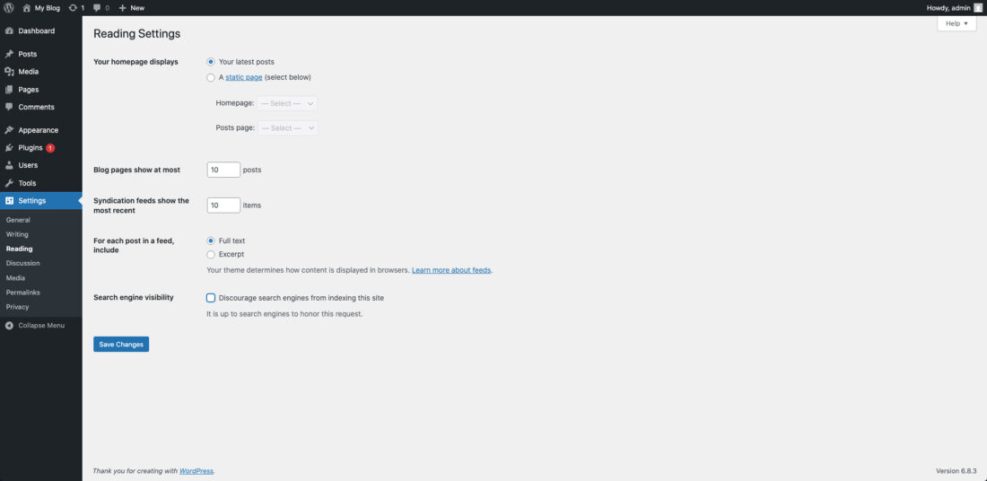
From the Dashboard, go to Settings » Reading and check the “Search engine visibility” option. It must stay unchecked on a live site so Google can index your pages. While you are there, confirm your homepage and posts page are set the way you want.
How Do You Set SEO Friendly Permalinks in WordPress?
Navigate to Settings » Permalinks and choose the “Post name” option. This creates clean URLs like /best-coffee-beans/ instead of messy addresses full of numbers and symbols that confuse visitors and search engines.
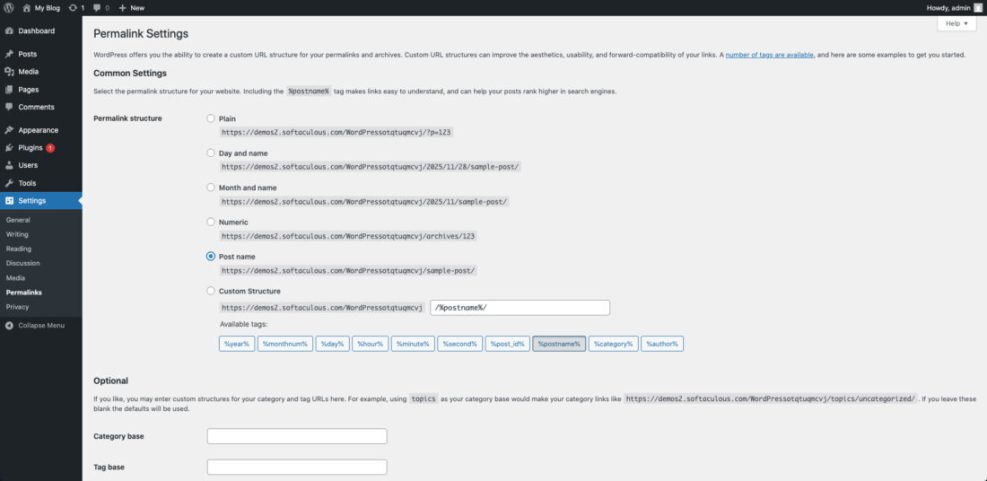
After you save, avoid changing the structure again on existing sites unless you also create proper redirects. Sudden URL changes without redirects can break links and cause ranking drops.
Why Do HTTPS and Preferred Domain Matter?
Your site should load over HTTPS with a valid SSL certificate so browsers and Google treat it as secure. In addition, you should pick either the www or non-www version in your SEO plugin or hosting panel and keep that choice consistent in all links and sitemaps.
Choosing and Configuring an SEO Plugin
WordPress handles many basics for you, yet you still need an SEO plugin to control titles, meta descriptions, sitemaps, and structured data. The key is to use exactly one full SEO plugin and avoid stacking several tools that try to do the same job.
Which SEO Plugin Should You Start With?
For most beginners, a popular plugin such as Yoast SEO, Rank Math, or All in One SEO works well. You get guided setup wizards, content analysis inside the editor, and automatic XML sitemaps without writing any code or modifying templates by hand.
How Do You Run the Setup Wizard?
From the Dashboard, go to Plugins » Add New, search for your chosen SEO plugin, install it, then click Activate. Next, follow the built in setup wizard to set your site type, organization name, logo, and basic indexing preferences.
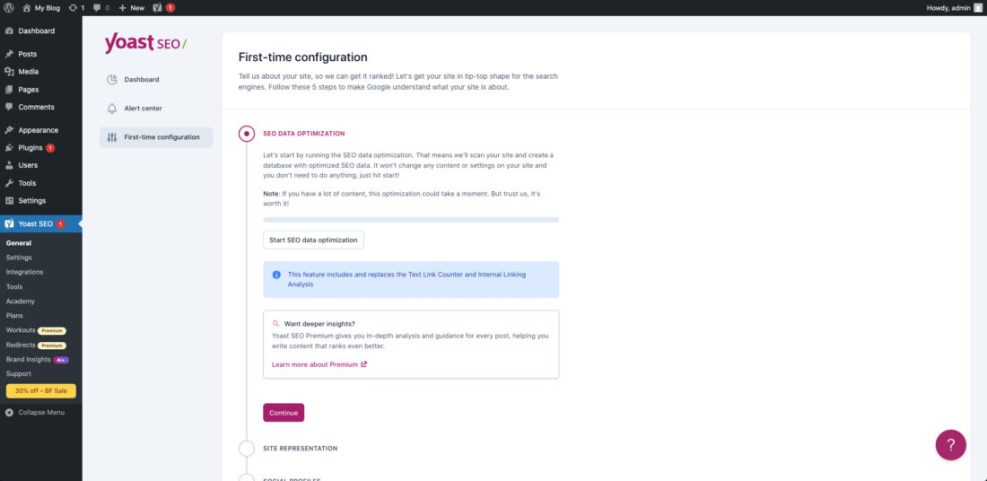
- Install only one main SEO plugin.
- Complete the setup wizard without skipping steps.
- Enable XML sitemaps for posts and pages.
- Connect to Google Search Console when offered.
These simple actions give search engines structured information about your site and make ongoing optimization much easier as you publish more content.
Optimizing Content for SEO and Search Intent
Once the foundation is ready, you should focus on the content that visitors actually see. Search engines want to show pages that match what a user was really looking for, so your posts must answer questions clearly and make the topic easy to skim.
How Do You Pick the Right Keywords for WordPress SEO?
Start by writing down the words your ideal visitor would type into Google to find your post. Then look at the autocomplete suggestions and related searches at the bottom of the results page. Choose one main phrase per post and several close variations to use naturally in headings and text.
What Makes a Good SEO Title for WordPress?
A strong SEO title includes your main keyword, promises a clear benefit, and makes sense to a human reader. You can often copy this into the WordPress title field, then refine the SEO plugin’s title field separately if you want a shorter version for search results.
To see how on page elements relate to each other, think of them in layers instead of as isolated fields.
| Element | Main Job | Beginner Checklist |
|---|---|---|
| Title Tag | Attract the click from search results | Include keyword once, keep it readable |
| Meta Description | Support the title with a clear benefit | Summarize value in one or two short sentences |
| Headings (H2/H3) | Structure the content for skimming | Use descriptive phrases, not keyword stuffing |
| Body Text | Answer the actual question in depth | Cover how, why, and common follow up questions |
When each layer does its job, both visitors and search engines understand the topic and value of your page much more quickly.
Technical Tweaks That Help Rankings
You do not need to be a developer to handle basic technical SEO on WordPress. However, you should make sure search engines can crawl your site, understand your structure, and avoid thin or duplicate pages that add noise to your index.
How Do You Tell Google About Your Site?
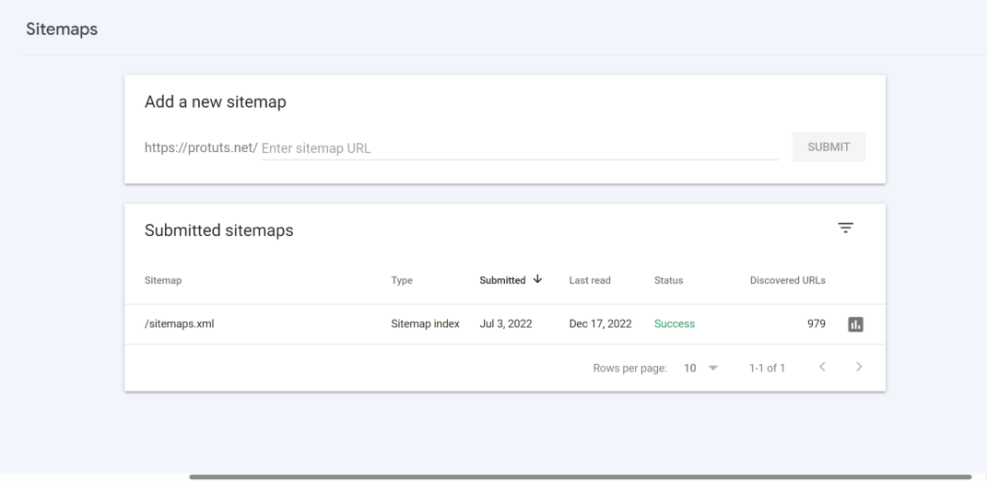
Most SEO plugins generate an XML sitemap automatically. Copy its URL from the plugin settings, then open Google Search Console in your browser, select your property, and submit that sitemap under the Sitemaps menu so Google can discover your content faster.
Should You Noindex Some WordPress Pages?
Thin or low value pages such as internal search results, certain tag archives, or test landing pages can clutter your index. Most SEO plugins let you mark these templates as “noindex,” which tells search engines to ignore them while still keeping them usable for visitors.
Many WordPress sites also create separate attachment pages for each image. Redirecting these to the parent post concentrates value and avoids near empty URLs. You can ask a developer for help or use a simple snippet in a child theme’s functions.php file.
function wpheadliner_redirect_attachments_to_parent() {
  if ( is_attachment() && $post = get_post() ) {
    if ( $post->post_parent ) {
      wp_safe_redirect( get_permalink( $post->post_parent ), 301 );
      exit;
    }
  }
}
add_action( 'template_redirect', 'wpheadliner_redirect_attachments_to_parent' );
Always test code changes on a staging site or at least take a fresh backup before editing theme files.
Improving Speed, Images, and Mobile Experience
Search engines favor sites that load quickly and work well on phones. Visitors feel the same way. A slow or clumsy site leads to short visits and higher bounce rates, which makes it harder to maintain strong rankings.
Why Does Speed Matter for SEO?
When pages load slowly, people tend to hit the back button and choose another result. That behavior signals that your page did not meet their needs. Tools like PageSpeed Insights can help you spot large images, render blocking scripts, and other slow elements to fix.
How Can You Optimize Images Quickly?
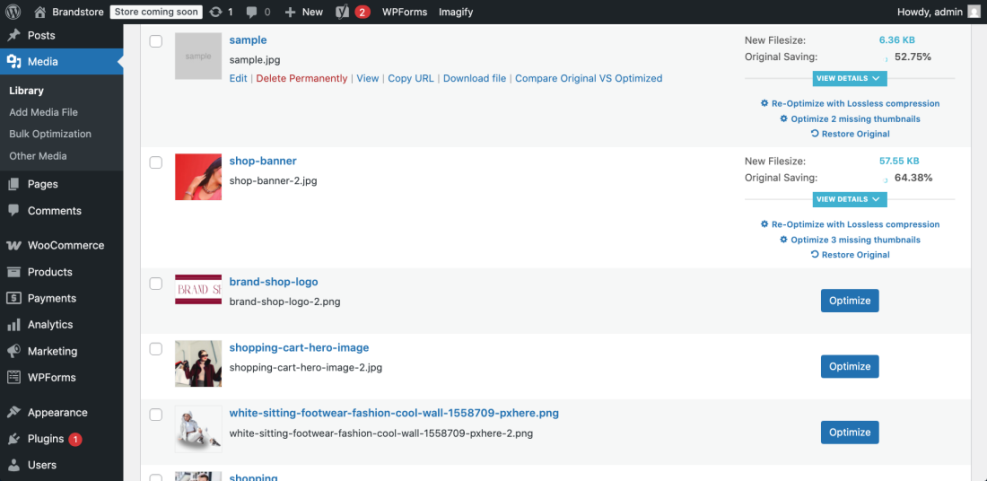
First, resize images before you upload them so they match the maximum width of your theme content area. Then use an image optimization plugin to compress files on upload and add descriptive alt text that includes context about the picture instead of just stuffing keywords.
From the Dashboard, open Media » Library and switch to list view to review image sizes, then adjust any oversized uploads.
In addition, a caching plugin can store generated pages for visitors so the server does less work on repeat visits. Many managed hosts also provide a content delivery network that serves static files from locations closer to your users.
Tracking Results and Adjusting Strategy
SEO efforts only pay off when you watch what works and refine your plan. Fortunately, connecting analytics and Google Search Console to WordPress is straightforward, and even simple reports can guide smarter content decisions.
Which SEO Metrics Should Beginners Watch?
Start with impressions, clicks, and average position for your main pages in Google Search Console. In your analytics tool, track organic sessions, top landing pages, and the bounce rate for key posts. These numbers show which topics resonate and which need stronger content or better titles.
How Often Should You Review Results?
A weekly glance at your core metrics is enough for most small sites. That rhythm keeps you informed without causing stress over normal day to day swings. When you publish something important, mark the date so you can connect later traffic changes to that new content.
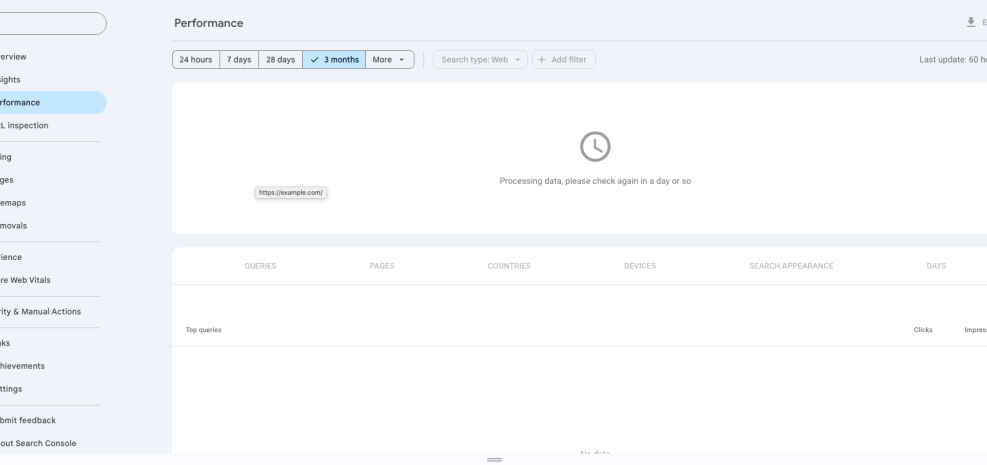
From Google Search Console, click Performance » Search results to see the queries that already bring visitors to your site and discover new keyword ideas directly from real search data.
WordPress SEO Conclusion
You now have a simple roadmap: fix the core settings, choose one solid SEO plugin, publish focused content that matches real searches, keep your site fast, and watch the data. When you follow that flow on every new page, WordPress SEO becomes a repeatable habit instead of a mystery.
What Should You Do Next?
Pick one existing post, apply everything from this guide, and measure the change in clicks over the next month. Then build a short checklist for future content so you never skip the basics again. Small, consistent improvements across many posts add up to meaningful ranking gains.
More WordPress SEO Guides You Might Like
If you want to keep improving your site, these future guides will build on the same beginner friendly approach and dive deeper into specific topics.
You can bookmark ideas that fit your current site, then work through them one by one as you gain confidence with WordPress and SEO tools.
Frequently Asked Questions About WordPress SEO
What is WordPress SEO in simple terms?
Do I need to pay for an SEO plugin?
How many keywords should I target per post?
How long does it take to see results?
Can SEO changes break my WordPress site?