WordPress Security – Complete Guide and Overview
Practical steps to protect your WordPress website

WordPress security protects your site from hacks, data loss, and downtime. When attackers find a weakness, they can inject malware, steal customer information, or lock you out of your own dashboard. With a few habits and the right setup, you can close most of the easy doors they use.
You are about to see how to build security in layers, from updates and logins to hosting, backups, and hardening settings. By the end, you will have a clear checklist you can follow regularly so your WordPress site stays stable, fast, and much harder to compromise.
What Is WordPress Security
WordPress security is the set of practices and tools you use to keep your site safe from unauthorized access, data leaks, and malware. It combines secure hosting, up to date software, strong authentication, careful plugin choices, regular backups, and continuous monitoring.
Instead of relying on one plugin, you stack several simple defenses. Updates close known holes, strong passwords and two factor authentication stop many logins, and firewalls block malicious traffic. Backups and a response plan make sure you can recover quickly if something still goes wrong.
Is WordPress Security Strong Out of the Box
WordPress core is well maintained and secure when you keep it updated. The real risk usually comes from weak passwords, cheap hosting, outdated plugins, and poorly coded themes. When you control those areas, a WordPress site can be just as safe as any other modern platform.
Why Hackers Target WordPress Sites
Attackers target WordPress because it powers a large share of websites and many owners forget basic security hygiene. Automated bots scan for old plugins, default admin usernames, and known vulnerabilities. They often want to send spam, inject ads, or use your server as a stepping stone.
What a Secure Setup Includes
A secure setup includes trusted hosting, automatic or frequent updates, strong logins, a web application firewall, least privilege user roles, and offsite backups. It also includes simple hardening steps such as disabling file editing and protecting sensitive files like SEO and UX, and where you will see it in daily work.”>wp-config.php from public access.
Core Site Security Foundations
Strong foundations handle the most common attacks with very little effort. When you pick good hosting, keep software updated, and reduce the number of plugins, you avoid many problems that only appear later as “mystery hacks.”
How Should You Handle Updates for WordPress Security
Keep WordPress core, themes, and plugins updated as soon as stable releases appear. Many updates patch known vulnerabilities that attackers already scan for. Therefore, enable automatic minor updates and log in weekly to apply major ones after taking a quick backup.
Choosing Safe Plugins and Themes
Safe plugins and themes come from reputable developers, receive frequent updates, and have clear documentation. Before installing anything, check active installs, recent update dates, and support responses. In addition, remove unused plugins and themes so attackers have fewer possible entry points.
Managing Users and Roles Safely
Give each person their own account with the lowest role that still lets them work. For example, let authors write content but keep plugin management for administrators only. This way, a stolen password has limited impact and you can disable one user quickly without affecting the rest.
Stronger Logins and Authentication
Login security blocks many automated attacks before they even reach your content. When you combine strong passwords, two factor authentication, and rate limits on login attempts, bots will usually move on to easier targets.
What Makes a Strong Admin Password
A strong admin password is long, unique, and stored in a password manager instead of your browser or a notebook. Use at least 12–16 characters with a mix of words, numbers, and symbols. Never reuse that password on any other website or service.
Using Two Factor Authentication for WordPress Security
Two factor authentication adds a short one time code from an app or hardware key on top of your normal password. Even if someone guesses or steals the password, they still cannot log in without the second factor. Many security plugins include this feature with simple setup screens.
Limiting Login Attempts and Bots
Limit login attempts so repeated failures from the same IP address trigger a temporary block. This slows down brute force attacks that try thousands of passwords. You can also change the default login URL and use a firewall to filter obvious bot traffic before it hits wp-login.php.
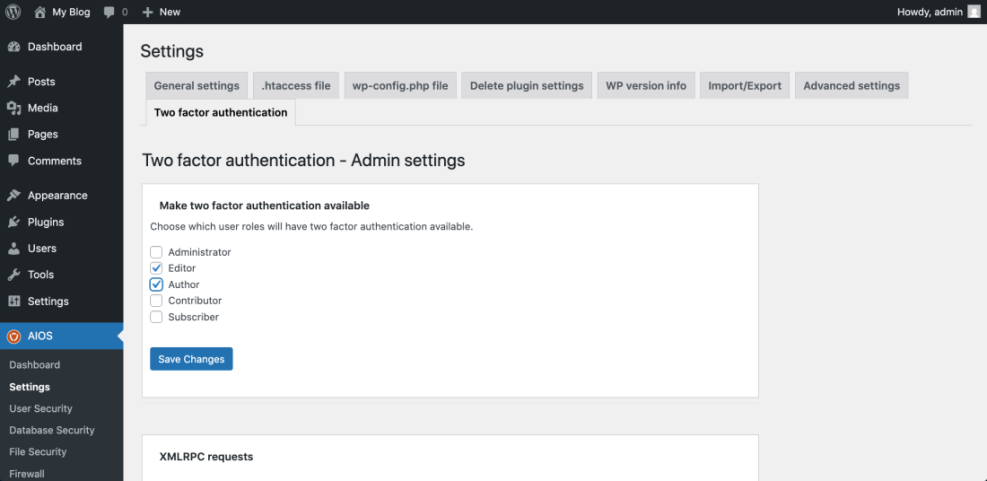
For deeper login protection, you can follow a dedicated guide such as Secure Login Page after you apply the basics.
Hosting, Backups, and Firewalls
Your hosting provider plays a huge role in overall security. Good hosting includes strong server hardening, automatic updates at the server level, and built in firewalls. When you combine that with reliable backups, you can recover from most incidents in a predictable way.
Picking a Secure Hosting Environment
A secure host keeps PHP, the web server, and the database updated, and isolates accounts from each other. Look for features like free TLS certificates, malware scanning, and firewalls at the edge. If you run many sites, consider managed WordPress hosting for extra protection and support.
How Often Should You Back Up for WordPress Security
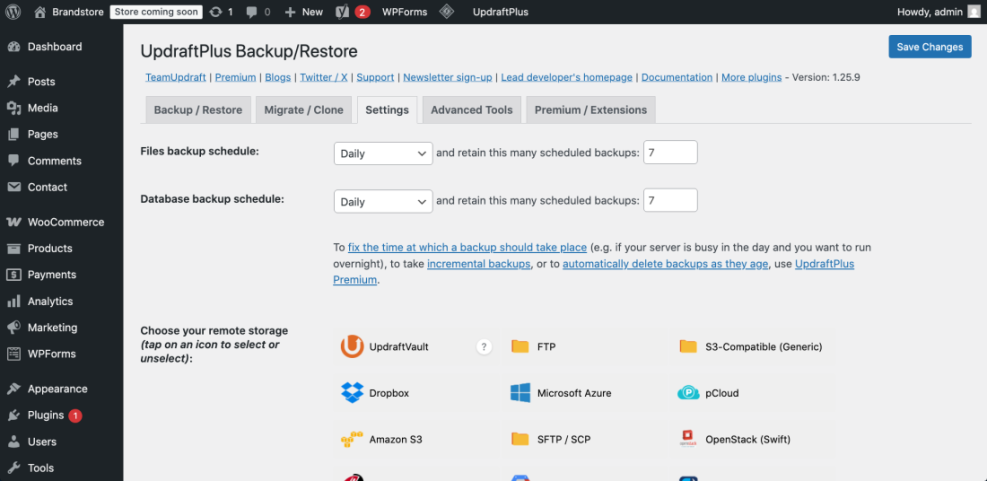
Back up at least daily for active sites and weekly for static sites. Store backups off the main server, for example in cloud storage or separate FTP space. Test restore procedures a few times a year so you know exactly how long recovery will take.
Using Security Plugins and WAFs for WordPress Security
Application level firewalls and security plugins inspect traffic before it reaches WordPress. They block known bad patterns, brute force logins, and many common exploits. When you configure a web application firewall carefully, you reduce server load and stop many attacks early in the chain.
Hardening WordPress Configuration
Hardening refers to small configuration changes that make exploitation harder even when attackers find a bug. These changes often take just a few minutes but greatly reduce the damage a successful attack can cause.
Locking Down Critical Files
Protect wp-config.php, .htaccess, and other sensitive files by limiting who can read or edit them. Many hosts allow you to move wp-config.php one level above the web root or lock it with file permissions. You can also disable the built in file editor so attackers cannot inject code there.
Adjusting File Permissions Safely
Use strict file permissions so only the web server and authorized users can change files. In most cases, folders should not be writable by everyone, and only a few directories like uploads need write access. When in doubt, ask your host for the recommended permission scheme.
Extra WordPress Security Hardening Steps for Advanced Users
Advanced users can change the database table prefix, disable XML-RPC if unused, and move the login URL. They can also place rate limits or IP blocks at the web server or CDN level. These steps add complexity, so document them carefully for future maintenance.
If you want a structured checklist, consider creating a recurring task list or using a resource like Beginner WordPress security best practices guide to keep track of your changes.
Monitoring and Incident Response
Even a well protected site needs monitoring and a plan for when something looks wrong. When you know what normal activity looks like, you can spot odd patterns early and respond before visitors notice.
How To Detect Suspicious Activity
Start by enabling basic logging in your security plugin and at the hosting level. Watch for unusual login attempts, new admin users you did not create, and sudden traffic spikes from strange countries. Many plugins can email alerts when they see a pattern that matches known attacks.
What To Do After a WordPress Security Hack
When you suspect a hack, take the site into maintenance mode and change all passwords right away. Then restore from a clean backup, update every plugin and theme, and scan for leftover malware. Finally, review logs to find the likely entry point so the same path stays closed.
When To Bring In a Professional
Bring in a professional when you cannot identify the infection source, when your store handles payments, or when legal obligations apply. Specialists clean up faster, document the incident, and harden weak points. Their fee is usually lower than the cost of lost sales or reputation.
Daily and Weekly WordPress Security Checklist
A short routine keeps your protection fresh without taking much time. The following checklist covers simple tasks you can handle in a few minutes.
- Review WordPress dashboard notices and apply safe updates.
- Confirm recent backups completed successfully.
- Scan for malware and unusual login attempts.
- Remove unused plugins, themes, or test accounts.
- Verify your SSL padlock appears correctly in the browser.
You can adjust this checklist to match your site’s size and complexity, but keeping it regular matters more than making it perfect.
For installation basics, follow a core guide such as Install WordPress first, then return to these steps as your site grows.
WordPress Security Comparison Overview
To see how different approaches stack up, compare a minimal setup, a hardened setup, and a managed hosting plan. This quick overview highlights where each option is strong or weak.
| Aspect | Basic Setup | Hardened Setup | Managed Hosting |
|---|---|---|---|
| Updates | Manual, irregular | Regular with strategy | Often automated |
| Backups | Occasional, on server | Scheduled, offsite | Daily or more |
| Logins | Single admin, weak password | Strong passwords, 2FA | 2FA and access controls |
| Firewalls | None | Plugin WAF | Server and edge WAF |
| Hardening | Defaults only | Protected files and roles | Included policies |
| Monitoring | Rare checks | Alerts and log review | Continuous monitoring |
This table does not cover every detail, but it helps you decide whether to keep managing everything yourself or move to a provider that bundles more security by default.
WordPress Security Conclusion
Security is not a one time task; it is a habit. When you build strong foundations, lock down logins, harden configuration, and plan for incidents, you make your WordPress site a far less attractive target. Each small step reduces risk and keeps your content and customers safer.
Your next move is simple. Choose one area from this overview, such as backups or logins, and bring it up to the standard you want. Then schedule time to work through the rest until your own WordPress security checklist becomes part of your regular site maintenance routine.
More Guides You Might Like
You can deepen your knowledge by exploring focused guides on related topics. The following planned resources expand on specific parts of your security stack.
- WordPress backup strategy
- Choosing managed hosting WordPress
- Step by Step Guide to Two Factor Authentication
- WordPress migration checklist for blogs
- Best WordPress seo plugins and tools
As these guides become available, you can combine them with this overview to build a tailored security plan for every WordPress project you manage.
Frequently Asked Questions About WordPress Security
Do I really need a security plugin if my host is secure
How often should I change my WordPress passwords
Can I secure WordPress without breaking my site
What should I back up besides the WordPress database
Is using a nulled premium theme or plugin safe