Monthly WordPress Maintenance Checklist for Performance and Security
Practical monthly checklist for healthy WordPress sites

A solid WordPress maintenance plan keeps your site fast, secure, and stable every month. Without a clear routine, updates pile up, pages slow down, and small issues quietly grow into painful outages or hacks.
In this guide, you build a repeatable monthly checklist that covers performance, security, backups, and reporting. You see what to review each month, which tools can help, and how to avoid risky shortcuts so your site stays healthy with a small, consistent time investment.
Monthly WordPress Maintenance Plan Essentials
At a high level, a monthly WordPress maintenance plan is a focused review session where you handle updates, speed checks, backups, and reports in one block of time. You are not doing every task daily. Instead, you verify that your automated systems still work and you fix anything that slipped through.
First, decide on a fixed maintenance window, such as the first Monday of every month. During that block, you log in, run through your checklist, and document what you changed. This makes maintenance predictable and easier to hand off later.
What Is a Monthly Maintenance Plan?
A monthly plan is a simple document or checklist that defines what you check, how you check it, and what you do when something fails. It usually includes backups, updates, security scans, performance reviews, and basic SEO and analytics checks, all grouped into one compact session.
[h3]Key Tasks You Repeat Every Month[/h3]Key Tasks You Repeat Every Month
[p]Use a checklist so you do not skip important steps when you are in a hurry.[/p]- Confirm your offsite backups exist and can be restored.
- Apply core, plugin, and theme updates after testing.
- Scan for malware, brute-force attempts, and login abuse.
- Review page speed and Core Web Vitals on key pages.
- Check forms, search, and checkout flows for errors.
- Review analytics and uptime reports for unusual drops.
This list forms the backbone of your monthly routine. You can add items for your specific site, such as membership renewals or WooCommerce sales checks, as long as the list stays short enough to complete in one sitting.
How Long Does Monthly Maintenance Take?
For a typical small business site, monthly maintenance often takes between thirty and sixty minutes once you have a checklist. Larger sites with heavy traffic or ecommerce features may need ninety minutes or more, especially if you run extra tests on staging before applying updates.
Performance Tasks in Your Monthly Plan
Performance work is not something you want to do only when pages already feel slow. A monthly review of speed, caching, and asset bloat helps you catch issues before visitors notice and before search engines downgrade slow pages.
Which Performance Issues Should You Check?
Start with your homepage, one key landing page, and one heavy content page, such as a long blog post or product category. Run them through a speed test tool and check metrics like load time, total page size, and Core Web Vitals. Look for trends instead of chasing tiny score changes every month.
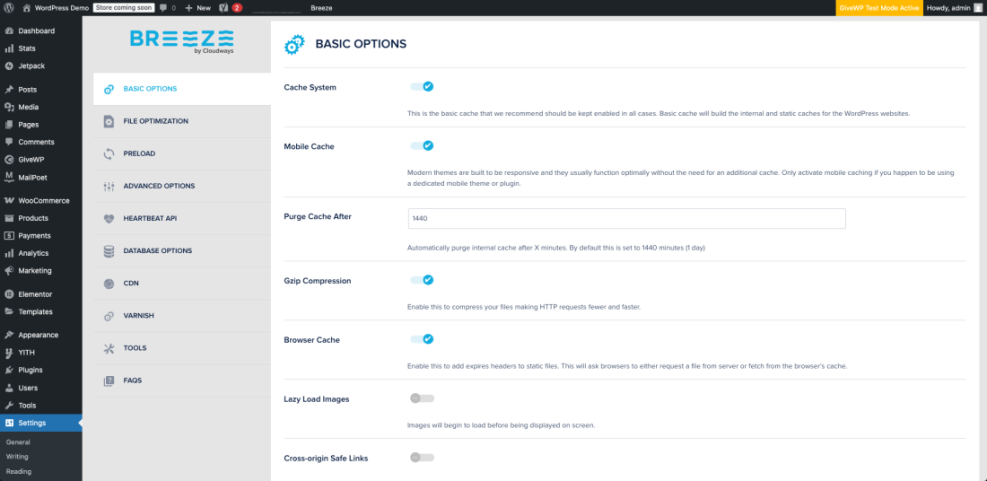
From the WordPress admin, open Settings » Performance if your caching plugin adds that menu.
Monthly Caching and CDN Review
Each month, confirm that page caching is active and that your CDN, if you use one, still serves static files. If you changed themes, added major plugins, or moved hosting, your previous caching rules may no longer work as expected and could leave visitors with slower pages.
# Enable browser caching for common static files
<IfModule mod_expires.c>
ExpiresActive On
ExpiresByType text/css "access plus 1 month"
ExpiresByType application/javascript "access plus 1 month"
ExpiresByType image/jpeg "access plus 1 month"
ExpiresByType image/png "access plus 1 month"
</IfModule>
If your server uses Apache and allows custom .htaccess rules, simple browser caching like this can reduce repeat load times. However, if you use managed hosting, check their documentation first, because they may already handle caching at the server level.
Database and Media Cleanups
Over time, old revisions, spam comments, and transients clutter your database. Each month, run a safe cleanup with a well-known optimization plugin, and remove unused images and large media that no longer appear on the site. This keeps your database lean and helps backups run faster.
Security and Update Routine Each Month
Updates are where many site owners get nervous, yet most hacks come from outdated core files, themes, or plugins. A careful monthly routine makes updates low risk and keeps your security layers current.
How Do You Update Safely?
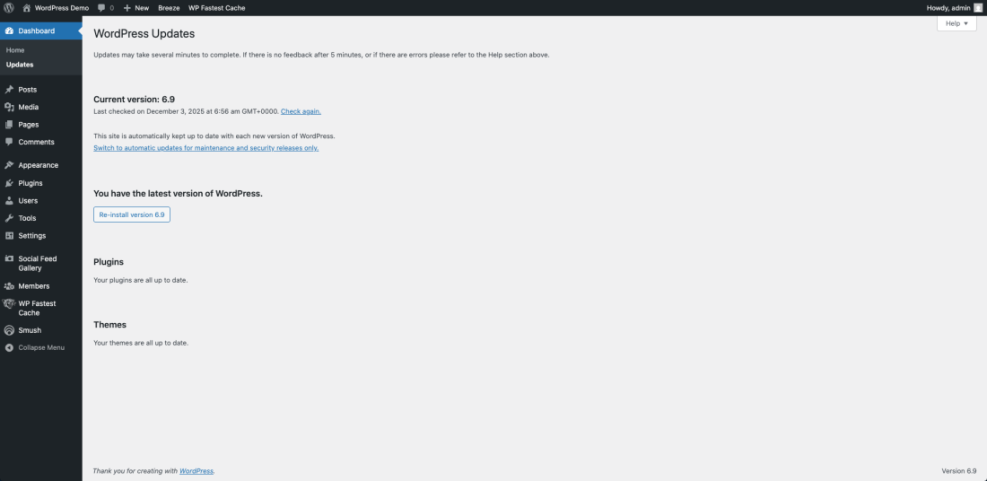
First, ensure you have a recent full backup stored offsite. Next, update WordPress core, then themes, then plugins, preferably in a staging site if your host provides one. Finally, spot-check key pages and forms to confirm everything still works before you log out.
In your dashboard, go to Dashboard » Updates to see pending core, theme, and plugin updates in one place.
Monthly Security Scans and Logs
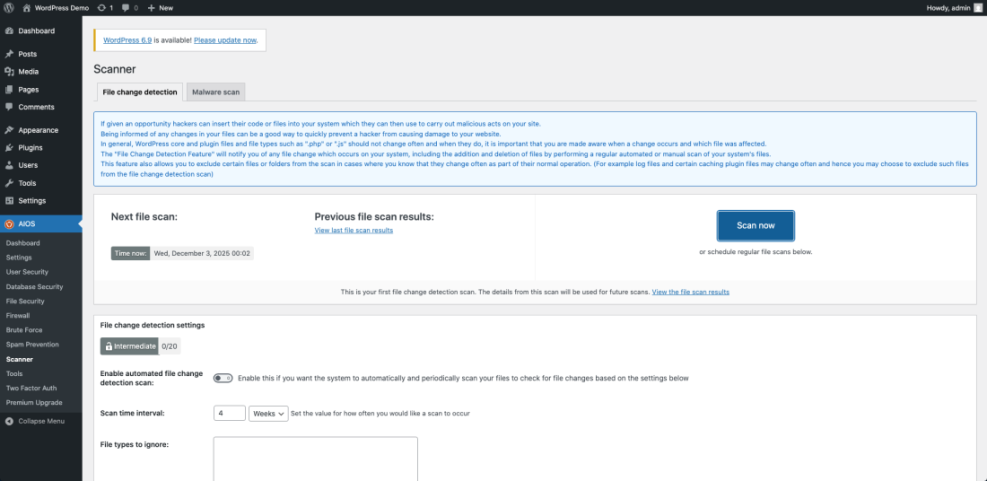
Most security plugins let you run on-demand scans and review recent events, such as blocked logins or file changes. Each month, run a full scan, then review your logs for repeated attack patterns, such as many failed logins for one user or hits to old admin URLs that you no longer use.
In the admin sidebar, click Security » Scan in your security plugin.
Uptime and Error Monitoring Review
If you use uptime monitoring, check last month’s report and look for repeated outages or slow response times. In addition, review your hosting error logs for recurring PHP errors, deprecation notices, or 500 errors. Fixing a recurring error early can prevent future downtime during traffic spikes.
Backup and Recovery Checks for the Month
Backups are your safety net, but a backup that has never been tested is just a guess. Monthly maintenance is the perfect time to confirm your backup strategy and run a small restore test so you know it works when you really need it.
How Often Should You Back Up?
Most sites need at least daily backups, and busy stores often need hourly database backups. During your monthly review, verify that the backup schedule matches how often your content or orders change, and confirm that backups store offsite, not only on the same server as your website.
Testing a Backup Restore Safely
The safest way to test a backup is in a staging site or a local copy. Once a month, pick one backup, restore it to staging, and browse key pages. If the restore fails or looks broken, adjust your backup plugin settings or talk with your host until you can complete a clean test restore.
- Create or open a staging site from your hosting panel.
- Select a recent backup from your backup plugin or host.
- Restore files and database to staging, not live.
- Check the homepage, login, and one key conversion flow.
- Delete the staging site when you finish your checks.
This simple process gives you confidence that your backup is usable, not just a file sitting in storage.
What to Automate Versus Manual Checks
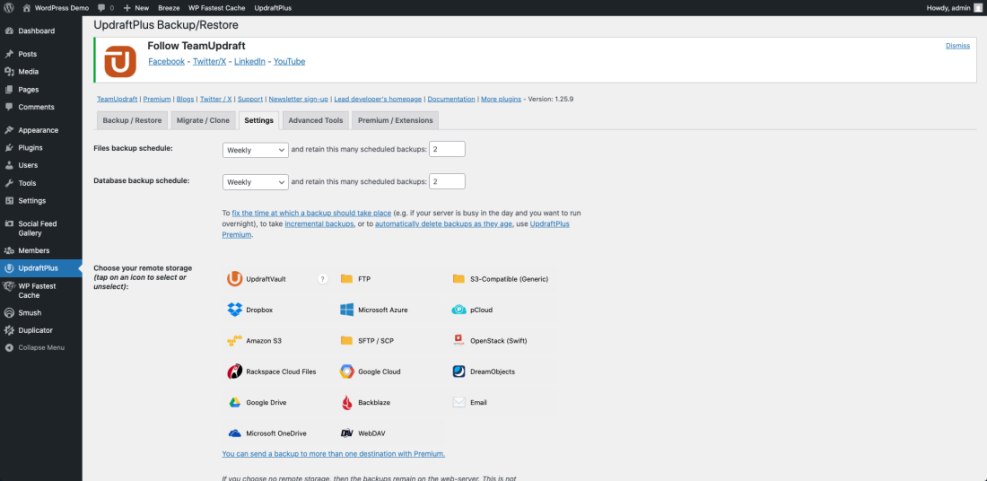
Automated backups, scheduled scans, and uptime monitoring handle much of the daily work. Your monthly maintenance plan focuses on manual review: confirming automation still runs, testing restores, and deciding whether to adjust schedules. This balance keeps your time investment low while still protecting your site.
From the dashboard, go to Settings » Backups in your backup plugin to review schedules and remote storage.
For more detail on general backup approaches, you can review the official WordPress backup guide and adjust your schedule to match your content and traffic.
Tools and Workflow for Monthly Maintenance
You can manage a monthly routine with only the built-in dashboard and a few plugins. However, the right tools and a simple workflow reduce errors and make it easier to hand off maintenance to a teammate or agency later.
Recommended Plugins for Maintenance Tasks
In practice, most site owners use a mix of backup, security, caching, and optimization plugins. Choose well-maintained plugins from trusted developers and avoid overlapping features. For example, run one main caching plugin, one security plugin, and one backup plugin instead of stacking multiple tools that fight over the same settings.
If you want to go deeper into speed work later, you can create a dedicated checklist and use a future <planned_post]Speed Optimization Checklist[/planned_post] as a reference.
Creating a Simple Monthly Checklist
You do not need a complex project management system. A single document in your notes app or project tool is enough. List each task in the order you do it, note where to click in the dashboard, and add a space for the date and initials so you can see exactly when the last monthly maintenance session happened.
Open your hosting control panel and navigate to the monitoring or analytics section.
When Should You Hire a Professional?
If your site drives significant revenue, uses many custom plugins, or runs membership and ecommerce features, a professional plan can be worth the cost. When outages or slow pages lose real money, having an expert on call and a formal service level agreement often pays for itself quickly.
Here is a simple comparison of handling the plan yourself versus using a managed service.
| Option | Typical Monthly Cost | Your Time | Best For |
|---|---|---|---|
| DIY Monthly Plan | Hosting plus a few paid plugins | 30–90 minutes per month | Smaller sites and blogs |
| Managed Plan | Set monthly fee per site | Very little ongoing time | Revenue sites and busy stores |
This comparison helps you decide whether your time and comfort level with troubleshooting make DIY maintenance worthwhile or if a managed plan is a better fit.
For deeper help with planning and automating tasks, you might later build a guide like Maintenance Automation Setup to document your preferred tools and workflows.
WordPress Maintenance Plan Conclusion
A monthly routine turns maintenance from a stressful surprise into a predictable habit. When you know that backups, updates, security checks, and performance reviews happen on a fixed schedule, you make better decisions and avoid rushed fixes that cause new problems.
Pick your first maintenance window this week, even if your checklist is short. Then, month by month, refine it based on what you learn about your hosting, plugins, and traffic patterns. Over time, your WordPress maintenance plan becomes a quiet advantage that keeps your business stable while competitors scramble to fix preventable issues.
More WordPress Guides You Might Like
To keep building a strong maintenance and performance habit, you can plan more focused guides that dive into specific areas like backups, speed, and automation.
- How to build a website on WordPress
- WordPress speed optimization step by step
- Is WordPress good for seo
- How to check if WordPress plugins are up
As you create and publish these guides, your internal library will turn into a complete reference that supports your monthly checklist and helps new team members adopt the same process.
Frequently Asked Questions About WordPress Maintenance Plan
How often should I run my WordPress maintenance plan?
Can I maintain my own WordPress site without an agency?
What is the biggest risk of skipping maintenance sessions?
Do I need a staging site for monthly updates?
How do I know if my maintenance plan is working?