Essential WordPress Maintenance and Backup Plan
A practical checklist for WordPress care and backups

A solid WordPress maintenance plan protects your site from hacks, data loss, and frustrating downtime. Without a clear routine, it is easy to skip updates, forget backups, and only notice problems when visitors complain or orders stop coming in.
With the right plan, you can handle maintenance in short, predictable sessions instead of reacting to emergencies. You will learn how to design a simple checklist, choose tools for backups and security, schedule daily and monthly tasks, and decide what to do yourself versus what to outsource.
WordPress Maintenance Plan Essentials
The quickest way to think about your plan is as a repeatable checklist. You define what to back up, when to apply updates, which tools watch security and uptime, and who owns each task so nothing slips.
What Does a WordPress Maintenance Plan Include?
A practical maintenance plan covers updates, backups, security, performance, and monitoring. It keeps WordPress core, plugins, and themes current, creates restorable copies of your site, scans for malware, checks speed, and alerts you if the site goes down. It also includes regular reviews of users, comments, and error logs.
- Scheduled core, plugin, and theme updates.
- Automatic backups with offsite storage.
- Security scans and login protection.
- Performance checks and caching review.
- Uptime and error monitoring alerts.
These building blocks give you a strong baseline. You can then adjust frequency and tools based on how critical your site is and how often it changes.
Why Backups Are Non Negotiable
Backups are your safety net when updates break something, a plugin is compromised, or someone deletes content by accident. A reliable system lets you restore a previous copy in minutes instead of rebuilding from scratch. Backups turn disasters into short interruptions rather than long outages.
Core Maintenance Tasks Overview
Your day to day maintenance work centers on updates, security checks, uptime monitoring, and cleanup. When you handle these tasks regularly, your site stays faster, safer, and easier to manage over time.
Update Core, Plugins, and Themes
Start by updating WordPress core, then plugins, then themes. Before any update session, make sure you have a fresh backup you can roll back to if something goes wrong. For busy sites, consider testing major updates on a staging site before applying them to production.
From the WordPress Dashboard, click Dashboard » Updates to review available updates.
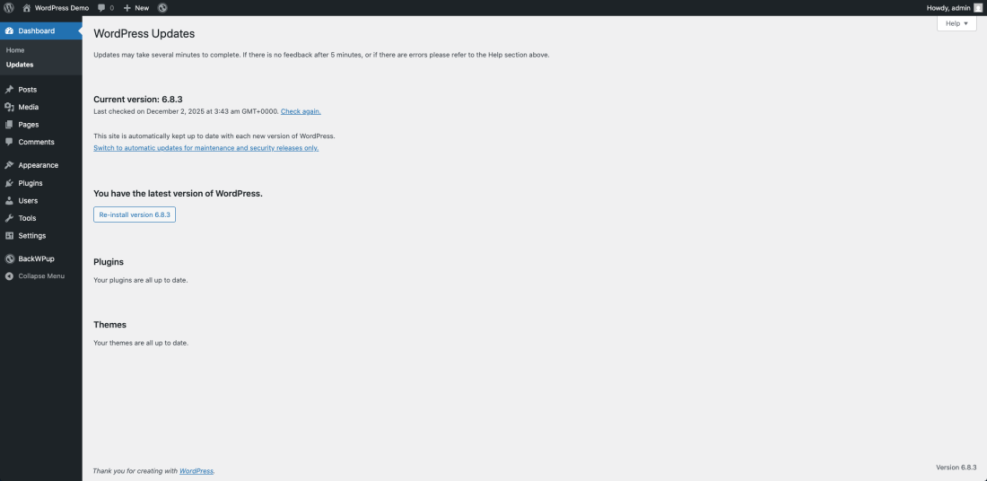
After updates, quickly browse key pages, forms, and the checkout to confirm everything still works. If an update causes errors, deactivate the last plugin you changed, or restore the most recent backup to recover.
Monitor Security and Uptime
A good maintenance plan always watches for suspicious logins, file changes, and downtime. Use a security plugin or managed firewall to scan for malware and block brute force attacks. Pair it with an uptime monitor that alerts you if the site becomes unreachable so you can react quickly.
Open your security plugin dashboard from Plugins » Installed Plugins and click its Dashboard or Scan link.
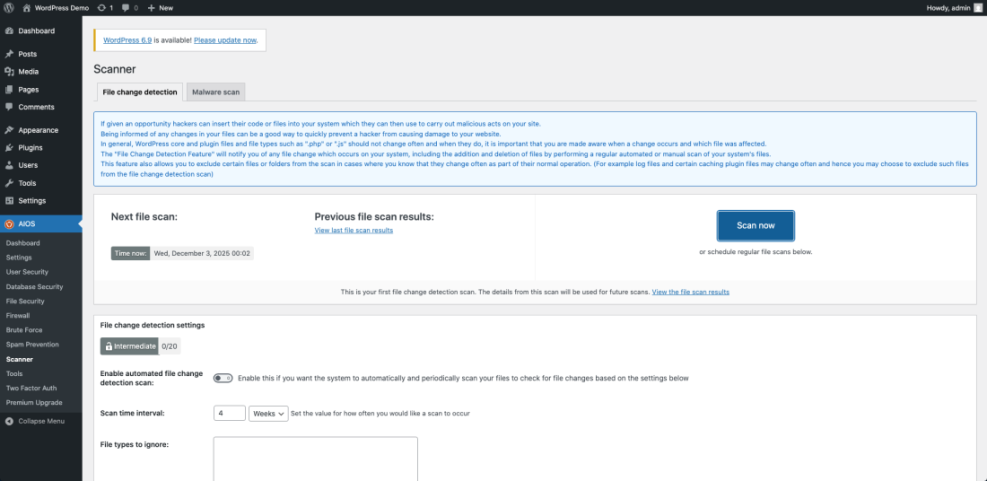
In addition, review security alerts at least once a week and clear out false positives. This habit helps you spot real issues early instead of digging through months of ignored warnings.
Clean Up Content and Users
Maintenance also includes housekeeping. Remove unused plugins and themes, delete spam comments, and clean out old drafts you no longer need. Review user accounts, remove people who no longer need access, and confirm that each user has the lowest role that still lets them do their job.
Building a Strong Backup Strategy
Backups protect both your files and your database, which holds posts, pages, orders, and settings. A smart strategy uses automation, offsite storage, and regular test restores so you know your backups actually work when you need them.
Which Type of Backup Do You Need?
Most sites use a mix of full and incremental backups. Full backups copy everything, including files and the database, and are ideal before big changes or on a weekly schedule. Incremental backups capture only changes since the last backup, which saves space and reduces server load. Database-only backups are useful for very content-heavy sites.
In your backup plugin menu, open its Settings or Schedules page from the WordPress Dashboard sidebar.
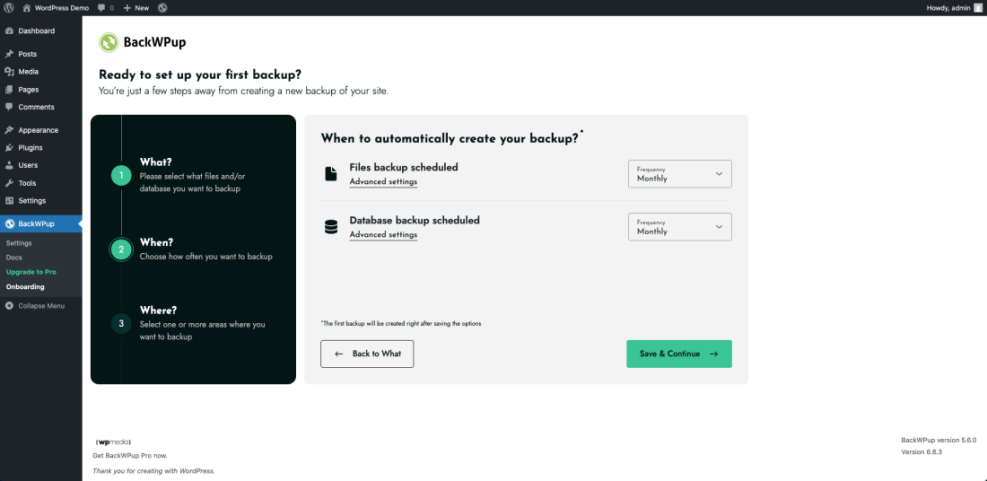
The table below compares three common backup methods so you can choose the right mix.
| Method | Main Benefits | Main Drawbacks |
|---|---|---|
| Hosting Backups | Automatic, fast restores, no extra setup. | Often stored on same server, limited retention, tied to one host. |
| Backup Plugin | Flexible schedules, offsite storage, one click restore. | Uses site resources, needs proper setup and occasional monitoring. |
| Manual FTP/Database | Full control, no extra plugins or services. | Time consuming, easy to forget steps, prone to human error. |
For most small business sites, combining host backups with a plugin that sends copies to cloud storage offers a good balance of safety and convenience.
How Often Should You Back Up?
Your backup frequency should match how often your site changes. A busy store or membership site may need hourly or daily backups. A small brochure site might only need daily or even weekly backups. As a rule of thumb, choose a schedule where you could afford to lose the data added between backups.
How to Test a Backup Restore
Testing restores is just as important as creating backups. A backup that cannot be restored is no backup at all. Plan to test at least a few times a year so you know the process and can trust your tools in an emergency.
- Create a fresh backup and note the date and time.
- Spin up a staging site or a local copy of your site.
- Use your backup tool to restore that backup to the test site.
- Check several pages, logins, and forms on the test site.
- Document the steps so anyone on your team can follow them.
This simple exercise reveals problems early, such as incomplete backups, missing files, or confusing restore steps, so you can fix them before a real crisis.
From the WordPress Dashboard, open your backup plugin page and click its Restore or Backups tab on the test site.
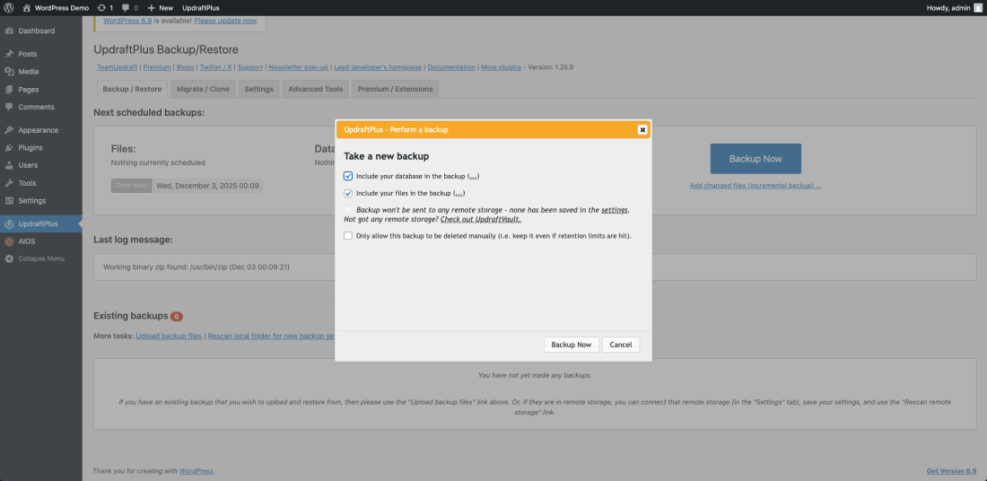
Choosing Tools and Automation Options
The right tools make your maintenance plan realistic instead of overwhelming. You can mix hosting features, plugins, and third party services to cover backups, security, performance, and uptime with as little manual work as possible.
Recommended Backup and Security Plugins
Backup plugins help you schedule full and incremental backups and send them to cloud storage such as Google Drive or Amazon S3. Security plugins add firewalls, malware scans, and login protection. Choose tools that are well maintained, clearly documented, and widely used so you can rely on them for the long term.
From the WordPress Dashboard, go to Plugins » Add New and search for trusted backup or security plugins by name.
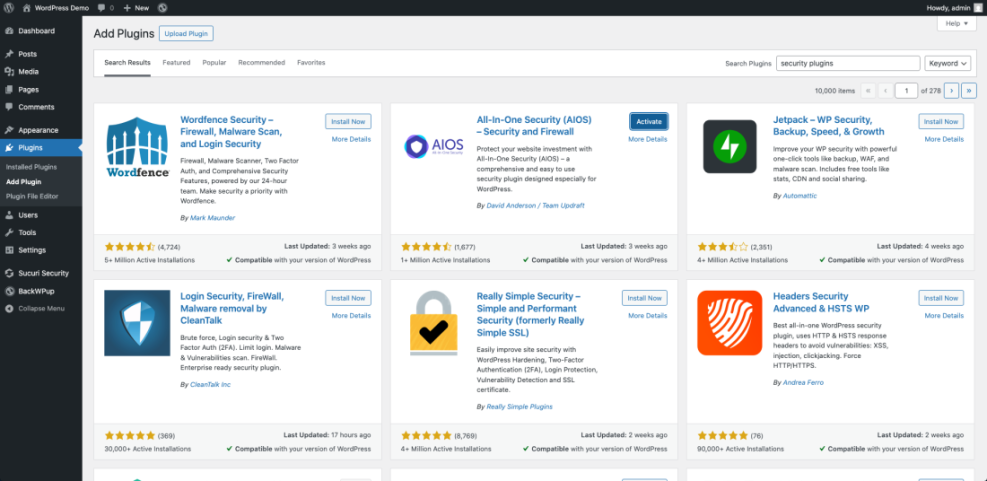
In addition, avoid running several plugins that overlap heavily, such as two firewall tools or multiple backup plugins. Overlap increases complexity and can slow your site or cause conflicts.
Using Hosting Tools Safely
Many managed WordPress hosts include daily backups, staging sites, and built in caching. These features can remove work from your checklist. However, you should still keep at least one independent backup so you are not locked into a single host and can recover even if the hosting control panel is down.
Setting a Practical Maintenance Schedule
A good schedule fits your site and your time, not the other way around. By grouping tasks into daily, weekly, monthly, and quarterly routines, you make maintenance predictable and easier to delegate.
Daily and Weekly Checks
Daily checks are about spotting obvious issues fast. Weekly sessions handle updates and quick cleanups. Together, they keep your site stable between larger maintenance windows.
- Daily: glance at uptime alerts and error emails.
- Daily: confirm new orders or leads look normal.
- Weekly: apply WordPress, plugin, and theme updates.
- Weekly: check security scans and clear spam comments.
- Weekly: verify backups ran and are stored offsite.
These small habits prevent issues from piling up. They also give you frequent chances to catch security problems or performance drops before visitors notice.
Open your uptime monitoring dashboard from your chosen service or plugin menu in the WordPress Dashboard sidebar.
Monthly and Quarterly Tasks
Monthly and quarterly tasks handle deeper cleanup and reviews. They ensure your site stays lean and aligns with your business goals over time.
- Monthly: audit user accounts and roles.
- Monthly: remove unused plugins, themes, and media.
- Monthly: review analytics for broken pages or drop offs.
- Quarterly: test a full backup restore on a staging site.
- Quarterly: review hosting performance and resource usage.
You can track these tasks in a shared document or project board so anyone on your team can see what is done and what is still pending.
Costs, Roles, and Responsibility
Every maintenance plan needs a clear budget and ownership. Decide who runs the checklist, what tools you will pay for, and when it makes sense to hire outside help instead of doing everything yourself.
DIY WordPress Maintenance vs. Care Plans
Handling maintenance yourself keeps direct costs low but requires time and attention every week. Professional care plans usually bundle backups, updates, security monitoring, and support for a monthly fee. If you often skip tasks or feel stressed by technical issues, paying for a good plan can free you to focus on content and customers.
Simple Code Tweak for Extra Safety
You can add a small code snippet to reduce risk if an attacker gains access to an admin account. This snippet disables the built in theme and plugin editors inside WordPress so no one can inject code there through the dashboard.
define( 'DISALLOW_FILE_EDIT', true );Add this line to your SEO and UX, and where you will see it in daily work.”>wp-config.php file just above the comment that mentions “Stop editing”. Always make a backup before editing this file, and test your site after saving the change.
WordPress Maintenance Plan Conclusion
A clear maintenance and backup plan turns WordPress from a fragile asset into a dependable part of your business. When you know exactly what to do each week and month, you spend less time firefighting and more time publishing content, serving customers, and growing revenue.
Your next step is simple. Write down your core tasks, pick backup and security tools you trust, and schedule one recurring block on your calendar for maintenance. Once that habit is in place, you can refine your checklist, add automation, and hand off parts of the work as your site grows.
More WordPress Maintenance Plan Guides You Might Like
Once your basic maintenance and backup plan is running, you can deepen your skills in performance, security, and content workflows with more focused guides.
- Install WordPress step by step
- How do i secure my WordPress downloads
- WordPress performance tuning beginner guide
- WordPress migration checklist for blogs
- Common WordPress backup errors and how to fix
These topics build on your maintenance plan so you can handle more advanced tasks with confidence and keep your site healthy for the long term.
Frequently Asked Questions About WordPress Maintenance Plan
How often should I run WordPress backups?
Can I rely only on my host's backups?
Do small WordPress sites really need maintenance?
What is the safest time to run updates?
Can I manage a maintenance plan without coding skills?