Best WordPress Backup Plugins for WooCommerce Online Stores
Practical Ways to Keep Your Online Store Data Safe

WordPress backup plugins are essential if you run a SEO and UX, and where you will see it in daily work.”>WooCommerce store, because every order, customer, and product depends on your site being available. When a plugin conflict, hack, or hosting issue hits, a recent backup is the difference between a quick rollback and hours of manual repair. The right WordPress backup plugins turn all of this into a routine safety net instead of a stressful emergency task.
In this guide, you see how to choose WordPress backup plugins that understand WooCommerce, set safe schedules, store copies offsite, and test restores without breaking live orders. You also learn how to avoid common mistakes, protect backup files, and build a simple backup plan that fits your store size and budget.
Best WordPress Backup Plugins for WooCommerce Stores
What Makes WooCommerce Backups Different?
A WooCommerce store changes all day as customers place orders, update details, and redeem coupons. Because of this, you need backups that capture the database often, store files and database together, and restore cleanly without losing recent orders. Standard weekly backups from your host often miss these fast changes, which is why dedicated WordPress backup plugins are so important.
Recommended WordPress Backup Plugins for WooCommerce Stores
For most stores, a mix of real time or frequent database backups plus daily file backups works well. Jetpack VaultPress Backup, BlogVault, UpdraftPlus, Duplicator, and BackWPup are popular WordPress backup plugins that support automated schedules and offsite storage in services like Google Drive, Dropbox, or their own cloud.
These plugins let you restore the whole site or just the database, which helps when a theme update breaks layouts but orders still look fine. Therefore, you can fix problems quickly without rolling back valuable sales data, and your chosen WordPress backup plugin becomes a key part of your WooCommerce toolbox.
Here is a quick comparison of common backup plugins many store owners use:
| Plugin | Best For | Key Store Features |
|---|---|---|
| Jetpack VaultPress Backup | Busy WooCommerce stores | Real time backups, offsite cloud storage, one click restore, strong WooCommerce support |
| BlogVault | Agencies and larger shops | Incremental and real time backups, long history, staging, central dashboard |
| UpdraftPlus | Flexible scheduled backups | File and database backups, multiple cloud targets, easy restore from dashboard |
| Duplicator | Migrations and staging | Backups as installable packages, site cloning, handy for moving or testing stores |
| BackWPup | Budget conscious sites | Full backups, external storage like S3 or Dropbox, restore from WordPress admin |
This table gives you a starting point. You can match your store’s size, budget, and technical comfort to the WordPress backup plugins that fit best.
Are Hosting Backups Enough for Your Store?
Hosting backups help during server problems, but they rarely give real time protection or easy one click restores focused on WooCommerce. In addition, hosts often keep limited restore points and store backups on the same server, which is risky. A dedicated WordPress backup plugin gives you more control, history, and offsite copies.
Key Features of a Good WordPress Backup Plugin
Real Time vs. Scheduled Backups
Real time backups record changes as they happen, which means every new order, refund, or stock update is safe within minutes. Scheduled backups run on a timer such as hourly or daily. For small stores, daily database backups may be enough, but higher volume shops benefit from real time or at least hourly database snapshots, especially when using WordPress backup plugins built for WooCommerce.
How Often Should You Back Up Your Store?
A good rule is simple: back up as often as you are willing to lose data. For example, if your store processes orders every few minutes, then daily backups are not enough. Many store owners run database backups every 1–4 hours and file backups once per day, with extra backups before plugin or theme updates. Most WordPress backup plugins let you adjust this schedule easily.
Storing Your Backups Offsite Safely
You never want backups to live only on the same server as your store. Instead, send them to external storage like Amazon S3, Google Drive, Dropbox, or the plugin’s own cloud. This way, even if your host goes down or gets hacked, your backups stay safe in another location that you control. Quality WordPress backup plugins include built in connections to these remote services.
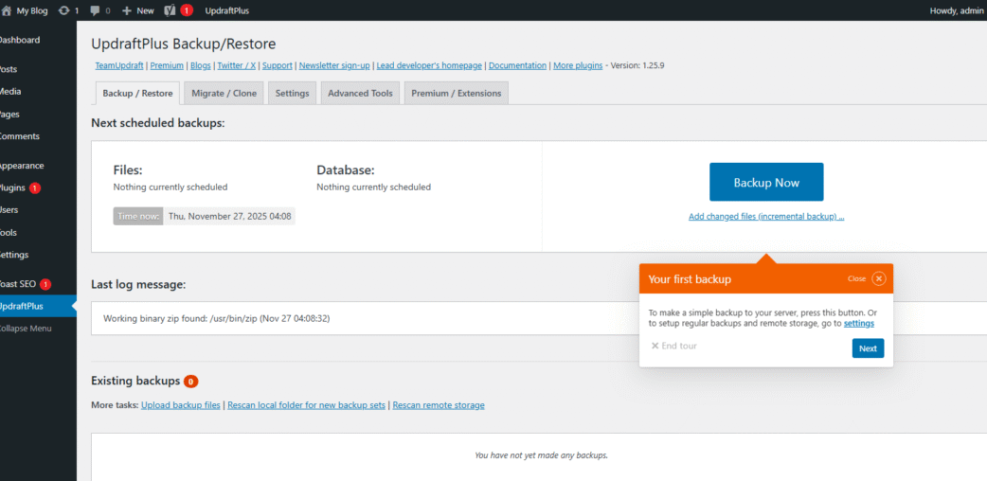
Navigate to Settings » UpdraftPlus Backups and open the Settings tab to choose your remote storage service.
Setting Up Your Backup System Step by Step
Choose and Install a WordPress Backup Plugin
First, decide which plugin matches your needs and budget. For example, choose a real time solution for a busy store, or a solid scheduled plugin for a smaller catalog. Then, install and activate it from the WordPress dashboard like any other plugin. Most popular WordPress backup plugins are available in the official plugin repository.
Navigate to Plugins » Add New and search for the backup plugin you want to use, then click Install Now and Activate.
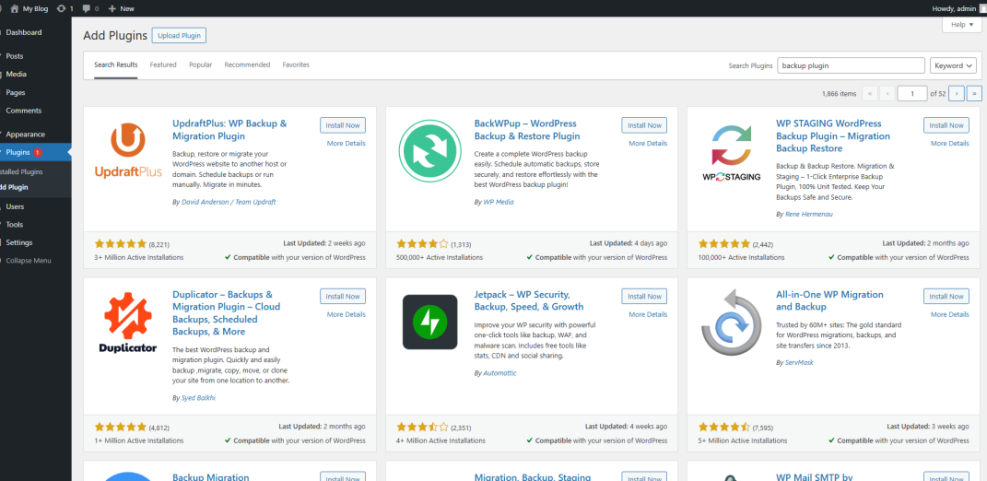
Easily find and install top WordPress backup plugins like UpdraftPlus and BackWPup from the Add Plugins dashboard.
Configure Backup Schedules and Retention
After activation, set how often backups run and how many copies you keep. Stores with frequent orders can schedule database backups hourly and files daily, while small shops use less frequent runs. Retention settings prevent storage from filling up, which can stop new backups from completing. Your WordPress backup plugin should show clear options for both schedules and retention.
- Open the backup plugin settings page in your WordPress dashboard.
- Set a schedule for database backups, such as hourly or every four hours.
- Set a schedule for file backups, such as daily or twice per week.
- Choose how many backup copies to keep before old ones are deleted.
- Select at least one offsite storage destination and connect your account.
- Save the settings, then run a manual backup to test the setup.
These steps create a recurring backup routine that runs without manual work and keeps enough history to handle most problems.
- At least one offsite storage location connected
- Database and files included in every full backup
- Schedules matched to your store’s order volume
- Retention long enough to spot hidden malware changes
Use this checklist after you finish configuration so you do not miss a key detail that could weaken your backup plan.
How Do You Test a Restore from Your WordPress Backup Plugin?
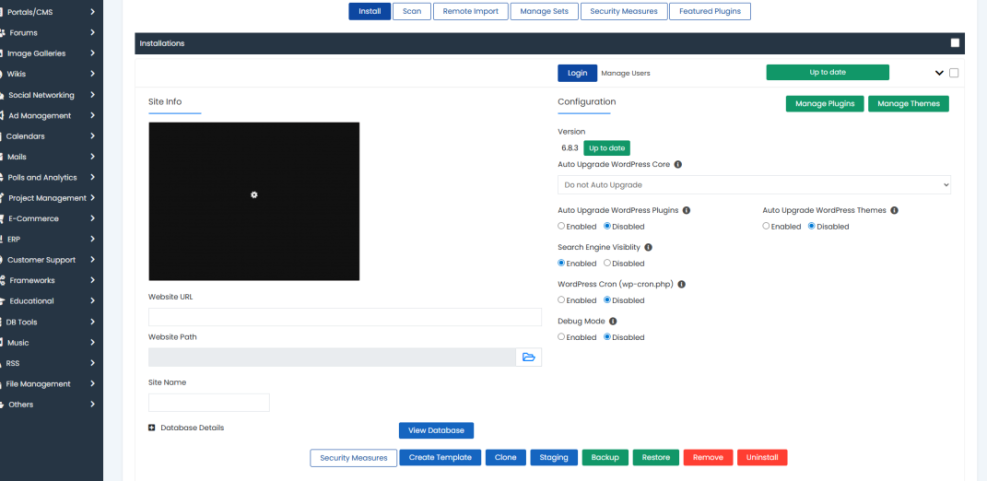
You should never wait for a crisis to test restores. Instead, create a staging copy of your site or use the plugin’s built in restore to recover a backup into a test environment. Then review orders, products, and customer data to make sure everything looks correct before trusting the process on your live store. Many WordPress backup plugins now offer one-click staging to make this easier.
Navigate to Tools » Site Health or your hosting control panel to create a staging site where you can safely test restores.
WooCommerce Specific Backup Strategies
Protecting Orders and Customer Data in Backups
WooCommerce stores order details, customer accounts, and product stock in the WordPress database. Therefore, any backup strategy must always include the full database, not just files. When possible, choose WordPress backup plugins that offer database only backups in between full backups so you capture frequent order changes without stressing your server.
Handling High Traffic Sales Events Safely
During big sales, backups and traffic levels increase at the same time. To avoid slowdowns, shorten database backup intervals before the sale and schedule file backups for off peak hours. In addition, avoid running manual scans or bulk updates during the busiest periods, so your server can focus on customers. Some WordPress backup plugins even allow temporary schedule changes just for these events.
Should You Use Real Time Backups for Subscriptions?
Real time backups make strong sense if you run subscriptions or memberships, because each renewal or status change matters. A missed database update can lead to lost renewal records or access issues. Real time tools capture every small change, which gives you a full history if something breaks after a code or payment gateway update. This is where premium WordPress backup plugins aimed at WooCommerce really shine.
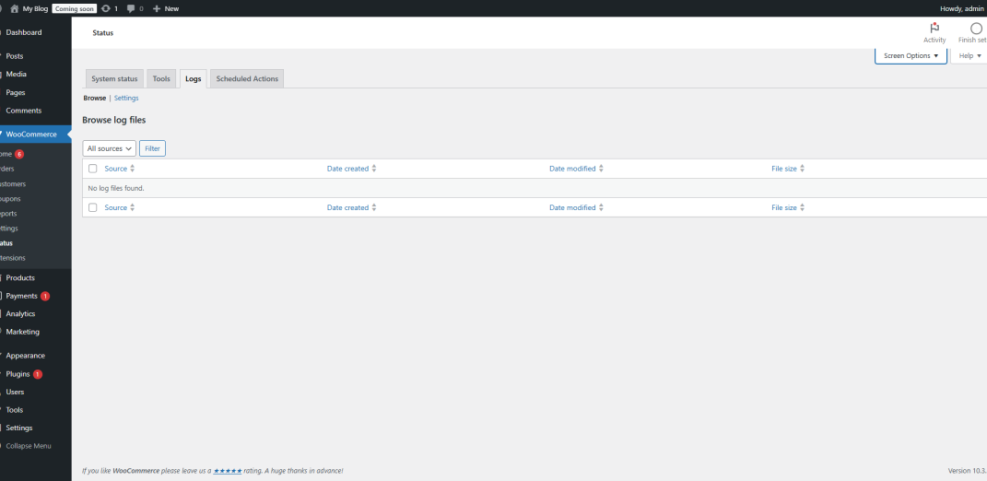
Navigate to WooCommerce » Status and check the Logs tab to compare subscription events with your backup timestamps when you troubleshoot issues.
Securing and Managing Your Store’s Backup Files
Avoid Common Backup Mistakes
Many store owners install a backup plugin and never revisit the settings. However, plugins change over time, hosting environments grow, and stores get busier. Review your backup logs regularly, confirm that new backups appear, and test restores at least a few times per year so you do not discover broken backups when you need them most. Treat your WordPress backup plugins as part of your security stack, not a one-time setup.
Protecting Backup Archives on the Server
Some plugins store backup archives inside your public web root, which means attackers can download them if the folder is unprotected. You can fix this by moving backups offsite and blocking direct access to common archive file types at the server level using simple .htaccess rules.
# Block direct access to common backup file types <IfModule mod_rewrite.c> RewriteEngine On RewriteRule .(zip|tar|gz|sql|rar)$ - [F,L] </IfModule> Place this snippet in the .htaccess file of your WordPress root if your host uses Apache, and always test carefully. Blocking public access to archive formats helps keep sensitive backup files out of reach.
What Should You Document in a Backup Plan?
A written backup plan prevents guesswork when something breaks. At minimum, document which WordPress backup plugins you use, backup schedules, storage locations, retention periods, and restore steps. Share this information with anyone who manages the store, so they can act quickly even if you are away when a problem appears.
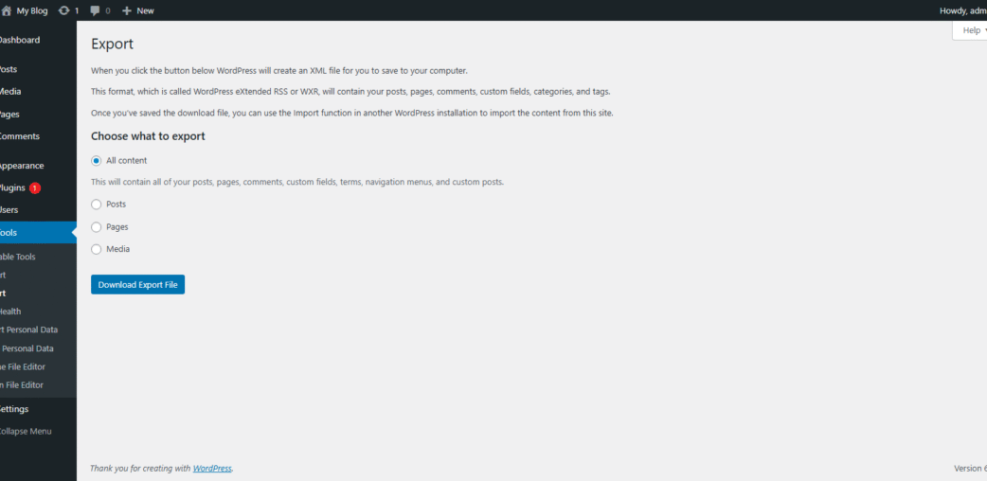
Navigate to Tools » Export to also create an export of posts and pages as a lightweight safety net that supplements your full backups.
WordPress Backup Plugins Conclusion
A reliable WordPress backup plugin is a key part of running a serious WooCommerce store, just like secure payments or fast hosting. When you set up smart schedules, offsite storage, and tested restores, you turn disasters into short maintenance windows. Your next step is simple: pick one of the recommended WordPress backup plugins, configure it today, and run a test restore this week.
Once your basic backup routine feels stable, you can refine it with real time backups for orders, extra history for busy seasons, and written procedures for your team. That way, your backup system grows with your store instead of falling behind as traffic and revenue increase.
More WordPress Guides You Might Like
To round out your backup strategy, it helps to learn more about updates, security, and WooCommerce specific setup. These future and related guides give you a solid next step after you lock in your WordPress backup plugins.
- Woocommerce hardening checklist
- How to publish WordPress site
- WordPress backup strategy
- Woocommerce performance tips for faster stores
- Beginner guide to WordPress speed optimization
Working through these topics builds a complete protection stack around your store so backups, security hardening, and performance tuning all support each other.
Frequently Asked Questions About WordPress Backup Plugins
Do I still need backups if my host already backs up my site?
Which backup schedule works best for a small WooCommerce shop?
Where should I store my WordPress backups?
How many backup copies should I keep at a time?
Can I restore just the database without overwriting files?