WooCommerce Performance Tips for Faster Stores
Boost load times and conversions with practical store tuning

SEO and UX, and where you will see it in daily work.”>WooCommerce performance affects how fast your store feels to every visitor and how many of them finally buy. When pages take too long to load, cart abandonment rises, support requests pile up, and even your search rankings can suffer on both mobile and desktop.
This guide walks you through practical tweaks in hosting, themes, plugins, caching, images, database, and testing. You will see which improvements give the fastest wins, how to avoid common WooCommerce performance traps, and how to build a simple routine that keeps your store fast as you grow.
WooCommerce Performance Quick Wins
How Fast Should a WooCommerce Store Be
As a simple goal, try to keep key store pages loading in under three seconds for most visitors on decent mobile connections. Product, cart, and checkout pages should feel instant when users click or scroll. Faster pages usually lead to higher conversions because shoppers stay focused on buying.
Where to Start When Your Store Feels Slow
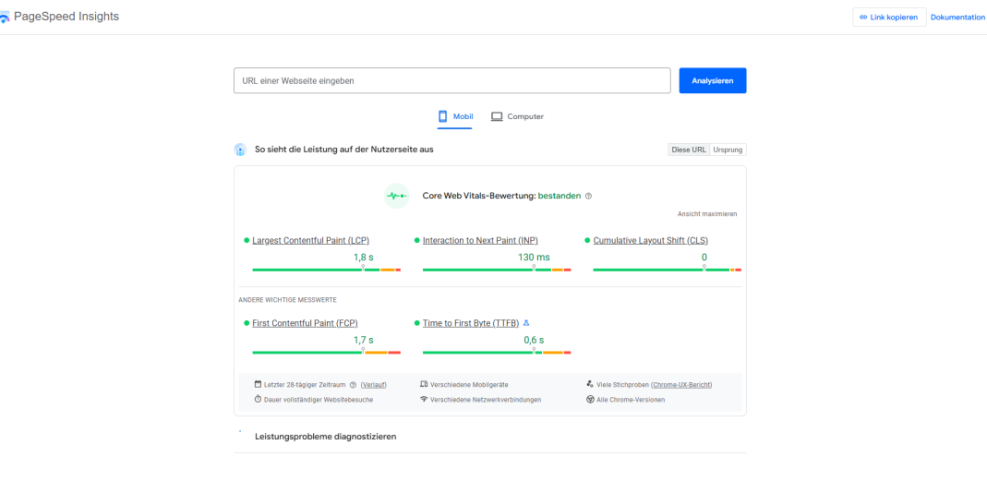
First, test your home, category, product, cart, and checkout pages with a tool like Google PageSpeed Insights. Look at the lab data and field data to see if slow time to first byte, heavy images, or long JavaScript tasks cause delays. Focus on the slowest page type first, often product or checkout.
Simple Changes You Can Apply Today
Often, you can get easy wins before touching code. Reduce oversized hero images, remove one or two heavy sliders, and switch off unused WooCommerce features like geolocation with page caching support. Then clear your cache and retest your key pages to confirm the real impact on perceived speed.
Choose Faster WooCommerce Hosting
What Hosting Resources Matter Most
Your host provides the base speed for everything else, so weak resources limit every optimization you attempt. Look for SSD storage, plenty of RAM for PHP workers, and up-to-date PHP versions. In addition, ensure the provider offers server-side caching and a clear upgrade path for traffic spikes.
Use Modern PHP and Server Features
Update PHP to a supported, stable version that WooCommerce recommends, since newer versions usually execute code faster with less CPU. Also, enable HTTP/2 or HTTP/3 support if your host offers it to improve parallel loading of many small assets. Ask support for help if you cannot find these options.
- Log in to your hosting control panel.
- Find the PHP or software versions section.
- Select a recommended, supported PHP version.
- Apply the change and clear any caches.
- Test your store pages again for errors and speed.
After any PHP upgrade, double-check your most important WooCommerce flows, including adding to cart and checkout, to ensure all extensions still work correctly.
When It Is Time to Upgrade Hosting
If you see high CPU usage during campaigns, or if admin pages and the frontend both slow down under load, your plan may simply be too small. In that case, moving to managed WooCommerce hosting or a VPS often improves stability. Next, keep monitoring usage so you scale before shoppers feel pain.
Use Lightweight Themes and Plugins
How Theme Choice Impacts Store Speed
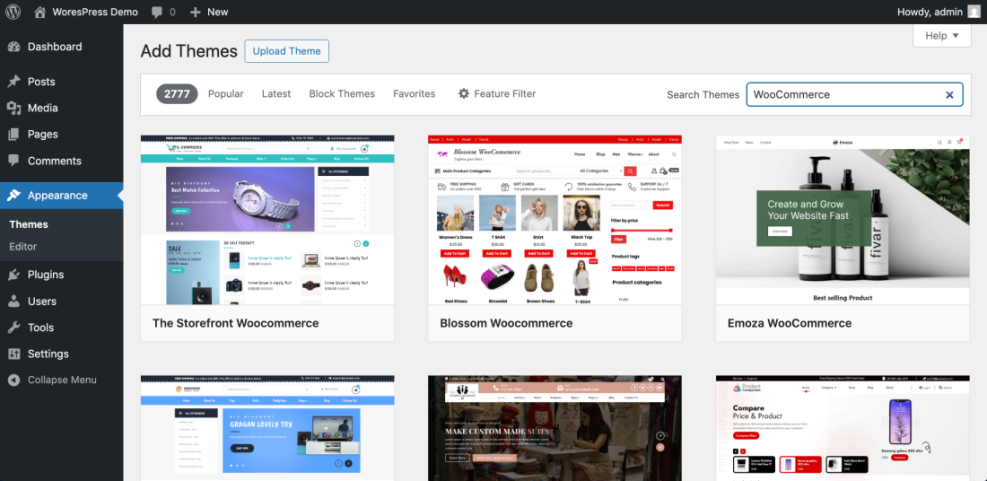
A heavy theme can add large image assets, multiple sliders, and many scripts to every page, even when you do not use those features. Therefore, pick a WooCommerce-optimized theme that focuses on clean layouts and fast performance. Test any new theme on a staging site before pushing it live.
Audit Plugins and Remove Bloat
Every plugin loads code, database queries, or extra assets. Start by listing all plugins and flag anything you do not really use. Then, deactivate one plugin at a time, test your store, and delete it if nothing breaks. For heavy features, consider lighter alternatives with fewer scripts and smaller footprints.
- Remove unused payment gateways and shipping methods.
- Turn off unused analytics or tracking add-ons.
- Disable admin-only tools on the frontend.
After you slim down the plugin list, your store usually runs fewer queries and sends fewer scripts to shoppers, which directly reduces load time.
Limit Features on Cart and Checkout
Cart and checkout pages should be the cleanest part of your store. Avoid extra popups, chat widgets, sliders, and heavy cross-sell blocks here. Instead, keep the experience as simple as possible so there is less JavaScript to process and fewer render-blocking assets on these critical steps.
For more background on running the installer correctly, you can review a general guide on how to Install WordPress on solid hosting before scaling WooCommerce.
Configure Caching and CDN Correctly
Which WooCommerce Pages Should Bypass Cache
Dynamic pages like cart, checkout, and account should stay uncached for logged-in users so totals and stock stay correct. However, category and product listing pages usually benefit from full-page caching. Work with your host or cache plugin to exclude sensitive paths and leave them fully dynamic.
Configure a Cache Plugin for Dynamic Stores
Most WordPress cache plugins include presets for WooCommerce, but you still need to confirm the details. Ensure that cart, checkout, and account pages are excluded, and enable browser caching for static assets. In addition, clear cache automatically when you update products or change your theme.
- Install and activate a trusted cache plugin.
- Enable page caching and browser caching.
- Exclude cart, checkout, and account URLs.
- Enable automatic cache clearing on updates.
- Test add to cart, coupons, and checkout flows.
If you prefer a more detailed walkthrough, plan to follow a dedicated WooCommerce caching guide on a staging site before changing settings on your live store.
When a CDN Helps the Most
A content delivery network helps most when you have visitors from many regions or large product images. The CDN caches images, CSS, and JavaScript files on edge servers closer to shoppers. Therefore, global customers load static assets faster, and your origin server handles fewer direct requests.
Optimize Images and Frontend Assets
How to Compress Product Images Safely
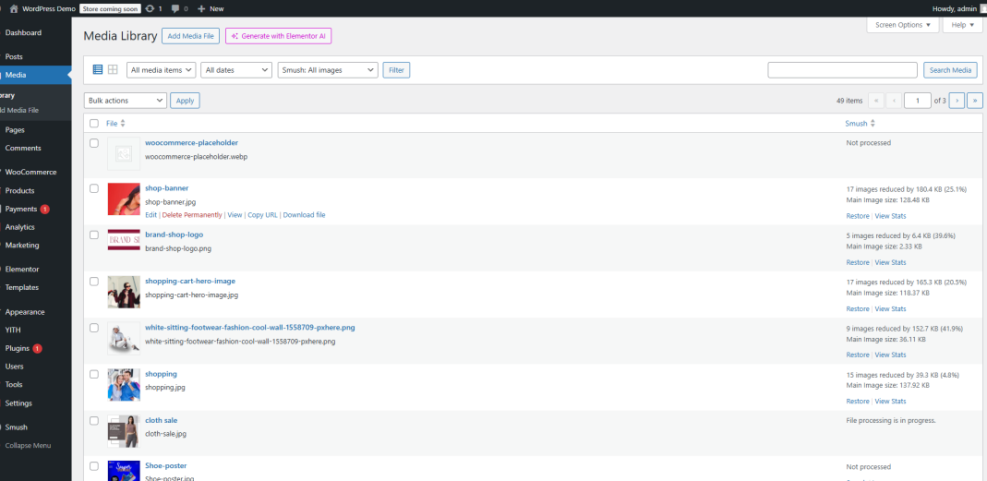
Product images often create the largest part of each page. Before uploading, resize images to sensible dimensions, such as 1200 pixels wide for main photos, and compress them with a tool or plugin that supports modern formats like WebP. As a result, image files shrink without hurting clarity.
Use Lazy Loading Without Breaking Layout
Lazy loading delays offscreen images until visitors scroll near them, which helps long category pages feel snappy. Most performance plugins and browsers now support native lazy loading. However, always test galleries, sliders, and variation images to ensure they still appear at the right moment.
Reduce JavaScript and CSS on Key Pages
Many plugins load scripts on every page when they only need them on a few. Use a script manager plugin to unload unnecessary JavaScript and CSS from product, cart, and checkout pages. For example, remove slider scripts from checkout, and disable marketing popups where they cause the most slowdown.
If you want to go deeper, consider a planned tutorial on Woocommerce optimization that focuses only on compression, formats, and responsive thumbnails.
Clean Up Database and WooCommerce Data
Enable High Performance Order Storage Safely
High Performance Order Storage, often called HPOS, moves order data into dedicated WooCommerce tables that scale better than the old posts and postmeta tables. Before you enable it, check that your payment, subscription, and shipping extensions list HPOS compatibility to avoid unexpected order issues.
- Back up your database and files.
- Go to WooCommerce Settings and open the Advanced tab.
- Open the Features section and locate High Performance Order Storage.
- Follow the on-screen steps to sync existing orders.
- Test order creation, refunds, and reports on staging.
After you confirm that new orders work as expected, schedule a second set of tests during low-traffic hours on your live store so you can react quickly if any extension behaves differently.
Clean Up Transients and Autoloaded Options
Over time, transients and autoloaded options can grow large and slow down every request. Use a trusted cleanup plugin or the WooCommerce Status tools to remove expired transients. In addition, review any custom code that stores large arrays as autoloaded options and switch them to non-autoloaded when possible.
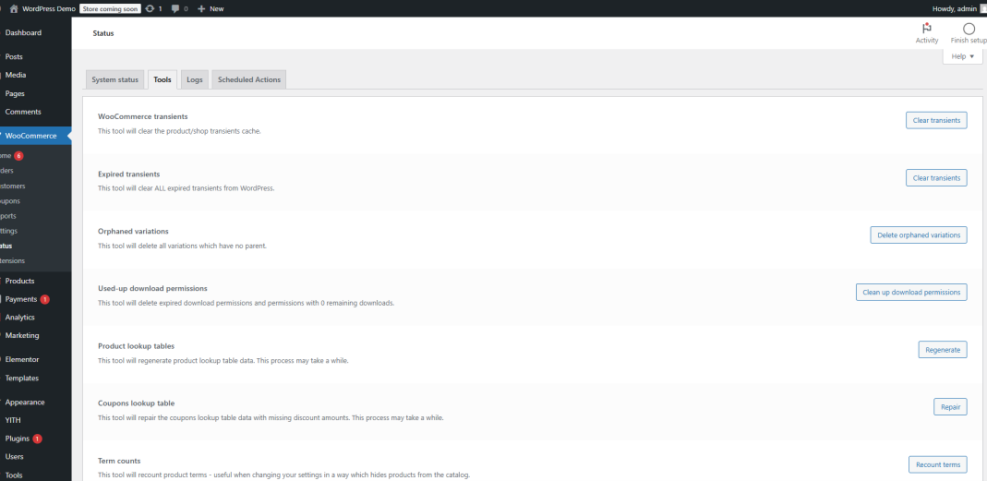
Schedule Regular Database Maintenance
A simple monthly routine helps keep your store’s database lean. Plan to delete spam comments, old post revisions, and unused terms. Next, optimize tables with a maintenance plugin or hosting tool. Finally, repeat your synthetic performance tests so you can spot any slowdown early.
Measure, Test, and Keep Improving
Which Tools Should You Use to Test
You cannot improve what you do not measure, so pick one or two main tools and use them consistently. PageSpeed Insights, WebPageTest, and GTmetrix all show detailed timings and waterfall charts. In addition, run tests from locations close to your main customer base to see realistic results.
Set Simple Targets for Load Time
Instead of chasing perfect scores, set practical goals for your own store. Aim for a Largest Contentful Paint under three seconds on product pages and a smooth, responsive checkout. As you improve, update your targets and watch real-world data through analytics or performance monitoring tools.
Create a Monthly Performance Routine
A regular schedule keeps performance from drifting. Each month, review your testing notes, check for new heavy plugins, and confirm that caching, CDN, and HPOS settings still match your current traffic. Then, adjust only one or two items at a time so you can track the direct impact.
WooCommerce Performance Conclusion
Speed is not a one-time project but an ongoing habit that supports every other marketing effort. When you invest in solid hosting, lightweight themes, smart caching, optimized images, and a clean database, your WooCommerce store rewards you with higher conversions and fewer complaints from shoppers.
The most effective next step is to run a fresh round of tests on your real product, cart, and checkout pages, then fix the biggest bottleneck first. After you see the gains from that change, repeat the process each month. Over time, these steady improvements create a fast, stable store that grows confidently with your business.
More WordPress Guides You Might Like
For deeper dives into specific tuning tasks, plan a small library of focused guides. These ideas work well as companion reads when you build a long-term performance strategy for your WooCommerce store.
- Woocommerce performance tips for faster stores
- How to choose the best WordPress hosting
- WordPress speed optimization step by step
- Woocommerce performance tips for faster stores
- Beginner guide WordPress speed core web vitals
As you add these resources, link them from your main performance articles and from relevant product or support pages so readers can quickly find the exact help they need.
Frequently Asked Questions About WooCommerce Performance
What is a good load time for WooCommerce pages?
Do I really need a CDN for my WooCommerce store?
How often should I run performance tests on my store?
Can too many WooCommerce plugins slow down my site?
Is High Performance Order Storage safe for all stores?