WooCommerce Optimization Speed SEO and Conversion Tips
Practical steps to speed up your store and boost revenue

WooCommerce optimization is what turns a slow, hard-to-find store into a fast, profitable sales machine. When pages load slowly, rankings drop, ads cost more, and shoppers abandon carts before paying. With the right setup, you can get faster performance, better SEO, and a smoother checkout without rebuilding your entire website.
You are about to walk through practical steps that start with quick wins and move into more advanced tuning. The guide covers speed foundations, on-page SEO for product and category pages, conversion tips for checkout, and a few safe technical tweaks so you can keep improving results over time.
WooCommerce Optimization Quick Answer
The fastest path to WooCommerce optimization is simple: choose solid hosting, use a lightweight theme, install a good caching plugin, compress images, and remove unnecessary plugins. Next, clean up product SEO, clarify calls-to-action, and reduce checkout friction. Finally, measure performance and conversions so every change you make is driven by data, not guesswork.
What Should You Fix First?
Start with the bottlenecks that hurt both speed and revenue. Move your store to reliable hosting, turn on full-page caching, and optimize large images. Then remove heavy plugins you do not truly need. This sequence gives you noticeable gains quickly while keeping risk low for your live customers.
Essential Tools for a Smooth Store
You do not need dozens of tools to run a fast store. Instead, pick one caching plugin, one image optimization plugin, and a reputable backup plugin. Add a content delivery network if you serve visitors worldwide. When you keep your stack lean, you reduce conflicts, lower CPU usage, and stay in control.
Typical Timeline for Seeing Results
Most speed and conversion improvements show up within a few days once your changes go live. Page load times respond almost instantly, while SEO and revenue trends take longer. If you monitor metrics weekly, you can see clear patterns over one to three months and adjust your WooCommerce optimization plan as you learn.
Speed Foundations for Faster Stores
Store speed is the base of everything else. When your WooCommerce pages load in two to three seconds or less, shoppers browse more products, search engines crawl more URLs, and every click from ads becomes more valuable. A slow store, by contrast, wastes marketing budget and creates support overhead.
Hosting quality, caching, and asset optimization do most of the heavy lifting. Before you tweak small settings, make sure these foundations are in good shape so advanced fixes actually matter.
Choosing the right hosting tier has a huge impact on stability and response time. The table below shows a simple comparison of common options.
| Hosting Type | Main Pros | Main Cons | Best For |
|---|---|---|---|
| Shared Hosting | Low cost, simple setup | Slow at scale, noisy neighbors, limited resources | Very small or test stores |
| Managed WordPress | Tuned servers, automatic updates, better caching | Higher price, some plugin limits | Growing stores that value reliability |
| WooCommerce-Optimized VPS | Dedicated resources, fine-grained control, great performance | More setup work, requires basic server knowledge | Serious stores with steady or high traffic |
Many store owners see the biggest jump in speed when they move from crowded shared hosting to a properly tuned managed or WooCommerce-focused VPS plan.
How Much Does Hosting Matter?
Hosting often decides how fast your first byte reaches the browser. A strong host reduces random slowdowns, protects against traffic spikes, and keeps the admin area usable even during busy sales. If you ever wait seconds for your dashboard to load, your hosting plan is probably limiting your WooCommerce optimization efforts.
Smart Use of Caching and CDN
Caching turns dynamic WooCommerce pages into static HTML for most visitors. This removes extra work from PHP and the database, especially on category and product pages. A content delivery network copies these cached files to edge servers worldwide so visitors in different regions see equally fast responses.
- Install a reputable caching plugin from the official WordPress plugin directory.
- Enable full-page caching for product, category, and content pages.
- Turn on browser caching and cautious minification for CSS and JavaScript.
- Connect a CDN, then test key pages in an incognito browser window.
After enabling caching and CDN, always test your cart and checkout. If anything breaks, roll back only the latest setting instead of disabling everything at once.
Optimizing Images and Scripts
Heavy images and extra scripts are classic store slowdowns. Large hero banners, sliders, and uncompressed product photos push your Largest Contentful Paint higher than it needs to be. Extra tracking scripts and popups also clog the render path and frustrate visitors on older mobile devices.
- Compress existing product and category images and convert to WebP where possible.
- Enable lazy loading for images below the fold to keep initial pages light.
- Remove auto-rotating sliders on mobile and replace them with a single, clear hero image.
- Review tracking scripts and disable any that no longer drive clear business value.
When you compress images and slim down scripts, you usually see faster Core Web Vitals and smoother scrolling on long product listings.
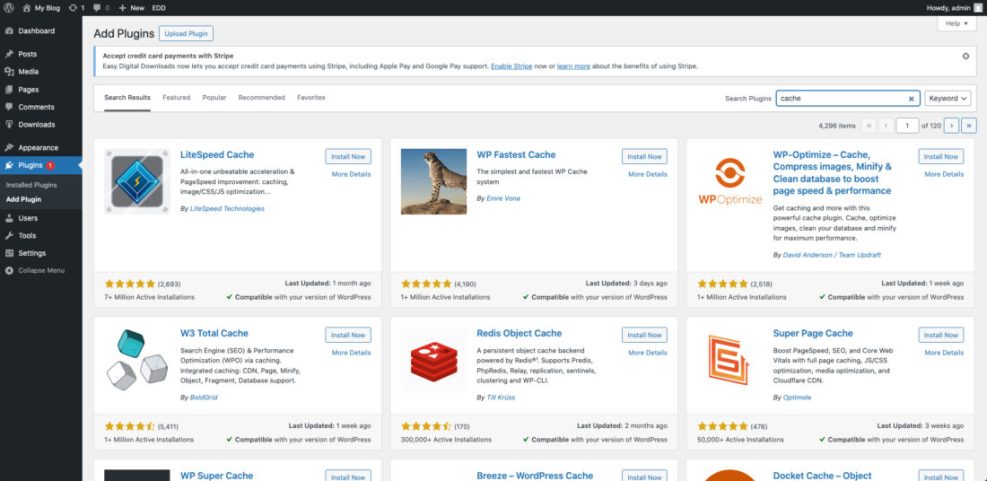
From your WordPress Dashboard, go to Plugins » Add New and search for “cache” to review popular caching plugins.
On Page SEO for Store Visibility
A fast store still needs clear SEO signals so search engines can understand every product and category. Clean URLs, focused keywords, descriptive titles, and structured data all work together to bring qualified visitors in through organic search. Good WooCommerce optimization combines these SEO basics with strong performance.
If you already use a WordPress SEO plugin, you can reuse many blog-focused features on your product pages with just a few tweaks.
Keyword Basics for Products and Categories
Every product and category should target a simple, buyer-focused keyword. Instead of stuffing long phrases everywhere, place the core term in the product title, slug, and one or two places in the description. Then use related phrases and benefits around it so the copy stays natural and easy to read.
- Use descriptive product names that include the main keyword and key attribute.
- Write short, clear slugs instead of long, autogenerated ones.
- Group products into logical categories and avoid overlapping names.
- Add one or two internal links from related blog posts to key categories.
You can pair this work with a deeper Is WordPress good for seo when you want to fine-tune site structure and indexing.
Better Titles, Descriptions, and Schema
Product titles and meta descriptions influence both rankings and click-through rate. A good pattern is to write titles that include the product name, one key feature, and your brand. Descriptions should highlight outcomes and frequently asked details instead of repeating the same keywords over and over again.
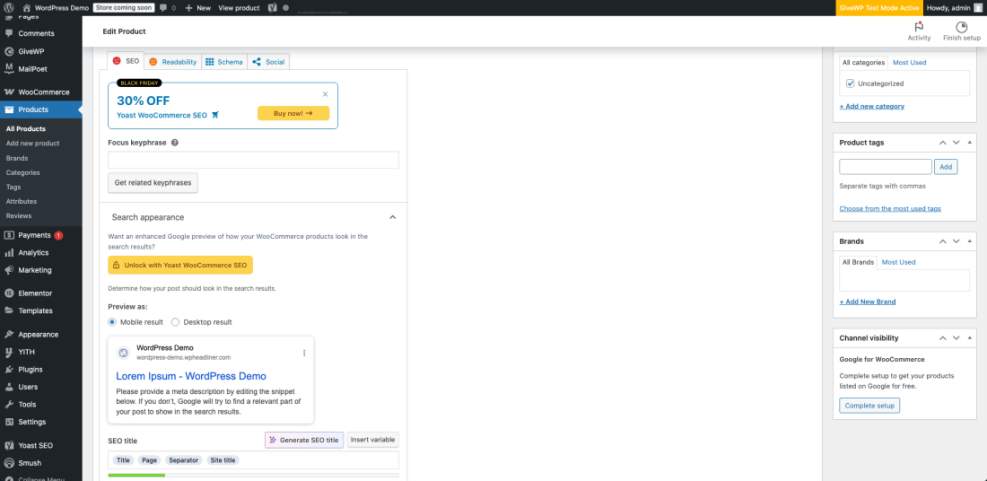
- Open a product from Products » All Products in your WordPress Dashboard.
- Scroll down to your SEO plugin section under the content editor.
- Edit the SEO title and meta description fields with clear, benefit-focused text.
- Enable product schema or rich snippets if your SEO plugin supports them.
When you add rich snippets, search results can show prices, stock status, and ratings, which often improves click-through from competitive keywords.
Open a product edit screen and scroll to the SEO plugin box near the bottom of the page.
Internal Links and Store Architecture
Internal links help search engines and shoppers move between related content. Link from buying guides and blog posts to product categories, from categories to best-selling products, and from products to relevant upsells. Breadcrumbs and a clean menu structure reduce confusion and keep more visitors engaged.
For extra guidance, you can review the official WooCommerce plugin documentation while planning your long-term store structure.
Conversion Boosts on Product and Checkout Pages
Speed and SEO bring people in, but conversion optimization turns visitors into customers. Clear product pages, frictionless checkout, and strong trust elements all increase the percentage of visitors who finish a purchase. Small changes here compound over time, especially if you already invest in ads or email marketing.
Focus on simplifying choices, reducing form fields, and showing the right reassurance at the right moment.
What Slows Shoppers at Checkout?
Common checkout problems include long forms, forced account creation, unexpected fees, and slow payment gateways. Each extra step gives visitors another chance to drop off. When you remove nonessential fields and offer guest checkout, you shorten the path to payment and improve the perceived speed of your WooCommerce optimization work.
- Go to WooCommerce » Settings and open the Accounts & Privacy tab.
- Allow guest checkout and avoid forcing account creation before payment.
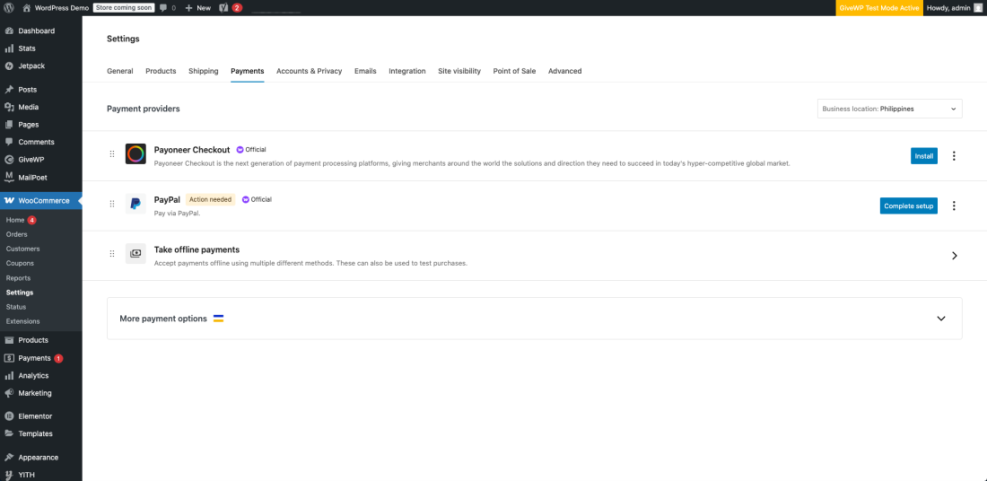
- Open the Payments tab and disable gateways that are slow or rarely used.
- Test a full checkout flow in an incognito window on desktop and mobile.
Once you streamline checkout, track abandoned cart rate over several weeks to confirm whether the changes stick.
From your WordPress Dashboard, click WooCommerce » Settings » Payments to review active payment methods.
Product Page Elements That Sell
High-converting product pages use strong images, clear pricing, and a prominent call-to-action button. Short benefit-focused bullet points near the top tell shoppers why the product matters, while longer technical details sit lower on the page. Reviews, FAQs, and comparison charts also help reduce uncertainty.
- Place your main product image above the fold and keep it clean and focused.
- Use a single, high-contrast “Add to cart” button color across the site.
- Add three to five bullet points that describe outcomes instead of features.
- Show related products that are truly relevant, not just everything on sale.
When visitors clearly understand what they get and what to do next, they move to checkout faster and more confidently.
Trust Badges, Reviews, and Social Proof
Trust signals matter even more for new or unknown brands. Ratings, verified reviews, money-back guarantees, and secure payment badges all reduce anxiety. Be honest and consistent with your claims so you build long-term trust instead of chasing short-term clicks.
You can deepen this topic later with a dedicated WooCommerce Conversion Copywriting Guide focused on messaging and persuasion.
Technical Tweaks and Helpful Code Snippets
Once you have strong hosting, caching, and SEO basics, targeted technical tweaks can squeeze out even more performance. These steps are optional, but they help advanced users and agencies control where WooCommerce scripts load and how much work the server does on non-store pages.
Always test code changes on a staging site first so your live store stays stable while you experiment.
Disable Unneeded WooCommerce Scripts
WooCommerce loads some JavaScript globally, even on pages that do not show the cart or checkout. In many stores, disabling cart fragments on non-commerce pages reduces CPU load and improves initial rendering. The snippet below removes that script everywhere except cart, checkout, and order endpoints.
add_action( 'wp_enqueue_scripts', 'wpheadliner_optimize_wc_scripts', 99 );
function wpheadliner_optimize_wc_scripts() {
    if ( function_exists( 'is_woocommerce' ) && ! is_cart() && ! is_checkout() && ! is_wc_endpoint_url() ) {
        wp_dequeue_script( 'wc-cart-fragments' );
    }
}
Limit Bloat From Plugins and Fonts
Every plugin and font you add can slow down your store. Performance problems often come from many small choices instead of a single “bad” extension. A quick audit helps you decide what to keep, replace, or remove entirely.
- Deactivate and delete plugins you no longer need, then test the site carefully.
- Replace multipurpose plugins with focused ones that do a single job well.
- Limit custom font families and weights to the minimum your design requires.
- Host key fonts locally instead of loading them from multiple third-party CDNs.
When you trim plugin and font bloat, you reduce the number of requests the browser must handle on every page load.
Core Web Vitals and Lab Testing
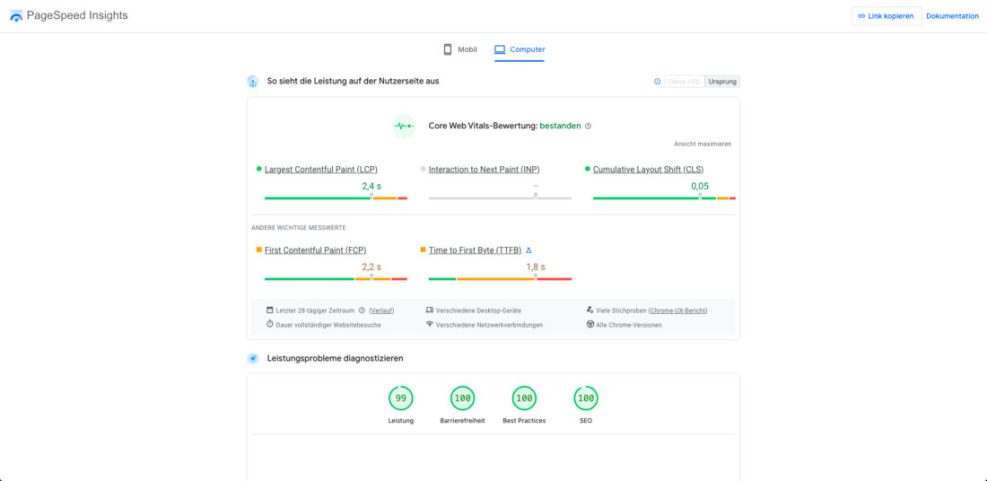
Core Web Vitals measure how real users experience your store. Metrics like Largest Contentful Paint, Cumulative Layout Shift, and interaction latency show whether people see and use your pages comfortably. Tools like Google PageSpeed Insights and Lighthouse give you a repeatable way to test and compare different WooCommerce optimization changes.
Visit the official PageSpeed Insights tool and test your most important product and checkout URLs regularly.
Open your browser, navigate to the PageSpeed Insights website, and paste in your main shop URL for testing.
Tracking Results and Ongoing Improvements
Without measurement, it is hard to know which changes actually help. Simple tracking of performance, SEO, and conversions lets you double down on what works and roll back what does not. Over time, this habit produces a faster, more profitable store with fewer surprises.
You do not need complex dashboards to start. A basic analytics setup is enough for most small and medium stores.
Which Metrics Should You Watch?
At minimum, track average page load time, conversion rate, revenue per visitor, and cart abandonment rate. For SEO, follow organic traffic and rankings for your main product and category keywords. When you improve Core Web Vitals and reduce checkout friction, you should see these numbers trend in the right direction.
How to Test Changes Safely
Safe testing protects both your revenue and your sanity. Instead of editing a live store at random, make changes on a separate copy first. When you work this way, you avoid outages, weird one-off bugs, and stressful late-night debugging sessions.
- Create a staging site through your hosting control panel or a cloning plugin.
- Apply theme, plugin, and code changes on staging, then run basic speed tests.
- Click through product listings, cart, and checkout to confirm everything still works.
- Push changes to the live site only after you are comfortable with the results.
This simple workflow keeps your WooCommerce optimization process repeatable and much less risky.
Building a Simple Optimization Routine
A light monthly routine is enough for many stores. Review speed and key metrics, update plugins and themes, clean old logs and drafts, and note any unusual patterns. Twice a year, schedule a deeper review of hosting, theme, and checkout experience so you stay ahead of growth rather than reacting to crises.
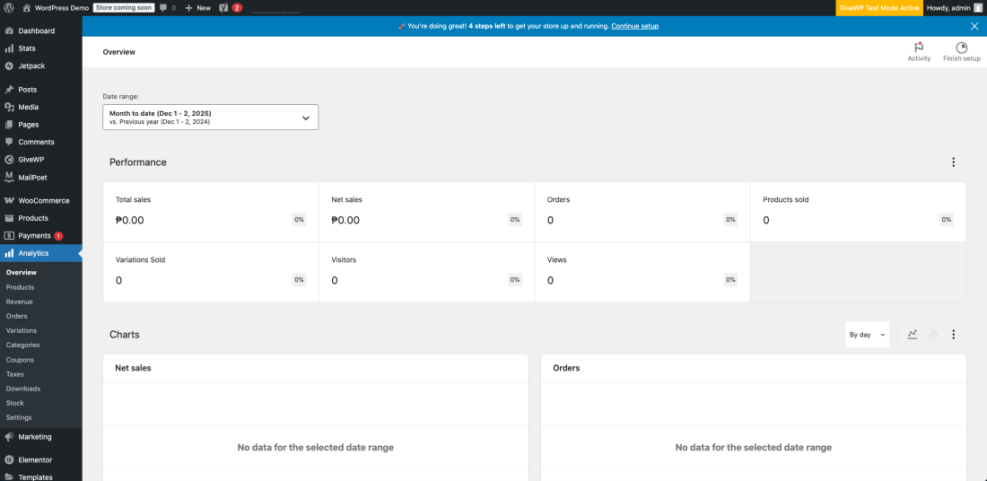
From your WordPress Dashboard, go to WooCommerce » Analytics » Overview to see revenue, orders, and conversion trends.
WooCommerce Optimization: Conclusion
Effective WooCommerce optimization is not about chasing every new tactic. Instead, it is about doing the fundamentals well and revisiting them regularly. Solid hosting, smart caching, clean product SEO, and frictionless checkout together deliver most of the gains you see in speed, rankings, and revenue.
Choose one area from this guide to improve today, such as hosting, images, or checkout forms. Then test, measure, and document the impact before moving on. Over time, this steady approach will give you a faster, more profitable store than any one-time “quick fix.”
More WordPress Guides You Might Like
When you are ready to go deeper, these future guides will expand on specific parts of your WooCommerce workflow, from hosting choices to detailed conversion strategies.
- How to choose the best WordPress hosting
- Beginner Guide to WordPress Speed Optimization
- WordPress speed optimization step by step
- Beginner guide WordPress speed core web vitals
Use these topics as a roadmap for your learning plan. By working through them over time, you will build a store that is faster, easier to manage, and more resilient to changes in search and advertising costs.
Frequently Asked Questions About WooCommerce Optimization
How to Use This FAQ
Use these short answers as a quick reminder when you revisit performance, SEO, or conversion work later. Each one highlights a practical rule of thumb you can apply without digging back into the full guide.
What is WooCommerce optimization, in simple terms?
How fast should a WooCommerce store load?
Do I need a developer to speed up WooCommerce?
Which plugins help most with WooCommerce performance?
How often should I review my store’s speed and SEO?