WooCommerce Hardening Checklist Secure Your Online Store
Practical security steps to lock down your WooCommerce store

A practical hardening checklist helps you turn your WooCommerce store into a secure, trustworthy shop. When you treat your WooCommerce hardening checklist as a recurring task instead of a one-time job, you reduce the risk of hacks, data leaks, and downtime that can cost real money and reputation.
In this guide, you will walk through a clear, repeatable hardening checklist that focuses on the areas attackers target most often: software updates, hosting, logins, plugins, backups, and checkout security. Each section explains what to check, which settings to adjust, and how to keep your store safe over time.
WooCommerce Hardening Checklist Essentials
Your Security At A Glance
Before you dive into details, it helps to see the big picture. A solid WooCommerce hardening checklist covers updates, hosting, logins, plugins, backups, monitoring, and payments. You can run through this quick list monthly and after any major change.
- Keep WordPress, WooCommerce, and all plugins fully updated as part of your hardening checklist.
- Use secure, WordPress-optimized hosting with SSL and firewalls.
- Enforce strong passwords and two-factor authentication for admins.
- Limit admin users, lock down wp-admin, and review user roles regularly.
- Remove unused plugins and themes; use trusted sources only.
- Configure safe file permissions and disable theme/plugin file editing.
- Run automatic backups to offsite storage and test restores.
- Install a reputable security plugin and web application firewall.
- Secure checkout with HTTPS and trusted payment gateways only.
- Log important activity and review security alerts regularly.
Print this WooCommerce hardening checklist or save it as a recurring task. As your store grows, you can add more advanced checks, but these basics will already stop most automated attacks and many manual ones.
Updates and Hosting Security Foundations
Why Updates Matter So Much
Attackers love outdated software because public vulnerabilities often have ready-made exploits. Therefore, your hardening checklist should always start by keeping WordPress core, WooCommerce, themes, and plugins updated to the latest stable versions. Always test large updates on a staging site before pushing them live.
How Often Should You Update WooCommerce?
For most stores, you should check for updates at least once per week and apply minor updates quickly. Major updates deserve a short test cycle first, especially if you run many extensions or a custom theme. Adding this step to your monthly WooCommerce hardening checklist ensures it never gets forgotten.
Choosing Secure WooCommerce Hosting
Your host is the first security wall. Look for managed WordPress or WooCommerce plans with firewalls, malware scans, isolated accounts, daily backups, and free SSL certificates. In addition, confirm that the provider keeps PHP and database software up to date and offers 24/7 support for emergencies.
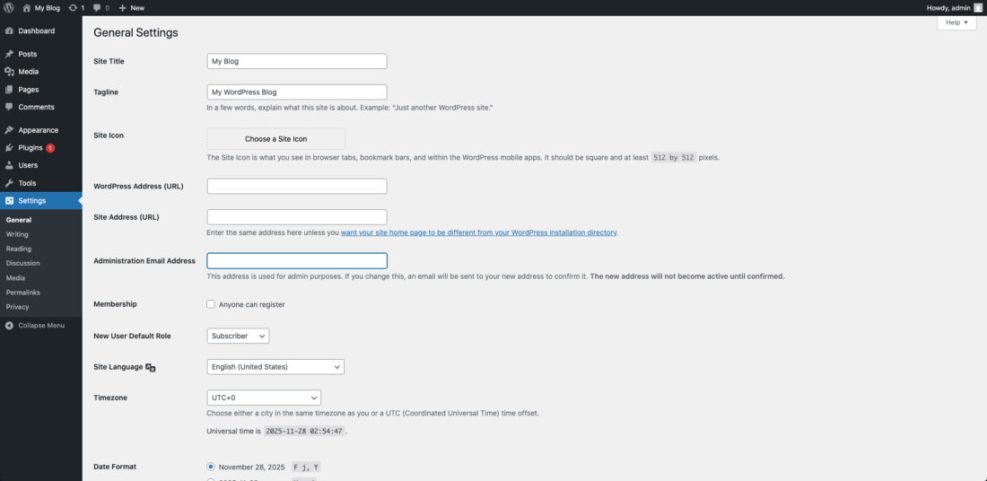
Navigate to Settings » General and verify your WordPress Address and Site Address use https://. This small check belongs on every hardening checklist because it directly affects how secure your admin and checkout pages are.
Login and Access Protection Measures
Enforce Strong Passwords and Two-Factor Auth
Weak passwords are still one of the easiest ways in for attackers. Your WooCommerce hardening checklist should require long, unique passwords for all admin and shop manager accounts, and avoid shared logins. In addition, enable two-factor authentication (2FA) so that even a leaked password is not enough to break in.
How Do You Limit Login Attempts?
You should limit failed login attempts to slow down brute-force attacks. A security plugin or dedicated login-limiter can block IPs after several failures and show you suspicious activity. For most stores, a limit of three to five attempts per username or IP works well and fits neatly into your login security hardening checklist.
Control Roles and wp-admin Access
Give each user the lowest role needed to do their job. For example, support staff might only need the Shop Manager role, not full Administrator rights. Remove old accounts when staff leave, and avoid using the default “admin” username on any live site.
Navigate to Users » All Users and filter by role to review who really needs elevated access. This quick review step is a simple but powerful part of your hardening checklist.
Plugins Themes and File Security
Use Trusted Extensions Only
Plugins and themes extend your store but also increase its attack surface. Your WooCommerce hardening checklist should remind you to install them from trusted sources only, such as the official WordPress.org repository or reputable vendors. Remove anything you no longer use rather than only deactivating it.
Should You Disable XML-RPC in WooCommerce?
If you do not use external apps that rely on XML-RPC, disabling it can reduce one more attack vector. Many attacks target xmlrpc.php for brute-force logins and DDoS. You can turn it off via security plugins or server rules while keeping the REST API available, and note this choice in your hardening checklist so it remains consistent across environments.
Tighten File Permissions And Disable File Editing
File permissions decide who can read and modify code on your server. A typical secure setup keeps files at 644 and directories at 755. You should also disable the built-in file editor so attackers cannot inject malware directly through wp-admin if they ever get in.
Navigate to Appearance » Theme File Editor and confirm access is blocked after you disable editing via configuration. This verification step deserves a permanent line in your WooCommerce hardening checklist.
Backups Monitoring and Malware Scanning
Set Up Reliable Backup Routines
Backups are your safety net when something goes wrong. Ideally, you store backups offsite, run them at least daily, and keep a longer archive for rollbacks. For busy WooCommerce shops, real-time or hourly database backups capture orders without gaps. Make “check backup status and test a restore” a non-negotiable item on your hardening checklist.
How Do You Detect Malware In WooCommerce?
A good security plugin or external scanner can compare your files to known clean versions and flag suspicious changes. Regular scans, plus alerts for modified core files or unknown admin accounts, help you spot problems early. If you see unusual redirects or spikes in resource usage, scan immediately and add a note to your hardening checklist about what triggered the investigation.
Use a Web Application Firewall
A web application firewall (WAF) sits in front of your site and filters malicious requests. Many managed hosts include a server-level WAF, and services like Cloudflare or dedicated security plugins add another layer. Combining a WAF with strong login controls blocks a wide range of common attacks and should be highlighted clearly in any serious WooCommerce hardening checklist.
Navigate to your security plugin’s Firewall or Web Application Firewall tab and review blocked requests each week.
Checkout Payments and Customer Data
Secure Checkout And Payment Gateways
Your checkout flow handles the most sensitive data. Always use HTTPS on all checkout and account pages, and rely on PCI-compliant payment gateways like Stripe or PayPal that tokenize card data instead of storing it on your server. Avoid custom payment forms that bypass gateway best practices; your hardening checklist should explicitly remind you not to store card details locally.
What Is PCI Compliance For WooCommerce?
PCI compliance means following industry rules for handling cardholder data. With WooCommerce, you usually meet these rules by using trusted gateways, forcing HTTPS, and never storing raw card details. However, you are still responsible for keeping your application and server secure and monitoring for suspicious orders, so PCI checks belong in your WooCommerce hardening checklist.
Reduce Data You Collect And Store
Every extra field you add to checkout is something you must protect. Collect only the data you actually need, and set reasonable retention periods for logs and order exports. In addition, restrict who can export customer data inside WooCommerce, and log whenever someone does. A simple line in your hardening checklist to “review data collection and exports” helps keep this under control.
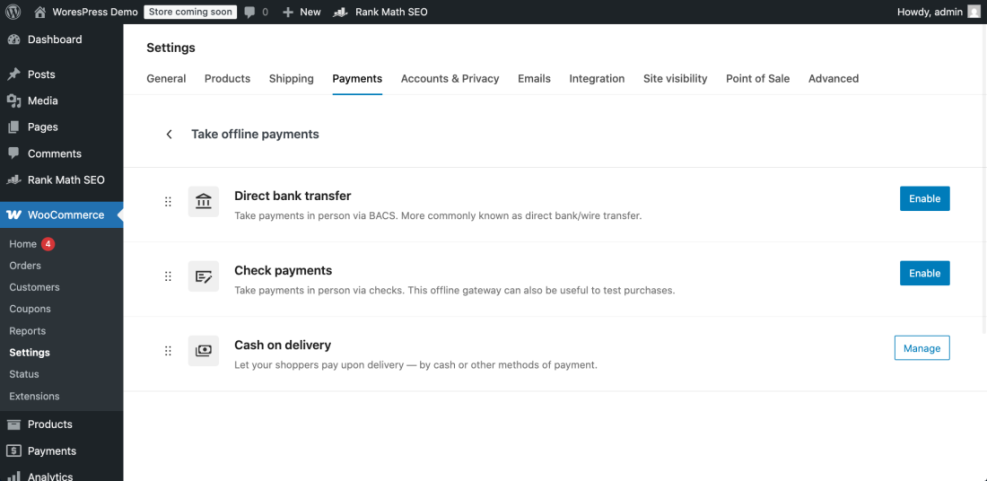
Navigate to WooCommerce » Settings » Payments to confirm you only enable trusted gateways and require HTTPS for each one.
Code and Server Tweaks for Safety
Helpful wp-config Hardening Options
Several small changes in wp-config.php can block whole classes of attacks. For example, you can disable the file editor and force secure admin sessions. Always back up the file before editing and test on a staging site if possible, and remember to list these wp-config changes in your WooCommerce hardening checklist.
// Add to wp-config.php above the /* That's all, stop editing! */ line
define( 'DISALLOW_FILE_EDIT', true );   // Disable theme and plugin editors
define( 'FORCE_SSL_ADMIN', true );      // Force SSL for all admin logins
Basic .htaccess Protections
On Apache servers, a few .htaccess rules help protect critical files. These examples block direct access to wp-config.php and xmlrpc.php. If you use Nginx instead, ask your host to implement similar rules at the server level and record the configuration in your hardening checklist for future reference.
<Files wp-config.php>
    order allow,deny
    deny from all
</Files>

<Files xmlrpc.php>
    order allow,deny
    deny from all
</Files>
Should You Use Security Headers?
Security headers such as Content-Security-Policy and X-Frame-Options give browsers extra instructions on how to handle your pages. They help stop clickjacking and some script injections. Because a strict policy can also break scripts, start with your host’s recommended presets and tighten them slowly while testing. Once you find a stable configuration, add it to your WooCommerce hardening checklist so it’s applied consistently across environments.
Hardening Checklist: Conclusion
Turn Security Into A Habit
A one-time cleanup is not enough for a busy online store. When you treat your WooCommerce hardening checklist as a recurring process, you catch issues before attackers do. Regular reviews of updates, logins, plugins, backups, and checkout security keep your store resilient as traffic and revenue grow.
Your Next Three Actions
Right after reading this, schedule a monthly security review, enable 2FA for every admin, and verify that your backups can restore a recent copy of your site. If any area feels unclear, add it as a follow-up task in your hardening checklist rather than letting it drift for another season.
More WordPress Guides You Might Like
You can deepen your security knowledge by exploring related WordPress topics, from general hardening to performance and maintenance routines. Use them to expand your overall hardening checklist beyond WooCommerce and cover your entire WordPress ecosystem.
- WordPress migration checklist for blogs
- How to choose the best WordPress hosting
- Step By Step Guide To Restoring WooCommerce From Backup
- WordPress seo complete beginners guide
- Woocommerce performance tips for faster stores
Use these topics as a roadmap for building a stronger security culture around your store, instead of reacting only when something breaks.
Frequently Asked Questions About Your Hardening Checklist
What is a WooCommerce hardening checklist?
How often should I review my store security?
Do I need a security plugin if my host is secure?
Will strong passwords and 2FA slow my team down?
What is the fastest way to recover from a hack?