Which is Better HTML or WordPress
A Practical Guide to Choosing the Right Approach for Your Website

Stuck choosing between building a site with pure HTML or using WordPress? You’re not alone. Many beginners think they must pick one “best” option, but the truth is that HTML and WordPress solve slightly different problems.
In this guide, you’ll quickly understand what HTML does, what WordPress does, and how they work together. You’ll see where HTML is the better choice, where WordPress wins, and how to decide based on your skills, budget, and long-term plans. If you’re unsure what WordPress actually is, start with this primer on what WordPress is and how it works before you decide.
By the end, you’ll know exactly when to stick with a simple HTML site and when to choose WordPress as your content management system (CMS), especially if you care about SEO, updates, and ease of editing.
Step 1: Understand What HTML Actually Is
HTML (HyperText Markup Language) is the basic building block of every web page. It tells the browser what to show: headings, paragraphs, images, links, and so on. When you create a “pure HTML” site, you are working directly with these building blocks.
Think of HTML as building a house brick by brick. You control every element, but you must manage all the pieces yourself: structure, layout, navigation, and updates.
Here’s a simple HTML file you might create in a code editor like VS Code or Notepad++ and upload via FTP or your hosting File Manager:
<!DOCTYPE html>
<html lang="en">
<head>
  <meta charset="UTF-8">
  <title>My HTML Site</title>
</head>
<body>
  <h1>Welcome to My Site</h1>
  <p>This page is built with pure HTML.</p>
</body>
</html>
Step 2: Understand What WordPress Actually Does
WordPress is a content management system (CMS), not a programming language. Under the hood, it uses PHP, HTML, CSS, and JavaScript, but it wraps them in an admin dashboard where you can add pages, posts, images, and menus without touching code.
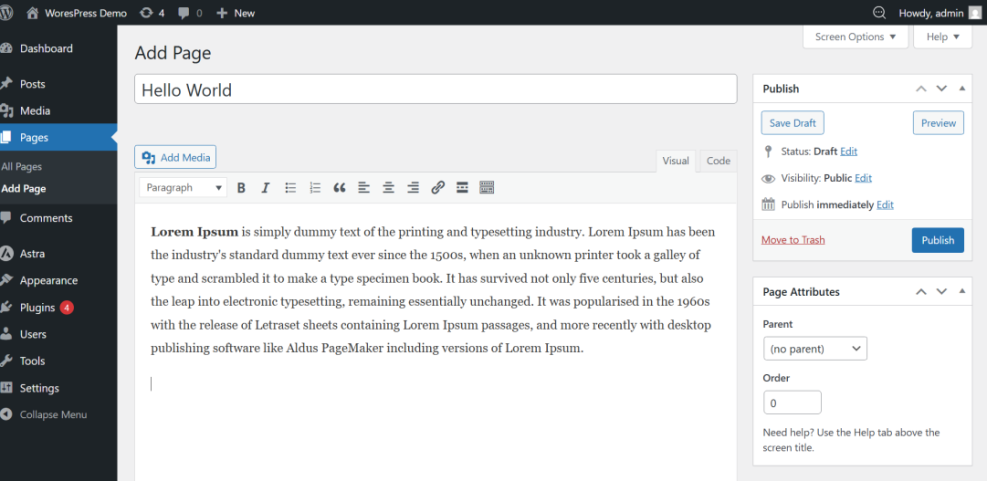
Instead of manually editing HTML files, you log in to your WordPress Dashboard, click Pages > Add New, type your content, and click Publish. WordPress generates the HTML for you and handles navigation, templates, and many technical details automatically.
Step 3: Match HTML or WordPress to Your Use Case
Before asking “Which is better?”, ask “Better for what?” The right choice depends heavily on what you’re building and who will maintain it.
Use this quick guide to match the tool to the job:
- Single landing page or one-page site: HTML can be perfect if it rarely changes and you’re comfortable editing code.
- Blog, news site, or content-heavy website: WordPress is usually the better choice because it handles posts, categories, tags, and archives automatically.
- Business website that will grow: WordPress wins for long-term flexibility, plugins (forms, bookings, SEO), and non-technical editing.
- Web app or very custom front end: Pure HTML (plus a framework) may be better if you need a tailor-made experience and have developer resources.
- Ecommerce store: WordPress with WooCommerce or another ecommerce plugin is usually easier than coding full ecommerce in raw HTML.
Step 4: Compare HTML vs WordPress Feature by Feature
Now let’s compare how HTML and WordPress perform across key criteria that matter for most site owners: speed, control, ease of use, security, SEO, and cost.
Speed & Performance
A well-built HTML page loads extremely fast because it’s just a simple file. There’s no database or PHP processing. For tiny sites with a handful of pages, pure HTML can be faster out of the box.
WordPress adds overhead: PHP processing, database queries, and plugins. But with caching, a good theme, and proper hosting, a WordPress site can still be very fast and scalable.
Control & Flexibility
HTML gives you pixel-level control over structure and markup. If you’re a developer, this is great. But you must build everything yourself: navigation, layouts, forms, and responsive design.
WordPress gives you control via themes, templates, and plugins. You can extend it endlessly, but you must work within the WordPress way of doing things. For choosing between different CMS options in general, see this guide to the best CMS platforms compared.
Ease of Use & Learning Curve
For non-developers, editing raw HTML is intimidating and error-prone. A missing tag can break your layout.
WordPress has its own learning curve (dashboard, themes, plugins), but once set up, non-technical users can create and edit pages without touching code.
Security & Maintenance
A static HTML site has a tiny attack surface—no database, fewer scripts—so there’s less to hack. Security problems usually come from the server (e.g., outdated PHP) rather than the HTML itself.
WordPress is more complex and widely targeted. You must update WordPress core, themes, and plugins, and follow security best practices. The upside is that you get security plugins, backups, and maintenance workflows that don’t exist for raw HTML files.
SEO & Features
With HTML, SEO is entirely manual: title tags, meta descriptions, schema markup, and internal links must be coded by hand or via templates you build.
WordPress integrates SEO plugins that automate much of this. That makes it easier for beginners to configure titles, meta descriptions, XML sitemaps, and structured data without coding.
Step 5: Decide Using a Simple Checklist
Use this quick checklist to decide whether HTML or WordPress is better for your current project.
Choose HTML if:
- You’re comfortable editing code in a text editor.
- Your site has only a few pages and rarely changes.
- You want maximum speed with minimal moving parts.
- You don’t need a blog, ecommerce, or complex features.
Choose WordPress if:
- You want to edit content without touching code.
- Your site will grow (blog posts, landing pages, categories).
- You need plugins for forms, SEO, ecommerce, or memberships.
- Multiple people will manage the website.
Step 6: Take Action Based on Your Choice
Once you’ve decided, the next step is to set up your stack correctly so you don’t create technical debt you’ll regret later.
If You Choose HTML
- Pick your hosting and domain. Use a simple shared hosting plan or static hosting provider, and connect your domain.
- Set up a project structure. Create a folder like
/sitewith subfolders for/css,/js, and/images. - Build your templates. Create a base HTML file (header, footer, navigation) and reuse it across pages.
- Plan an update process. Decide how you’ll handle future changes—edit files locally, then upload via FTP or your host’s File Manager.
If You Choose WordPress
- Choose a good host and install WordPress. Many hosts offer 1-click WordPress installs or managed WordPress plans.
- Select a clean, lightweight theme. Avoid bloated themes with too many bundled features; start with something fast and minimal.
- Install only essential plugins. Focus on backups, security, caching, and a contact form before adding extras.
- Set up your core pages. Create your homepage, about, services, and contact pages from the Dashboard.
- Plan your content strategy. If you’ll blog regularly, map out categories and an editorial calendar.
If you go the WordPress route and want a clear path from zero to live site, follow a step-by-step tutorial like how to start a WordPress website to avoid missing important setup tasks.
Making the Right Choice Between HTML and WordPress
HTML and WordPress are not enemies—they’re different layers of the same web stack. HTML is the raw material that every page needs, while WordPress is a powerful system that generates and manages that HTML for you.
Choose pure HTML when you want a tiny, rarely updated site and have the technical skills to maintain it. Choose WordPress when you care about non-technical editing, growth, plugins, and long-term SEO. For most businesses, creators, and bloggers, WordPress is the more practical choice, with HTML skills used to refine, not replace, the CMS.
If you’re still unsure, start with WordPress. You can always add custom HTML when you need deeper control, but turning a growing HTML site into a manageable CMS later is much harder than you think.
Further Reading
- Which Is Better: Wix or WordPress?
- How to Choose the Best Blogging Platform
- WordPress Guides & Tutorials Overview
- How to Choose the Best Website Builder
Frequently Asked Questions
Should I choose HTML or WordPress for my very first website?
Why is my WordPress site slower than a simple HTML page?
Is WordPress less secure than a plain HTML site?
How much time does it take to launch with WordPress vs HTML?
Can I mix custom HTML with WordPress without breaking my design?