Whats WordPress, and why do so many blogs and business sites use it? If you’ve ever typed “Whats WordPress” into Google, you’re looking for a simple explanation of what this platform does and how it helps you publish content online.
WordPress is the engine behind millions of websites, from tiny personal blogs to major news portals. It started as a simple blogging tool, but today it’s a flexible content management system (CMS) that lets you publish almost any type of site without writing code. By the end of this guide, “Whats WordPress” won’t be a mystery anymore.
In this guide, you’ll see what WordPress actually is, how it works behind the scenes, and what you need to launch your first site. The steps focus on beginners, so you can understand the core ideas before diving into themes, plugins, and advanced customization.
Whats WordPress? Quick Answer for Beginners
What Is WordPress in Simple Terms?
At its core, when someone asks “Whats WordPress,” the answer is: it’s free software you install on a web server to create and manage a website. Instead of hand-coding HTML, you log in to a dashboard, write posts and pages, upload images, and control your design with themes and plugins. It runs on PHP and uses a MySQL database to store your content.
Why Is WordPress So Popular?
WordPress is popular because it’s open source, highly customizable, and beginner-friendly. You can start with a basic blog and later grow into a full store, membership site, or online course platform using plugins. A huge community of developers, designers, and tutorial creators means you rarely get stuck without help when you’re learning the answer to “Whats WordPress” in practice.
How WordPress Works for Bloggers and Site Owners
The Difference Between WordPress.org and WordPress.com
Understanding “Whats WordPress” starts with knowing there are two main “flavors” that confuse beginners:
- WordPress.org – The self-hosted version you install on your own hosting. You get full control, can upload any theme or plugin, and can customize your code.
- WordPress.com – A hosted platform that runs WordPress for you. It’s easier to start, but some features, themes, and plugins are limited on lower plans.
If you want maximum flexibility, self-hosted WordPress.org on a good host is usually the best long-term choice.
What Happens When Someone Visits Your WordPress Site?
When a visitor opens your site, WordPress:
- Receives the request on your web server.
- Loads WordPress core files, your theme, and active plugins.
- Queries the database for the requested post, page, or archive.
- Generates HTML using PHP templates in your theme.
- Sends the finished HTML to the browser along with images, CSS, and JavaScript files.
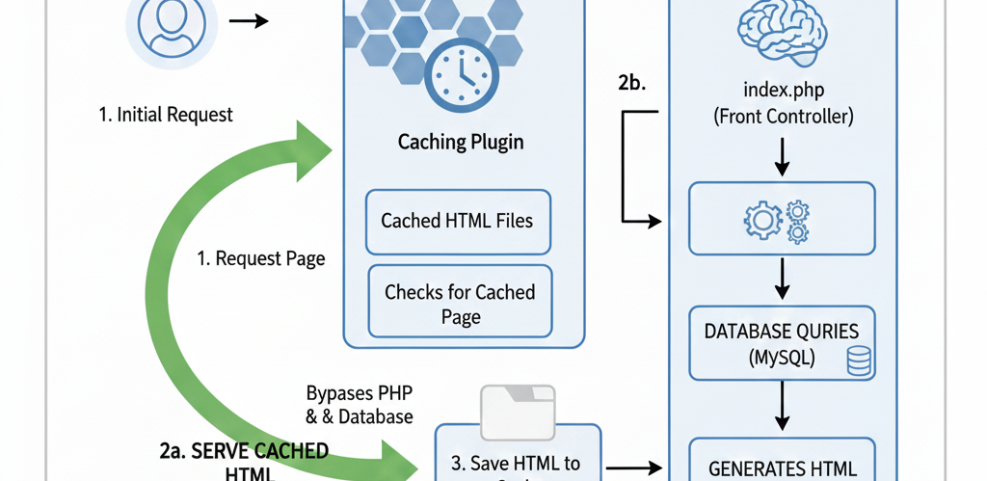
You rarely see this process as a user—you just click “Publish” in the dashboard and WordPress handles the rest.
What You Need to Run WordPress
Basic Hosting and Software Requirements
Most modern web hosts already support WordPress. In general, you need:
- PHP and MySQL (or MariaDB) support
- HTTPS (SSL certificate) for secure connections
- Enough disk space for your theme, plugins, and media
- A domain name that points to your hosting
- One-click WordPress installer or the ability to upload files
These basics let you install WordPress, log in to your dashboard, and start publishing posts.
Choosing a Domain and Hosting Plan
Your domain is your site’s address (like example.com), and your host is where WordPress lives. For a typical blog or small business site, a starter shared hosting plan is enough. As traffic grows, you can move to managed WordPress hosting or a VPS with better performance and support.
Key Features That Make WordPress Flexible
Themes Control Design and Layout
A WordPress theme controls how your site looks: colors, fonts, layouts, and templates for posts and pages. You can:
- Install free themes from the official WordPress directory.
- Purchase premium themes for extra features and support.
- Use page builders or block-based themes for drag-and-drop layouts.
You can switch themes without changing your content, so design and content stay separate.
Plugins Add New Features Without Coding
Plugins are add-ons that extend what WordPress can do. For example, you can use plugins to:
- Add contact forms and email opt-ins.
- Improve SEO and XML sitemaps.
- Turn your site into an online store with payments.
- Optimize images and caching for speed.
You should keep only the plugins you actually use and update them regularly for security.
How to Set Up a Basic WordPress Site
Install WordPress on Your Host
When people say “Whats WordPress used for?”, they usually mean how to get a working website online. Most hosts offer a one-click installer in your control panel:
- Log in to your hosting dashboard.
- Find the WordPress or Website installer tool.
- Select your domain and a directory (usually leave it blank for the main site).
- Choose a strong admin username and password.
- Click Install and wait for the process to finish.
You’ll receive a link to your new site and a login URL (often yoursite.com/wp-admin).
Basic Settings to Change First
Once inside your WordPress dashboard, you should adjust a few important settings:
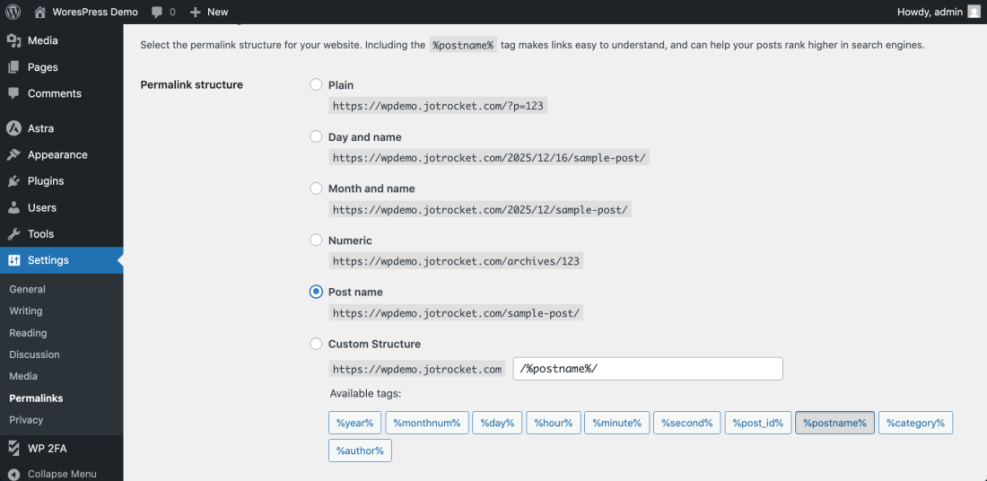
- Go to Settings » General and set your site title and tagline.
- Set your preferred URL format (with or without www).
- Configure timezone and date format to match your audience.
- Go to Settings » Permalinks and choose Post name for SEO-friendly URLs.
Publishing Posts and Pages
Using the Block Editor (Gutenberg)
The modern WordPress editor uses blocks for different types of content:
- Paragraph blocks for text.
- Heading blocks for H2, H3, and other headings.
- Image and Gallery blocks for photos.
- List blocks for bullet or numbered lists.
- Buttons, columns, and embeds for more advanced layouts.
You click the + icon to insert new blocks and drag them into the order you want.
Organizing Content With Categories and Tags
Categories and tags help visitors and search engines understand your site structure:
- Use categories for broad topics (e.g., Tutorials, Reviews, News).
- Use tags for specific topics or keywords (e.g., WordPress themes, backups, plugins).
Security, Backups, and Performance Basics
Keep WordPress, Themes, and Plugins Updated
Updates patch security holes and add new features. To stay safe:
- Turn on automatic updates where it makes sense.
- Remove unused themes and plugins instead of just deactivating them.
- Log in regularly to check for pending updates on the dashboard.
Use Backups and Basic Security Measures
A good backup and security setup can save your site from hacks or accidental mistakes:
- Install a reliable backup plugin and store copies off-site (cloud storage).
- Use strong passwords and enable two-factor authentication (2FA) if possible.
- Limit login attempts or use a security plugin to block brute-force attacks.
You can also combine these basics with a future Beginner WordPress security best practices guide to harden your site further.
Comparing Common WordPress Setup Options
Here is a quick comparison of typical WordPress approaches for beginners:
| Setup Type | Best For | Control Level | Notes |
|---|---|---|---|
| Self-Hosted WordPress.org | Bloggers and businesses who want full flexibility | High | Requires separate hosting and more responsibility, but offers maximum customization. |
| WordPress.com Free Plan | Personal blogs and hobby sites | Low | Easy to start, but limited themes, plugins, and monetization options. |
| WordPress.com Paid Plans | Serious bloggers wanting hosted convenience | Medium | Unlocks more themes and plugins, but still less freedom than self-hosted. |
| Managed WordPress Hosting | Growing sites and small businesses | High | Host handles performance and updates, often at a higher price point. |
This table helps you match your budget and technical comfort level to the right WordPress setup.
A Tiny Example of WordPress Template Code
How Themes Output Your Post Content
Behind the scenes, WordPress themes use PHP template tags to output content. A simplified loop in a theme file might look like this:
<?php if ( have_posts() ) :
    while ( have_posts() ) : the_post(); ?>

    <h1><?php the_title(); ?></h1>
    <div class="entry-content">
        <?php the_content(); ?>
    </div>

<?php endwhile;
endif; ?>
You don’t need to write this code as a beginner, but understanding that themes use PHP templates makes it easier to customize your site later.
WordPress Summary and Next Steps
So, Whats WordPress in plain language? It’s a powerful, beginner-friendly platform that lets you build almost any kind of site with themes and plugins. Once you have hosting and a domain, you can install WordPress, pick a theme, and start publishing without learning advanced coding.
Your next step is to decide whether you want self-hosted WordPress.org or a hosted WordPress.com plan, then follow a simple setup checklist. Next time a friend asks “Whats WordPress”, you’ll be able to explain the basics and point them to your own site as an example.
More WordPress Guides You Might Like
You can combine this basic overview with more focused tutorials to improve speed, security, and SEO. These future and related resources help you build a complete strategy around your WordPress site.
- WordPress Beginner’s Setup Checklist
- Essential WordPress Plugins for Bloggers
- Guide to WordPress Themes and Page Builders
- WordPress SEO Basics for New Sites
- Step by Step WordPress Backup Tutorial
You can treat this “Whats WordPress” guide as your starting point, then use these resources to grow from beginner to confident site owner.
Frequently Asked Questions About WordPress
Is WordPress really free?
Do I need to know how to code to use WordPress?
Can I build more than a blog with WordPress?
Is WordPress good for SEO?
How do I keep my WordPress site safe?