If you are new to WordPress, the term slug in WordPress can sound technical and confusing. In reality, a slug is simply the editable part of your URL that comes after your domain name and helps people and search engines understand what a page is about.
In this guide you will learn exactly what a slug is, where it appears in WordPress, how to edit slugs for posts, pages, categories, and tags, and how to create SEO friendly slugs that keep your URLs clean and readable.
What You Need to Start Using Slug in WordPress
- A working WordPress site installed on a web host.
- Administrator or Editor access to the WordPress Dashboard.
- At least one existing post or page you can safely edit.
- Optional but helpful a WordPress SEO plugin such as Yoast SEO or Rank Math (not required to follow this tutorial).
What Is a Slug in WordPress
In WordPress, a slug is the part of the URL that identifies a specific post, page, category, or tag in a readable way. It comes right after your domain and any parent folders.
- Open your website in a browser and visit any blog post.
- Look at the address bar. If your URL is https://example.com/how-to-start-a-blog/, the slug is how-to-start-a-blog.
- On a category archive such as https://example.com/category/wordpress-basics/, the slug is wordpress-basics.
You can think of the slug as the URL “nickname” for your content. It should be short, descriptive, and unique so visitors and search engines can quickly understand what the page is about.
How WordPress Generates a Slug in WordPress Automatically
WordPress automatically generates a slug from your post or page title the first time you save it. It converts letters to lowercase, replaces spaces with hyphens, and removes most special characters.
- In the WordPress Dashboard, navigate to Posts » Add New.
- Type a title such as How to Start a WordPress Blog.
- Click Save Draft or Publish.
- In the Classic Editor, look just under the title for the Permalink line. In the Block Editor, click the post title and then open the right sidebar, then expand the Permalink panel.
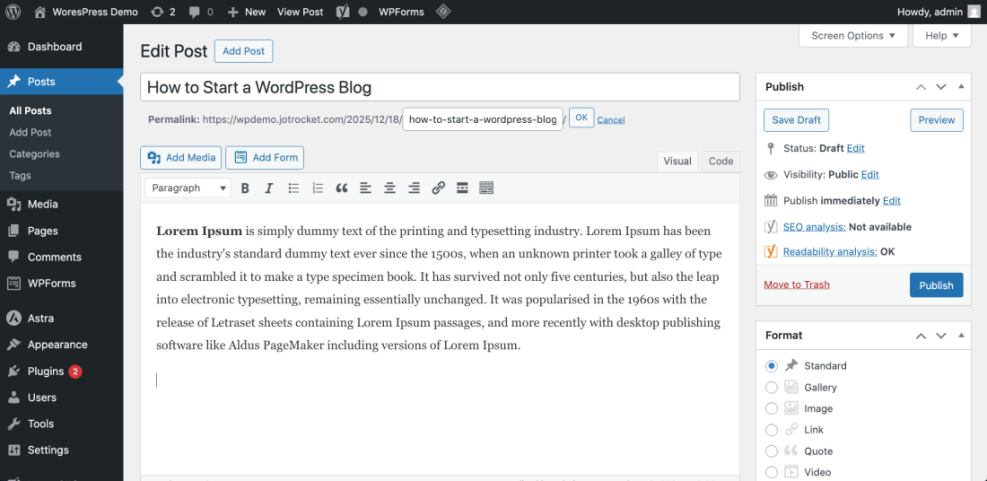
You will see WordPress turn that title into a slug like how-to-start-a-wordpress-blog. You can customize this slug at any time before or after publishing.
How to Edit a Post or Page Slug in WordPress
Editing the slug lets you shorten long URLs, remove unnecessary words, and align the URL with your main keyword. This improves clarity for readers and can help with SEO.
- In the Dashboard, go to Posts » All Posts (or Pages » All Pages).
- Hover over the item you want to change and click Edit.
- In the Classic Editor, locate the Permalink line under the title and click the small Edit button next to the URL.
- Type your new slug using only lowercase letters, numbers, and hyphens (for example wordpress-slug-basics).
- Click OK, then click Update to save the post.
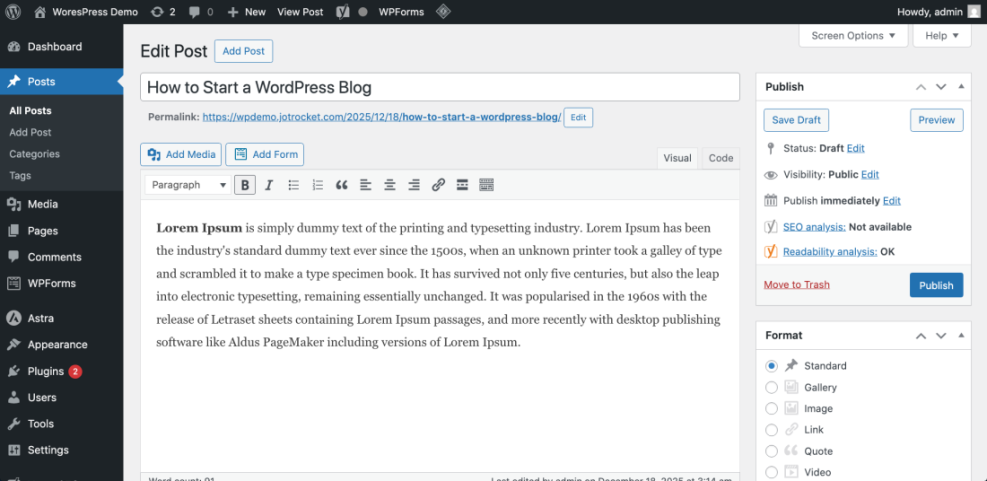
To verify the change, click View Post and check that the URL now uses the new slug. WordPress will usually redirect the old slug to the new one automatically so visitors do not see a 404 error.
How to Change Category and Tag Slugs in WordPress
Categories and tags also have slugs, which control the URLs of your archive pages. Cleaning these up keeps your content structure consistent and easier to navigate.
- In the Dashboard, go to Posts » Categories.
- Find the category you want to change and click Edit.
- Enter a new value in the Slug field, such as wordpress-basics.
- Click Update at the bottom of the screen.
- Repeat for Posts » Tags if you want to tidy up tag slugs.
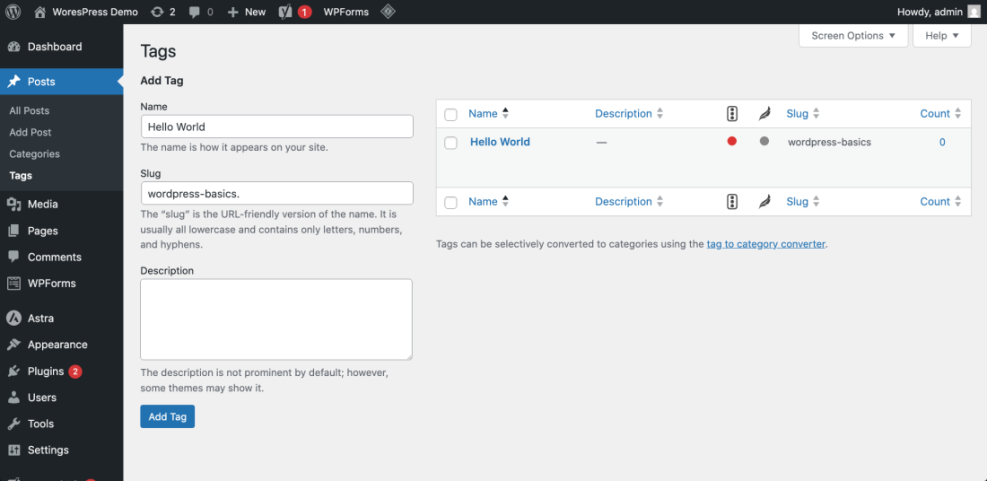
Visit the category or tag archive on the front end, confirm that the URL uses your new slug, and browse a few posts to make sure everything still works correctly.
Best Practices for an SEO Friendly Slug in WordPress
Well structured slugs help users understand your page and give search engines a strong hint about your main topic. Use these simple rules to make every WordPress slug SEO friendly.
- Include your primary keyword in the slug when it makes sense.
- Remove filler words such as “a”, “the”, “and”, “of”, and “for”.
- Keep slugs short and descriptive, ideally three to five words.
- Use hyphens to separate words, not underscores.
- Use only lowercase letters and numbers.
- Avoid dates in slugs unless the content is truly time sensitive.
For a deeper SEO overview, see WordPress seo complete beginners guide and the more detailed WordPress seo complete beginners guide. These guides show how your slug fits into your broader on page SEO strategy.
Methods to Manage WordPress Slugs and URLs
| Method | Where You Use It | Main Purpose |
|---|---|---|
| DIY Manual Maintenance | WordPress dashboard and hosting control panel | Maximum control over updates, backups, and checks for small or low-risk sites. |
| Managed Hosting Tools | Your host’s control panel or custom dashboard | Simplify routine maintenance with one-click updates, built-in backups, and basic security. |
| Maintenance & Security Plugins | Plugins section inside the WordPress dashboard | Automate repetitive work like backups, database cleanup, image optimization, and security scans. |
| WP-CLI and Developer Tools | SSH terminal with WP-CLI and deployment tools | Scriptable, fast maintenance for developers managing multiple or complex sites. |
| Professional WordPress Care Plan | External provider, freelancer, or agency | Hands-off maintenance with proactive monitoring, fixes, and expert support. |
Control Your WordPress Slug Structure with Permalinks
The slug is only one part of your full URL. WordPress uses a permalink structure to decide what appears before the slug, such as dates, categories, or just the post name.
- In the Dashboard, go to Settings » Permalinks.
- Under Common Settings, select Post name to use clean URLs like https://example.com/sample-post/.
- Click Save Changes at the bottom.
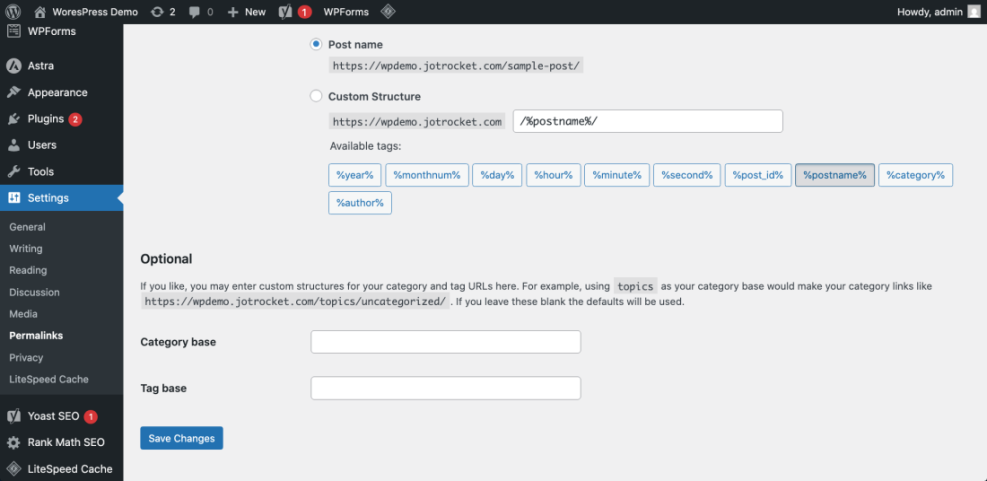
This structure keeps your URLs short and focuses on the slug itself, which is ideal for most blogs and business sites. For more details on all available structures, read Beginner guide to WordPress speed optimization and What is managed WordPress, or review the official WordPress.org permalink settings documentation.
Programmatically Customize Slug in WordPress (Developers)
If you manage many posts or custom post types, you might want to adjust slugs automatically using a small code snippet rather than editing each one manually.
- Create or edit your child theme’s functions.php file, or a small site specific plugin.
- Add a filter to modify the slug when a post is saved.
- Test on a staging site before deploying to production.
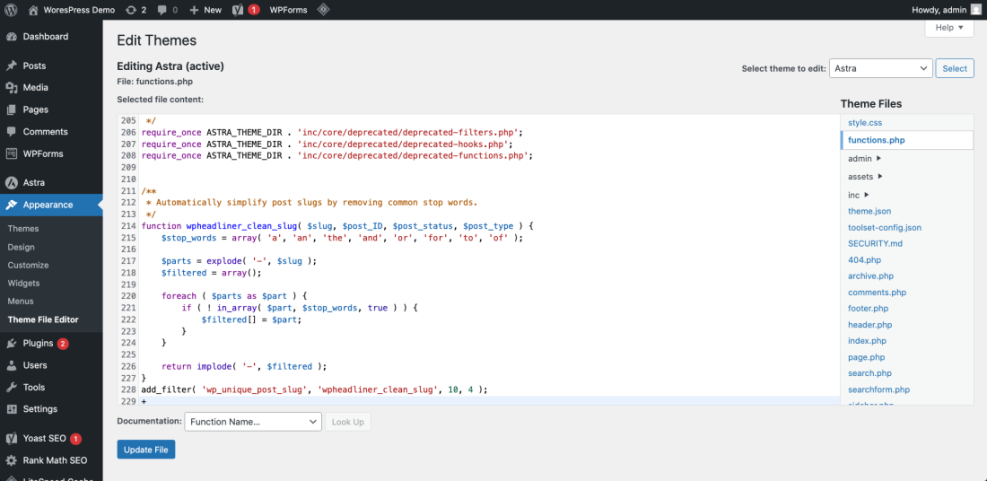
/**
 * Automatically simplify post slugs by removing common stop words.
 */
function wpheadliner_clean_slug( $slug, $post_ID, $post_status, $post_type ) {
    $stop_words = array( 'a', 'an', 'the', 'and', 'or', 'for', 'to', 'of' );

    $parts = explode( '-', $slug );
    $filtered = array();

    foreach ( $parts as $part ) {
        if ( ! in_array( $part, $stop_words, true ) ) {
            $filtered[] = $part;
        }
    }

    return implode( '-', $filtered );
}
add_filter( 'wp_unique_post_slug', 'wpheadliner_clean_slug', 10, 4 );
After adding this code, create a few test posts with long titles and confirm that the generated slugs are shorter and cleaner. Always back up your site before making code changes.
Conclusion: You Are Ready to Use Slug in WordPress
You now know what a slug is in WordPress, how it fits inside your permalink, and how to edit slugs for posts, pages, categories, and tags. By keeping your slugs short, descriptive, and keyword focused, you make it easier for visitors to understand your pages and for search engines to rank them correctly.
From here, you can confidently review your existing content, clean up messy URLs, and use SEO friendly slugs on every new post you publish.
Further Reading on WordPress Slugs and SEO
- Beginner guide to WordPress speed optimization
- What is managed WordPress
- WordPress seo complete beginners guide
- WordPress seo complete beginners guide
- Categories tags beginner guide
Frequently Asked Questions About Slug in WordPress
What is the difference between a slug and a permalink in WordPress
Can I change a slug after publishing a post in WordPress
Do WordPress slugs affect SEO
What characters can I use in a WordPress slug
How do I change a category or tag slug in WordPress
What happens if two posts have the same slug in WordPress