What is SEO WordPress? SEO WordPress is the phrase many beginners type when they want to understand how search engine optimization works specifically inside WordPress. In simple terms, SEO WordPress means setting up your WordPress site so Google and other search engines can find, understand, and rank your pages, helping the right visitors discover your content.
In this guide, you will learn what SEO means for a WordPress site, how WordPress helps your SEO by default, and which settings, plugins, and content habits you must set up so your posts have the best chance to appear in search results.
If you want a concept only deep dive, you can also read What is seo on WordPress later as a companion article.
What You Need to Start
- A working WordPress website you can open in a browser.
- Administrator access to your WordPress /wp-admin dashboard.
- Permission to install or manage plugins on the site.
- Basic comfort clicking through the WordPress admin menu.
- At least 30–45 minutes to apply the settings and test changes.
Step 1: Understand SEO WordPress meaning
Before you touch any settings, understand what SEO means in the context of your WordPress site. Search engines need clear topics, readable content, and clean technical structure to trust and rank your pages.
Clarify your main topic and keyword ideas
- Write down the main topic of your site in one sentence.
- List 5–10 phrases people might search on Google to find that topic.
Compare your homepage content to your keyword list
- Open your site homepage in a browser and compare the words on the page to your list.
- Identify gaps where your current content does not reflect the phrases people actually type.
Open your homepage and scroll through the main sections while comparing them to your keyword list.
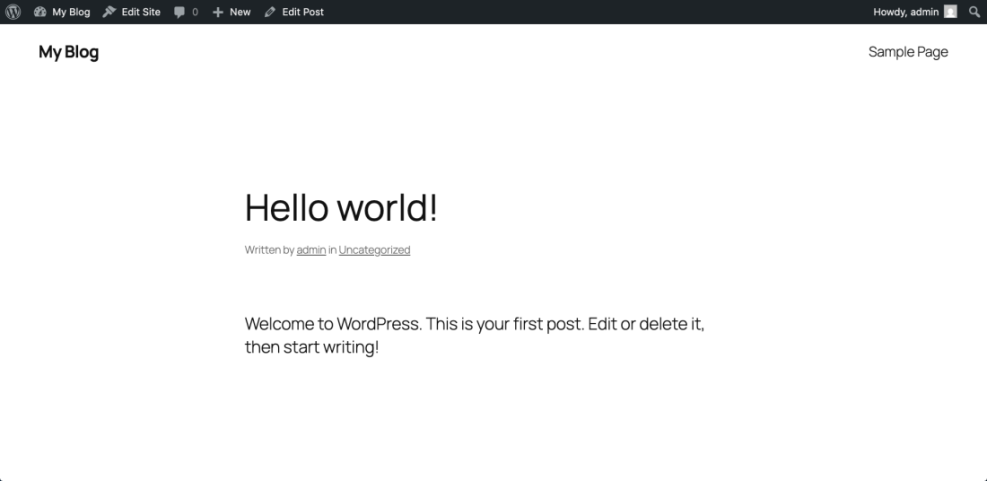
To verify this step, confirm that you can describe your site in one clear sentence and that your homepage text actually uses the main words people would type into search.
Step 2: Check basic WordPress SEO settings
WordPress includes several built in features that support SEO. Configure them correctly so search engines can safely crawl and index your content.
Set your site title and tagline
- Log in to your WordPress dashboard by going to yoursite.com/wp-admin and entering your credentials.
- In the left menu, click Settings » General.
- Check the Site Title and Tagline. Make sure they clearly describe your brand and main topic, not just “My blog”.
- Scroll down and click Save Changes after updating these fields.
Allow search engines to index your site
- Next, go to Settings » Reading.
- Find the checkbox labeled Search engine visibility and make sure it is not checked, so search engines are allowed to index your site.
- Click Save Changes again.
Navigate to Settings » Reading to confirm the search engine visibility option is correctly configured.
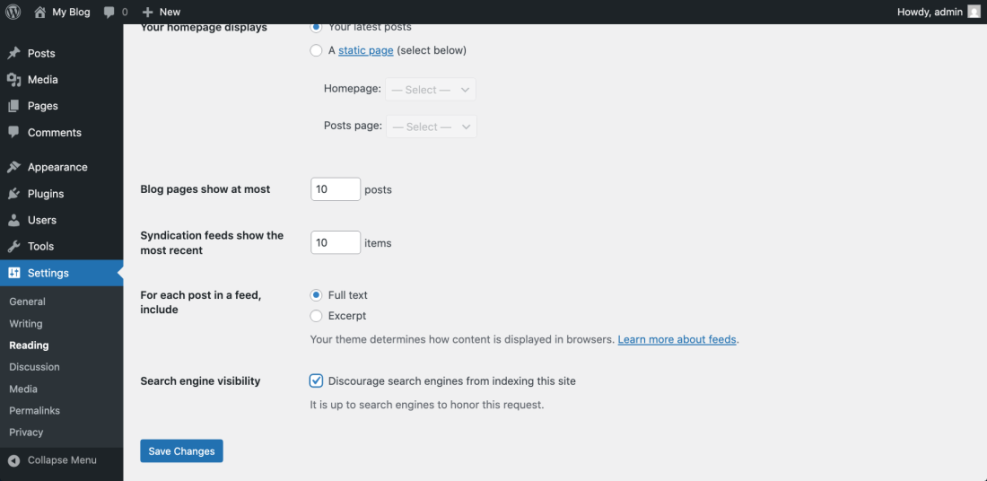
To verify success, open a new private or incognito browser window, search for your brand name, and confirm your site appears in results after some time. New sites may take days or weeks to show, so do not panic if it is not instant.
Step 3: Install an SEO plugin in WordPress
WordPress is SEO friendly out of the box, but an SEO plugin makes it easier to manage titles, meta descriptions, sitemaps, and other important details in one place.
Install a trusted SEO plugin
- From the WordPress dashboard, navigate to Plugins » Add New Plugin.
- In the search box, type the name of a reputable SEO plugin you trust, such as Yoast SEO or a similar tool.
- On the plugin card, click Install Now.
- After installation completes, click Activate.
Complete the basic setup wizard
- Look for the new SEO menu item that appears in your left admin menu (for example, SEO or the plugin’s name).
- Open the plugin’s Setup Wizard if it offers one and follow the prompts to configure basic settings like site type and organization name.
On the Add Plugins screen, review the SEO plugin card before you install it.
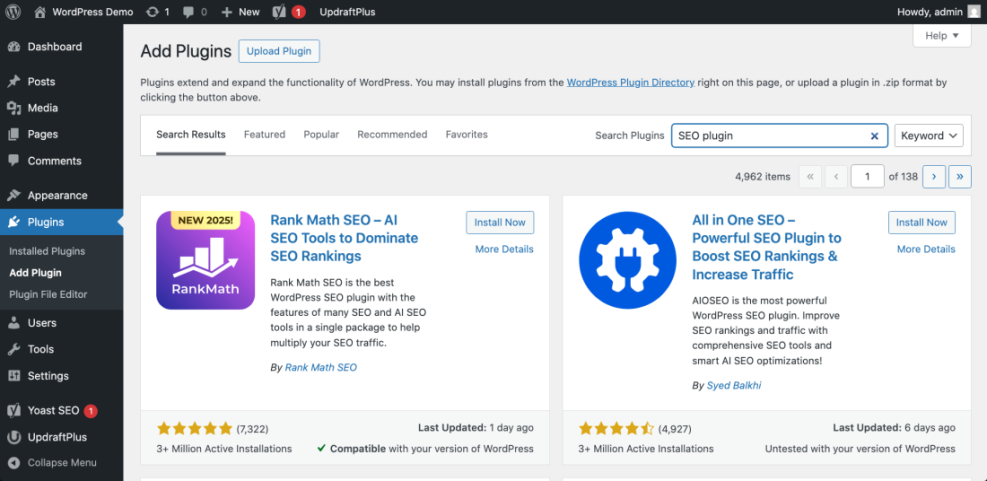
To verify this step, confirm that an SEO menu appears in your dashboard and that the plugin shows no critical warnings on its overview screen.
If your theme is old and does not manage the page title correctly, you can add support in your child theme’s functions.php file.
function wpheadliner_theme_seo_support() {
    add_theme_support( 'title-tag' );
}
add_action( 'after_setup_theme', 'wpheadliner_theme_seo_support' );
Step 4: Optimize a post for SEO in WordPress
Now that your basic SEO settings are in place, optimize one real post. This is where SEO WordPress starts to feel practical because you see exactly what to change in the editor.
Open an existing post and choose a focus keyword
- In the dashboard menu, go to Posts » All Posts.
- Hover over a post that already gets some traffic or represents an important topic, then click Edit.
- Choose one main keyword phrase for this post from your earlier list.
Update your content, links, and SEO fields
- Scroll through your content and update the main heading and first paragraph so they naturally include that phrase.
- Add at least one internal link to another helpful article on your site that supports this topic.
- Scroll down to the SEO plugin box below the editor (often labeled SEO or Focus keyphrase).
- Enter your chosen keyword phrase into the plugin’s Focus keyphrase or equivalent field.
- Update the SEO title and Meta description fields so they clearly describe the post and encourage clicks in search results.
- Click Update or Publish to save your changes.
Scroll to the SEO box under your post editor where you can set the SEO title and description.
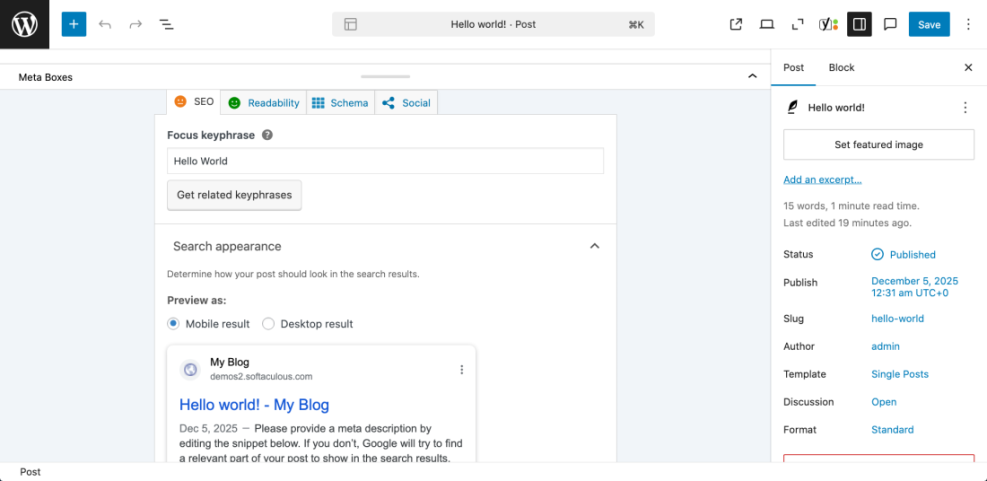
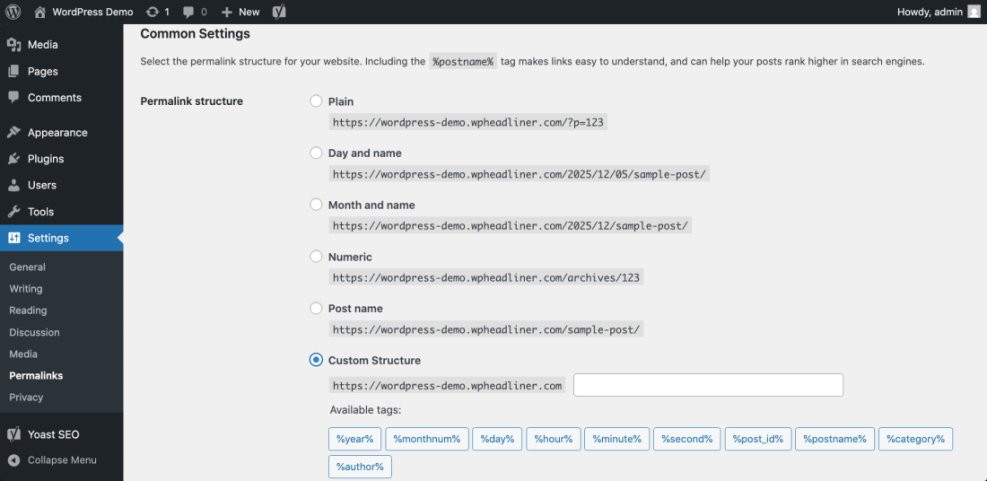
In the editor sidebar, review the URL or Permalink field so it uses simple words separated by hyphens instead of random characters.
To deepen your on page skills, study Is WordPress good for seo and apply the checklist each time you write.
To verify success, check that your post has a clear main keyword, a readable URL, a compelling SEO title, an informative meta description, and at least one internal link to a related post.
Step 5: Measure SEO results for your content
SEO WordPress work only matters if you can see whether it improves your traffic and rankings. Use analytics and search tools to measure what is happening.
Set up tracking tools
- Set up Google Analytics or a similar tool if you have not already. For a detailed walkthrough, follow How to add google search console to WordPress.
- Install and verify your site in Google Search Console so Google can show you queries, clicks, and impressions.
Review performance and refine your content
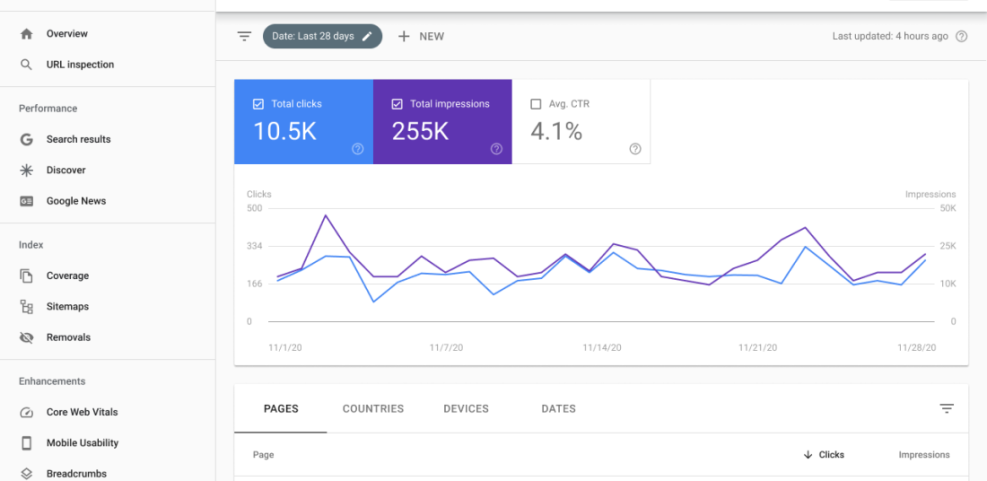
- After a few weeks, open Search Console and check which queries are bringing visitors to your optimized post.
- Compare metrics for that post before and after your changes, such as impressions, clicks, and average position.
- Adjust your content by improving headings, adding FAQs, and clarifying your message based on which queries you actually see.
Open your analytics and Search Console reports side by side so you can correlate traffic changes with the SEO updates you made.
For a more advanced improvement plan, review How to add keywords in WordPress without hurting and apply one or two improvements each month.
To verify success, look for gradual increases in organic search clicks and better average positions for your target keywords over several weeks or months.
Maintenance Methods for Managing a WordPress Site
There is more than one way to handle ongoing WordPress maintenance tasks, and each method fits slightly different skills, budgets, and site types.
The table below compares the main methods so you can quickly choose the one that feels easiest and safest for your site.
| Method | Where You Use It | Main Purpose |
|---|---|---|
| DIY Manual Maintenance | WordPress dashboard and hosting control panel | Maximum control over updates, backups, and checks for small or low-risk sites. |
| Managed Hosting Tools | Your host’s control panel or custom dashboard | Simplify routine maintenance with one-click updates, built-in backups, and basic security. |
| Maintenance & Security Plugins | Plugins section inside the WordPress dashboard | Automate repetitive work like backups, database cleanup, image optimization, and security scans. |
| WP-CLI and Developer Tools | SSH terminal with WP-CLI and deployment tools | Scriptable, fast maintenance for developers managing multiple or complex sites. |
| Professional WordPress Care Plan | External provider, freelancer, or agency | Hands-off maintenance with proactive monitoring, fixes, and expert support. |
Using the WordPress Dashboard for Ongoing SEO & Maintenance
Your WordPress dashboard is the control center where you can quickly check both SEO and maintenance tasks in one place.
- Review available updates (Dashboard » Updates) and apply them on a regular schedule.
- Glance at your SEO plugin’s notifications for critical issues, such as missing titles or indexing problems.
- Monitor basic site health (Tools » Site Health) so you can fix performance and security recommendations.
- Use the At a Glance widget to see how many posts and pages you have and spot anything unusual.
By building the habit of checking your dashboard once or twice a week, you catch small issues early before they can hurt your SEO or user experience.
Conclusion You Are Ready to Go
By now, you understand what SEO WordPress means, how WordPress supports SEO by default, and how to configure core settings, install a helper plugin, optimize a real post, track your results, and keep your site maintained over time. You do not need to master everything at once. Start with one important page, apply the steps, and repeat them across your site.
As you build this habit, your WordPress site will become easier for search engines to understand and more useful for visitors, which is the real foundation of long term SEO success.
Further Reading
- WordPress seo complete beginners guide
- WordPress seo complete beginners guide
- Is WordPress good for seo
- How to add keywords in WordPress without hurting
- Is WordPress good for seo
- How to add keywords in WordPress without hurting
Frequently Asked Questions
What does SEO WordPress mean in simple terms
Do I need an SEO plugin for WordPress
Is WordPress SEO friendly by default
How long does SEO take to work on a WordPress site
What is the difference between SEO WordPress and general SEO
Can I do SEO WordPress myself without an agency