If you’ve ever wondered “What is WordPress?”, the short answer is: it’s a powerful, free tool that lets you build websites without needing to be a developer. It powers everything from simple blogs to huge news sites and online stores.
In this guide, you’ll learn what this platform actually is, how it works, the difference between WordPress.org and WordPress.com, what you can build with it, and whether it’s the right choice for your next website.
What Is WordPress?
WordPress is a free, open-source content management system (CMS). It’s software you install on a web server so you can create and manage a website through a user-friendly dashboard instead of editing raw HTML files.
At a high level, it gives you:
- A visual dashboard where you log in to manage your site.
- Posts and pages for writing content.
- Themes to control how your site looks.
- Plugins to add extra features (contact forms, stores, SEO, and more).
- A large ecosystem of developers, designers, and tutorials to learn from.
How a Content Management System (CMS) Helps You Build Sites
A CMS is software that helps you manage content (text, images, video) without touching code. WordPress is one of the most popular systems of this kind in the world.
Here’s what that looks like in practice:
- You log in to a URL like yoursite.com/wp-admin.
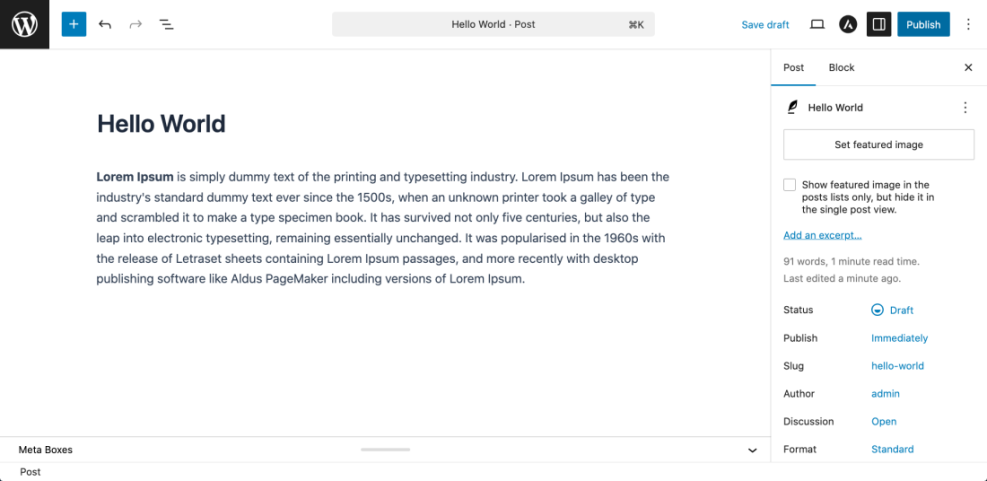
- Inside the Dashboard, you click Posts » Add New to write an article.
- You add text, images, and embeds using the block editor instead of HTML.
- You click Publish, and the CMS turns your content into a live web page.
Because it’s a CMS, non-technical users can manage content day to day while developers handle advanced customization when needed.
WordPress.org vs WordPress.com
When people ask “What is WordPress?”, they often stumble over the two different websites: WordPress.org and WordPress.com. They’re related, but not the same.
- WordPress.org – The home of the free open-source software you install on your own hosting. This is called self-hosted WordPress and gives you full control.
- WordPress.com – A commercial service that hosts the software for you. It’s easier to start with, but there are more limits on what you can install and how you monetize unless you’re on higher-tier plans.
Types of Websites You Can Create
The project started as blogging software, but today you can use it for almost any type of website:
- Blogs & Personal Sites – Share articles, photos, or thoughts.
- Business Websites – Present your services, team, and contact details.
- Online Stores – Sell products with plugins like WooCommerce.
- Portfolio Sites – Showcase design, photography, or creative work.
- Membership & Course Sites – Offer protected content or online classes.
- Directory & Listing Sites – List businesses, jobs, rentals, or events.
- Community or Forum Sites – Let users sign up, comment, and interact.
How This Platform Works Behind the Scenes
To really answer “what is WordPress?”, it helps to see the moving parts behind a site built on this software.
- Hosting & Domain
You rent space on a web server (hosting) and connect it to a domain like example.com. - Core Software
You install the files on that server. The core handles posts, users, settings, and the dashboard. - Theme
You install a theme to control how your site looks: layout, colors, fonts, and templates. - Plugins
You add plugins to extend functionality: contact forms, SEO tools, page builders, stores, and more. - Database
The system stores content (posts, pages, settings) in a database and pulls it out on demand when visitors view your site.
Once these pieces are in place, you mostly live in the Dashboard: adding content, changing settings, and installing themes/plugins as needed.
Why So Many Sites Use This CMS
There are many website builders, but this one remains popular because it balances control and convenience.
- Free & open-source – No software license fee to use the core.
- Huge ecosystem – Thousands of themes and plugins, both free and paid.
- Flexible – Works for tiny blogs and large, high-traffic websites.
- SEO-friendly – Search-engine-friendly structure plus powerful SEO plugins.
- Own your content – With self-hosted installs, your data lives on your server.
- Active community – Forums, tutorials, meetups, and agencies everywhere.
Quick Comparison of Self-Hosted vs Hosted Options
Use this table to quickly see the difference between the two main ways to run the software.
| Feature | WordPress.org (Self-Hosted) | WordPress.com (Hosted Service) |
|---|---|---|
| Who Hosts It? | You choose a web host and install the software there. | WordPress.com hosts the site for you. |
| Cost | The core is free; you pay for hosting, domain, and any premium themes/plugins. | Free and paid plans; advanced features require higher-tier paid plans. |
| Themes & Plugins | Install any theme or plugin you like (including custom ones). | Limited themes and plugins on lower plans; more options on higher plans. |
| Control & Customization | Full control over code, server, and functionality. | Less server-level control; some restrictions on custom code and monetization. |
| Best For | Serious projects, businesses, stores, and users who want maximum flexibility. | Simple blogs or basic sites where convenience matters more than full control. |
Is This the Right Tool for You?
This CMS is a strong choice if:
- You want to own your website and content long-term.
- You like the idea of starting simple and adding features over time.
- You’re okay learning a bit of tech (or hiring help) for setup and maintenance.
You might consider a simpler hosted website builder if you only need a one-page site, don’t plan to update it often, and don’t care about deep customization.
Next Steps After Choosing a Website Platform
Once you understand what this software does, you can move on to actually building a site with it.
A typical “next steps” checklist looks like this:
- Choose whether you’ll use WordPress.org (recommended for most serious sites) or WordPress.com.
- Pick a domain name and web hosting plan if you go the self-hosted route.
- Install the CMS (many hosts provide a 1-click installer).
- Log in to your Dashboard and install a starting theme.
- Add a few key pages like Home, About, and Contact, then keep expanding from there.
Frequently Asked Questions About WordPress
Is WordPress really free?
Do I need to know how to code to use WordPress?
What is the difference between WordPress and a website builder like Wix or Squarespace?
Can WordPress handle a large or professional website?
Is WordPress secure?
What happens if I want to move my WordPress site later?