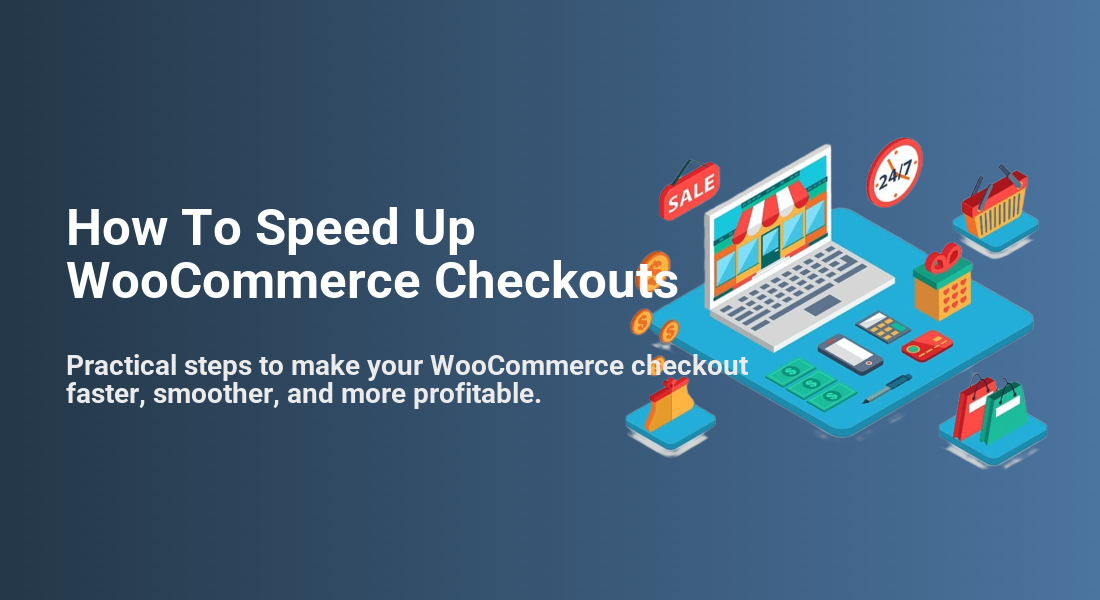
How To Speed Up WooCommerce Checkouts
Practical steps to make your WooCommerce checkout faster, smoother, and more profitable.

Every extra second your WooCommerce checkout takes is a chance for a customer to abandon their cart. Spinning loaders, clunky forms, and slow payment responses quickly turn a ready-to-buy visitor into a lost sale.
In this guide, you’ll learn how to speed up WooCommerce checkouts step by step — without needing to be a developer. You’ll simplify the checkout form, trim heavy scripts, optimize payment gateways, configure caching correctly, and polish mobile UX so more customers complete their orders.
If the entire site already feels sluggish, start with a broader step-by-step WordPress speed optimization guide first, then come back to fine-tune your checkout performance.
Prerequisites
Before you start changing settings, make sure you have the basics in place. This will help you work safely and avoid breaking a live store.
- An existing WordPress site with WooCommerce installed and active.
- Administrator access to the WordPress dashboard.
- Permission to install and configure plugins (or a developer to help if needed).
- A staging site or development copy where you can test changes before going live.
- A reliable backup solution so you can roll back if something goes wrong.
Step 1: Benchmark Your Current Checkout Speed
Before you optimize anything, you need a baseline. Benchmarking your WooCommerce checkout tells you whether changes are actually making things faster or just “feeling” faster.
- Open an incognito/private browser window and go to your store’s checkout page.
- Use your browser’s developer tools (Network tab) to record how long the checkout page takes to fully load.
- Test from both desktop and mobile, over a typical customer connection (e.g., 4G or home Wi-Fi).
- Optionally, run your checkout URL through lab tools like PageSpeed Insights or WebPageTest to see waterfall charts and resource timings.
- Write down key metrics such as Time to First Byte (TTFB), Largest Contentful Paint (LCP), and total load time.
A good target is for your WooCommerce checkouts page to be interactable in under 2–3 seconds for most customers. If you’re far above that, the steps below will help you close the gap.
Step 2: Simplify Your WooCommerce Checkout Form
Every extra field on your checkout form adds friction and can slow down validation, auto-complete, and browser rendering. Simplifying the form often delivers one of the quickest wins for speed and conversion.
Focus on collecting only what you actually need to process an order, meet legal requirements, and support customer service.
- In the WordPress dashboard, go to WooCommerce > Settings > Accounts & Privacy and disable unnecessary account creation requirements if they add extra steps.
- Install a checkout field editor plugin (search “checkout field editor for WooCommerce” in Plugins > Add New).
- Use the plugin to:
- Remove non-essential fields (e.g., company name, second address line, phone) where they’re not required.
- Set optional fields instead of required when you don’t strictly need the data.
- Reorder fields so the most important ones appear first.
- Save changes and run a test order to confirm validation still works and orders are recorded correctly.
If you are comfortable with a bit of code, you can also remove fields using a snippet. Add the following example to your child theme’s functions.php file or a custom functionality plugin:
// Run in functions.php of your child theme or a custom plugin.
add_filter( 'woocommerce_checkout_fields', 'wph_remove_unneeded_checkout_fields' );
function wph_remove_unneeded_checkout_fields( $fields ) {
    unset( $fields['billing']['billing_company'] );
    unset( $fields['billing']['billing_address_2'] );
    unset( $fields['billing']['billing_phone'] ); // Remove only if you truly don't need phone.
    return $fields;
}
functions.php can take your entire site offline until fixed. Step 3: Remove Unnecessary Scripts and Widgets from WooCommerce checkouts
Your theme and plugins may be loading sliders, pop-ups, tracking scripts, and CSS meant for other parts of the site on the checkout page. Those assets add weight and extra requests, slowing down WooCommerce checkouts.
- Use the browser’s Network tab to identify large scripts or styles that don’t belong on checkout (sliders, galleries, marketing widgets).
- Install an asset management or performance plugin that lets you enable/disable scripts and styles per page.
- In the plugin settings, target the
/checkout/page and:- Disable hero sliders, animation libraries, and gallery scripts.
- Disable pop-up scripts (newsletter pop-ups, exit intent) that interrupt checkout.
- Disable heavy third-party widgets (chat, reviews) if they significantly slow down first load.
- Keep only what’s essential to the checkout experience: basic layout styles, payment scripts, trust badges, and legal text.
Step 4: Optimize Payment Gateways for Faster Responses
Payment gateways communicate with external servers and can introduce delays. A poorly configured or overloaded gateway can make it feel like checkout is “stuck” on processing.
- Review which payment gateways you offer under WooCommerce > Settings > Payments.
- Disable gateways that are rarely used or cause redirect loops (for example, external redirects that load slowly on mobile).
- When possible, prefer on-site or “modal” gateways that process payments without full page reloads.
- In each gateway’s settings:
- Turn off verbose logging except when actively debugging.
- Make sure you’re using production API keys and the correct endpoints.
- Check that currency and country settings match your store configuration.
- Run several test orders with different gateways and note any that regularly respond slowly or time out.
Step 5: Configure Caching Without Breaking Checkout
Caching is essential for WordPress performance, but you have to be careful with dynamic pages like cart and checkout. Done right, you’ll lighten the server load while keeping carts accurate and payments reliable.
- Open your caching plugin settings (e.g., in the WordPress dashboard under Settings or Performance).
- Find the section to exclude URLs from page cache and exclude:
/cart//checkout//my-account/(if customers manage orders there)
- Keep page caching enabled for all other public pages (home, category pages, product pages) to reduce the load leading up to checkout.
- If your host supports Redis or Memcached, enable object caching to speed up queries behind WooCommerce sessions.
- Follow a complete WordPress caching setup guide to ensure your cache layers (plugin, server, CDN) aren’t conflicting.
- After saving settings, clear all caches (plugin, host panel, CDN) and run new checkout speed tests.
Step 6: Make Checkout Fast and Frictionless on Mobile
Most WooCommerce stores see a large portion of traffic from mobile devices. Even if your desktop checkout feels fast, mobile users on slower connections can still struggle.
- Test your WooCommerce checkouts on multiple mobile devices and screen sizes.
- Ensure form fields are full-width and easy to tap, with labels clearly visible above each field.
- Use input types that trigger the right keyboard (e.g.,
telfor phone,emailfor email). - Enable digital wallets (Apple Pay, Google Pay) when supported by your payment gateway to reduce typing.
- Avoid large background images, autoplay videos, or sliders on the checkout page.
- Make error messages obvious and position them near the field that needs fixing.
Step 7: Test, Monitor, and Iterate on Your WooCommerce checkouts
Speed optimization is not a one-time task. Regular testing and monitoring ensure that new plugins, theme updates, or tracking scripts don’t slowly undo your hard work.
- After each set of changes, run through a full test order (including refunds or cancellations if relevant).
- Compare your new load time data with your original benchmarks and note which changes helped most.
- Set up analytics funnels to track drop-off between cart and checkout, and between checkout and thank-you page.
- When you’re ready for more advanced, developer-oriented tuning, read the dedicated WooCommerce performance guide for faster checkouts and share it with your technical team.
- Review checkout metrics monthly so you can catch slowdowns early, especially after adding new plugins or marketing tools.
Keep Your WooCommerce Checkout Running Lightning Fast
Speeding up WooCommerce checkouts is about more than just chasing a score. It’s about removing friction at the most critical moment in the customer journey so more visitors become paying customers.
By benchmarking performance, simplifying fields, trimming heavy scripts, optimizing gateways, configuring caching safely, and polishing mobile UX, you can deliver a fast, trustworthy checkout that holds up even under traffic spikes. Build these steps into your regular maintenance workflow, and your checkout will stay fast — and profitable — over the long term.
Further Reading
- WooCommerce Performance Tips for Faster Stores
- WooCommerce Optimization: Essential Tweaks for Better Store Performance
- Beginner’s Guide to Redis Object Cache for WordPress
- WordPress Performance and Speed Optimization Overview
Frequently Asked Questions
What is a good load time for WooCommerce checkouts?
Why is my WooCommerce checkout still slow after installing a caching plugin?
Is it safe to remove address or phone fields from the checkout page?
How can I troubleshoot a checkout that gets stuck on ‘processing’ or ‘loading’?
How long does it usually take to implement these WooCommerce checkout optimizations?