Seeing duplicate title tags in your WordPress pages can trigger confusing warnings in Google Search Console and lead to messy or unpredictable search snippets. In this guide, you’ll learn how to remove duplicate title tags in WordPress by tracking down where each extra title comes from and cleaning it up safely.
We’ll walk through confirming the problem in your page source, fixing conflicts in your SEO plugin, turning off competing theme options, removing old code from header.php, and then testing everything again so each page exposes a single, accurate title to search engines.
By the end, you’ll know exactly how to remove duplicate title tags in WordPress across your entire site without breaking anything.
What You Need Before You Change WordPress Title Tags
Permissions, Backups, and Tools You Should Prepare
- Access to your WordPress admin dashboard (https://yourdomain.com/wp-admin).
- A user account with the Administrator role.
- Access to your hosting file manager, SFTP, or the Theme File Editor in WordPress.
- A recent full backup of your site, including files and database.
- Optional but recommended staging site where you can test changes safely.
- Basic awareness of which SEO plugin (Yoast, Rank Math, All in One SEO, etc.) and theme your site uses.
Step 1: Confirm Duplicate Title Tags in WordPress
Checking the Page Source for Multiple <title> Tags
Before changing settings, you should confirm that a page really has more than one <title> element. You’ll check the same HTML that browsers and search engines see so you know whether you truly need to remove duplicate title tags in WordPress or if the warning is coming from somewhere else.
- Open one of the affected URLs in your browser.
- Right click anywhere on the page and click View Page Source (or press Ctrl + U on Windows, Cmd + Option + U on macOS).
- Press Ctrl + F (or Cmd + F) to open the find box and type <title>.
- Count how many times <title> appears inside the <head> section of the page.
Interpreting What You Find in the HTML
If you see two or more <title> elements, quickly note which text each one contains. Very often, one comes from your theme and another from your SEO plugin.
That clue helps later when you decide what to switch off and how to remove duplicate title tags in WordPress without losing the titles you actually want.
Step 2: Let One SEO Plugin Handle Your Title Tags
Disable Extra SEO Plugins That Generate Duplicate Titles
Most modern sites rely on an SEO plugin to generate page titles based on templates. Duplicate titles often appear when more than one SEO tool is active or when templates overlap with what your theme prints, so this is usually the first place to start when you want to remove duplicate title tags in WordPress.
- In the WordPress dashboard, go to Plugins » Installed Plugins.
- Check for more than one SEO plugin (for example, Yoast SEO, Rank Math, and All in One SEO all active).
- Choose the SEO plugin you want to keep, then click Deactivate on the others.
Tidy Up Title Templates in Your SEO Plugin
- Open the settings for your active SEO plugin:
- Yoast SEO: SEO » Search Appearance
- Rank Math: Rank Math » Titles & Meta
- All in One SEO: All in One SEO » Search Appearance
- Review the templates for your Homepage, Posts, and Pages. Make sure you are not hard coding the site name or a repeated phrase twice in a row.
- Save any changes, then reload the affected page on the front end.
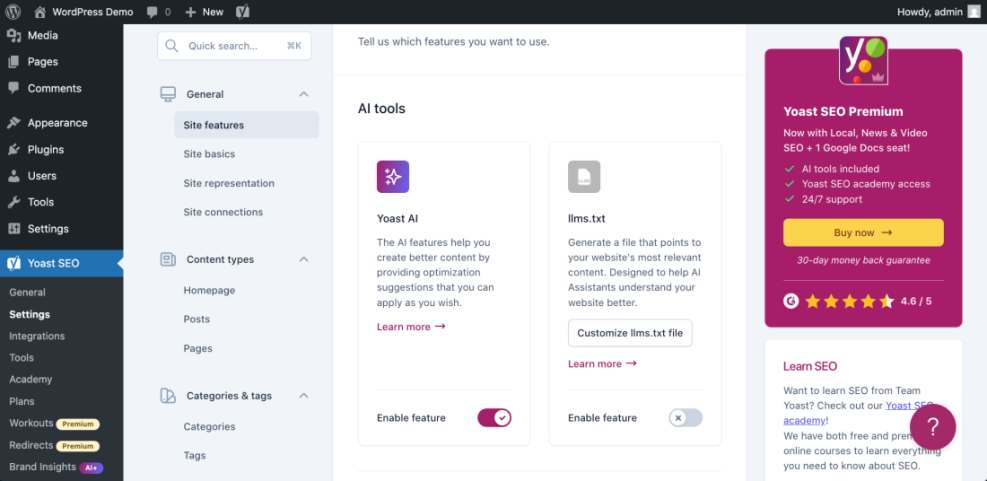
After this step, view the page source again and search for <title>. If there is now only one, you’ve managed to remove duplicate title tags in WordPress just by simplifying your SEO plugins and cleaning up templates.
Step 3: Turn Off Theme Options That Cause Duplicate Title Tags
Finding Theme Settings That Control Browser Titles
If duplicates remain, the next suspect is your theme or page builder. Many older or highly customized themes still print their own browser title instead of letting WordPress core and your SEO plugin handle it, which makes it harder to remove duplicate title tags in WordPress until those options are disabled.
- From the dashboard, go to Appearance » Customize.
- Look for panels named SEO, Header, Page Title, or similar.
- Open those panels and look for options like “Enable SEO titles”, “Browser Title”, or “Custom page title bar”.
Disabling Built-In Theme SEO or Header Modules
- Disable any setting that appears to control the HTML title for the entire site.
- If your theme has its own options page (for example, Theme Options or Theme Settings in the sidebar), open it and look for built in SEO modules or header options that might add another title.
- Save your changes.
Once you’ve saved your theme changes, reload the front end page, view the source again, and search for <title>. If one of the extra entries disappeared, you’ve taken another step to remove duplicate title tags in WordPress and moved control back to your SEO plugin.
Step 4: Remove Manual HTML Title Tags From Theme Files
Locate Hard-Coded <title> Elements in header.php
If your theme options don’t remove the extra title, there may be a hard coded <title> element inside header.php. You’ll remove that manual markup and make sure the theme uses the modern core feature instead so you can completely remove duplicate title tags in WordPress.
- In the dashboard, go to Appearance » Theme File Editor. If you use a child theme, select it in the “Select theme to edit” dropdown.
- In the file list, click header.php.
- Search inside header.php for a manual <title> element. It might use wp_title(), bloginfo(), or even a static string.
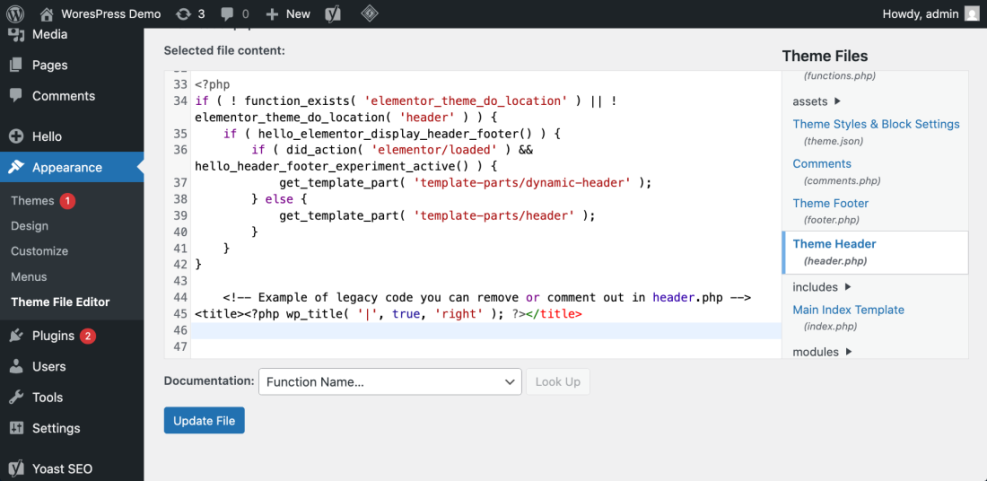
<!-- Example of legacy code you can remove or comment out in header.php -->
<title><?php wp_title( '|', true, 'right' ); ?></title>
Enable the Core Title Feature in functions.php
Next, confirm your theme supports the core automatic title feature:
- In the Theme File Editor or via SFTP, open functions.php.
- Look for the following line inside a setup function (often called
mytheme_setupor similar):
// In functions.php, make sure your theme declares support for the core title tag
add_theme_support( 'title-tag' );
?>
If that line is missing, add it inside your theme’s setup function and save. From that point on, WordPress core (and your SEO plugin) will output the title dynamically instead of relying on old header.php markup.
Reload the affected URL, view the page source, and search for <title> again. You should now see a single title generated automatically, which means you’ve finally managed to remove duplicate title tags in WordPress at the code level.
Step 5: Clear Cache and Test Your Duplicate Title Tags Fix
Flush All Layers of Caching
Even after you remove extra title output, cached HTML can keep serving the old version of your pages. Clearing each layer of caching avoids false positives when you re-check to confirm you did remove duplicate title tags in WordPress successfully.
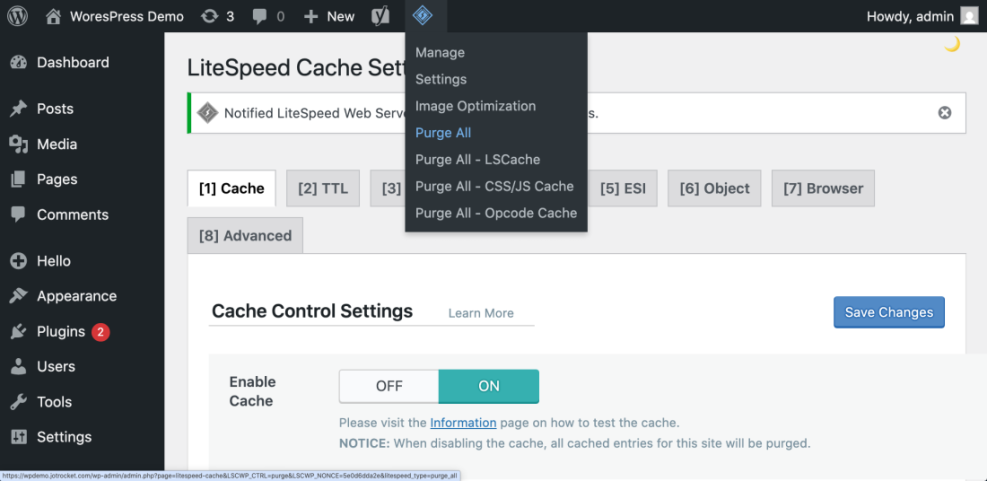
- Open your caching plugin settings in WordPress (for example, Settings » WP Super Cache, or the dedicated menu for your cache plugin).
- Click the Clear Cache, Purge All, or equivalent button to flush cached pages.
- If you use a CDN like Cloudflare, log in to its dashboard and run a full or targeted cache purge for your domain.
Re-Test the Page Source in a Private Window
- Open a new incognito or private browsing window.
- Load the affected URL and repeat the page source check from Step 1.
You should now see only one <title> element in the head of the page. If duplicates still appear, repeat the previous steps for other active plugins or custom code until you locate the remaining source.
Maintenance Methods for Keeping WordPress Title Tags Healthy
Comparing Common Maintenance Approaches
There is more than one way to handle ongoing WordPress maintenance tasks, including keeping page titles, metadata, and SEO settings in good shape. Each method fits slightly different skills, budgets, and site types.
The table below compares common approaches so you can pick the one that feels safest for your site.
| Method | Where You Use It | Main Purpose |
|---|---|---|
| DIY Manual Maintenance | WordPress dashboard and hosting control panel | Maximum control over updates, theme and plugin changes, and manual checks for title issues on small or low-risk sites. |
| Managed Hosting Tools | Your host’s control panel or custom dashboard | Simplify routine maintenance with one-click updates, built-in backups, and basic monitoring so template problems are less likely to appear. |
| SEO, Maintenance & Security Plugins | Plugins section inside the WordPress dashboard | Automate repetitive tasks like backups, database cleanup, image optimization, and security scans, while also running periodic audits of titles and meta tags. |
| WP-CLI and Developer Tools | SSH terminal with WP-CLI and deployment tools | Scriptable, fast maintenance for developers managing multiple or complex sites, including scanning themes for legacy header.php markup. |
| Professional WordPress Care Plan | External provider, freelancer, or agency | Hands-off maintenance with proactive monitoring, regular audits, and expert fixes so problems like duplicate titles are caught early. |
Using the WordPress Dashboard to Review Title Tag Changes
Quick Checks You Can Run Regularly
Your WordPress dashboard is the main control center for page titles. From here you can adjust SEO plugin templates, change theme settings, and keep an eye on how titles appear on key pages.
- Review your SEO plugin’s Search Appearance or Titles & Meta screens after major theme or plugin updates.
- Spot check a few important URLs in the browser source to make sure only one <title> element is present.
- Monitor Google Search Console for new warnings about titles or HTML improvements.
A quick monthly review from the dashboard is usually enough to catch accidental changes before they affect many pages and avoids having to remove duplicate title tags in WordPress over and over again.
Conclusion You Are Ready to Fix Duplicate Title Tags in WordPress
What Happens After You Fix Your Titles
You’ve confirmed where your extra page titles were coming from, limited control to a single SEO plugin, disabled competing theme options, and removed any legacy header.php code.
After clearing cache and testing again, each page should now expose one clean, consistent title to search engines. Over the next few days or weeks, search engines will recrawl your site and update their index.
Duplicate title warnings should gradually disappear from Search Console, and your snippets will better match the titles you configure in your SEO plugin. Any time you need to remove duplicate title tags in WordPress in the future, you can simply follow this same checklist.
Further Reading on WordPress Technical SEO
- How to remove duplicate title tags in WordPress
- Is WordPress good for seo
- WordPress seo complete beginners guide
- How to add keywords in WordPress without hurting
- Categories tags beginner guide
Frequently Asked Questions About Duplicate Title Tags in WordPress
Causes and SEO Impact of Duplicate Title Tags
What usually causes duplicate title tags in WordPress
Can duplicate titles affect SEO performance
Troubleshooting, Fixing, and Timelines
How do I know whether the plugin or the theme is responsible
Do I have to edit code to solve this problem
How long will it take for Google to show updated titles
What if only some page types show duplicate titles