How to Put WordPress in Maintenance Mode
WordPress security and maintenance workflow

How to Put WordPress in Maintenance Mode is what you need to do when you want to update your site without visitors seeing errors or half-finished pages.
In this guide you’ll learn several ways to enable WordPress maintenance mode using plugins, simple code snippets, WP-CLI, and hosting tools, plus how to turn it off safely when your updates are done.
What You Need Before You Start WordPress Maintenance Mode
- Administrator access to your WordPress Dashboard.
- A recent full backup of your site files and database.
- Credentials for your hosting control panel or FTP/SFTP (for manual methods).
- Optional but recommended: a staging site where you can test maintenance settings first.
Ways to Put Your WordPress Site into Maintenance Mode
There is no single “correct” way to do this. Choose the method that matches your skills and tools.
| Method | Where You Use It | Best For |
|---|---|---|
| Maintenance Plugin | WordPress dashboard » Plugins | Non-technical users who want a nice page design, countdowns, and easy on/off controls. |
| Theme / Code Snippet | functions.php or a code snippets plugin | Developers or power users who want lightweight maintenance mode without extra plugins. |
| .maintenance File | File manager or FTP in the site root | Quick “site offline” switch during updates, very close to WordPress’s own system. |
| WP-CLI & Server Tools | SSH terminal and hosting tools | Managing several or complex sites where scripted maintenance is easier. |
| Managed Hosting Features | Host’s custom control panel | Users on premium hosting that offers one-click staging and maintenance pages. |
Method 1: Use a Maintenance Mode Plugin for WordPress (Easiest)
The simplest option is a dedicated plugin that shows a temporary page to visitors while you keep full access when logged in.
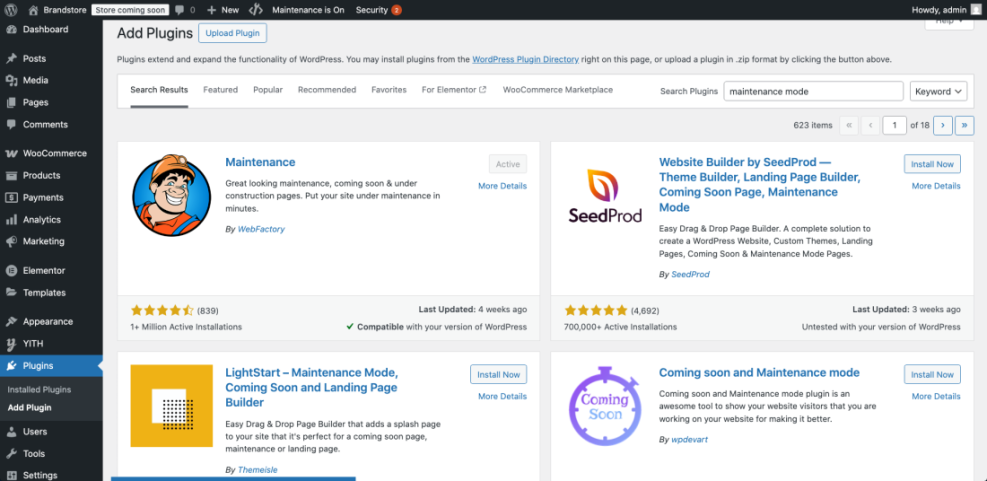
Step 1: Install a WordPress Maintenance Mode Plugin
- In the dashboard, go to Plugins » Add New.
- Search for terms like maintenance mode or coming soon page.
- Pick a well-reviewed plugin that is compatible with your WordPress version.
- Click Install Now, then Activate.
Step 2: Configure the Maintenance Page in WordPress
- Look for the new menu item the plugin adds (for example Maintenance, Coming Soon, or similar).
- Open the settings screen and choose whether you want a simple “under maintenance” message or a more complete landing page.
- Edit the headline, message, and optional elements like:
- Logo or site name
- Short explanation of what is happening
- Approximate time when you will be back
- Contact link or email address
- Save your changes.
Step 3: Turn Maintenance Mode On in WordPress
- In the plugin settings, enable the toggle or checkbox labeled Maintenance Mode or Enable.
- Open your site in a private/incognito browser window where you are not logged in.
- Confirm that visitors see the maintenance page while you still see the normal site when logged in.
Method 2: Create a Lightweight WordPress Maintenance Page with Code
If you prefer to avoid extra plugins, you can show a temporary message using a small PHP snippet. This method checks whether a user is logged in and has permission to work on the site.
Step 1: Add a Maintenance Mode Snippet Safely
- Install a safe snippets manager such as Code Snippets if you don’t already have one.
- Go to Snippets » Add New and give it a clear name like “Temporary Maintenance Mode”.
- Paste this example code and customize the message:
function wpheadliner_temp_maintenance_mode() {
    // Allow admins to see the site normally
    if ( current_user_can( 'manage_options' ) || is_user_logged_in() ) {
        return;
    }

    // Simple maintenance message for visitors
    wp_die(
        '<h1>We’ll be back soon</h1>
         <p>Our website is temporarily down for maintenance.
         Please check back in a little while.</p>',
        'Site Under Maintenance',
        array( 'response' => 503 )
    );
}
add_action( 'get_header', 'wpheadliner_temp_maintenance_mode' );
- Set the snippet to run on the front end only.
- Click Save Changes and Activate.
functions.php, always use a child theme. A mistake in your PHP can break the site, so a snippets plugin is safer. Step 2: Test the WordPress Maintenance Page
- Open your site in another browser or a private window where you are not logged in.
- Confirm that you see the “We’ll be back soon” message.
- Log in as an administrator and check that you can still browse the normal site to perform your work.
Step 3: Turn This WordPress Maintenance Method Off
- Return to Snippets » All Snippets.
- Deactivate the “Temporary Maintenance Mode” snippet once you are finished.
- Reload your site in a private window to make sure the normal pages are visible again.
Method 3: Use the .maintenance File in the WordPress Root
WordPress itself uses a special file called .maintenance during core updates. You can use a similar approach for short maintenance windows.
Step 1: Create the File
- Open your hosting File Manager or connect via FTP/SFTP.
- Navigate to the folder where WordPress is installed (the one that contains
wp-config.phpandwp-admin). - Create a new file named
.maintenance(note the leading dot). - Edit the file and add:
$upgrading = time();
- Save the file.
Step 2: Check the Front End
- Visit your site in a browser where you are not logged in.
- You should see a brief message saying the site is unavailable due to maintenance.
- While this file exists, most visitors will not see your normal pages.
Step 3: Remove the File When Finished
- Return to your file manager or FTP client.
- Delete the
.maintenancefile from the WordPress root. - Reload your site to confirm that everything is back to normal.
Using WP-CLI and Hosting Tools for WordPress Maintenance
On developer-managed sites, you might prefer command-line and hosting features to handle maintenance periods.
WP-CLI Workflow Example
- Connect to your server via SSH.
- Run a command that creates the
.maintenancefile before you start updates, or add a custom command that toggles your maintenance snippet on and off. - Use
wp plugin update --allor other commands while the site is offline for visitors. - Remove or adjust the maintenance configuration when your updates are done.
Managed Hosting Maintenance Options
- Some hosts provide a staging environment so you never have to hide the live site while working.
- Others offer a “Password protect site” or “Maintenance” toggle in their control panel.
- If you have these features, use them instead of adding your own custom solution.
How to Check What Visitors See During Maintenance Mode on WordPress
Whatever method you choose, always confirm that the maintenance page is working correctly.
- Open your website in:
- A private/incognito browser window
- Another browser or device (phone, tablet)
- Make sure that:
- Visitors see a clear notice that the site is temporarily unavailable.
- You, when logged in as an administrator, can still access the dashboard and front end as needed.
- Fix any caching conflicts by clearing cache from:
- Your caching plugin
- Your CDN (if used)
- Your browser
Turning WordPress Maintenance Mode Off Safely
Forgetting to disable maintenance mode is a common mistake. Make it part of your post-update checklist.
- Reverse the exact step you used:
- Plugin: Turn the plugin’s maintenance toggle to Off or deactivate the plugin.
- Code snippet: Deactivate the snippet or remove the code from your child theme.
- .maintenance file: Delete the file from the WordPress root.
- Clear any server or plugin caches.
- Check your site in a private window to confirm that the normal pages are visible again.
Best Practices While Your WordPress Site Is Offline
- Keep it short — schedule longer projects for off-peak hours or use a staging site instead.
- Be transparent — explain briefly what is happening and when visitors can expect you back.
- Provide a contact path — add an email address, social link, or support form if possible.
- Monitor for errors — keep an eye on the site after you disable maintenance mode in case issues appear.
You Can Safely Work on Your WordPress Site in Maintenance Mode
You have seen several ways to put your WordPress site into maintenance mode, from easy plugins to lightweight code and server-level tools.
Pick the method that matches your comfort level, always test in a private window, and don’t forget to turn maintenance mode off when your work is complete so visitors can enjoy the updated version of your site.
Frequently Asked Questions About WordPress Maintenance Mode
Do I really need maintenance mode for small updates
Will maintenance mode affect my SEO
Can logged-in customers still use the site
What if I get locked out after adding code
functions.php file. What is the safest option for beginners