
Understanding WordPress Admin Login is the first step to managing your own website with confidence. If you are new to WordPress, it can be confusing to know which URL to use, what to enter on the login screen, or what to do when your password does not work.
In this guide, you will learn exactly how to find your WordPress login URL, sign in to your dashboard, reset a forgotten password, and use simple security steps so your admin account stays safe while you work.
What You Need Before You Log In to WordPress
- A working WordPress website installed on a domain or temporary URL.
- Access to your username or email address and password for your WordPress admin account.
- A modern web browser such as Chrome, Firefox, Edge, or Safari.
- Access to the email inbox connected to your WordPress account for password reset links.
- Optional but helpful access to your web hosting control panel in case of login problems.
Step 1: Find Your WordPress Admin Login URL
Every WordPress site has a standard login URL, but the exact address depends on where WordPress is installed. Start with the most common patterns, then adjust if your site uses a folder or subdomain.
- Open your web browser.
- In the address bar, type your website domain, for example https://example.com.
- Add /wp-admin to the end so it becomes https://example.com/wp-admin, then press Enter.
- If the page does not load or redirects, try https://example.com/wp-login.php instead.
- If WordPress is installed in a folder, use that path, for example https://example.com/blog/wp-admin.
Type your site URL plus /wp-admin or /wp-login.php into the address bar, then watch for the login form to load.
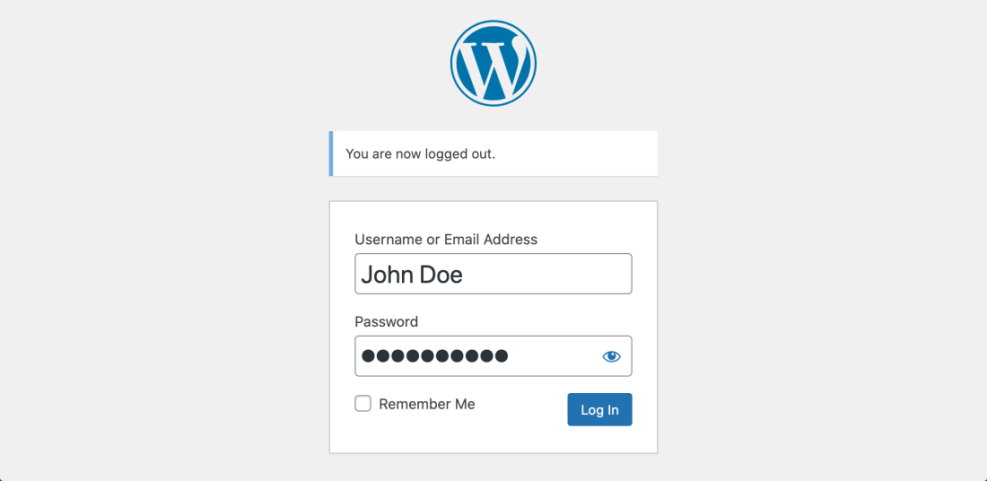
To verify this step, confirm that you see the WordPress logo and a form with Username or Email Address and Password fields. If you land directly in the dashboard, you were already logged in and can continue working.
Step 2: Fill In the WordPress Login Form Correctly
Once you have the correct login URL, use your admin credentials to sign in. Typing your username and password carefully prevents lockouts from repeated failed attempts.
- On the login screen, click inside the Username or Email Address field.
- Type the WordPress username or email address assigned to your admin account.
- Click the Password field and enter your password. Use copy and paste only if you know it is correct.
- (Optional) Check the Remember Me box if you are using a private computer and want to stay logged in longer.
- Click the Log In button below the password field.
Fill in Username or Email Address, enter your Password, optionally tick Remember Me, and then click Log In.
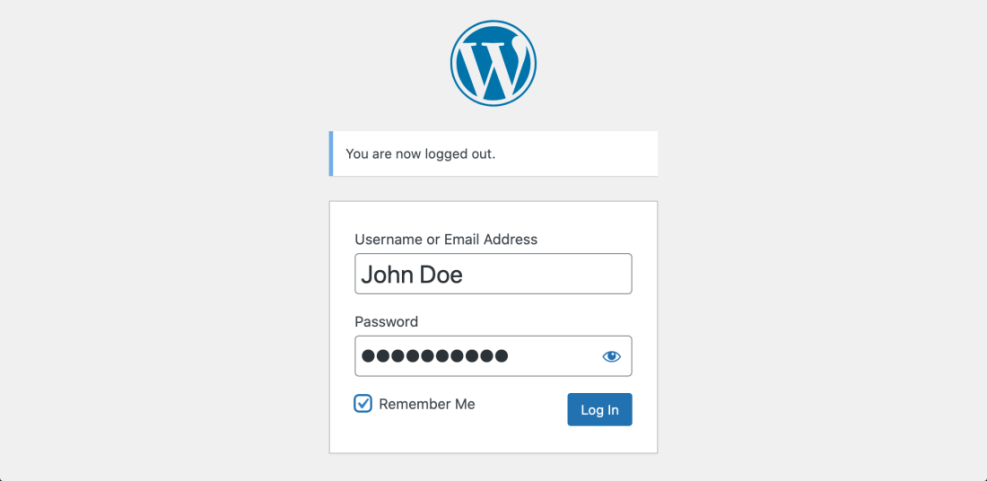
If the details are correct, you will be redirected to the WordPress dashboard. Look for the left sidebar menu with items such as Posts, Pages, and Settings and the admin bar at the top of the screen to confirm that you are successfully logged in.
Step 3: Fix WordPress Admin Login Problems by Resetting Your Password
If you forgot your password or login attempts keep failing, use the built-in password reset feature. This sends a secure link to the email address attached to your account.
- On the WordPress login page, click the Lost your password? link below the Log In button.
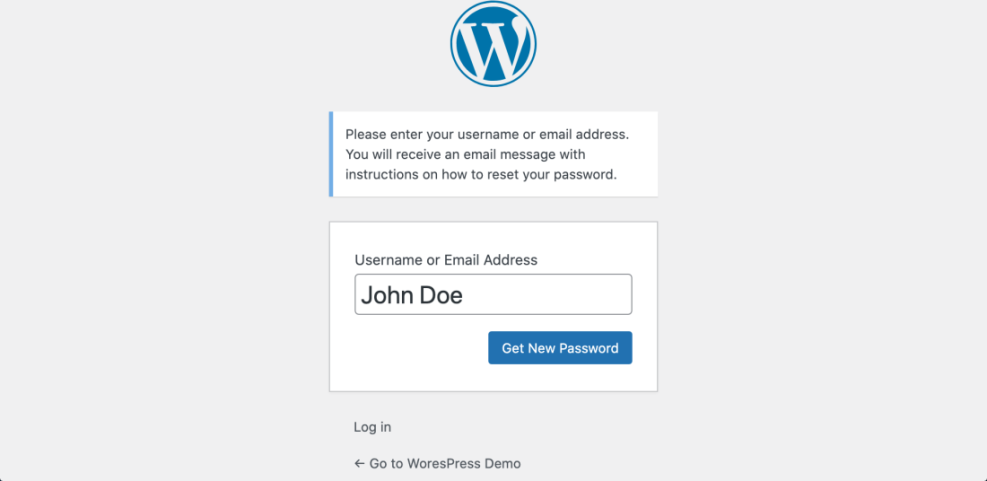
- On the password reset screen, enter your Username or Email Address and click Get New Password.
- Open your email inbox and look for a message from WordPress with a subject similar to “Password Reset.”
- Click the reset link in the email to open the new password screen.
- Enter a strong new password or use the generated one, then click Save or Reset Password.
- Return to the login page and sign in using your new password.
Click Lost your password?, submit your username or email, then follow the link from your inbox to set a new password.
WordPress Login Password Change & Reset Options at a Glance
| Method | Where You Use It | Main Purpose |
|---|---|---|
| Change Password from Profile | WordPress dashboard » Users » Profile / All Users | Safely update your own or another user’s password when you can already log in to the WordPress dashboard. |
| Reset Forgotten Password by Email | WordPress login page » “Lost your password?” link | Recover access when you forgot your password but still have access to the email address linked to your WordPress account. |
| Reset Password in Database (phpMyAdmin) | Hosting control panel » phpMyAdmin » wp_users table | Emergency method for changing a password directly in the database when email resets fail and you’re locked out of the site. |
| Change Password with WP-CLI | SSH terminal with WP-CLI installed | Fast, scriptable password updates for developers or power users managing multiple sites or user accounts from the command line. |
| Secure Account After Password Change | WordPress dashboard » Profile & Security/2FA plugin settings | Add two-factor authentication, log out other sessions, and clean up user roles so your new password and login stay secure long term. |
After resetting, verify success by logging in and confirming that your dashboard loads without further password errors.
Step 4: Use Your Hosting Panel for Emergency Access
Some web hosting providers include a direct login button that takes you straight into the WordPress admin area. This can be useful if you have trouble remembering the login URL or password.
- Log in to your web hosting control panel with your hosting username and password.
- Navigate to the section labeled WordPress, My Sites, or Website Manager, depending on your host.
- Locate your domain in the list of installed WordPress sites.
- Click the option such as Log in, Admin, or WP Admin next to your site.
From your host dashboard, find the WordPress or My Sites section, then click the one-click Log in button to access the dashboard.
To verify this step, confirm that you land directly inside your WordPress dashboard without seeing the normal login form. Update your profile email and password under Users » Profile so you can still use the regular login page later.
Step 5: Keep Your WordPress Admin Login Secure
Once you can log in reliably, protect your account from attackers. Login pages are common targets, but basic security steps reduce the risk dramatically.
- Use a strong unique password with at least 12 characters, combining letters, numbers, and symbols.
- Install a reputable security plugin, then enable features like login attempt limits and brute-force protection.
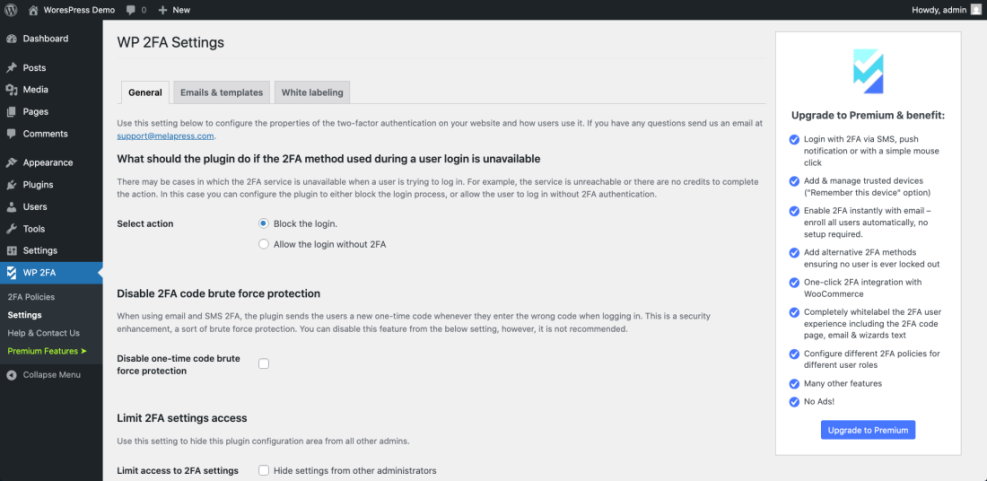
- Set up two factor authentication (2FA) to require a code from your phone in addition to your password.
- Avoid logging in from public or shared computers, or always uncheck Remember Me in those cases.
- Log out when finished by opening the top-right user menu and clicking Log Out.
Configure your security plugin to add 2FA and login limits, then sign out and back in once to confirm everything works correctly.
For a deeper walkthrough, follow the full How do i secure my WordPress downloads tutorial or the broader Beginner WordPress security best practices guide guide once you are comfortable logging in.
Conclusion You Are Ready to Go
You now know how to find your WordPress admin URL, enter your credentials correctly, reset a forgotten password, and even use your hosting panel for emergency access. With a few simple security practices, your WordPress Admin Login becomes both easy and safe to use every day.
From here, you can start creating posts, installing plugins, and customizing your site design. When you are ready for the next steps, use guides like How to use ai in WordPress to continue building your skills.
Further Reading on Logins & Security
- How to integrate WordPress into website
- How to protect your WordPress admin area using
- How to find your WordPress login url
- How do i secure my WordPress downloads
- Beginner WordPress security best practices guide
Frequently Asked Questions
What is the default WordPress admin login URL?
Can I change my WordPress admin login URL for security?
How do I log out of WordPress admin safely?
What should I do if the password reset email never arrives?
Can I stay logged in to WordPress longer?






