How to Login to WordPress Safely
Step by step guide to access your WordPress dashboard every time

WordPress login is the process that lets you reach your website dashboard. From there you can publish posts, install plugins, and change settings. When you know where the login page is and how it works, you avoid lockouts and frustration.
In this guide, you will learn how to find your WordPress login URL, sign in safely, reset a lost password, and fix common login problems. You will also see simple security tips that make it harder for attackers to guess or steal your credentials.
What You Need to Start
- Your website address (domain), for example https://example.com.
- Your WordPress Username or Email Address and Password.
- A modern web browser such as Chrome, Firefox, or Edge.
- Access to the email inbox used for your WordPress account so you can reset your password if needed.
Step 1: Find Your WordPress Login Address
The most common login problem is not knowing where the login page lives. You can usually find it by trying a few standard URLs based on your domain.
Use the Default Login URLs
- Open your browser and type your website address, for example https://example.com, in the address bar. Press Enter.
- Click inside the address bar, move your cursor to the end of the URL, add /wp-admin so it becomes https://example.com/wp-admin, then press Enter.
- If you see a 404 error or a page that does not look like WordPress, replace the end of the URL with /wp-login.php and press Enter again.
Try Alternate Login Paths
- Test friendly shortcuts by typing /login or /admin after your domain. For example: https://example.com/login.
- If WordPress is installed in a subfolder, type the folder name before /wp-admin. For example: https://example.com/blog/wp-admin.
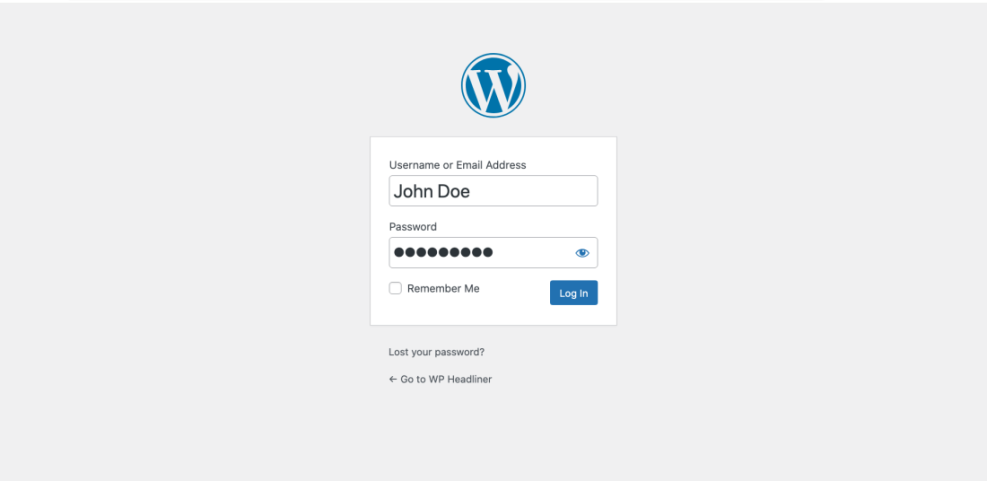
You will know you have the right page when you see the WordPress login form. It shows fields for Username or Email Address and Password, plus a Remember Me checkbox and a Log In button.
Step 2: Log In to Your WordPress Dashboard
Once you reach the login screen, you can sign in to the admin dashboard. This is the control center for your posts, pages, themes, and plugins.
Enter Your Credentials
- On the login screen, click inside the Username or Email Address field. Type the username or email you used when WordPress was installed.
- Click inside the Password field. Type your password or paste it from a password manager.
- (Optional) Check the Remember Me box if you are on a trusted personal computer and want to stay logged in longer.
Confirm a Successful Login
- Click the Log In button.
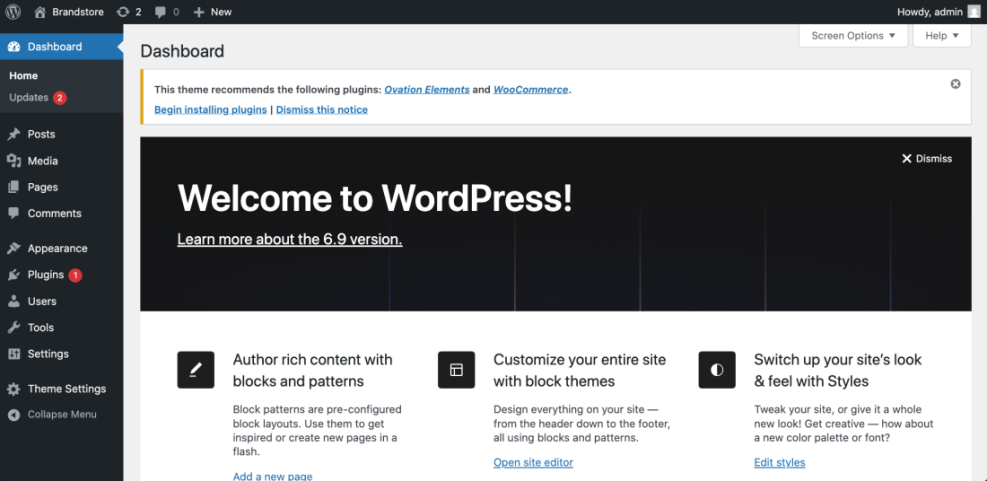
- Wait for the next page to load. When the login works, you will see the WordPress Dashboard with a left hand menu containing items like Posts, Pages, Appearance, and Plugins.
Step 3: Log In to a WordPress.com Site
WordPress.com sites use a central login page. You sign in once at WordPress.com, then choose which site you want to manage. If your site URL ends with .wordpress.com, use this method.
Sign In at WordPress.com
- Open your browser and visit https://wordpress.com/.
- Click the Log In link in the upper right corner.
- On the login form, click inside the Email Address or Username field. Type your WordPress.com email or username, then click Continue.
- Type your WordPress.com Password and click Log In. Complete any extra verification step, such as a code or authentication app, if prompted.
Access Your Site Dashboard
- After login, click My Site at the top left.
- Choose the site you want to manage from the list.
- To reach the classic WP Admin dashboard, scroll down the left menu and click Settings. Look for a link labeled WP Admin or similar, if it is available on your plan.
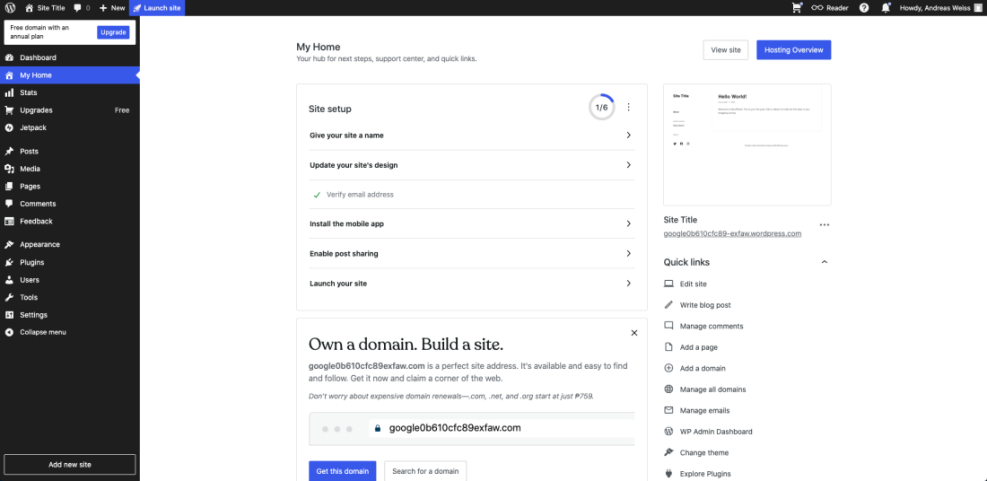
If you need extra help on the hosted platform, open the official support guide on how to log in to WordPress.com and follow the latest instructions.
Step 4: Reset a Lost WordPress Password
If you cannot remember your password, do not keep guessing. Use the password reset link instead. This protects you from lockouts and from security tools that block many failed attempts.
Use the “Lost Your Password?” Link
- On the WordPress login screen, click the Lost your password? link under the Log In button.
- On the reset form, click inside the Username or Email Address field. Type your username or email, then click Get New Password.
- Open your email inbox and look for a message from your WordPress site. The subject will mention a password reset.
Create a New Secure Password
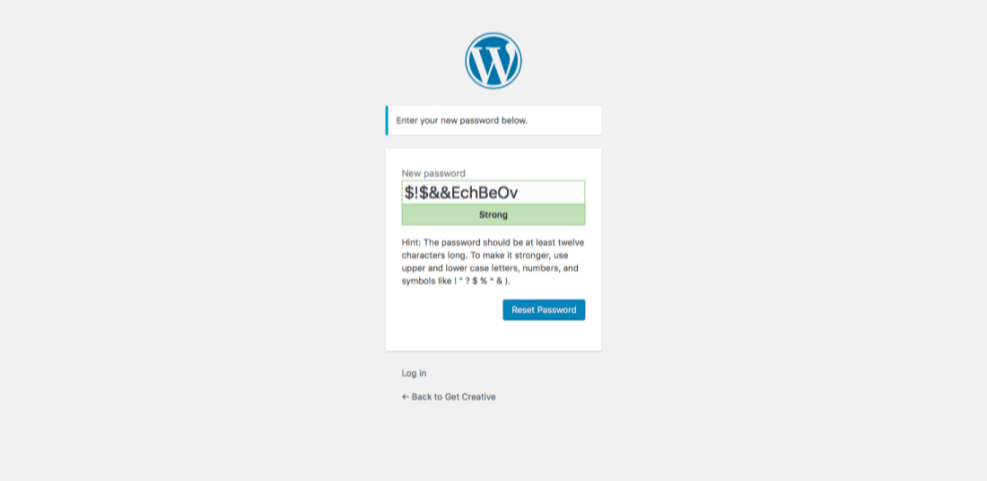
- Open the email and click the password reset link inside the message.
- On the reset page, accept the suggested strong password or type your own. Make sure it is long, unique, and hard to guess.
- Click Save Password or Reset Password.
- Return to your login page. Enter your username or email and your new password, then click Log In.
Step 5: Fix Common WordPress Login Problems
Sometimes you know your details but still cannot reach the dashboard. In that case, move through common causes in a calm and simple order.
1. Incorrect Username or Password
- Make sure Caps Lock is off on your keyboard.
- Retype your username or email slowly. Check for extra spaces or missing letters.
- Paste your password from a password manager instead of typing it by hand.
- If login still fails, repeat the Lost your password? process in Step 4 and set a new password.
2. Blocks from Security Plugins or Your Host
- If you see messages about too many attempts or a blocked IP address, wait ten to fifteen minutes.
- Try logging in again using an Incognito or Private browser window.
- If the block continues, open a support ticket with your hosting provider or security service.
3. Login Page Keeps Refreshing or Redirecting
- Clear your browser Cookies and Cached Images and Files.
- Close the browser and open it again. Then try logging in one more time.
- Test another browser to rule out an extension conflict. For example, switch from Chrome to Firefox.
4. White Screen or Critical Error After Login
- A blank screen or “critical error” often comes from a plugin or theme conflict.
- Log in to your hosting control panel or connect via SFTP.
- Find the wp-content folder and rename the plugins folder to plugins-disabled.
- Try logging in again. If it works, one of the plugins is the cause. You can then rename the folder back and disable plugins one by one from the dashboard.
5. Avoid Risky Changes on a Live Site
- Before making big fixes, create a staging copy if your host offers it.
- Test your login and troubleshooting steps on the staging site first.
- Once you find a fix that works, repeat that change on your live site.
Step 6: Improve Your WordPress Login Security
After you can log in without problems, add a few security layers. These steps make it harder for attackers to break in and help keep your site online.
Use Strong, Unique Passwords
- Create long passwords with a mix of words, numbers, and symbols.
- Never reuse the same password on other sites.
- Store passwords in a reputable password manager instead of in a text file or notebook.
Turn On Two Factor Authentication (2FA)
- Install a security or 2FA plugin that supports login codes.
- Enable 2FA at least for administrator accounts.
- Use an authentication app rather than SMS if possible. Apps are usually more secure.
Limit Access and Monitor Logins
- Limit the number of administrator accounts on your site. Give editors and authors lower roles when possible.
- Remove old or unused accounts so there are fewer targets.
- Use a security plugin that can limit login attempts and send alerts about suspicious activity.
Use HTTPS on Your Login Page
- Ask your host to install an SSL certificate if they have not done so.
- Make sure your login page loads with https:// at the start of the URL.
- Once HTTPS works, you can force secure logins with a simple constant in your configuration file.
define( 'FORCE_SSL_ADMIN', true );
Conclusion: You Are Ready to Log In
You now know how to find the correct WordPress login URL, how to sign in, and how to reset a lost password. You also have a simple checklist for common login errors and basic security.
As you keep working on your site, treat login safety as part of regular maintenance. Use strong passwords, turn on two factor authentication, keep a recent backup, and review your security plugin alerts. With these habits in place, you can log in with confidence and focus on publishing content.
Further Reading
- Step by Step Guide to Secure WordPress Logins
- Secure Your WordPress Login Page
- WordPress Security Basics For Beginners
- How to Log into WordPress Admin
- Complete WordPress Security Checklist
Frequently Asked Questions
What is the default WordPress login URL?
How do I log in if I use WordPress.com?
Why am I stuck in a login redirect loop?
Can I stay logged in on my own computer?
How do I secure my WordPress login?
What if I cannot reset my WordPress password?
Does changing the login URL improve security?