How to Log into WordPress Admin
Step-by-step guide to accessing your WordPress dashboard safely

If you can’t figure out how to log into WordPress Admin, you can’t update pages, publish posts, or install plugins. Many beginners get stuck on the login screen, see an error, or don’t even know which URL to open to reach the dashboard.
In this guide, you’ll learn exactly how to find your WordPress admin login URL, enter your credentials correctly, and confirm that you’re in the right dashboard screen. You’ll also see what to do when you forget your password or something breaks so you can get back in quickly.
If you’re completely new to WordPress and still unsure what it does behind the scenes, you may want to first review what WordPress actually is, then come back here to access your admin area with confidence.
Prerequisites
Before you log into WordPress Admin, make sure you have the basics ready:
- A working WordPress site installed on a domain or temporary URL provided by your host.
- A web browser (Chrome, Firefox, Edge, Safari, etc.).
- Your WordPress admin username or email address.
- Your WordPress admin password.
- Access to the email inbox you used for your WordPress account (for password resets).
Step 1: Find Your WordPress Admin Login URL
The most common way to reach the WordPress admin login page is to add /wp-admin or /wp-login.php to the end of your site’s URL. Open your browser and try the following patterns, replacing example.com with your own domain:
https://example.com/wp-admin
https://example.com/wp-login.php
https://example.com/blog/wp-admin
If WordPress is installed in a subdirectory (for example, /blog or /site), you’ll need to include that folder in the path. So if your blog lives at https://example.com/blog/, your admin login is usually at https://example.com/blog/wp-admin.
For more edge cases, such as custom login pages or security plugins that hide /wp-admin, check the detailed guide on finding your WordPress login URL and confirm how your site is configured.
Step 2: Enter Your Admin Username and Password
On the WordPress login screen, you’ll see fields for Username or Email Address and Password. Type the admin username or email address that was set up when WordPress was installed, then enter your password carefully.
WordPress usernames are not case-sensitive, but passwords are. Double-check Caps Lock, and make sure your keyboard layout is correct. If you use a password manager, copy and paste the password directly into the field to avoid typos.
If you don’t want your browser to keep you logged in on this device, leave the Remember Me box unchecked. For shared or public computers, you should never enable “Remember Me.”
Step 3: Confirm You Are in the WordPress Dashboard
After entering your credentials and clicking Log In, WordPress should redirect you to the admin dashboard, usually at /wp-admin/. You’ll know you’re in the right place when you see:
- The left-hand admin menu with items like Dashboard, Posts, Pages, Appearance, and Plugins.
- The WordPress admin toolbar at the top of the screen with your site name and quick links.
- The “At a Glance” widget summarizing your posts, pages, and comments.
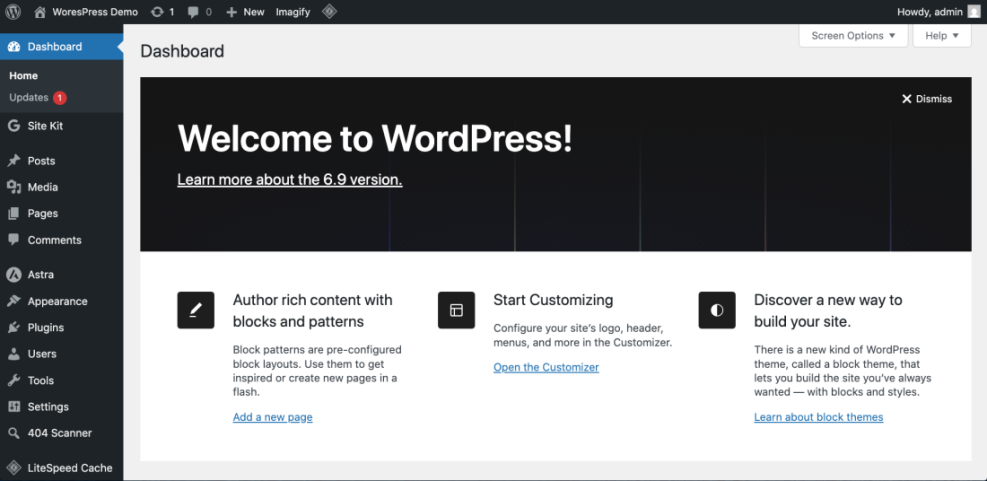
If you see only the front end of your site (how visitors see it), click your site name in the top admin bar (if visible) and choose Dashboard or Site Dashboard to return to the admin area.
Step 4: Improve Your WordPress Admin Login Security
Because the WordPress Admin area controls your entire site, you should protect it as strongly as you can. A weak or reused password makes it easier for attackers to guess or brute-force their way in.
- Use a strong, unique password. Combine upper- and lowercase letters, numbers, and symbols. Avoid dictionary words, personal details, or anything you use on other sites.
- Limit who has admin access. Give other users Editor, Author, or Contributor roles unless they truly need full admin capabilities.
- Enable two-factor authentication (2FA). Use a security plugin that supports 2FA, so logging in requires both a password and a one-time code.
- Install a security plugin. Many plugins can limit login attempts, block malicious IPs, and notify you of suspicious activity.
If you’re ready to take a more complete approach to protecting your login and site, follow the broader checklist in the beginner WordPress security best practices guide and layer multiple defenses together.
Step 5: Fix Common WordPress Admin Login Issues
Sometimes you’ll do everything right and still can’t log into WordPress Admin. Here are common problems and how to troubleshoot them.
“Incorrect password” or “invalid username”
- Confirm you’re using the right login URL for your specific WordPress install.
- Try your email address instead of your username in the first field.
- Click the Lost your password? link on the login screen.
- Enter your username or email, then check your inbox (and spam folder) for the reset link.
If the password reset email doesn’t arrive, your hosting provider may be blocking outbound mail or your address might be misspelled in the user profile. In that case, you may need help from your host or to reset the password directly in the database (phpMyAdmin) or via SEO and UX, and where you will see it in daily work.”>WP-CLI.
Redirect loop or white screen after login
Sometimes a plugin or theme conflict causes a blank screen, endless redirect, or “too many redirects” error after logging in.
- Use your hosting control panel or FTP to temporarily rename the
pluginsfolder in/wp-content/(for example, toplugins-disabled). - Try logging in again. If you can now access the dashboard, a plugin was causing the issue.
- Rename the folder back to
plugins, then reactivate plugins one by one inside the dashboard to identify the culprit.
Locked out by a security plugin
Security plugins can block you after too many failed login attempts or if they detect suspicious behavior.
- Wait for the lockout period to expire, then try again with the correct credentials.
- Or, disable the security plugin temporarily via FTP (by renaming its folder in
/wp-content/plugins/), log in, adjust its settings, and then re-enable it.
Stay Confident Logging into WordPress Admin
Once you know your correct login URL and keep your admin credentials safe, getting into WordPress Admin becomes a quick, simple habit instead of a stressful guessing game. From there, you can manage content, install plugins, and configure your site exactly how you want.
Use this guide as your reference any time you move hosts, change domains, or run into login errors. Combine clear access steps with strong security practices and you’ll stay in full control of your WordPress website.
Further Reading
- How to Protect Your WordPress Admin Area Using .htaccess
- How Do You Change Your WordPress Password?
- How to Change WordPress Username
- How to Login to WordPress
Frequently Asked Questions
What is the difference between the WordPress login and the WordPress admin login?
/wp-login.php or /wp-admin is how you authenticate yourself. After logging in, WordPress sends you to the admin dashboard if your user role has access to it (Administrator, Editor, etc.). Regular users on membership or e-commerce sites may log in but be redirected to a profile or account page instead of the full admin area. I keep getting an “invalid username” error when logging into WordPress Admin. What should I check first?
I forgot my WordPress admin password and the reset email never arrives. How can I get back into the dashboard?
wp_users table, or use WP-CLI if your host provides it. When you regain access, update your email settings and test that WordPress can send emails properly so you’re not locked out again. What are the best practices to keep my WordPress Admin login safe?
Is it okay to stay logged into WordPress Admin all the time?