How to log in to WordPress is the first skill you need to access your website dashboard safely. If you are not sure where to click or which URL to use, it can feel like WordPress is hidden behind a locked door.
In this guide, you will learn step by step how to find your WordPress login page, enter your details correctly, and reach your admin area every time.
By the end, you will know how to log in to WordPress from any device, how to reset a forgotten password, and how to add basic security so attackers cannot easily guess their way into the site.
What You Need to Start
Before you begin, make sure you have everything you need so the WordPress login process goes smoothly.
- A working WordPress site on your own domain or subdomain.
- Your WordPress admin username or email address.
- Your WordPress password or access to the admin email inbox for password resets.
- Access to your hosting control panel or support team in case you cannot log in.
- A modern web browser such as Chrome, Firefox, Edge, or Safari.
Step 1: Find Your WordPress Login URL
The most common problem when you are learning how to log in to WordPress is not knowing which URL to use. WordPress uses predictable login addresses, so once you learn them, you can reach your login screen quickly.
- Open your browser and type your site address, for example https://example.com, then press Enter.
- Click inside the address bar, move your cursor to the end of the URL, type /wp-admin so it becomes https://example.com/wp-admin, and press Enter.
- If you see an error page, replace /wp-admin with /wp-login.php and press Enter again.
- If WordPress is installed in a folder, add the folder name before /wp-admin, for example https://example.com/blog/wp-admin, then press Enter.
- If WordPress is installed on a subdomain, use that address instead, for example https://store.example.com/wp-admin, then press Enter.
The page should now show the WordPress login form with fields for your username or email and password.
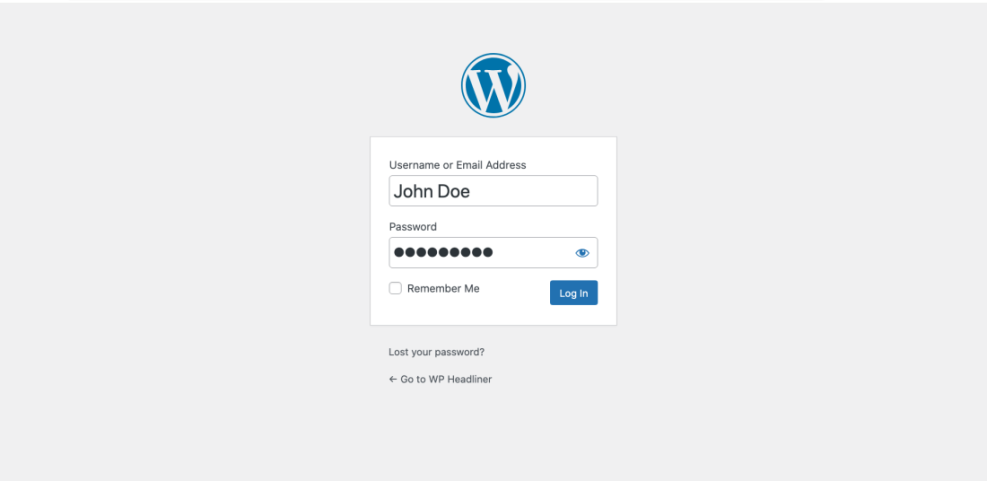 The standard WordPress login screen where users enter their credentials to access the site’s administration area.
How to verify success You have found the correct login URL if the page shows a login form, not a 404 error, a generic hosting page, or your normal homepage.
Step 2: Confirm You Are on the Real Login Page
Before entering any password, confirm that you are on the genuine and secure WordPress login page. This prevents phishing and keeps your admin account safe.
- Check that the domain in the address bar exactly matches your site, such as example.com, without extra words, hyphens, or strange spellings.
- Confirm the URL starts with https:// and shows a padlock icon in the browser, which means SSL is active.
- Look for the WordPress logo or your custom site logo above the login form and the labels Username or Email Address and Password.
Only continue if everything matches your real site and you see a secure connection.
Once you have confirmed you are on the real, secure login screen, you are ready to continue with the next steps of how to log in to WordPress without risking your password.
How to verify success You are safe to continue if the padlock is present, the URL is correct, and the page layout matches your site style or the default WordPress login design.
Step 3: Enter Your WordPress Login Details
Now that you have the correct login page, you can enter your WordPress login details and complete the basic steps of how to log in to WordPress safely.
- Click inside the Username or Email Address field and type the admin username you created during installation or the admin email address.
- Click in the Password field and type your password carefully. Remember that passwords are case sensitive.
- If you are on a private computer and want to stay signed in longer, click the checkbox Remember Me.
- Click the Log In button to submit your details.
The page should briefly reload and then redirect you to the WordPress dashboard if your details are correct.
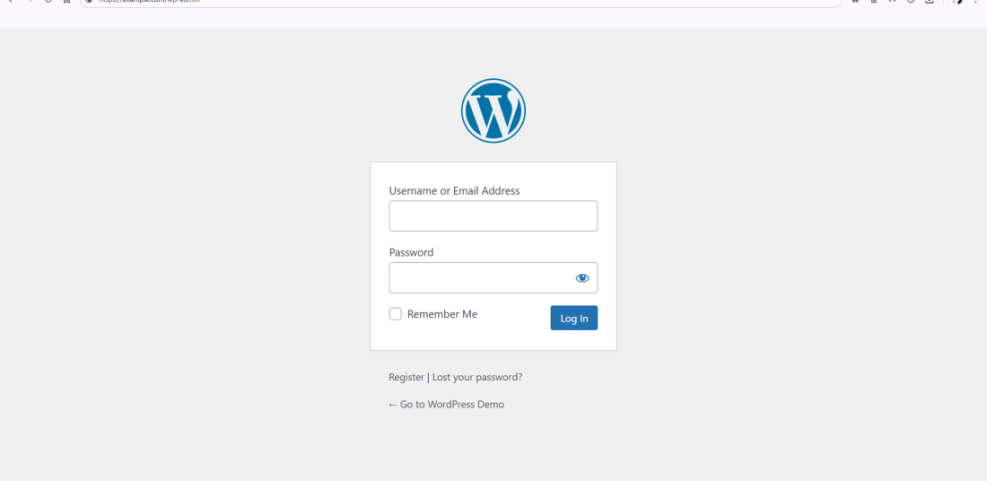
How to verify success If you see the WordPress admin bar at the top of the screen and the Dashboard menu on the left, your login has worked.
Step 4: Reset Your WordPress Password if You Cannot Log In
If WordPress says your password is incorrect or you can not remember it, use the built in password reset link to regain access.
- On the login page, click the Lost your password link below the Log In button.
- On the next screen, click inside the field labeled Username or Email Address and type your admin username or the email address connected to your account.
- Click Get New Password.
- Open your email inbox and look for the password reset message from WordPress. If you do not see it, check your spam or junk folder.
- Click the reset link in the email. On the reset page, type a new strong password or use the generated one, then click Save Password.
- Return to the login page and sign in with your username or email and the new password.
WordPress will now use your new password for all future logins.

How to verify success You should receive a confirmation message that your password was reset and be able to log in with the new password immediately.
Theme Installation Methods for Installing a WordPress Theme
There is more than one way to install WordPress theme files, and each method fits slightly different situations. The table below compares the main methods so you can quickly choose the one that feels easiest and safest for your site.
| Method | Where You Use It | Main Purpose |
|---|---|---|
| Search and Install from Dashboard | Appearance » Themes » Add New | Quickly install free themes from the official WordPress.org directory. |
| Upload Theme Zip | Appearance » Themes » Add New » Upload Theme | Install premium or custom themes you downloaded as a .zip file. |
| Manual Upload (SFTP / File Manager) | Hosting File Manager or SFTP client | Install large themes or fix uploads that fail due to server limits. |
| WP CLI | SSH terminal with WP CLI installed | Scriptable, fast theme installs for developers and power users. |
Step 5: Verify Access to the WordPress Dashboard
Once you have logged in, confirm that you have the correct level of access and that your account is working as expected.
- Look at the top of the screen for the black WordPress admin bar and make sure you see links such as My Sites, New, and your username.
- Check the left side menu for options like Posts, Pages, Appearance, and Plugins. These indicate admin or editor access.
- Click Posts » Add New to confirm you can create content, then close the editor without publishing if you are just testing.
- When finished, hover over your username in the top right of the admin bar and click Log Out to test the logout process.
- Use your login URL again and sign back in to confirm you can repeat the login steps any time.
This quick test shows that your account works normally and that you can safely log out and log back in when needed.
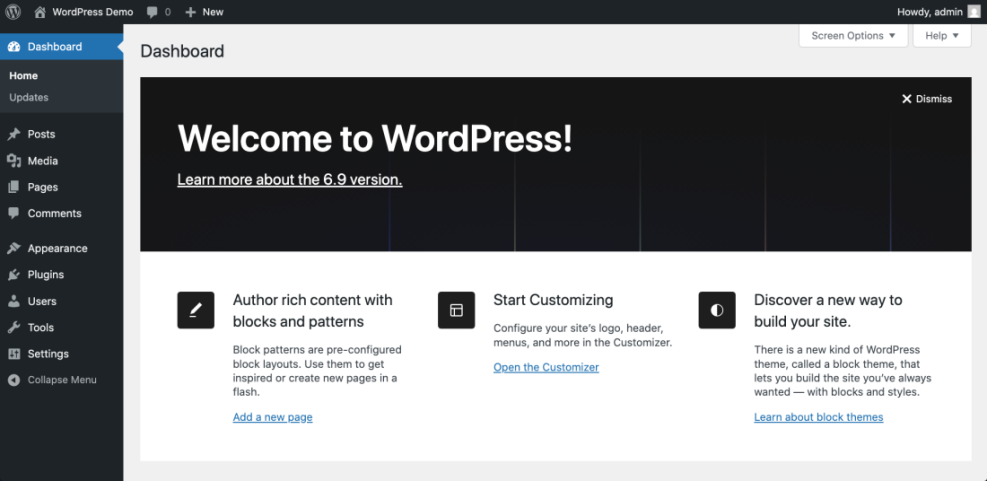
How to verify success You have full access if you can reach the dashboard, open the add new post screen, and log out and back in without errors.
Step 6: Secure Your WordPress Login
After you have mastered how to log in to WordPress reliably, the next priority is to protect your WordPress login from attackers using stolen passwords or brute force guesses.
- From the dashboard, navigate to Users » Profile and scroll to the password section.
- Click Generate Password to create a strong new password, or type your own long, unique password, then click Update Profile.
- Install a reputable security plugin from Plugins » Add New that supports two factor authentication and login protection.
- Follow the plugin’s setup wizard to enable two factor authentication on your admin account so each login requires a code from your phone in addition to your password.
- Enable basic brute force protection and limit login attempts inside your security plugin settings.
These steps make it far harder for attackers to break into your site, even if they somehow learn your password.
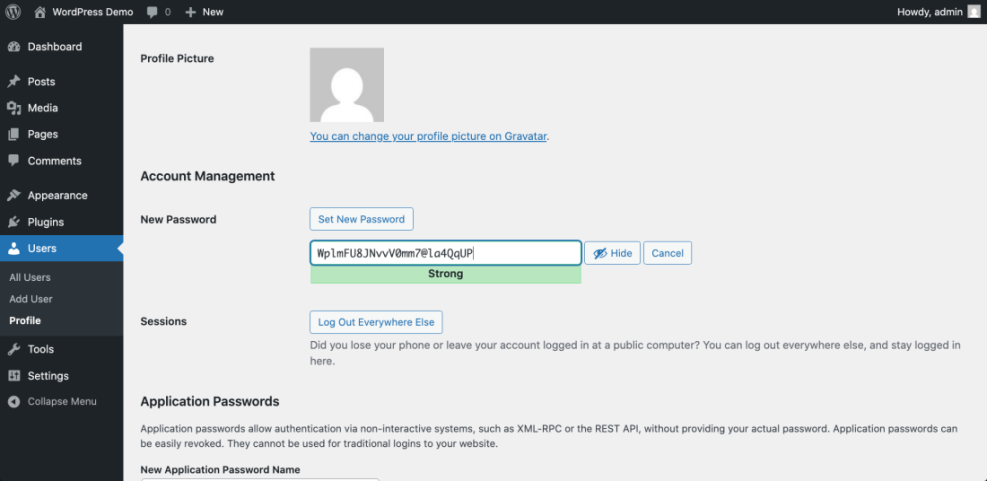
How to verify success You know your login is more secure when WordPress prompts for a two factor code after you enter your password and when your security plugin shows login protection as active.
Step 7: Fix Common WordPress Login Problems
Sometimes you may still see errors when you try to log in. Learning basic troubleshooting steps will help you quickly restore access or know what to ask your host when you are struggling with how to log in to WordPress without errors.
- If the page reloads with a blank login form and no error, clear your browser cache and cookies, then try the login URL again.
- If you see an error saying your session has expired, make sure your device date and time are correct and try again.
- If you get an error like Too many redirects, temporarily disable caching or security plugins from your hosting control panel or a staging site and test the login.
- If you see a white screen or a fatal error instead of the login form, contact your host or use FTP or the file manager to temporarily rename the plugins folder to plugins-old, then try loading /wp-admin again.
- If the password reset email never arrives, check your spam folder and verify that your domain email is working correctly. You may need to configure SMTP for reliable email delivery.
- When nothing works, open a support ticket with your hosting provider and include screenshots of the error messages and the URL you are visiting.
Most login problems come from browser cache, plugin conflicts, or email delivery issues, all of which can be fixed without rebuilding your site.
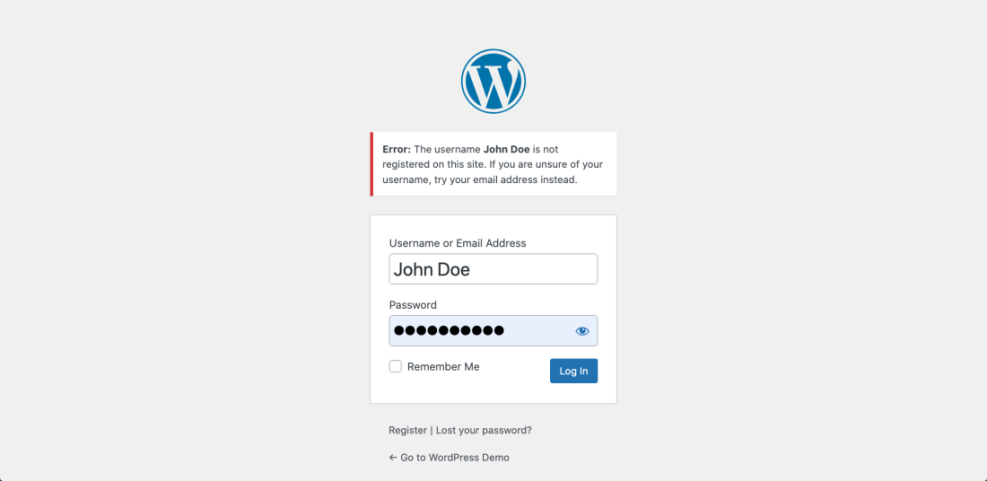
How to verify success You have resolved the issue when you can reach the login form at your usual URL and log in without repeated error messages.
Conclusion You Are Ready to Go
You have learned how to log in to WordPress the right way: how to find your WordPress login URL, confirm you are on the real and secure login page, enter your details correctly, and reset your password when needed.
With these skills, you can confidently log in to WordPress from any device, keep your admin account much safer from attacks and simple mistakes, and focus on creating content instead of fighting with the login page.
Further Reading
- How to integrate WordPress into website
- How to protect your WordPress admin area using
- WordPress seo complete beginners guide
- How do i secure my WordPress downloads
- Common WordPress backup errors and how to fix
Frequently Asked Questions
What is the default WordPress login URL
Is WordPress login the same as my hosting login
Can I log in to WordPress with my email address
What should I do if the password reset email never arrives
How can I make WordPress login more secure
Why does WordPress keep logging me out
Can I change the WordPress login URL